Turn a lead into a project
Step by step in Company CRM: triage a website inquiry, convert it to a contact and opportunity, work it to Won, then review it into a new project without losing its history.
Partly in the app today. Items marked Planned are not built yet.
On this page
This guide takes one pursuit from first contact to a live project in Company CRM. The CRM guide is the reference for every screen. This page gives you the order to do things in and the decisions along the way.
- Who
- Whoever owns business development, plus a company admin for the last step
- Where
- Company CRM: /companies/{company}/crm
- Connects to
- Analytics CRM packProject setup
Who can do what
| Step | Access you need |
|---|---|
| Read the inquiry queue and pipeline | Company CRM Read only or higher |
| Triage, convert, edit opportunities, move board cards | Company CRM Standard |
| Create inquiry forms, create a project from a Won opportunity | Company admin |
Company admins set each member’s level under Company admin → Members → Company CRM access. A project CRM permission does not give access to company intake, and the reverse is also true. See Roles and permissions.
The path at a glance
Website inquiry → triage → Convert to contact and opportunity → Qualification → Site visit → Estimating → Proposal → Negotiation → Won → Review new project → project.
Some leads arrive by phone or a referral instead of the form. Skip to step 3 and choose New opportunity or New contact on CRM Home.
Step by step
-
Triage the inquiry
Open Inquiries (titled Website inquiries). Use the queues under new: Unassigned, Assigned to me, Response overdue and Needs reassignment. Open a submission. Under Assign and plan, pick a Reviewer, a Priority (Low, Normal, High) and an Internal response target, then choose Save triage.
The submitted name, company and description are what the visitor typed, so the page marks them unverified. Call or email the person outside the app, then use Record customer contact to log the channel, time and what you discussed.
-
Convert it, or dismiss it
Under Review decision, choose Convert to contact and opportunity. If an existing contact has the exact same email, the page lists it and asks you to confirm you reviewed it. You can rename the opportunity. Choose Create contact and opportunity.
Conversion creates two linked records: a contact with relationship Lead, owned by the reviewer, and an opportunity at Qualification with source Website. The scope is pre-filled from the project type, location, start date and description on the form. It never merges into an existing contact.
Not a fit? Choose Dismiss inquiry and give a reason. The reason stays on the record.
-
Fill in the opportunity
Open the new opportunity and choose Edit opportunity. Set Estimated value (USD), Win probability (%), Expected close date and the Opportunity owner. Check the Opportunity source category. It drives the “where do wins come from” table in Analytics.
-
Work it through the stages
Open Pipeline, then Board. Drag the card to the next column, or use its ← and → buttons. The stages are Qualification, Site Visit, Estimating, Proposal, Negotiation, Won and Lost. Each move is recorded in the opportunity’s forecast history with value, probability and close date.
When the number or date moves, use Edit opportunity instead and add a Change note (“Owner cut scope to two floors”). The note shows in forecast history, so next month’s review can see why the forecast changed.
Log the next step as a follow-up (Schedule a follow-up, with a type, owner and due date). It then shows in My open follow-ups and, once late, My overdue follow-ups.
-
Mark it Won
Choose Edit opportunity, set Stage to Won and save. Win probability becomes 100%. Saving Won does nothing else: no project, no contract, no budget.
-
Review it into a new project (company admin)
On the Won opportunity, the Ready for project setup card offers Review new project. The review page lists the contact, every opportunity linked to that contact with its stage and value, and every activity that will move.
Check the suggested Project name (the opportunity title) and Project description (the scope). Add a Project number if you use one. Tick the box approving the complete group, then choose Create project and move records.
-
Set up the job
Project handoff complete links to the new project and to the opportunity inside it. The contact, opportunities, activities and their history now live in the project’s CRM tool, with the same IDs. Next, set up the project’s cost codes, team and prime contract, the same as for any project.
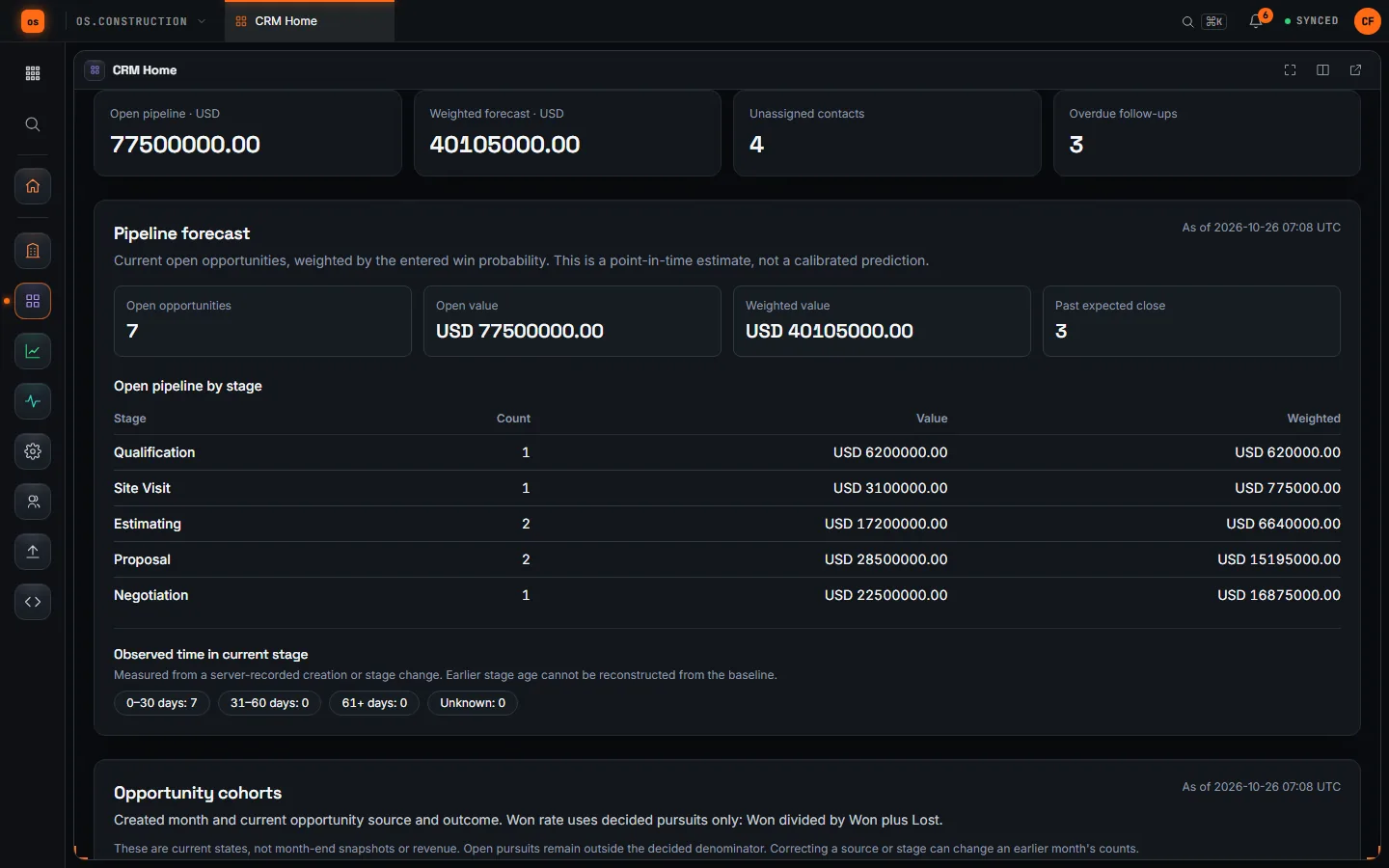
Worked example
Illustrative. A facilities director fills in your inquiry form for a 6,000 sq ft dental office fit-out.
| Day | What happens in the app | Who |
|---|---|---|
| Mon | Inquiry lands in Unassigned. Assigned to Dana, priority High, response target Tuesday noon. | Intake lead |
| Mon | Dana calls and logs it under Record customer contact. Converts the inquiry: contact Lead, opportunity Harbor Point dental fit-out at Qualification. | Dana (Standard) |
| Week 2 | Value $425,000, probability 20%, close in 8 weeks. Site visit logged as a follow-up, then the card moves to Site Visit. | Dana |
| Week 5 | Proposal sent; card moved to Proposal; probability raised to 50% with the change note “Owner shortlisted us and one other GC”. | Dana |
| Week 9 | Contract signed. Stage set to Won (probability 100%). | Dana |
| Week 9 | Admin opens Review new project: one contact, one opportunity, four activities. Names the project “24-131 Harbor Point Dental” and creates it. | Company admin |
The weighted forecast tile counted this job at $85,000 (20%) in week 2 and $212,500 (50%) in week 5. See Weighted pipeline.
Attach to an existing project instead
If the project already exists (a second phase, say), open the contact and choose Attach to project, or Review project handoff on an opportunity with no contact. Pick the destination project, check the counts and confirm. This works at any stage and needs Standard intake access plus CRM create and edit permission on the destination. It does not create a project.
Common mistakes
Mistake: Creating the project while the contact has other open pursuits
In the app: Every opportunity linked to the contact moves with it. The review page lists them all and warns when there is more than one. If they belong on different jobs, stop and sort them out first.
Mistake: Treating the Won amount as the contract value
In the app: The CRM amount is a pipeline estimate. Nothing is copied into the budget or prime contract; enter those in the project.
Mistake: Letting inquiries sit because nobody was told
In the app: New inquiries do not send an email or in-app alert. Check the Response overdue queue daily, or subscribe a system to the crm.lead_inquiry.created webhook.
Mistake: Changing value or close date by dragging only
In the app: Dragging records the stage. Use Edit opportunity with a Change note when the number or date moves, so the forecast history explains itself.
Mistake: Expecting an undo after the handoff
In the app: There is no undo in this preview. The review checkbox and the record list are the safeguard.
Before you choose Create project and move records
- The opportunity is Won, and you are a company admin
- Every opportunity on the review list belongs on this one project
- Activity owners are people who will be on the new project team
- Project name and number follow your numbering convention
- You know who will set up the budget and prime contract next
Terms on this page
Weighted pipeline · Win rate · Lead conversion rate · Sales cycle · Pipeline value
Next steps
- See the whole flow drawn out: From CRM lead to active project.
- Bring your existing contact book in: Import your contacts from another CRM.
- Watch the pipeline as a whole: the CRM & Pipeline pack.
Keep exploring
Related across os.construction
- DocsAnalytics BI guideGet started with Analytics, build a dashboard from the metric catalog, read the CRM & Pipeline pack, share and schedule results, and understand exactly which rows each person sees.
- GlossaryPipeline ValueThe total estimated value of every open pursuit: work you're chasing that hasn't been won or lost yet.
- BlogWin rate, weighted pipeline, sales cycle: the pipeline numbers a contractor should watchA big pipeline number feels good and tells you little. Six pipeline metrics, how to calculate each one honestly, the mistakes that inflate them, and how they connect to backlog.
- DocsConstruction CRMThe CRM module, app by app. Pipeline, contacts, follow-ups, website inquiries, organizations and people, inquiry forms, import and export, then the project handoff, proposals, service and warranty.
- GlossaryLead Conversion RateThe share of incoming inquiries that become real pursuits: inquiries converted to an opportunity divided by inquiries received.
- BlogWhy your CRM and your BI should share the job's data coreMost contractors run the pipeline in one system, the jobs in another and the dashboards in a third, then argue about whose number is right. When the pursuit, the project and the report read the same records, the arguments get shorter and the answers get better.
Was this helpful?
Run it on your own project.
Start a 14-day free trial. Want a say in what ships next? Join the founding program.
14-day free trial. Pricing for paid plans isn't set yet. Talk to us. Already have an account? Sign in →