Payment applications: G702/G703 progress billing
Create a pay app against a prime contract, subcontract or purchase order. Enter this period's progress on the G703, check the G702, then submit and approve.
On this page
The Payment Applications tool builds the monthly progress bill in the AIA G702/G703 layout. Lines come from the contract’s schedule of values, executed change orders are added for you, and retainage is calculated per line. Open it from the project’s Project Tools menu, under Financials. For how progress billing works in general, read Pay apps, SOV and retainage first.
A pay app built in a spreadsheet is a copy: of the contract, of the change order log, of last month’s numbers. Every copy is a chance to be wrong, and a wrong pay app comes back unpaid. In os.construction the pay app reads the contract, its schedule of values and its executed change orders directly, and does the G702 arithmetic itself. What’s left for you is the part only you know: how much work was done this period.
- Who uses it
- PMs and project accountants who bill the owner; subs billing the GC; the people who review and approve.
- When
- Every billing period, usually monthly, from the first pay app to final retainage release.
- What it holds
- Contract and period, the G703 lines with this period and stored materials, retainage on work and materials, and the G702 summary.
How a pay app moves
| Status | Next | Button |
|---|---|---|
| Draft | Submitted | Submit |
| Submitted | Approved, Rejected, back to Draft | Approve, Reject, Return to Draft |
| Rejected | Draft | Revise & Resubmit |
| Approved | Paid, back to Submitted | Mark Paid, Revert Approval |
| Any but Void | Void | Void |
Submit, return to draft and Mark Paid need edit permission; Approve, Reject, Revert Approval and Void need admin permission.
A worked example: Riverside Pay App #9
Here’s the G702 for the Riverside Medical Center sample job, the same numbers used across our explainers and calculators. It’s fictional sample data, with 10% retainage on the prime contract.
| G702 line | Amount |
|---|---|
| 1. Original contract sum | $48,200,000 |
| 2. Net change by change orders (COs #1–14, all executed) | $1,100,000 |
| 3. Contract sum to date | $49,300,000 |
| 4. Total completed and stored to date | $33,000,000 |
| 5. Retainage (10%) | $3,300,000 |
| 6. Total earned less retainage | $29,700,000 |
| 7. Less previous certificates for payment | $27,620,640 |
| 8. Current payment due | $2,079,360 |
| 9. Balance to finish, including retainage | $19,600,000 |
This period’s work and stored materials total $2,310,400. Less 10% retainage ($231,040), that’s the $2,079,360 due. CO #14 ($86,400, fire dampers from RFI-212) is in line 2 because it’s executed; in the app it’s added to line 2 without anyone typing it.
Show the data as a table
| Item | Previous certificates | Current payment due | Retainage held | Balance to finish | Total |
|---|---|---|---|---|---|
| Contract sum to date | $27,620,640 | $2,079,360 | $3,300,000 | $16,300,000 | $49,300,000 |
| This period | $0 | $2,079,360 | $231,040 | $0 | $2,310,400 |
The first bar is the whole contract: what’s been certified before, what’s due now, what’s held as retainage, and what’s left to build. The second is this month alone. The two together are why retainage matters to cash: $3.3M of earned money sits in the yellow segment until closeout. See Closeout and retainage release.
How teams use it
At month end, the PM creates Pay App #9 against the prime contract. The SOV lines are already there from the contract, and the From Previous column is already filled from Pay App #8. She types This Period and Materials Stored for each line that moved; the totals and the G702 update as she types.
The change order the owner signed last week is executed, so it’s on line 2. She checks the G702 tiles against the payment she expected, then clicks Submit.
A mechanical sub bills the GC. The GC’s team creates the pay app against the sub’s subcontract, so the lines come from the commitment’s schedule of values, not a spreadsheet the sub emailed. Each line is reviewed against what the commitment says.
If the numbers are wrong, the reviewer clicks Reject; the pay app goes back with Revise & Resubmit and its lines can be edited again.
The owner’s project manager reviews a GC pay app that ties to the contract. Line 1 is the contract sum, line 2 is only executed change orders, and retainage is calculated per line with separate work and materials rates when the contract calls for it.
Approval needs admin permission on Payment Applications, so only the people who can certify a payment can approve one.
Create a pay app
-
Click + Create
You need create permission on Payment Applications.
-
Contract & Period
Pick the Contract: a prime contract, a subcontract or a purchase order you can see. The schedule of values is filled in from that contract. Enter Period Start, Period End and Billing Date, and the default Retainage %.
-
Retainage
Optionally set Work Retainage % and Materials Retainage % separately (each falls back to Retainage %), and any Retainage Released back this period.
-
Invoice
Application # is auto-numbered if left blank. Add an Invoice # and Description, then Create Payment Application.
Enter this period’s progress (G703)
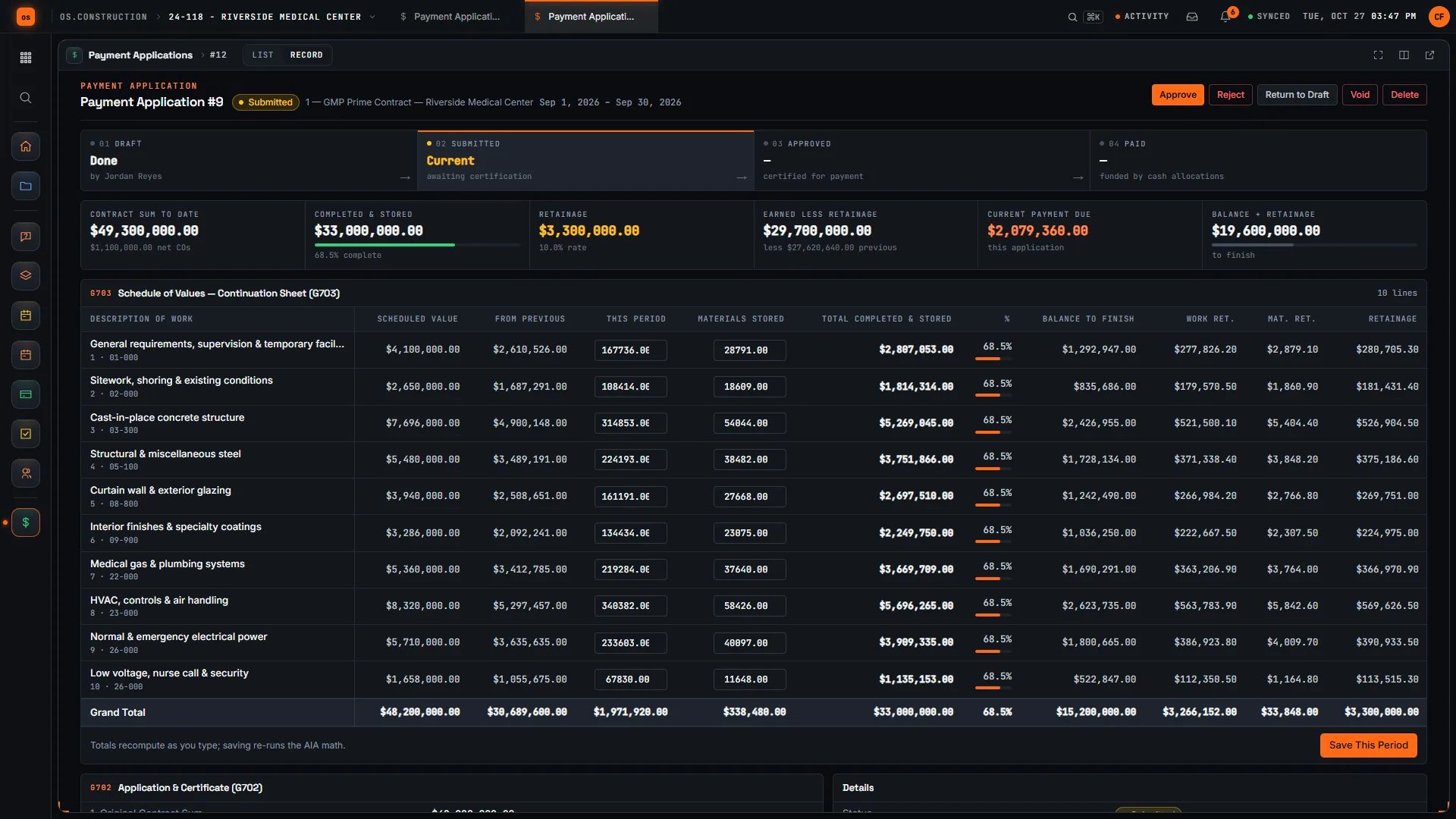
The Schedule of Values — Continuation Sheet (G703) has one row per line: Description of Work, Scheduled Value, From Previous, This Period, Materials Stored, Total Completed & Stored, %, Balance to Finish, Work Ret., Mat. Ret. and Retainage, with a Grand Total.
Type This Period and Materials Stored for each line; totals update as you type. Materials Stored is what is on hand and not yet installed, to date. A new pay app carries the previous app’s stored materials forward in Materials Stored, not in From Previous, so they keep the materials retainage rate. When stored material is installed, add it to This Period and lower Materials Stored by the same amount; it then takes the work retainage rate, and the install itself is not new billing. Lowering Materials Stored by more than the work added this period is refused. Click Save This Period. You can edit lines while the pay app is Draft, Submitted or Rejected.
Check the summary (G702)
The Application & Certificate (G702) panel calculates:
- Original Contract Sum
- Net Change by Change Orders: executed change orders on the contract, added automatically
- Contract Sum to Date
- Completed & Stored to Date
- Retainage on work and on materials, and the total
- Total Earned Less Retainage
- Less Previous Certificates, plus retainage released
- Current Payment Due
- Balance to Finish + Retainage
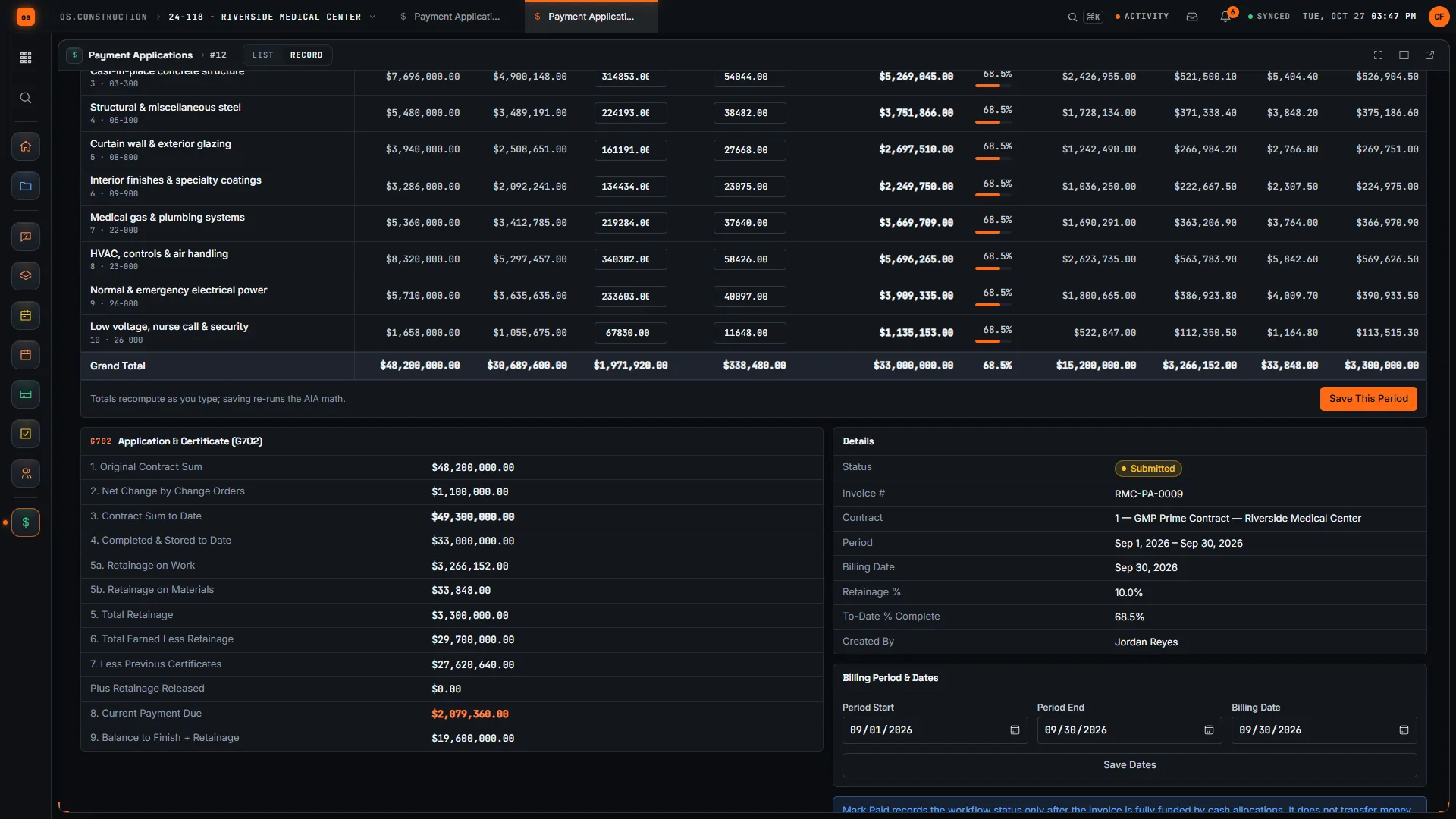
The same numbers show as tiles at the top of the pay app. Try the arithmetic yourself with the retainage calculator or the anatomy of a pay app.
The pay app list
A pipeline across the top shows Draft, Submitted, Approved, Paid and Rejected/void. Tiles total the contract sum to date, completed and stored, retainage held, balance to finish, awaiting approval and paid. The list shows #, Contract, Period, Status, This Period Due and To-Date %, with a status filter, search and saved views.
Common mistakes
Mistake: Billing a change order the owner hasn't signed
In the app: Line 2 includes executed change orders only, added automatically. A pending change can't slip onto the bill.
Mistake: Retyping the SOV every month and drifting from the contract
In the app: The G703 lines come from the contract's schedule of values, and From Previous comes from the earlier pay apps.
Mistake: One retainage rate where the contract has two
In the app: Work Retainage % and Materials Retainage % are set separately, and retainage is calculated per line.
Mistake: A math error in the G702
In the app: The G702 is calculated from the lines, and totals update as you type.
Mistake: Marking a pay app paid before the money arrived
In the app: Mark Paid only works once Cash Ledger entries fully fund the pay app.
Mistake: Quietly changing an approved pay app
In the app: Lines are editable in Draft, Submitted or Rejected only. Changing an approved one means reverting the approval, which needs admin permission.
Checklist: before you submit
Pay app ready to submit
- The period start, end and billing date match the contract’s billing cycle.
- Every executed change order you expect is on line 2, and nothing else.
- This Period on each line matches the work in place, not the money you need.
- Stored materials are on the Materials Stored column, with the documentation your contract asks for.
- Work and materials retainage rates match the contract, including any reduction.
- Any retainage released this period is entered.
- Line 8 matches the payment you expected before you started.
- Lien waivers and any notarization are handled the way your contract requires, outside the app.
What it connects to
- Contracts and commitments: a pay app is against a prime contract, subcontract or purchase order, and reads its schedule of values. See Commitments.
- Change orders: executed change orders on that contract are on line 2. See Change orders.
- Cash Ledger: cash entries allocated to approved invoices fund the pay app before it can be marked Paid.
- Retainage and closeout: retainage held and released follows the job to closeout. See Closeout and retainage release.
What it doesn’t do today
- No print or export of the G702/G703. They’re on screen in the pay app.
- Lien waivers and a signed, notarized form are outside the app for now. See Lien waiver tracking.
- No accounting entries. Company Accounting provides GL, AP and AR workflows separately. This project pay app and cash ledger do not automatically create accounting entries.
- No money movement. Mark Paid records a status; the Cash Ledger records cash, it doesn’t transfer it.
- You don’t choose which change orders to include. Line 2 is every executed change order on the contract.
FAQ
Can I print or export the G702/G703? Not today. The G702 and G703 are on screen in the pay app. Lien waivers and a signed, notarized form are outside the app for now.
Do I pick which change orders to include? No. Executed change orders on the contract are included in line 2 automatically. See Change orders.
Can I hold different retainage on materials? Yes: set Materials Retainage % separately from Work Retainage %.
Is AP or the general ledger updated? Company Accounting provides GL, AP and AR workflows separately. This project pay app and cash ledger do not automatically create accounting entries.
Can I edit a pay app after submitting it? Yes, while it’s Submitted or Rejected. Once it’s approved, revert the approval first (admin permission).
Can I bill a subcontractor’s work through this tool? Yes. Create the pay app against the subcontract or purchase order; its schedule of values fills the lines.
What’s the difference between percent billed and percent complete? The pay app’s To-Date % is billed against the contract. Cost-to-cost percent complete, used for WIP and revenue, is a different number. See WIP and over/under billing.
Templates and explainers
- Schedule of values starter (CSV) to set up lines before they go on the contract
- Subcontractor pay app checklist for reviewing sub billing
- Retainage tracker (CSV)
- Anatomy of a pay app: Riverside Pay App #9, line by line
Related
Keep exploring
Related across os.construction
- ExplainerAnatomy of a pay app (AIA G702/G703)A scroll-driven walkthrough of an AIA G702/G703 pay app built line by line: schedule of values, percent complete, stored materials, retainage and payment due.
- GlossaryPay Application (Pay App)A contractor's periodic, itemized request for payment based on work completed and materials stored against the schedule of values.
- GlossaryAIA G703The AIA Continuation Sheet: the line-by-line detail of a pay application, showing progress and retainage for each schedule of values item.
- DocsPay apps, SOV and retainageHow progress billing works with a schedule of values, AIA G702/G703 and retainage, worked through Pay App
- DocsProject progress billing and accountingUnderstand the boundary between project payment applications and company AR.
- ExplainerYour owner pay application review, line by lineReview Riverside Pay App #9 the way your owner will: G703 lines, stored materials, retainage and the G702 math, before you submit it.
Was this helpful?
Run it on your own project.
Start a 14-day free trial. Want a say in what ships next? Join the founding program.
14-day free trial. Pricing for paid plans isn't set yet. Talk to us. Already have an account? Sign in →