Inspections: checklists, sign-off and recurrence
Build an inspection checklist template, run inspections against it with pass, fail and N/A responses, follow up on failures, sign and close.
On this page
The Inspections tool runs checklists: pre-pour, framing, MEP rough-in, fire stopping, daily equipment checks. You build a checklist once as a template, then run it as many times as you need, recording a response for each item and signing it off. Open it from the project’s Project Tools menu.
A paper checklist records that someone walked the work. It rarely records what happened to the items that failed. In os.construction a failed item can require an observation and a photo before the inspection can be completed, and the observation carries the failure to someone who fixes it. The signed inspection and the fix are linked records, not a clipboard and a memory.
- Who uses it
- QA/QC managers and supers who inspect; trades whose work is checked; owners and commissioning agents who review the record.
- When
- Before concrete, before cover-up, at each turnover, and on a daily, weekly or monthly cycle for equipment and site checks.
- What it holds
- A template's sections and items, a response per item, comments, photos, linked observations, signatures, schedule and recurrence.
- Connects to
- ObservationsPunch listDaily log
How an inspection moves
An inspection is Open, In Review or Closed. Put In Review, Complete Inspection and Reopen are for the inspection’s creator or an admin with edit access. Others with edit access can answer items; read-only users can view.
How teams use it
The QA manager builds a pre-pour template once. Sections for formwork, reinforcing, embeds and MEP sleeves, and a pass/fail item for each check the specs care about. On the items where a failure has to be fixed before the pour (missing chairs, wrong bar size), she checks Require observation on fail and Require photo on fail.
On pour day the super runs the template for the L2 deck. Two items fail. For each, Create Observation assigns the fix to the rebar sub and Attach Photo adds the evidence. The app won’t let him complete the inspection until both failures are documented. He signs it, the QA manager completes it, and the observations track the fixes.
The electrical foreman knows the MEP rough-in checklist before the inspector arrives, because it’s the project’s template, not whatever the inspector remembers that day. His crew checks their own work against the same items.
When an item fails, it arrives as an observation assigned to his company, with a location, a photo and a due date. He fixes it and responds in the observation’s log, so the record shows the failure and the fix side by side.
The owner’s commissioning agent reviews the quality record at turnover. Every inspection is signed, numbered and dated, with the count of Conforming and Deficient items on the list. Every deficient item links to the observation that tracked its fix.
Signed inspections can’t be edited, and reopening one deletes its signatures, so what the owner reviews is what was signed.
Build a checklist template
-
Open the Templates tab and click + New Template
Enter Template Name (required), Trade, Default Recurrence and Description.
-
Add sections and items
Use + Add section for each part of the inspection and + Add item for each check. Choose each item’s Response type: Pass / Fail, Yes / No, Text or Number.
-
Decide what a failure needs
Check Require observation on fail or Require photo on fail on items where a failure must be documented before the inspection can be completed.
Templates belong to the project. From a template you can start a New Inspection, or Edit or Delete it.
A good template is short and specific. Twenty items that someone actually checks beat a hundred copied from a generic list. Write each item as a check with one answer (“Rebar chairs at max 4 ft on center”), not a topic (“Rebar”).
Run an inspection
-
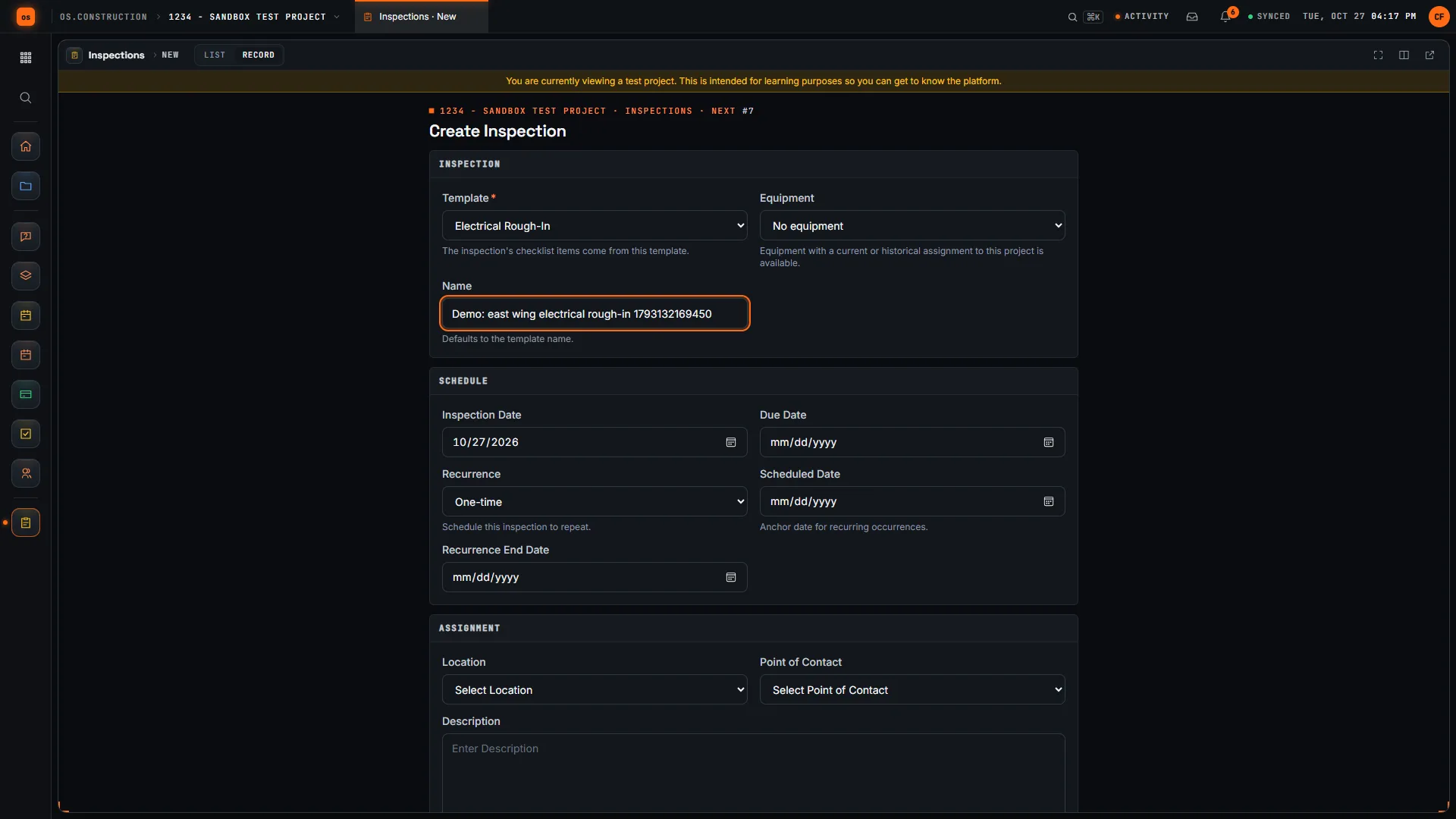
Click + Create
Pick the Template (its items become the checklist). Name defaults to the template name. Optionally pick Equipment for equipment checks.
-
Set the schedule
Inspection Date, Due Date and Recurrence: One-time, Daily, Weekly, Bi-weekly, Monthly or Quarterly, with a Scheduled Date and Recurrence End Date for repeating inspections.
-
Assign it
Enter the Location, Point of Contact and Description, then Create.
-
Answer each item
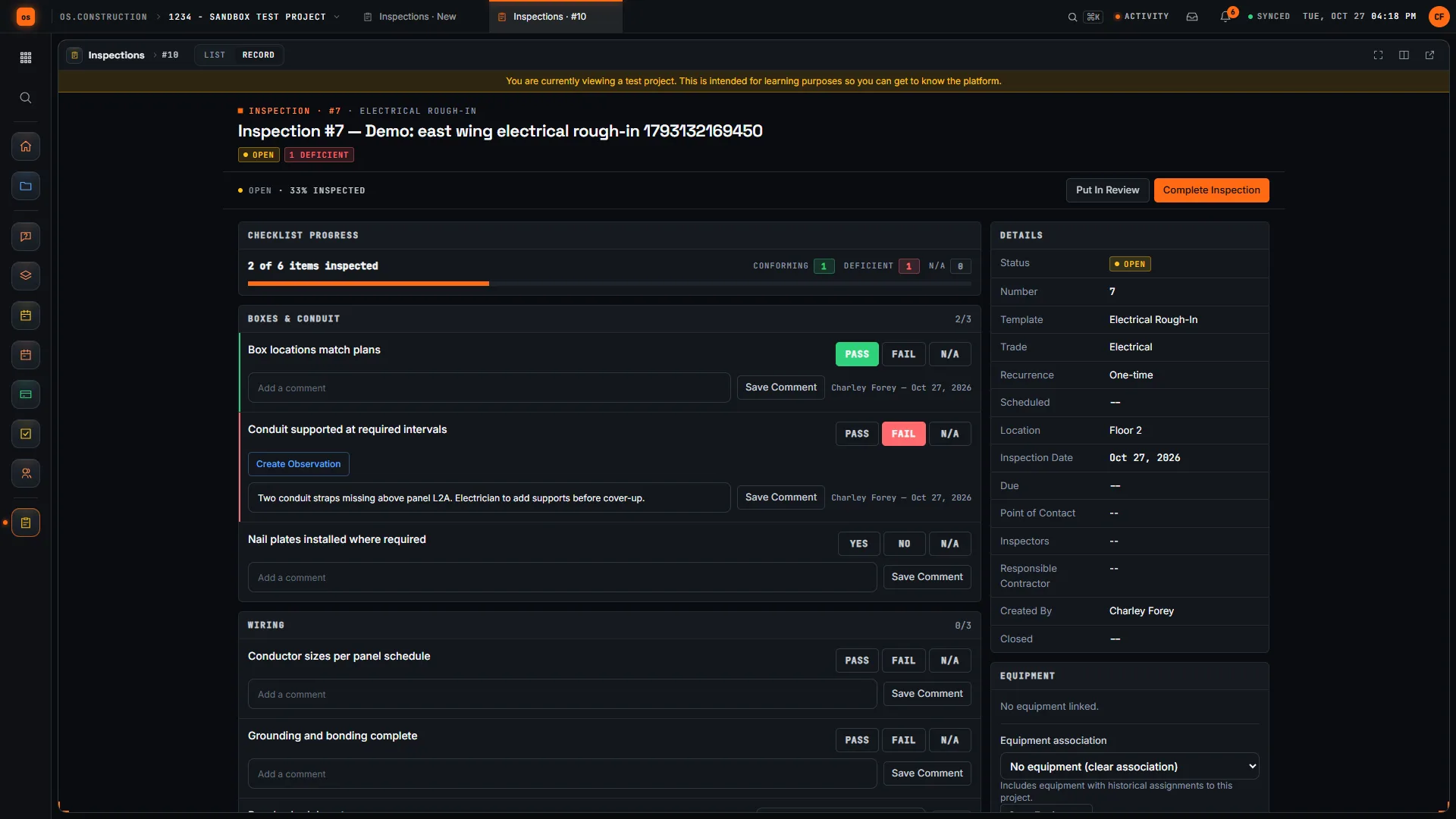
Click Pass, Fail or N/A (or Yes, No, N/A). Text and number items also take an entered value. Add a comment on any item. Checklist Progress shows the share of items inspected.
-
Follow up on failures
On a failed item, Create Observation opens a linked observation and Attach Photo adds the evidence.
-
Review, sign, complete
Put In Review when the checklist is done, Sign Inspection to add your signature as inspector, then Complete Inspection.
The inspection list
Tabs: Inspections, Scheduled (recurring inspections, with their recurrence and next date), Templates and Recycle Bin. Cards count Open, In Review, Closed and Recurring inspections.
The list shows #, Name, Template, Status, Location, Inspection Date, and the number of Conforming and Deficient items. Filter by equipment, status, template, location, spec section, responsible contractor, point of contact, inspector, creator, who closed it, or recurrence, and search. Bulk actions: Mark In Review, Close and Delete. For a recurring inspection, Generate next occurrence creates the next one.
Show the data as a table
| Item | Conforming | Deficient | Total |
|---|---|---|---|
| Pre-pour, L2 deck | 22 | 2 | 24 |
| Framing, L3 east | 31 | 4 | 35 |
| MEP rough-in, L3 | 27 | 6 | 33 |
| Fire stopping, L3 corridor | 14 | 3 | 17 |
| Daily lift check | 12 | 0 | 12 |
The list carries these two counts for every inspection. Read across a template rather than one inspection at a time: if MEP rough-in on every floor has the most deficient items, the fix is a pre-installation meeting with the trades, not more inspections.
On the inspection
Details (status, template, trade, recurrence, location, dates, point of contact, inspectors, responsible contractor), Equipment, Description, Send Email (to the inspectors and point of contact by default), Linked Drawings, Attachments and Change History.
Common mistakes
Mistake: A different checklist depending on who is on site
In the app: Templates belong to the project, so every inspection of the same work uses the same items.
Mistake: A failed item noted on paper and never followed up
In the app: Create Observation on the failed item assigns the fix, and Require observation on fail blocks completion until there is one.
Mistake: "Failed" with no evidence of what was wrong
In the app: Require photo on fail blocks completion until the failed item has a photo.
Mistake: Changing responses after the inspection was signed
In the app: Signed or closed inspections are locked. Reopen deletes all signatures, so it has to be signed again.
Mistake: Forgetting the weekly scaffold or daily lift check
In the app: Recurrence and the Scheduled tab show every recurring inspection and its next date; Generate next occurrence creates it.
Checklist: a template worth running
Before you publish a template
- Each item is one check with one answer, written the way the inspector will read it on site.
- Items follow the order you walk the work, grouped in sections.
- The response type fits: Pass / Fail for checks, Number for measured values, Text for notes.
- Items that must be fixed before the next step require an observation and a photo on fail.
- The default recurrence is set for equipment and site checks.
- The trade is set, so the list can be filtered by it.
- You ran it once yourself and deleted the items nobody can answer.
What it connects to
- Observations: a failed item creates a linked observation, which can be converted to a punch item. See Punch list.
- Equipment and drawings: an inspection can be tied to a piece of equipment and link the sheet it covers.
- My open items: open inspections show with the rest of your work. See Find your way around.
- Analytics: where Analytics is turned on for your company, Analyze on the inspection list opens the quality and safety report pack with the inspection pass rate. See Live dashboards.
What it doesn’t do today
- No PDF export of a signed inspection.
- Templates are per project. Rebuild them, or copy the items from the free starter pack, on a new project.
- No automatic emails. Use Send Email when you want to notify people.
- A failed item doesn’t create a punch item directly. It creates an observation, which you can convert.
- Next occurrences aren’t created automatically. Use Generate next occurrence.
FAQ
Can a failed item create a punch item? A failed item creates an observation. From the observation, use Convert to Punch Item if the failure needs to be tracked to closeout. See Punch list.
Can I export a signed inspection to PDF? Not today.
Can I share templates across projects? Templates are per project today.
Are emails sent automatically? No. Use Send Email on the inspection when you want to notify people.
Does signing close the inspection? No. Signing adds your signature and puts it In Review. Complete Inspection closes it.
Why can’t I complete my inspection? A failed item on it requires an observation or a photo that hasn’t been added yet. Add it from the failed item.
Can an inspection be about a piece of equipment? Yes. Pick the Equipment when you create it, and filter the list by equipment.
Template and walkthrough
Start from the free inspection checklist starter pack: pre-pour, framing and MEP rough-in checklists you can print, or copy into a template in the app. A video walkthrough is shown at the top of this page when it’s published.
Related
- Observations: what a failed item turns into
- Punch list
- Daily log: equipment and safety entries for the day
- Glossary: Commissioning, Audit trail, Closeout
Keep exploring
Related across os.construction
- GlossaryInspection ChecklistA list of items checked before work is covered or accepted, answered pass, fail or not applicable, so quality checks are the same every time.
- DocsObservations: log safety and quality issuesLog a safety, quality, commissioning or warranty observation, assign it, move it through review, and escalate it to an RFI or punch item when it needs one.
- GlossaryCommissioning (Cx)A quality process that verifies building systems are designed, installed, tested and operating to meet the owner's requirements.
- Free toolInspection checklist starter packFree QA inspection checklists for pre-pour, framing and MEP rough-in.
- DocsField tools on phonesDaily logs, photos, observations, RFIs and punch items entered from a phone browser land directly in the job record, so the office sees what the field sees. Native apps are Planned.
- ExplainerWhy one data core: the same record everywhereSee how RFIs, field records, change orders, budget, pay apps and CRM link on one data core in os.construction, and why links beat copies and syncs.
Was this helpful?
Run it on your own project.
Start a 14-day free trial. Want a say in what ships next? Join the founding program.
14-day free trial. Pricing for paid plans isn't set yet. Talk to us. Already have an account? Sign in →