Change events and change orders
Track a change from the first sign of it to an executed change order. Change events, potential change orders, packages, commitment change orders and budget posting in the app.
On this page
Watch the walkthrough · 2:50
Log a potential change as a change event
- 0:00Start a new change event
- 0:31Name the possible change
- 0:50Mark the scope
- 1:19Describe what happened
- 1:33Choose a cost code for the line
- 1:56Add a rough line item
- 2:09Enter a rough amount
- 2:21Create the change event
- 2:32Check the saved line item
Read the transcript
Here we are on the New Change Event page in our local sample project. A change event is where we note a possible change early, before anyone prices or approves it. Let's log one together.
First, we give it a title that says what changed. Our example is added fire sealant at corridor penetrations. The demo adds a unique reference so each recording creates its own sample record.
Next, we set Scope. For this sample we choose Out of Scope, which tells the team we believe the work sits outside the current contract. Pick whatever your team has actually agreed.
In Description, we explain what happened and why it may cost money. Our sample says the inspector asked for extra fire sealant at corridor penetrations that aren't shown on the drawings.
Now let's add a line item. We start with the cost code, because a line needs one to be saved. For this sample we use General Requirements; choose the code your team actually tracks this work against.
In the Line Items section, we type a short description of the work. One line is enough to start, and we can refine it later.
Then we enter a rough amount for that line. It's an early estimate, not an approved price, and we can refine it later.
Now we select Create Change Event. The app saves it and opens the detail page with its number and our title in the header.
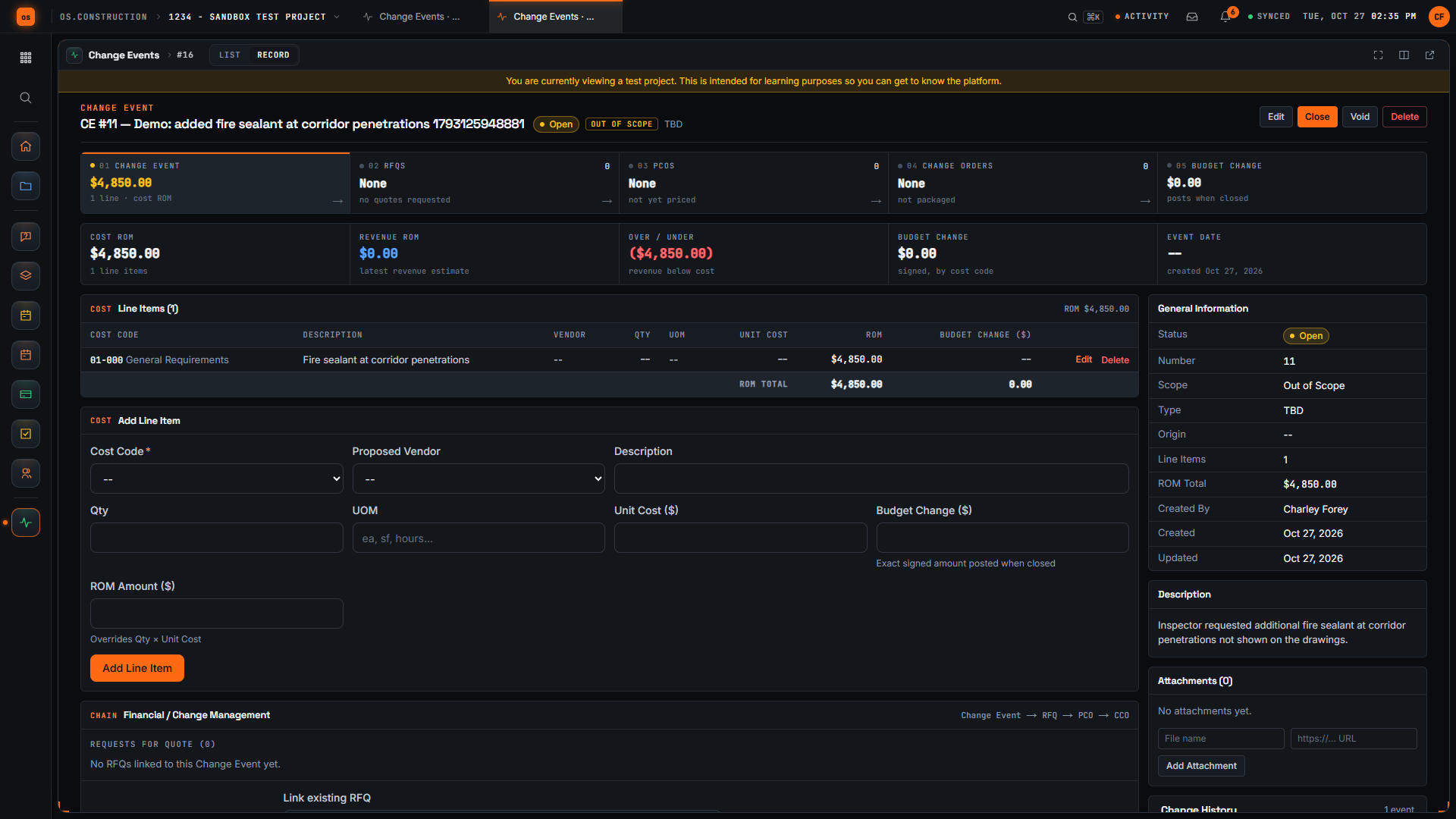
Here's the change event we created. The header shows the Open status and the Out of Scope tag, and our new line appears in Line Items with its rough amount. We have logged the possible change, marked its scope, and recorded a first estimate, so pricing can move forward from here.
Video page with chaptersStep-by-step guideMore in Cost & accounting
A change in the app lives in two tools. Change Events records that something changed and what it might cost. Change Orders prices it against a contract (the owner’s prime contract, or a subcontract or purchase order) and carries it to approval and execution. Each stage is its own record, linked to the one before, so nothing is retyped. For the background, see Change events and PCOs.
1. Open a change event
-
Create
In Tools → Change Events, click Create. Give it a Title, a Scope (TBD, In Scope or Out of Scope), a Type (TBD, Allowance, Contingency, Owner Change or Transfer) and an Event Date. If it came from an RFI, pick it as the Origin RFI. Use Reason / Description for what happened.
-
Add line items
Under Add Line Item, enter each piece of the change: Cost Code, Proposed Vendor, Description, Qty, UOM, Unit Cost and a rough order of magnitude (ROM). The ROM total shows in General Information.
-
Set the budget change
On each line, Budget Change ($) is the exact amount that will post to the budget for that cost code when you close the event. Leave it blank if the change shouldn’t move the budget.
-
Get prices
Create RFQ from Change Event sends it out for pricing, or Link RFQ attaches one you already have.
The Change Events list filters by Status (Open, Closed, Void), Scope and Type.
2. Price it as a potential change order
From the change event, choose a Contract and click Create PCO from Change Event. Pick the prime contract for the owner side and the sub’s subcontract or purchase order for the cost side. The PCO copies the line items, so the numbers you priced on the event carry over.
You can also create a PCO directly in Tools → Change Orders → Create PCO and link a Change Event there.
A PCO holds:
- Line items: cost code, description, quantity, unit of measure, unit cost and amount. When quantity and unit cost are set, the amount is calculated.
- A Grand Total that includes any markup and tax on the lines.
- Reason, Due Date, Schedule Impact (days) and Field CO #.
- Attachments, and the dates that matter later: Signed CO Received, Invoiced Date, Paid Date.
3. Review and approve
PCO statuses: Draft, Not Pricing, Pricing, Pending, Revised, Proceeding, Not Proceeding, Pending Billable, No Charge, Approved, Rejected and Void.
-
Submit for Review
A draft PCO moves to Pending.
-
Approve or Reject
The reviewer clicks Approve or Reject. The Reviewer and Reviewed At are recorded on the PCO.
-
Execute
An approved PCO that isn’t in a package shows Execute. Executing marks it as part of the contract.
4. Group PCOs into a package
On the Change Order Packages tab, click Create Package, then add PCOs under Add Potential Change Order (only PCOs that aren’t in another package are offered). Execute Package approves and executes the package and the approved PCOs in it. A package is how you send the owner one change order for several PCOs.
How many levels you use is a project setting: in Change Orders, click Configure change order tiers and set Number of change order tiers:
| Tiers | Flow |
|---|---|
| 1 | A PCO is the change order itself |
| 2 | PCOs roll up into a change order package |
| 3 | PCOs → change order request → package |
5. Pass it to the sub
On the cost side you have two options:
- A PCO against the subcontract or purchase order, created from the same change event, so owner and sub changes share one origin.
- A commitment change order (CCO) created directly on the commitment’s Change Orders tab, with a title, a cost code and an amount. See Commitments.
Where the numbers land
- Prime contract. Approved owner change orders change the contract sum, and executed ones flow into owner billing on pay apps.
- Commitment. Approved commitment changes raise the revised contract amount on the subcontract or PO.
- Budget. Approved owner changes appear in Approved Budget Changes; pending ones in Pending Budget Changes. Commitment changes move committed and pending cost. Closing a change event posts its budget-change amounts by cost code; reopening or recycling it removes that effect, and every posting revision is kept in Budget Posting History on the event. See Budget.
Export
Select rows in the PCO or package list and use Export CSV. See Export to CSV and PDF.
Keep exploring
Related across os.construction
- ExplainerChange events vs change orders: the full lifecycleWhat a change event is, what a PCO and change order are, and where each one shows up in the budget, the contract and the pay app in os.construction.
- DocsChange events and potential change ordersHow a possible change is captured as a change event, priced as a potential change order, submitted and approved, and how exposure is tracked before anything is signed.
- BlogChange events vs change orders: tracking exposure before it's signedBy the time a change order is signed, the money is already spent or already lost. The change event is where exposure starts. Here's how to track it, what to put in the forecast, and why the gap between the two is where margin leaks.
- ExplainerFrom field question to paid change orderFollow RFI-212 into a change event, a priced PCO, executed CO #14, the budget and a pay app in os.construction, with every link stored on one record.
- DocsCommitments and change ordersSubcontracts, purchase orders, owner change orders and commitment change orders, and how one change flows from the field to the contract, the commitment and the budget.
- GlossaryChange Order (CO)A signed agreement between owner and contractor that changes the contract scope, price, time, or a combination of them.
Was this helpful?
Run it on your own project.
Start a 14-day free trial. Want a say in what ships next? Join the founding program.
14-day free trial. Pricing for paid plans isn't set yet. Talk to us. Already have an account? Sign in →