RFIs
Create, route, answer and close RFIs in the app. Ball in court, distribution, official responses, related items, private RFIs and PDF export.
On this page
Watch the walkthrough · 1:57
Create a draft RFI and open it
- 0:00Start a new request for information
- 0:27Give the RFI a clear subject
- 0:59Write the question
- 1:15Save the draft
- 1:28Review the saved question
- 1:43Open the RFI
Read the transcript
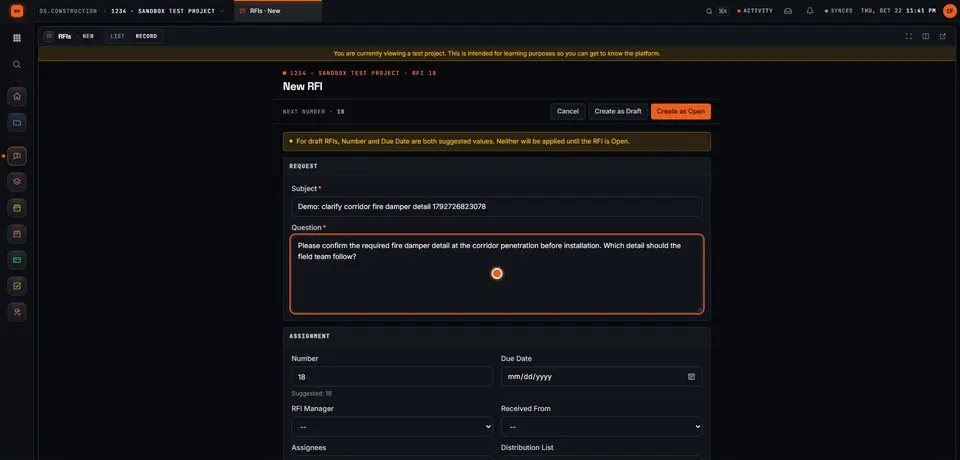
Here we are in the actual os.construction app, using a local sample project. On the New RFI page, we can prepare a question and save it as a draft before opening it.
Use a subject that tells the reviewer what needs clarification. In this example, we are asking about the corridor fire damper detail. The demo adds a unique reference so each recording creates a separate sample record.
State the decision the team needs. Our question asks the reviewer to confirm the required fire damper detail before installation and identify which detail the field team should follow.
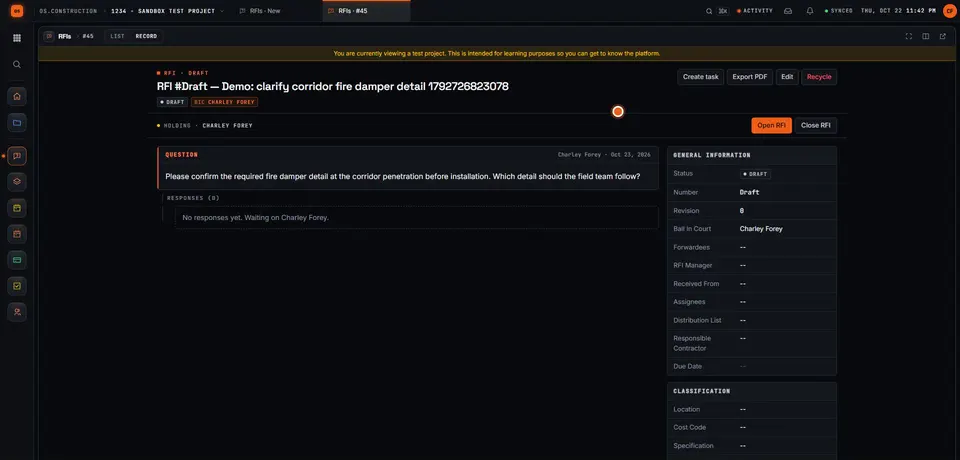
Select Create as Draft. The app saves the RFI and opens its detail page. We will check that the Open RFI action is available before moving forward.
The saved record now has its own detail page. Review the subject and question here. A draft gives the team a chance to check the request before opening it.
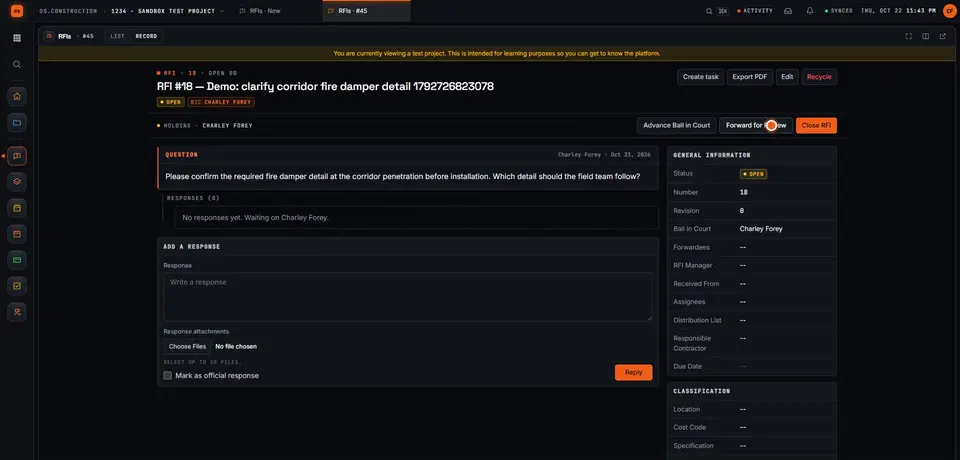
Select Open RFI. Wait for the Open RFI action to disappear after the update. Close RFI remains available. We have written a request, saved it as a draft, reviewed it, and moved it into the open workflow.
Video page with chaptersStep-by-step guideMore in RFIs & submittals
The RFIs tool is the project’s RFI log. Each RFI holds the question, the people who owe an answer, the responses, and links to the drawings, submittals and change events it touches. Open it from the project’s Project Tools menu.
The RFI log
The list shows #, Subject, Status, Ball In Court, Assignees, Due Date and Created. Sort by number, subject, status, due date or created date. Filter by Status, Ball In Court, Assignee, Location, Cost Code, or Overdue Only, and search by text. Save a filter set as a view so you can come back to it, or share it with the project.
A due date turns red with “(overdue)” when an open or draft RFI is past it.
Select rows to Close, Reopen or Delete several RFIs at once.
Create an RFI
-
Click Create
Fill in Subject and Question. The Number is suggested from the next number in the log; you can change it.
-
Set who owns it
- RFI Manager: the person on your team who runs the RFI.
- Received From: who raised the question.
- Assignees: who owes the answer (often the architect or engineer).
- Distribution List: who gets notified and can follow it.
- Responsible Contractor: the company the RFI relates to.
-
Add context
Due Date, Specification section, Location, Cost Code, Drawing Number and Reference. Record Schedule Impact and Cost Impact as Yes (Known), Yes (Unknown), No Impact, TBD or N/A, with days or a dollar amount when known.
-
Save as draft or open it
Create as Draft keeps it with you until it’s ready. Create as Open sends it to the assignees. A draft can be opened later with Open RFI.
From the recorded walkthrough: write the question, save it as a draft, then open it.
Check Private to limit who sees the RFI. A private RFI is visible to the people on it (creator, RFI manager, assignees and distribution) and to users your permissions allow to see private RFIs. See Permission templates.
Ball in court
Ball In Court shows who has to act next. The app works it out from the RFI’s state:
| RFI state | Ball in court |
|---|---|
| Draft | The creator |
| Open, no responses yet | The assignees (or the RFI manager if there are none) |
| Open, with a response | The RFI manager |
| Closed | Nobody |
Two actions move it by hand on an open RFI:
- Advance Ball in Court passes it from the assignees to the RFI manager, or back from the manager to the assignees.
- Forward for Review sends it to one person, who becomes the ball in court. Use it when the architect needs an engineer to weigh in.
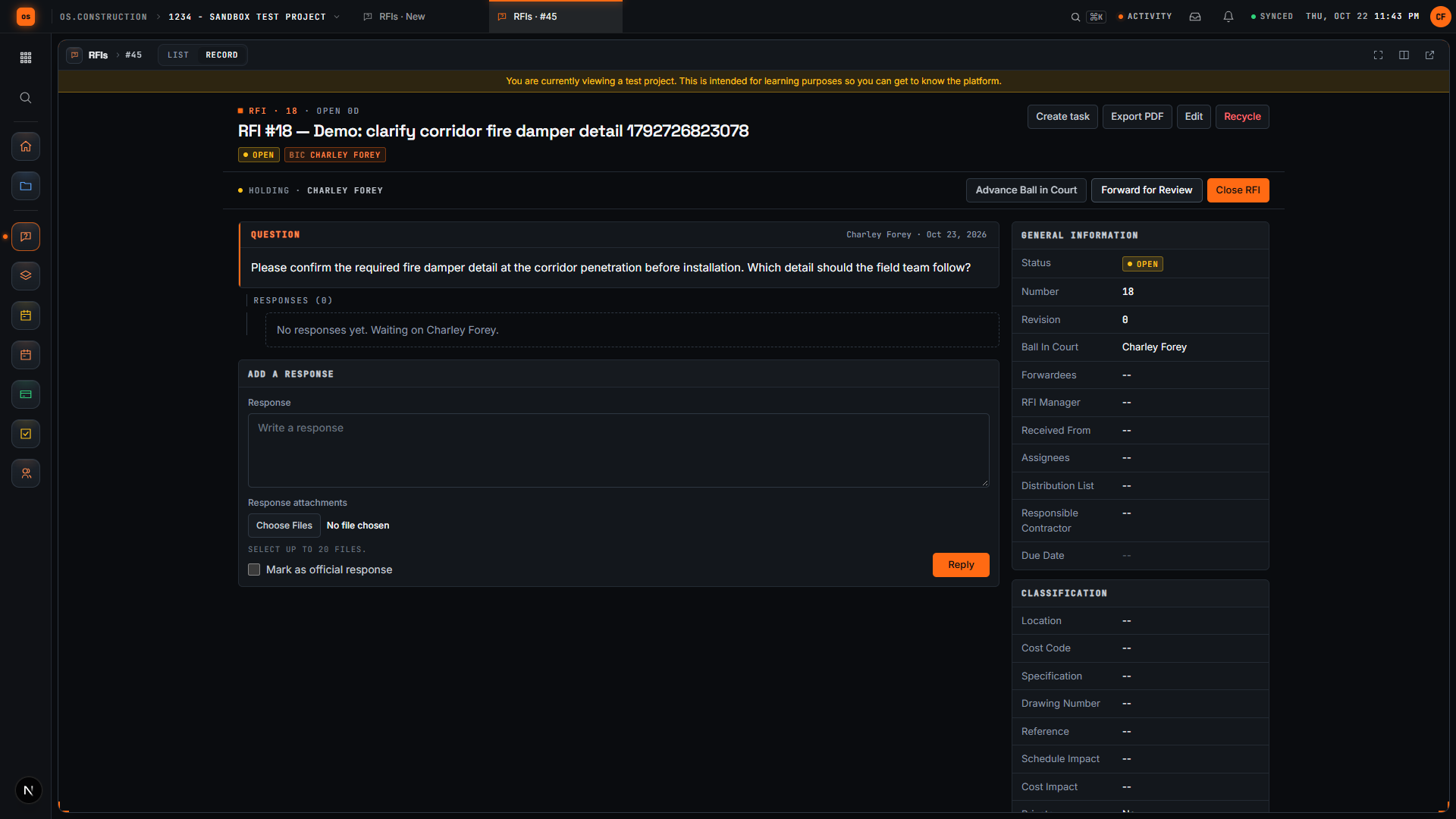
- Status reads Open and the RFI now has its number.
- Ball In Court names who acts next. This sample has no assignees or RFI manager, so the creator holds it.
- Open RFI is gone. Advance Ball in Court, Forward for Review and Close RFI take its place.
- Add a Response and select Reply. Check Mark as official response on the answer that settles the question.
Responses
While an RFI is open, the people on it with Standard access, and tool admins, can add a Response with attachments. Check Mark as official response on the answer that settles the question (who may mark official responses is set by permissions); it’s highlighted on the RFI and in the PDF. New responses notify the creator, RFI manager, assignees and distribution list, and anyone @mentioned.
Related items
On the RFI detail page:
- Related Items links the RFI to other RFIs, submittals, drawings, change events and photos. Pick one and click Link Item.
- Linked Drawings connects the RFI to sheets in the Drawings tool.
- Linked Observations lists observations that raised or reference this RFI.
- Change events created from the RFI are listed so you can follow the cost side. See Change orders.
- Create task opens a follow-up task tied to the RFI.
Close, reopen and recycle
Close RFI ends it; the closed date is recorded. Reopen RFI brings a closed RFI back. Recycle moves an RFI to the Recycle Bin tab of the log, where it can be restored with Restore.
Changes to an RFI are written to its history and the project Activity feed. See Audit log and history.
Export
Export PDF on the RFI detail page downloads the full RFI: general information, each question and its responses, with the official response flagged. For other formats and the API, see Export to CSV and PDF.
Keep exploring
Related across os.construction
- GlossaryMeeting MinutesThe written record of a project meeting: who attended, what was decided on each topic, who owns each open item and by when.
- GlossaryRequest for Information (RFI)A formal written question from the contractor to the design team asking them to clarify, fill a gap in, or resolve a conflict in the contract documents.
- ExplainerRFI response time: why answers stallWhy RFI answers stall, and how ball in court in os.construction shows who has to move next, from draft to official response to closed.
- DocsStart your free trialCreate a workspace, explore the Riverside Medical Center sample project and invite your team, free for 14 days.
- DocsGlossary of os.construction termsThe product words used across these docs, defined plainly. Record, tool, permission template, approval, snapshot, dock, Spotlight and more.
- ExplainerFind anything: search, open items and ball in courtHow os.construction finds records across tools: Spotlight and the search page, My Open Items, and the ball in court rules for each tool.
Was this helpful?
Run it on your own project.
Start a 14-day free trial. Want a say in what ships next? Join the founding program.
14-day free trial. Pricing for paid plans isn't set yet. Talk to us. Already have an account? Sign in →