Daily log
Record each day on site in the Daily Log, copy entries from a previous day, complete and reopen a day, and export it to PDF or CSV.
On this page
Watch the walkthrough · 2:18
Add a note to the daily log
- 0:00Confirm the project and day
- 0:19Find the Notes section
- 0:52Write the field observation
- 1:14Save and inspect the entry
- 1:32Move to the previous day
- 1:48Return to the day
- 2:04Read the saved observation again
Read the transcript
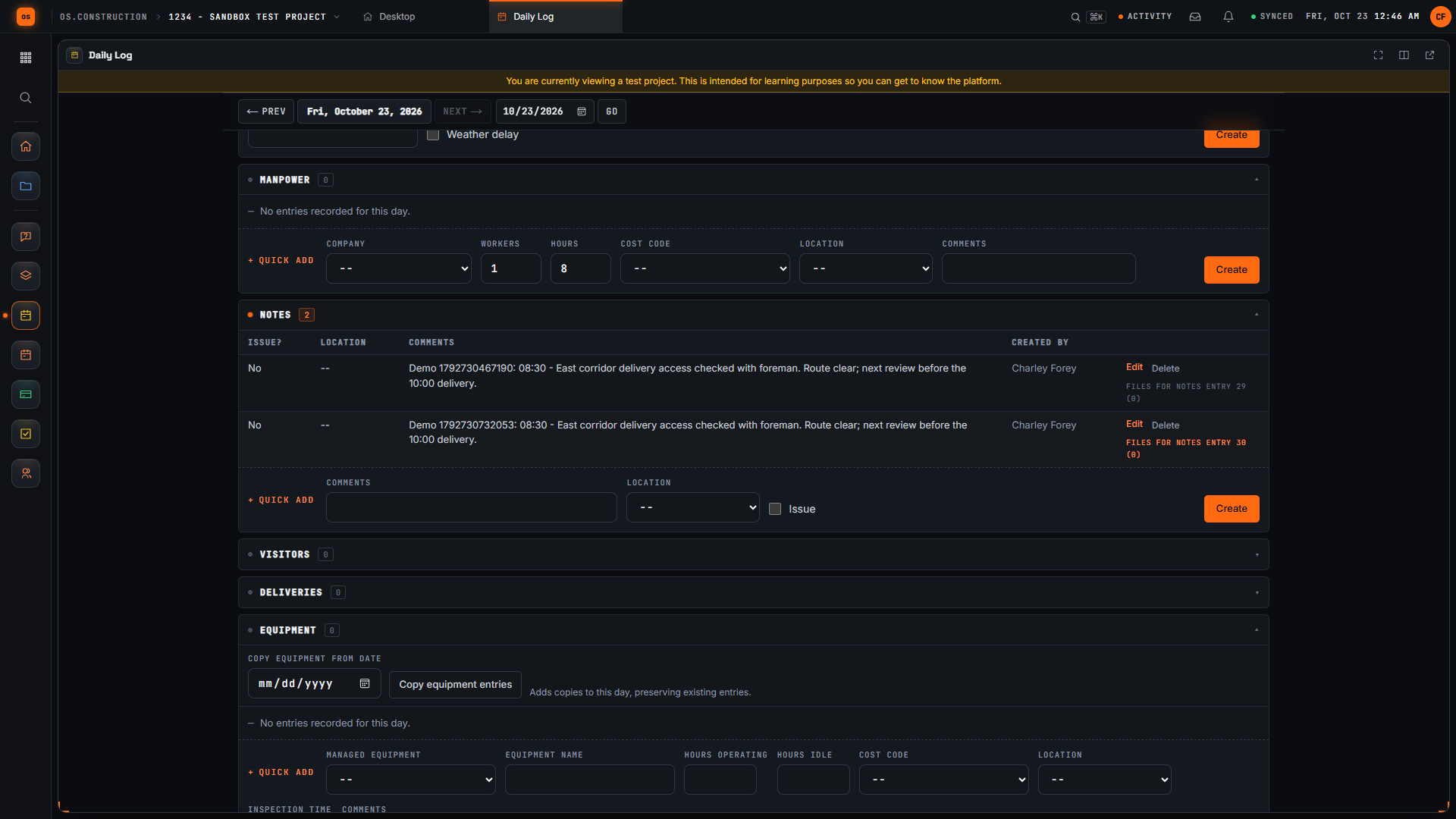
Start with the project and date. We are in the local sample project's Daily Log, which opens on today. A useful field note tells the next reader what happened, where, and what needs attention next.
Scroll to Notes. This section has its own entry form. Keep an observation specific enough that another team member can understand the location, the time, and the next check without asking you to reconstruct the day.
Our invented example records an access check at the east corridor, the time, and a follow-up before the delivery. The unique demo reference distinguishes this sample note from other recordings. Replace the example with facts you actually observed on your project.
Select Create in the Notes form. Wait for the new row to appear, then read the saved comment. Checking the row confirms the submitted text reached the day's log instead of remaining only in the form.
Use Previous Day to leave this day's view. Each day has its own log. The Today link lets us return to the day where we created the note and check that the saved entry is still there.
Select Today to return to the day where we created the note. Check the displayed date, then return to Notes to find the saved observation.
Here is the same note in the Notes table after returning to the day. Read the time, location, observation, and next check. We have saved a specific field note and confirmed that another reader can find its context again.
Video page with chaptersStep-by-step guideMore in Field: daily logs & tasks
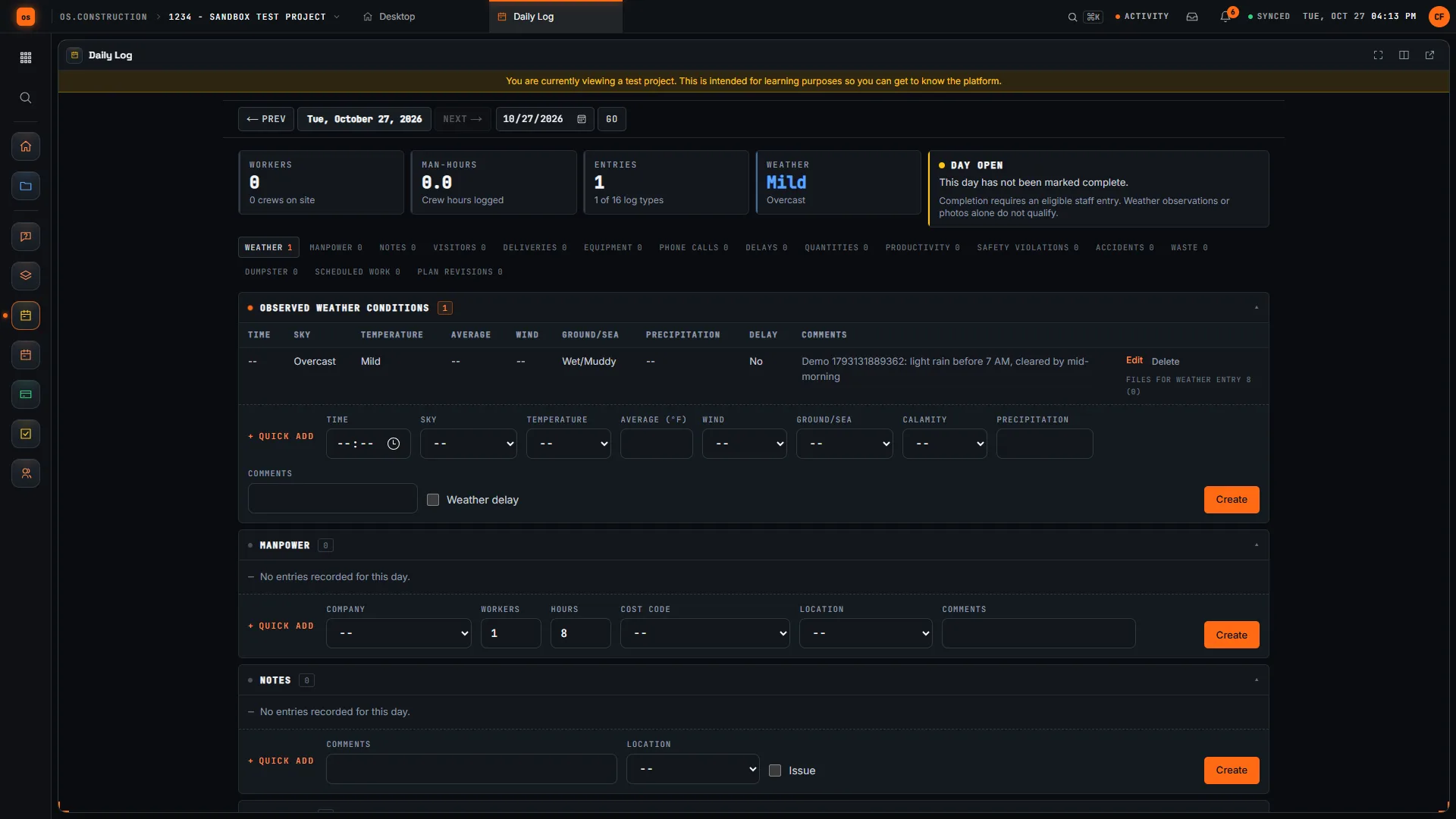
The Daily Log is one page per day for the project: weather, crews, work, deliveries, visitors, delays and the rest. Open it from the project’s Project Tools menu. It opens on today.
Move between days
Use ← Previous Day and Next Day →, or pick a date in Jump to date and click Go. You can’t move past today. The cards at the top total the day’s Workers, Man-Hours and Entries.
Log types
Each day has a section per log type. Open a section and add an entry; each saves on its own.
| Section | What you record |
|---|---|
| Observed Weather Conditions | Time, sky, temperature, wind, ground, precipitation, and whether it caused a delay |
| Manpower | Company, workers and hours, with cost code and location |
| Notes | Notes and issues by location, with attachments |
| Visitors | Who came on site, and when |
| Deliveries | Time, who it came from, tracking number and contents |
| Equipment | Hours operating and idle, cost code, location and inspection |
| Accidents | Time, who was involved and their company |
| Phone Calls | From, to, start and end, description |
| Delays | Type of delay, start and end, cost code and location |
| Dumpster | Dumpsters delivered and removed, by company |
| Productivity | Material delivered and used, by line item and location |
| Quantities | Quantities of work in place, with unit, cost code and location |
| Safety Violations | Time, subject, who it was issued to and the safety notice |
| Waste | Material, quantity, method and disposal location |
| Scheduled Work | Resources and companies scheduled, workers, hours and whether they showed |
| Plan Revisions | Title, plan number, revision and category |
Add a note and check it saved
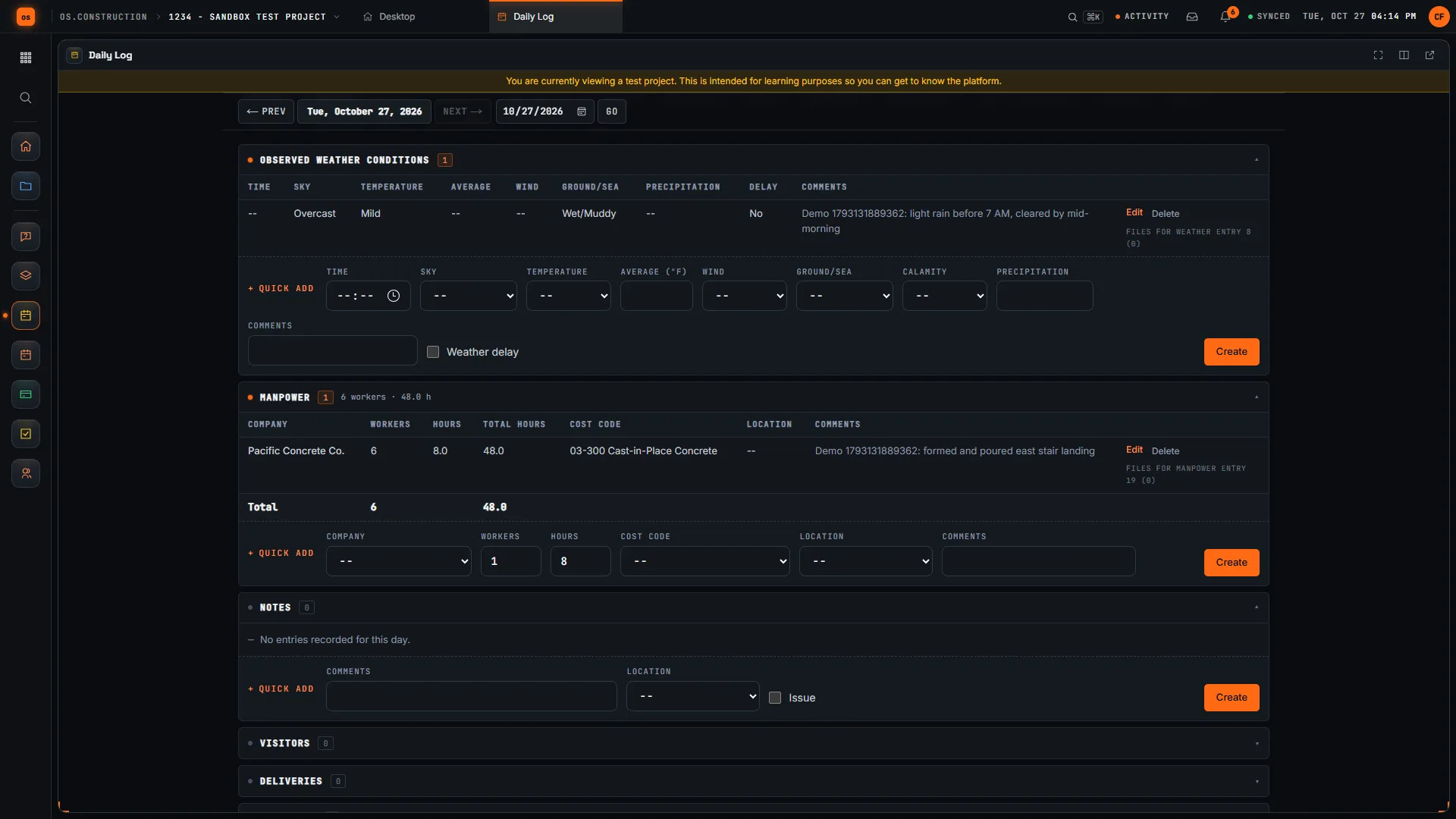
In Notes, write the time, place, what you observed and the next check, then select Create in the Notes form. Read the new row in the Notes table. To confirm it is filed under the right day, leave with ← Previous Day, return with Today, and find the same row.
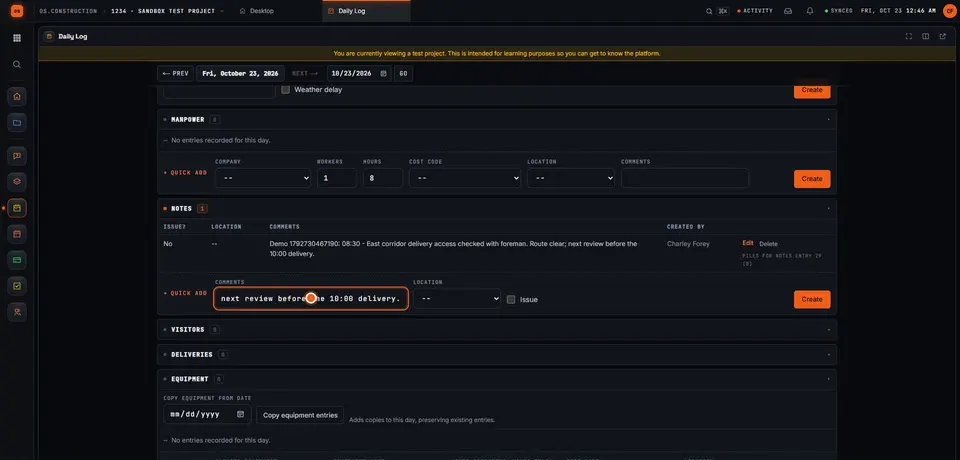
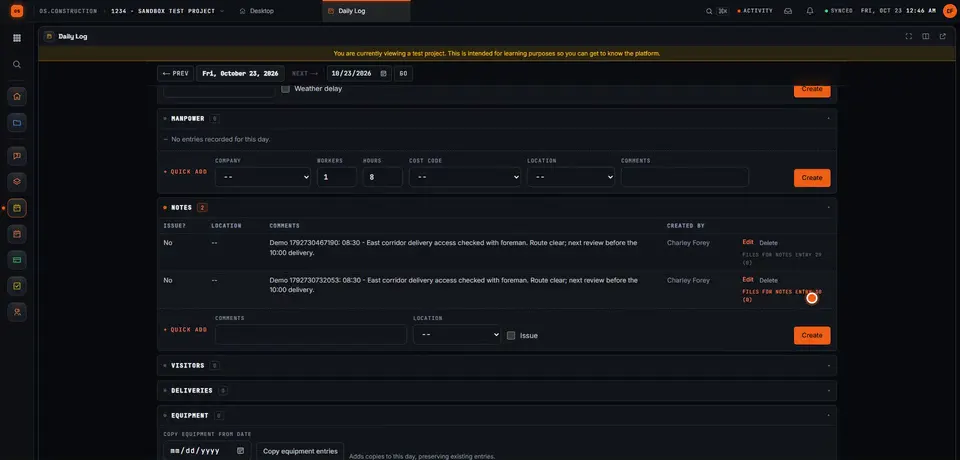
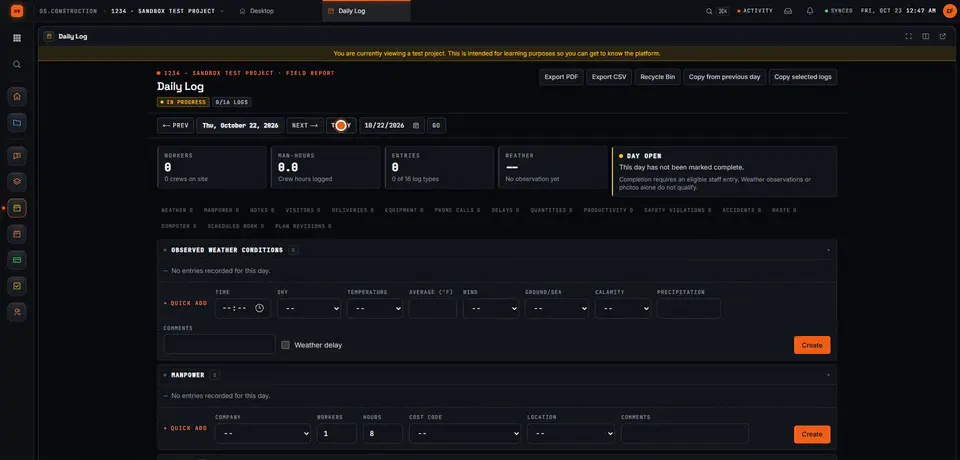
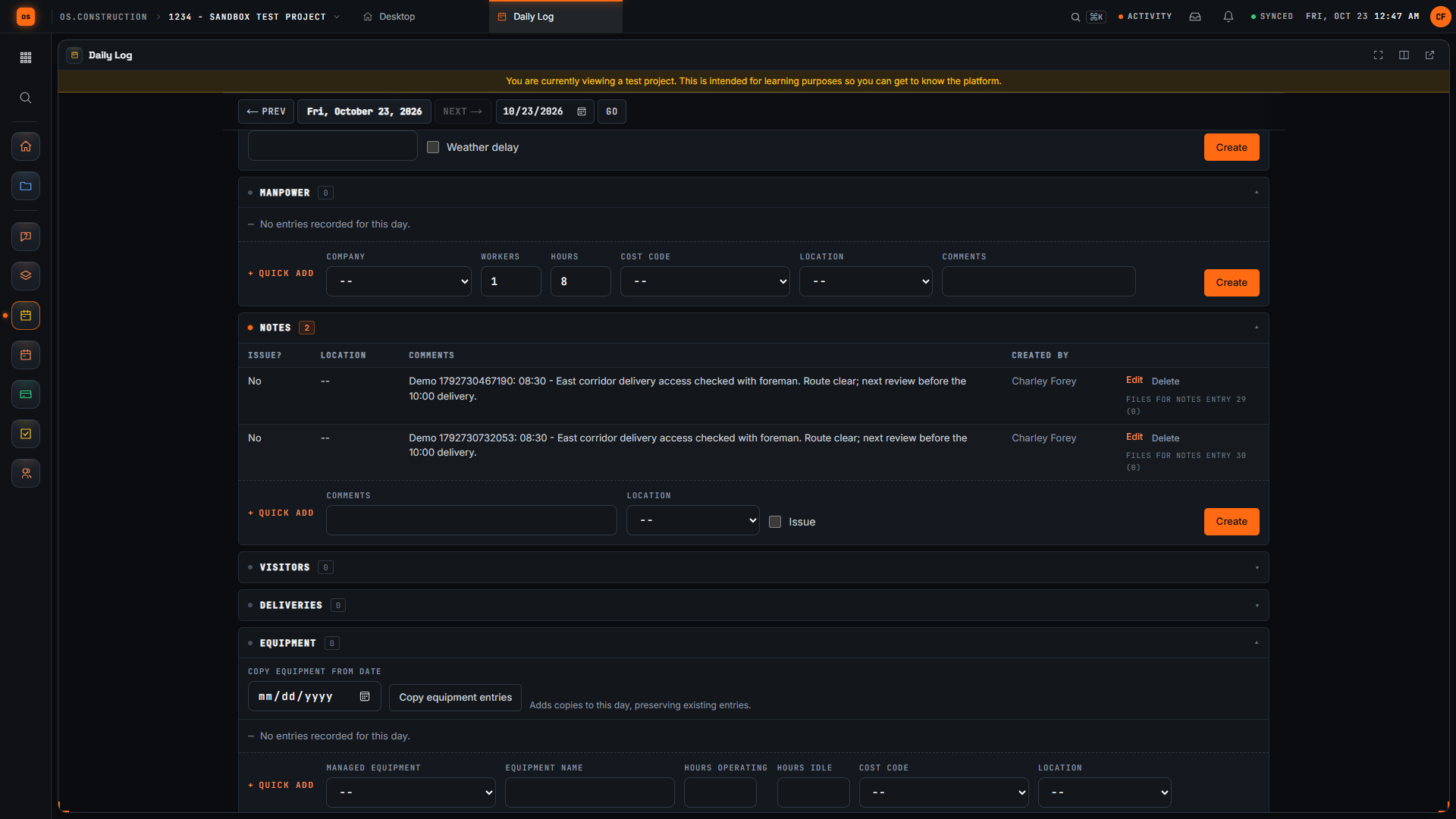
- ← Prev and the day being viewed. The walkthrough leaves with Previous Day and comes back with Today.
- Notes and its entry count.
- The row from this recording, identified by its Demo reference. The row above it is from an earlier sample run.
- The Create button inside the Notes form. Each section saves with its own button.
From a note to a follow-up
A note records what happened. When someone has to act on it, create a task or an observation for it in that tool.
Copy from a previous day
Most days look like yesterday. Two ways to start from it:
- Copy from previous day copies the most recent prior day’s manpower into the day you’re on.
- Copy selected logs lets you pick a date and the log types to copy, then Copy selected entries. Copied entries are added to the day; only Notes attachments are copied.
Complete a day
When the day’s entries are in, check the acknowledgement and click Complete Day. A completed day shows who completed it and when, and its entries can’t be changed until someone clicks Reopen Day. A day needs at least one eligible staff entry to be completed; weather or photos alone don’t count.
Export
On any day:
- Export PDF downloads the day’s report.
- Export CSV downloads the day’s entries as a spreadsheet.
Deleted entries go to the Recycle Bin and can be restored. For other exports, see Export to CSV and PDF.
Keep exploring
Related across os.construction
- GlossaryDaily LogThe superintendent's dated record of each day on site: weather, manpower, work performed, deliveries, inspections, visitors, delays and issues.
- BlogField to ledger: why daily logs are financial documentsThe daily log is usually treated as a field formality. It's actually the first record of almost every number accounting cares about: labor, equipment, deliveries, delays and changes. Here's what to capture, and how it flows to cost, billing and claims.
- ExplainerDaily reports that hold up: weather, manpower, notesDaily logs in os.construction that hold up a year later: weather with delays, manpower with hours and cost codes, specific notes, and a completed day.
- BlogHow to write and verify a useful daily field noteRecord a specific observation in the os.construction Daily Log, save it, and return to the day to check the saved entry.
- PlatformCourse: run your first projectSeven 10-minute lessons on the sample project: RFIs, daily log, meetings, punch, changes and pay apps.
- PlatformRole guide: SuperintendentA superintendent’s week in os.construction.
Was this helpful?
Run it on your own project.
Start a 14-day free trial. Want a say in what ships next? Join the founding program.
14-day free trial. Pricing for paid plans isn't set yet. Talk to us. Already have an account? Sign in →