Construction CRM
The CRM module, app by app. Pipeline, contacts, follow-ups, website inquiries, organizations and people, inquiry forms, import and export, then the project handoff, proposals, service and warranty.
Partly in the app today. Items marked Planned are not built yet.
On this page
- The CRM module
- The CRM apps, one by one
- CRM Home
- Pipeline
- Contacts
- Follow-ups
- Inquiries
- Organizations and People
- Inquiry Forms
- Import
- Export
- Pipeline numbers in Analytics
- Project CRM
- Capture a lead before project setup
- Give the team intake access
- Keep organizations and people connected
- Resolve a duplicate after review
- Read the relationship timeline
- Record a person’s communication preferences
- Review Won work into a new project
- Start with the relationship
- Track the opportunity
- Send a proposal through internal review
- Prepare an internal bidding draft
- Review a buyout plan
- Record a reported customer response
- Prepare a private customer offer
- Keep the next action visible
- Handle service and warranty requests
- Share a project update with selected customers
- Share a reviewed project document
- Ask one customer for an operational choice
- Archive a record
- Merge a duplicate contact
- Avoid overwriting a teammate’s edit
- Get CRM changes in other systems
- Access and integrations
- What comes next
CRM brings contacts, opportunities and follow-ups into company intake before a project exists and into the project workspace afterward. A company relationship graph holds organization and person records that can connect explicitly to those scoped contacts. Company CRM uses explicit member grants; project CRM uses project permissions. Authorized intake editors can attach records to an existing project when they also have destination access. Company administrators can review a Won opportunity to create a new project.
Current status. The staff-side CRM described here is in the app as a preview. The customer-facing pieces (public inquiry forms, the customer offer portal and the customer portal) are built, but external access opens only once the production customer ingress is in place. Until then, treat them as previews your team can review, not links to hand to customers. See the CRM overview for the full picture.
The CRM module
CRM is its own module in the app, with its own section in the launcher, its own dock tint and its own Spotlight results, next to Project, Financials and Analytics. Open the launcher (the os mark top left, or Ctrl/⌘ + Space) and look for the CRM section. Each part of company CRM is an app there. You only see the apps your access allows, so nobody opens an app that turns them away.
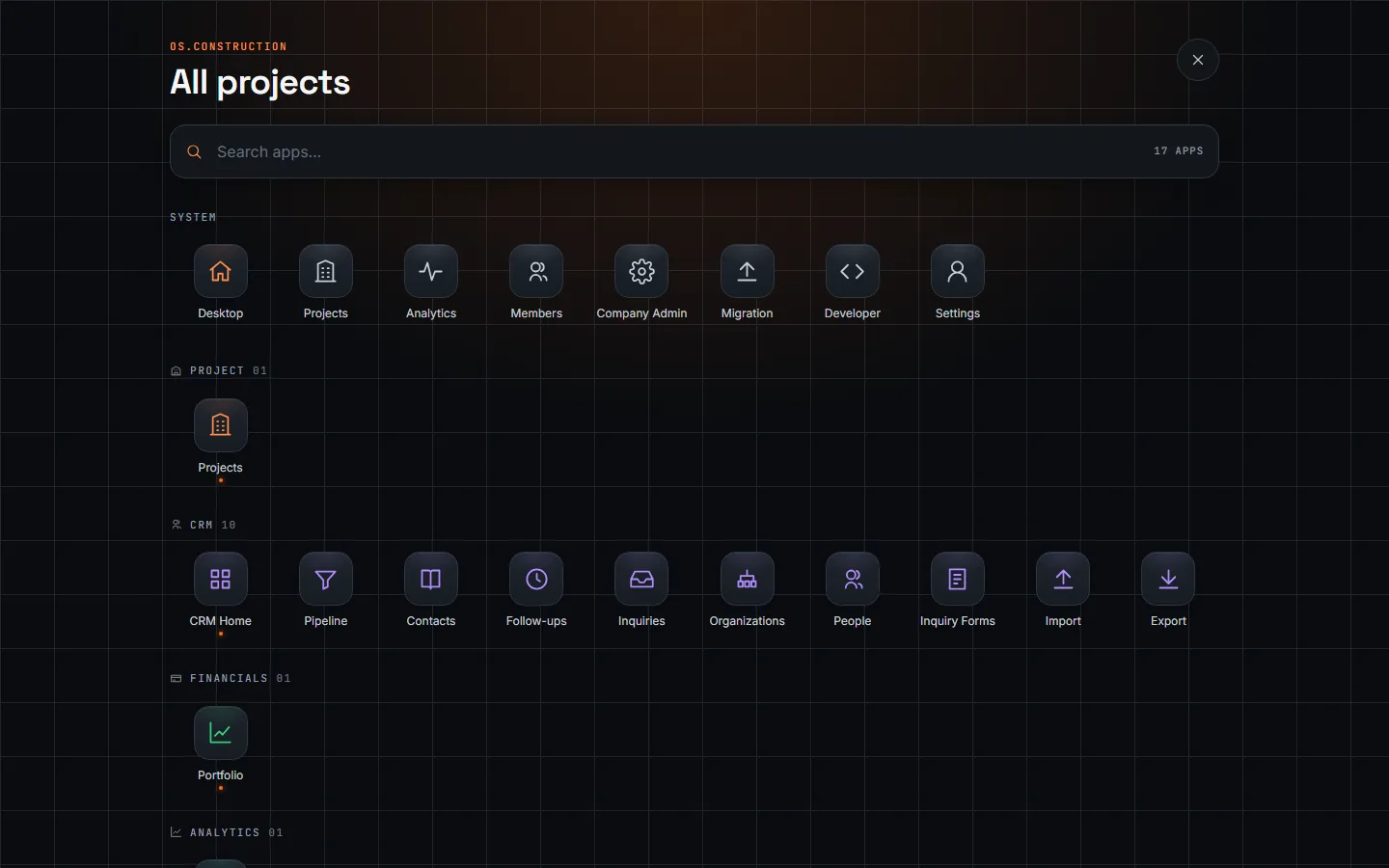
| App | What it’s for | Who sees it |
|---|---|---|
| CRM Home | App grid with live counts, intake summary, pipeline forecast and the three lists | Company CRM readers |
| Pipeline | Open and closed opportunities, by stage | Company CRM readers |
| Contacts | Intake contacts not yet on a project | Company CRM readers |
| Follow-ups | Calls, emails, site visits, meetings and tasks, with My open and My overdue | Company CRM readers |
| Inquiries | The private review queue for website inquiries | Company CRM readers |
| Organizations | Firms across every job, with their project roles | Company CRM readers |
| People | People across every job, with affiliations, timeline and preferences | Company CRM readers |
| Inquiry Forms | Create, close and rotate public inquiry form links | Company administrators |
| Import | CSV import of intake contacts with a duplicate preview | Members with create access |
| Export | CSV export of intake contacts | Company CRM readers |
Inside a project, the project’s CRM tool joins the same section, beside the company apps if you also have company CRM access. The dock pins CRM Home by default; earlier pins keep working.
Company CRM readers are company administrators and members with a Company CRM grant (see Give the team intake access). Project CRM follows each project’s permissions. Neither grants the other.
The CRM apps, one by one
CRM Home
CRM Home opens on a grid of the other apps, each with a live count: open opportunities, unassigned contacts, overdue follow-ups, new inquiries, organizations, people and (for administrators) inquiry forms. Under the grid are four totals for company intake: Open pipeline, Weighted forecast, Unassigned contacts and Overdue follow-ups. Then come the pipeline forecast, opportunity cohorts and the Opportunities, Contacts and Follow-ups lists.
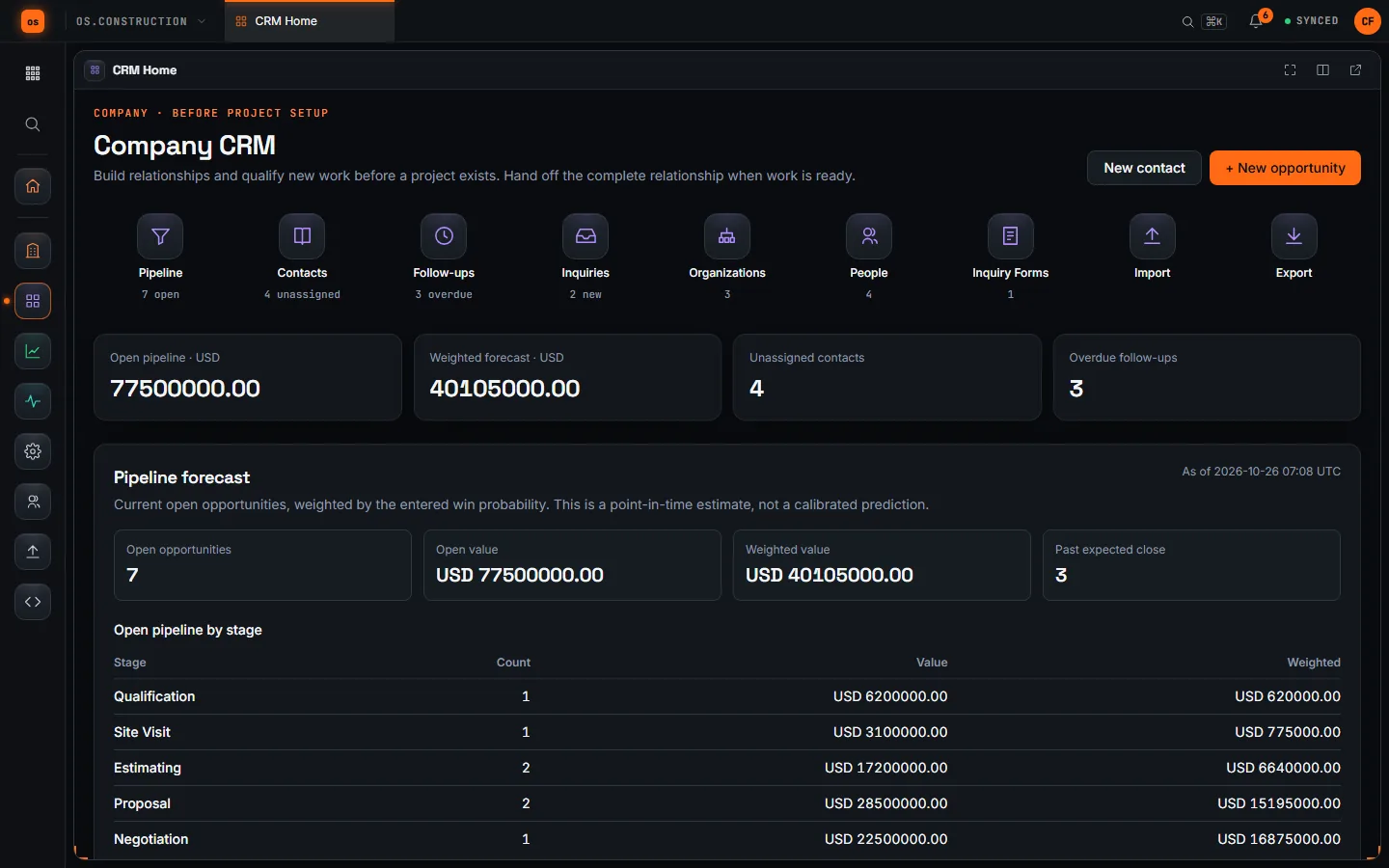
How to: start your day here. The counts tell you where the work is. Choose New opportunity or New contact at the top to capture something new.
Pipeline
Pipeline lists company intake opportunities with stage, owner, source, estimated value, win probability and expected close. Filter by stage or owner, then open a row to edit it, log a follow-up or hand it to a project. My pipeline shows only the opportunities you own. Choose a column heading (opportunity, stage, estimated value, win probability, expected close) to sort by it; choose it again to reverse.
How to move a pursuit forward: open the opportunity, choose Edit opportunity, change the stage and add a Change note if the value, probability or close date moved. The stages are Qualification → Site visit → Estimating → Proposal → Negotiation → Won / Lost. Details are in Track the opportunity.
How to work the board: choose Board above the list (/crm/opportunities/board in company intake, /tools/crm/opportunities/board in a project) to see one column per stage, with each card’s value, probability, owner and expected close. Drag a card to another column, or use its ← and → buttons to move it one stage at a time from the keyboard. Moving a card to Lost opens a dialog that asks for the loss reason first. Every move is the same recorded stage change as an edit, so it shows in the forecast history. The board shows the 500 most recently updated opportunities; My pipeline narrows it to yours, and Table goes back to the list. You need edit access to move cards.
Contacts
Contacts lists intake contacts that are not on a project yet, filterable by relationship (lead, client, partner, subcontractor) and owner, and sortable by name, organization, relationship and email. How to: search before you add. Choose New contact, enter first and last name, then organization, role, email and phone as needed, and pick a Relationship owner. When the relationship is ready, open the contact and choose Attach to project (details).
Follow-ups
Follow-ups lists every intake activity, with My open follow-ups and My overdue follow-ups for the signed-in member. How to: log a follow-up from the form under the list, with a type (call, email, site visit, meeting, task), an owner and a due date. Mark it complete when it’s done; the completion time is kept. Download calendar (.ics) saves the open follow-ups with a due date in the current view (including My open or My overdue) as a calendar file you can import into any calendar app. A date-only due date becomes an all-day event; each event carries the title, the related contact or opportunity and a link back, never notes. Importing the file again updates the same events instead of duplicating them.
Inquiries
Inquiries is the private queue of website inquiry submissions. A submission is not a contact or an opportunity until someone reviews it. How to: filter for unassigned, mine or overdue, open an inquiry, check the exact-email contact suggestions, then convert it to a new contact and opportunity or dismiss it with a reason. Assign a reviewer, set a priority and a first-response target, and record the response you made outside the app (details).
Organizations and People
Organizations and People hold the firms and people you work with across every job. Sort either list by name, email or phone (website for organizations). How to: search first, then create the record. Add an affiliation to show a person’s role at a firm, and a project role to show a firm’s part on a job. Open a record to see its relationship timeline, review possible duplicates, and (for people) record communication preferences (details).
Inquiry Forms
Company administrators create public inquiry forms here and copy each link when it’s issued. How to: create a form, copy the link (it is shown once), and close the form or issue a new link to replace an old one. Public forms open to visitors once production customer ingress is in place.
Import
Import brings a contact list in as new intake contacts. How to: choose a UTF-8 CSV (up to 200 contacts and 256 KiB), give the source a stable lowercase key, map the external ID, first-name and last-name columns, review row errors and possible duplicates, then commit. When the file’s headers match a common CRM export format (Record ID, First Name, Last Name, Email, Phone Number, Company Name, Job Title), the page says so and prefills the mapping; review it before continuing. Import never merges into or updates existing contacts, and a retry returns the original receipt.
Export
Export downloads company intake contacts as a CSV, without internal notes or project contacts. The browser handles up to 50,000 contacts; API clients can page through more. Keep downloaded files in approved storage.
Pipeline numbers in Analytics
The same records feed Analytics. The CRM & Pipeline pack shows pipeline value, weighted pipeline, win rate, average deal size, sales cycle, lead conversion and follow-through, filtered to what each viewer may see. See the Analytics BI guide.
Project CRM
Open a project and choose CRM in the launcher’s CRM section. Use the Opportunities, Contacts and Activities tabs to move between records. The dashboard summarizes the pipeline and follow-up work. The lists have the same owner filter, My pipeline link and sortable columns as company intake, the same Download calendar (.ics) on the Activities tab, and the same pipeline board: choose Board on the Opportunities tab. Moves need project CRM edit access and are recorded in the project’s forecast history and audit log.
Choose Action Center for one project worklist of open follow-ups, cases awaiting a first customer response, offers nearing expiration and warranty end dates to review. Filter by source and open each item in its own workflow. The view captures one server time and shows deadlines through the next 30 days; warranty review dates cover the prior 30 through next 90 days. Offer and warranty rows are review cues, not proof of delivery, acceptance, coverage or a completed task. This view does not send alerts or enforce a contractual SLA.
Capture a lead before project setup
Authorized company members open Company CRM at /companies/{company_id}/crm to work with contacts, opportunities and follow-ups without a placeholder project. Its Activities tab includes My open and My overdue links for work assigned to the signed-in member. Intake shows records that have not been assigned to a project; its summary excludes project CRM records.
Company administrators can create Inquiry forms from Company CRM and copy each public link when it is issued. A visitor can submit a name, email and project inquiry through that link. The submission enters a private Website inquiries queue; it does not create a contact, opportunity, project or marketing subscription. An authorized intake reviewer opens the inquiry, checks the exact-email contact suggestions, then explicitly converts it to a new intake contact and opportunity or dismisses it with a reason. Reopen the review if the suggested matches change. Administrators can close a form or issue a new link to replace an old one. Treat submitted names, company details and project descriptions as unverified until staff confirm them.
For incoming inquiries, intake editors can assign an eligible teammate, set a priority and a first-response target, and filter the queue for unassigned, mine or overdue work. Staff can record a response they made outside the app and see the retained history, including corrections. The recorded response is a staff report; the form does not send email, prove delivery or promise a response by the target time.
For an existing contact book, members with create access can choose Import contacts. Select a UTF-8 CSV, give the source a stable lowercase key and map its external ID, first-name and last-name columns. Review row errors and possible name/email duplicates before committing. The import creates company intake contacts only, with a receipt and row-to-contact mapping; it never silently merges or updates existing contacts. A changed preview or repeated external ID blocks the batch, and an exact request-key retry returns the original receipt. The limit is 200 contacts and 256 KiB per CSV. See the API reference for the corresponding preview, commit and receipt operations.
Members with view access can choose Export contacts to download company intake contacts as a CSV. It includes contact details but excludes internal notes and project contacts. The browser handles up to 50,000 contacts; API clients can page through larger lists with a fixed ID high-water mark. Keep downloaded files in approved storage and recheck access before sharing them.
When the relationship is ready, open a contact and review Attach to project. Choose an existing destination project, review the linked record counts and confirm. The contact, all its linked intake opportunities and their activities move together, keeping their IDs and history. An opportunity without a contact can move with its own activities. An opportunity linked to a contact moves through the complete contact relationship.
The destination must be active, in the same company and have CRM enabled. You need intake edit access and destination project CRM create/edit permission. Assigned owners must be eligible for the destination team. Records leave intake after the move and follow destination project permissions. There is no undo or detach action in this preview, so review the selected project carefully.
This action attaches to an existing project. It does not create a project, award a contract or generate financial records, and it does not require the opportunity to be Won. Set up the destination project first using the existing project workflow.
Company administrators grant intake access to individual members. A project CRM permission does not grant access to unassigned company prospects, and a company CRM grant does not grant access to project records.
Intake supports creating, viewing and editing contacts and opportunities, logging/completing activities and handing relationships to projects, subject to the member’s grant. Company detail lists show the first 100 activities or linked opportunities; the API supports paginated access to the rest.
Give the team intake access
Company administrators manage each member’s Company CRM level:
Open Company admin → Members at /companies/{company_id}/admin/members. Under Company CRM access, select a level and choose Save CRM access. Administrator rows use implicit access. For a deactivated member, choose None to revoke; assigning Read-only or Standard requires an active member.
| Level | What the member can do |
|---|---|
| None | No company intake access; this is the default |
| Read only | View the company’s intake records, activities, history and summary |
| Standard | View, create and edit intake records, log/complete activities, and attach records to eligible existing projects |
These levels cover the shared company intake workspace. An activity or contact owner is responsible for the work; ownership does not make a record private. Granting intake access does not change project membership or project permission templates.
The same company grant governs the organization/person graph. Project CRM access remains separate: a graph link to a project or project contact does not grant anyone permission to read that project’s records.
Only company administrators manage grants or review/create a new project from Won intake. A Standard grant does not provide that authority. Recovering an existing new-project handoff also requires current CRM view access to its destination project, with CRM enabled there.
Deactivated members lose access immediately. Their saved grant applies again if they are reactivated, unless an administrator revokes it. Administrators can revoke an inactive member’s grant; granting new access requires an active member. Workspace read-only restrictions still apply to edits.
Keep organizations and people connected
Open Organizations or People in Company CRM. Search for an existing record before creating one for a firm or person, then add a labeled affiliation to show a person’s role with a firm. Organization detail can record a firm’s role on a project. A project stakeholder link is relationship data; it does not add a person to that project’s team or change project permissions.
When a company intake or project CRM contact represents an existing person, use its Master person panel to find and choose that person, then Save person link. You can also create a new person from the contact. The contact keeps its project assignment, activities, opportunities and original organization text. To unlink a mistaken association, save a blank master-person choice; this does not move or merge records. No previous contact is automatically matched or backfilled from its name, email or organization text.
Reading or editing organizations and people requires the company CRM grant. Linking a project contact or changing a project stakeholder role also requires current project CRM permission and an enabled CRM tool there. Related-project lists show only scoped contacts or stakeholder roles the viewer may currently see, so an unauthorized project is not exposed by the graph. Company CRM people are relationship records and do not receive an app login.
Resolve a duplicate after review
Open a person or organization and find Possible duplicates under Identity review. A shared email, website host or normalized name is only a clue. Suggestions show at most 25 records and can miss a duplicate; use Find another primary record to search active primary records manually, also in groups of at most 25. Open Review duplicate and compare Duplicate record (source) with Primary record (stays primary). Project relationship counts in the review include only CRM records you currently have permission to view.
Confirm the review, then choose Mark as same identity only after verifying both records. The duplicate keeps its original ID, fields, affiliations, contact and project links, and history. The primary record shows its resolved aliases, while the duplicate points to its primary. Nothing is automatically merged, deleted or moved. New contact-to-person links use the primary person; existing links remain on their original records. If the decision was wrong, choose Review or undo resolution, then Undo resolution. A changed profile or relationship requires a fresh review before confirmation.
While a duplicate is resolved, update the primary profile and create new links on primary records. Undo the resolution before editing the duplicate. A primary with resolved aliases cannot become a duplicate until those aliases are undone.
Read the relationship timeline
Open a person or organization to see its read-only Relationship timeline, newest first. A reviewed primary and its resolved aliases appear together, while each row still identifies the original record. This grouped view does not merge contacts or rewrite their history.
For a person, the timeline includes explicitly linked contacts, opportunities, activities, proposal revisions, affiliations and recorded identity changes. For an organization, it shows explicit affiliations, visible project stakeholder roles and recorded identity changes. A matching organization name in a contact’s text does not link that contact automatically.
You need Company CRM view access. Project entries appear only while you can view CRM for that project and the tool is enabled there. Hidden projects are excluded from both the page and its count. Use pagination to reach older entries. Project roles show current visible links rather than every past role change. The timeline is a view of CRM records and selected company-level graph changes; it does not send messages or collect customer communications.
Record a person’s communication preferences
Open a company person’s Communication preferences panel to review email and SMS preferences for marketing, project updates and service. Every combination starts Unknown. With Standard or administrator Company CRM access, use Record preference evidence to append a status, source and evidence. The UI records the current time as the observed time. The history retains who recorded it, the original person record and the email address or phone number it described. Existing events are not overwritten. A project or intake contact without an explicit master-person link has no preference record here.
If a primary person has reviewed duplicate aliases, the effective view considers their recorded events together. A current Blocked event on any identity wins; an explicit Unknown means there is no recorded permission. Permitted counts as matching recorded evidence only when its contact point still matches the primary person’s current email or phone. Changing that contact point invalidates the previous recorded permission. A new event on an alias can supersede its earlier block while keeping both entries in history; any other alias’s current block still wins. Undoing the identity resolution separates the views without changing their history.
These entries are staff-recorded evidence, not a legal finding that consent exists. CRM does not send marketing email or SMS; a separate administrator-initiated customer-offer invitation can use a configured email provider. A recorded Permitted status does not authorize that dispatch. Check the source and evidence before recording a permission. Broader messaging must evaluate the current effective result and its own compliance rules; missing or unknown evidence does not grant permission.
Review Won work into a new project
As a company administrator, open an intake opportunity and use Edit opportunity to save the stage as Won. Choose Review new project. Saving Won by itself does not create a project.
The review lists the contact, every related opportunity’s title, stage and USD estimate, every activity title and the full transfer counts. All opportunities sharing the contact move together, including ones that are not Won. If those pursuits belong on different projects, do not confirm this group handoff. An opportunity without a contact moves with its own activities.
Review the suggested Project name and Project description, enter a Project number if needed, and confirm the checkbox approving the complete listed group. Choose Create project and move records. The new project receives the normal project defaults; the contact relationship and history move into it with their existing IDs. Assigned owners must be eligible for its team. The action creates the project and moves records together; a failed validation does not leave a partial handoff.
The CRM amount is neither an approved budget nor a contract value. This action does not create a budget line, contract, invoice or payment application. Review those financial records separately in the corresponding tools.
If someone changes a reviewed record, refresh the review and check the group again before submitting. After success, Project handoff complete links to the project and transferred opportunity. Reopening the same review URL recovers the created project. There is no undo action in this preview.
Start with the relationship
Create a contact with first and last name. Add their organization, role, email, phone, lead source and notes as needed. Choose lead, client, partner or subcontractor. Intake owners must be active company members; project CRM owners must be eligible project members.
To update an intake contact, open its detail page and expand Edit contact. Update the contact fields and choose Save contact. This preserves the assigned owner. Read-only members can view the record; editing requires Standard or administrator access, checked again when the form is submitted.
When you create a contact, CRM checks the same intake or project for a contact with the same email, or the same first and last name and organization. If it finds one, it shows a warning with links to the matches and keeps what you typed. Open a match to check it, or choose Create anyway. Nothing is combined automatically. The reviewed duplicate workflow for company people and organizations is separate. CRM records are separate from the project directory and do not grant a person access to the app.
Track the opportunity
Create an opportunity, link a contact when available, and assign an owner. Record scope, estimated value in USD, probability and expected close date. Move it through:
Qualification → Site visit → Estimating → Proposal → Negotiation → Won / Lost
These stages describe sales progress. Marking an opportunity Won sets its probability to 100%; Lost sets it to 0% and requires a loss reason. Reopening a Won or Lost opportunity defaults to 10% unless you supply a probability. Winning alone does not create a project or financial records; new-project creation requires the separate review and confirmation described above.
Open pipeline value excludes Won and Lost opportunities. Weighted open value multiplies each open amount by its probability and adds the results. These values are estimates, not booked revenue or a financial ledger. Review the amount, probability and close date with the owner before using them for planning. This preview supports USD only.
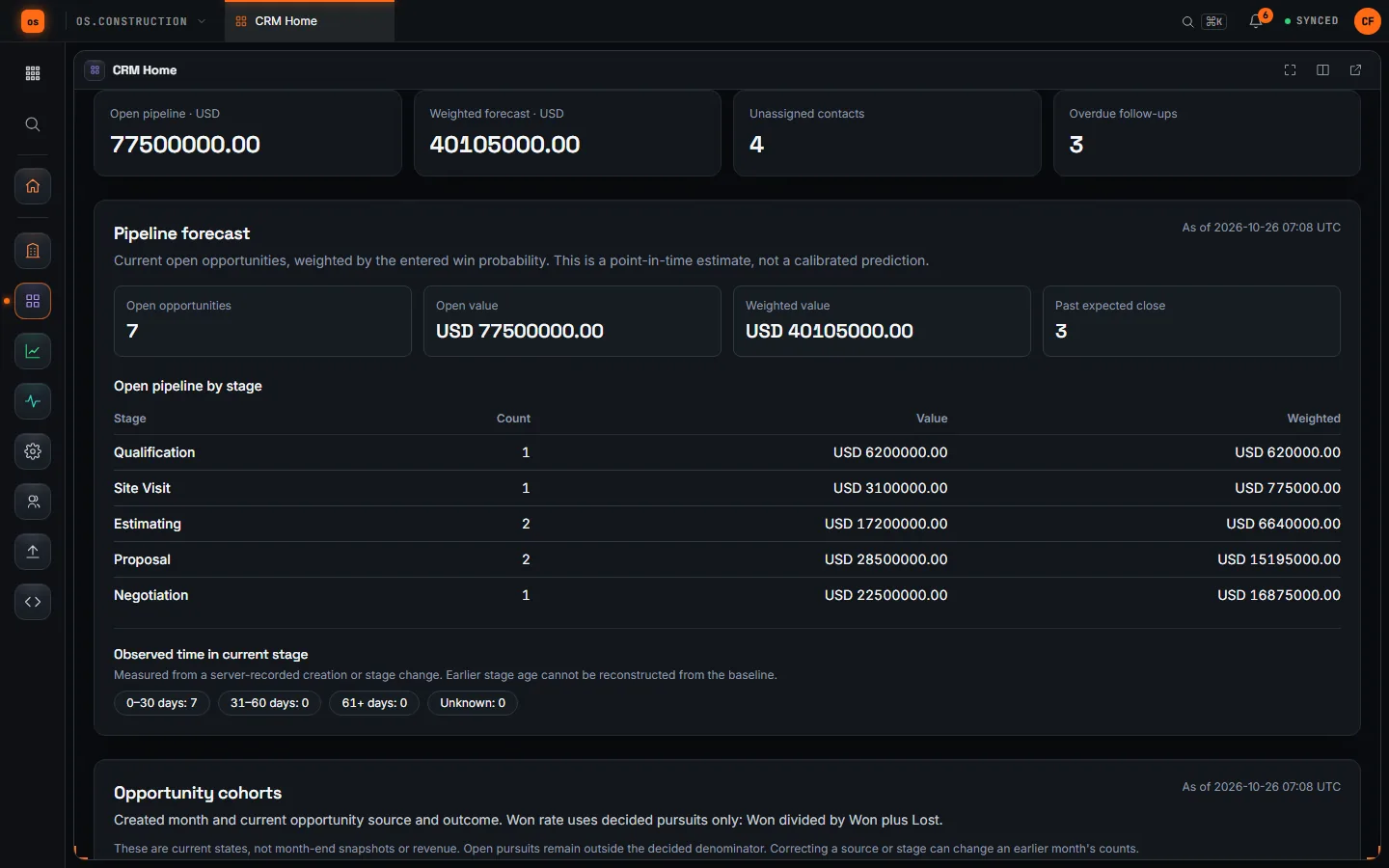
Use Pipeline forecast in the intake or project CRM dashboard to see current open value by stage, weighted value, past expected close dates and time in the current stage. The stage-age buckets use server-observed creation or stage changes; an older opportunity can show Unknown until its stage changes. The transition counts are recorded changes, not a historical win rate or a prediction.
Open an opportunity’s Forecast history to review before/after snapshots of stage, estimated value, probability and expected close. When editing one of those inputs, enter a Change note to explain the revision. Existing opportunities begin with a rollout baseline; it cannot reconstruct earlier changes. The history and forecast follow current company intake or project CRM access. They do not update proposals, budgets, contracts or revenue.
Choose an Opportunity source category when creating a pursuit: Unknown, Repeat customer, Referral, Invitation, Public bid, Website, Outbound, Partner or Other. Add an optional short Source detail for a known category. This is staff attribution for the opportunity, separate from a linked contact’s lead-source text. CRM does not infer one from the other. Changing the category or detail later requires a Source correction reason; the earlier value remains in Source attribution history. Older opportunities start with an Unknown rollout baseline, not a guessed source.
The Opportunity cohorts table on each intake or project CRM dashboard groups pursuits by UTC creation month and their current source and stage. It shows Open, Won and Lost counts and Won divided by Won plus Lost for decided pursuits. Open pursuits do not count as decided. Reopening a pursuit or correcting its source can change a past month’s row. These are current-state counts, not month-end snapshots, a calibrated forecast or revenue.
Send a proposal through internal review
On a project opportunity, create a proposal draft from its current title, scope and USD amount. The author can add scope, exclusions, a validity date and up to 100 itemized estimate lines with quantity, unit and unit price. The app calculates each line amount and the USD total when the draft is saved. Without lines, enter a manual proposed amount. The opportunity’s pipeline estimate stays separate from this proposal total.
Submit the draft for internal review when its scope and estimate are ready. Submission freezes the revision, including its items and total; an expired validity date must be corrected first. A different project CRM administrator sees the submitted snapshot in a fresh review and can approve it or reject it with a reason. A new draft after a decision copies the prior proposal snapshot so its items can be revised without changing history. Only one draft or submitted revision is current at a time. If work cannot continue, a project CRM administrator can withdraw the current draft or submission with a reason. Previous revisions remain visible; editing the opportunity does not rewrite them.
This approval records an internal decision about a proposal snapshot. It does not send a customer proposal, capture customer acceptance or signature, mark the opportunity Won, create a bid package or contract, change the budget, or post revenue. Company intake opportunities gain this workflow only after they move into a project. Treat the reviewed total as proposal history, not an approved financial commitment.
Prepare an internal bidding draft
When the current project proposal revision is internally approved, an authorized staff member with both CRM and Bidding access can choose Review bidding handoff. Enter a new package title, then review the source scope, exclusions and item descriptions, quantities and units. Structured customer sell-price fields are omitted from this preview. Confirm the fresh review to create a draft bidding package and a durable source receipt. Retrying the same request recovers that receipt; a newer proposal revision does not silently rewrite the package.
The draft has no bidders, invitations, bid forms, vendor messages or proposal text in vendor-facing fields. Proposal free text may itself mention prices or customer details, so the source snapshot stays in a private receipt that requires current CRM and Bidding read access. Staff write vendor-safe content in Bidding, open Vendor Release, generate a preview and approve the exact text and bid forms with a reason. Only a current approved release lets a new package open or send recipient invitations. Editing vendor-visible content or returning to Draft requires a new review. Staff can stage PDF, PNG or JPEG files, explicitly classify each for every invited bidder, inspect its exact bytes through a guarded download, and include its name, size and digest in the release review. Generic package, form and form-item attachments still block release because they have no such classification. Vendor file uploads require a trusted security scanner in production. This handoff and release do not prove customer approval, create a commitment or post financial values.
For a newly reviewed package, an invited bidder’s submission creates a frozen quote revision tied to that exact vendor release. The bidder can separately list additive or deductive alternates and qualifications; these terms stay with the revision and do not change its base price. A revised quote retains the previous revision as superseded; a later decline marks the current one withdrawn. The bidder sees only history for their own invitation, while staff with Bidding access can review the bid’s retained history. Staff cannot enter a bidder’s submission for these packages. To change the vendor scope after opening, staff return an unawarded package to Draft, review a new release and issue new invitations. For a newly approved release after version 1, its invited recipient sees the current changed vendor-facing fields and must acknowledge the exact version and digest before submitting a new quote; the old invitation cannot be reused. This records an in-app confirmation, not delivery or legal acceptance. In Award review, a Bidding editor compares current quotes, bidder terms and required addendum evidence from that release, records scope exceptions and other reviewer notes, and proposes one exact revision. A different Bidding administrator approves the current comparison before award. This works after Bidding closes; a changed quote, alternate, qualification or release needs a fresh proposal and approval. The draft commitment receipt retains links to the selected quote and approval. A recommendation is internal award evidence, not acceptance of an alternate, an executed contract or Budget posting. Bidder file attachments remain future work.
After bidding, review a submitted, priced bid before awarding it. If the bid contains both itemized prices and a lump sum, they must match. An authorized staff member can then review the awarded vendor and amount and create a private draft subcontract or purchase order. Every commitment line needs a project cost code; choose a fallback code explicitly when the bid and package do not assign one. The package detail keeps a private, immutable receipt of the quote and cost-code mapping used for the draft. Current Bidding access and permission to read the commitment’s schedule of values are required to inspect it. This step does not execute the contract or approve payment; the CRM proposal’s customer sell price is not a trade cost baseline.
Review a buyout plan
Before converting an awarded bid, capture a versioned Budget snapshot. Once the draft commitment and its frozen award receipt exist, open Buyout plan from the bid package. A Budget administrator with Bidding and Commitments access can select a snapshot captured before the receipt, then allocate the vendor quote across every cost code in the receipt. The review compares each allocation with the snapshot’s revised budget less captured committed and direct costs, as well as reservations from earlier approved plans. It also shows allocation minus vendor quote as the variance. Snapshot categories sharing a cost code are added together because commitment lines do not carry a Budget category.
Review the code-level comparison and approve it while the review token is current. The approved plan and source digest remain visible on the buyout page; approval does not post costs, issue the draft commitment, or change the customer’s proposal. A historical conversion without a frozen receipt, or a receipt with no earlier eligible snapshot, cannot be given a retrospective baseline. This release uses one selected snapshot per project and does not revise approved plans after later budget changes.
Record a reported customer response
When the current project proposal revision is internally approved, a project CRM editor can open Customer response evidence on the opportunity. Review the exact proposal scope, estimate total and a same-project CRM contact. The opportunity’s linked contact is selected first; search project contacts to choose another. Choose a reported accepted or declined response, its source, and write an evidence note. A document source also needs a project document reference. The app records the observation at the current server time.
Only one non-voided response can be current for a proposal revision. The response history keeps the proposal revision, recipient contact snapshot, source, evidence, staff actor and timestamps. A project CRM administrator can void an incorrect entry with a reason; the original remains visible and a correction requires a fresh review. An expired or superseded proposal cannot receive a new response. Recording or voiding a response does not mark an opportunity Won or change financial records.
This is staff-recorded evidence. It does not prove that the customer saw or accepted the proposal, identify a signer, or create a contract. Keep it separate from the link-holder response described below.
Prepare a private customer offer
A project CRM administrator can open Customer offer portal on an opportunity with a current internally approved proposal. Search for a same-project contact with an email address, then review the exact proposal revision, scope, estimate, exclusions, validity and recipient. Creating the offer freezes a PDF and displays one secure invitation link once. Copy it for manual handoff; offer history cannot retrieve its secret later. When a direct provider and dedicated challenge key are configured, the staff form defaults to requiring a separate email code. The administrator explicitly chooses whether this particular offer requires it. For a challenged offer, redeeming the link creates a pending session; the PDF and response stay closed until the holder enters a short-lived code sent to the frozen recipient email. Sends and guesses are limited, and only the newest code works. An unchallenged offer remains a link-holder-only flow. This code confirms mailbox control at that time, not the person’s legal identity or organizational authority.
Where a webhook or Resend email provider and secure APP_URL are configured, an administrator may also dispatch the invitation. Dispatch invalidates the copied link and records a provider attempt without storing the replacement bearer link. The local outbox cannot dispatch it. A provider_accepted result means the provider accepted the message. The generic webhook adapter can later report authenticated delivered or bounced events tied to the exact attempt; both together are shown as conflicting evidence for review. A separate Resend adapter can verify signed delivery or bounce callbacks for the tagged attempt, provider email ID and recipient; its live callback and secret still need production configuration and verification. Resend email.delivered means acceptance by the recipient mail server, not inbox placement or reading. An unknown or queued outcome requires provider reconciliation; CRM never automatically resends the one-use link. Offer history records the recipient snapshot, PDF digest, expiry, dispatch/callback evidence, portal link and mailbox access, revocation and any link-holder response.
The offer PDF embeds font subsets and preserves tested accents, smart punctuation, Greek, Cyrillic, Simplified Chinese and Japanese text. If a glyph or script cannot be rendered faithfully, creation stops before saving instead of changing the approved wording. Arabic and Hebrew layout are not supported yet. Han-only text defaults to Simplified Chinese glyph forms because the app does not yet store a recipient document locale.
The invitation expires after seven days or at the end of the proposal validity date, whichever comes first. It is one-use: the holder explicitly exchanges it for a private session of up to 30 minutes. If that session expires, an administrator must revoke and reissue the offer. An administrator can revoke an offer with a retained reason; this also closes an already open portal session. A new proposal revision or changed recipient email also removes access to the prior offer.
The portal shows the frozen offer PDF and lets the link holder record accepted or declined once. This records control of the invitation link, not verified customer identity or signatory authority. In Review delivery, authority and identity evidence, an administrator can record the selected contact’s claimed role, source, observation, reference and exact offer artifact, then void an incorrect observation without deleting its history. Even an “authorized signer” choice is staff-reported and unverified. A separate Staff-reviewed customer identity evidence section lets an administrator submit an evidence reference for the exact active customer account grant, contact, email and PDF. Another CRM administrator approves or rejects it; an approved review expires or becomes historical if the grant, contact, offer or PDF changes, and staff can revoke it while keeping the decision history. This staff review is not legal identity proof or signer mandate. Neither section creates an electronic signature, contract, budget approval or financial posting or marks the opportunity Won. Use a separately verified mandate and signature workflow when legal acceptance is required.
Keep the next action visible
Log a call, email, site visit, meeting or task. Attach it to a contact, an opportunity or both, add notes, assign an owner and set a due time. Edit an open activity when a site visit moves or responsibility changes, then complete it when the work is done. The Activities view supports open, completed, overdue and assigned follow-ups.
Due dates are calendar days. A follow-up shows as overdue only once its due day has ended everywhere, so nobody sees it overdue on the day it’s due. The create and edit forms take a date; the API also accepts an exact time with a timezone, and an edit that leaves the date alone keeps that exact time. Edits use the activity’s current version so an older form cannot silently overwrite a teammate’s update. Completed activities stay as recorded. A project detail timeline shows the first 100 activities; follow View all for the paginated list. Contact selectors show up to 1,000 contacts, with an existing linked contact preserved in project edit forms.
An email activity records a conversation; it does not send an email or connect a mailbox. Due times organize work in the app; scheduled reminders, SMS and calendar synchronization are planned.
Handle service and warranty requests
In a project CRM workspace, open Service to record a customer-reported issue. Give it a title and description, record when and how it was reported with an evidence note, select the same-project contact and location when known, set its priority, assign an active project member and set a response target. The case queue shows status and ownership; the detail page keeps an event history. Staff can triage, work, wait for a customer, resolve, close and reopen a case. Version checks prevent an older form from overwriting a teammate’s update. Record a customer response explicitly to capture the first response time; moving a case to triaged does not claim that the customer was contacted. The report date stays separate from staff intake time.
Record Warranty coverage separately with a component, optional location, exact term, issuer and source document reference. A covered decision names reviewed coverage, includes a rationale and checks the staff-recorded report date against the exact term. A not-covered decision can cite evaluated coverage or a separate review reference when no registered coverage applies. The app does not infer coverage from project completion or an observation labeled warranty. Staff can find coverage by component or source reference; a case remains a request even when coverage is uncertain. Closing it does not close a punch item, observation, task, contract or payment item.
Staff cases remain an internal staff workflow. They do not dispatch a technician, issue a work order or bill service. The separate Customer portal view lets a CRM administrator review a project contact and issue a one-time access invitation. The customer activates a separate account, then sees only their own service requests, updates staff explicitly publish on those requests, and project updates addressed to their exact grant. Staff take a submitted request into a case before working it. The offer portal’s invitation and mailbox code do not authorize this access. A requester can attach JPEG, PNG or PDF evidence to an open request; only that account and authorized project staff can download it. This evidence is not a verified warranty or ownership record. Document-backed ownership handoff and SLA escalation still need further development.
Customers can recover a forgotten portal password through a one-use email link when a direct email provider is configured. Recovery signs out all customer sessions. A customer can also add a follow-up message or evidence file to an open request; staff see messages on the request and in Recent replies, and can download the original evidence. A message or file is recorded in the portal, not sent as an emergency alert or an automatic email or SMS. Staff still publish any customer-visible status and response explicitly. Evidence uploads require a configured scanner that confirms a clean verdict for the exact file; the upload form is unavailable without one in production. Upload reservations count files in progress against account limits, and a scheduled sweep cleans abandoned objects. Evidence files also require the private storage and malware scanning deployment checks before external uploads are enabled.
Use the Service response queue to see assigned, unassigned, overdue and next-day first-response targets. Cases leave this queue when a first response is recorded or the case is resolved or closed. Targets are shown in UTC. This worklist does not send reminders or promise a contractual response time.
On a case, Related field work can link an existing punch item, observation or task by its project item ID. You must already be able to see that particular field item. The link appears only while you retain access to it; private or recycled work is omitted without revealing its ID or count. Removing a link retains internal association evidence. Linking never updates or closes the field item’s own workflow, and general CRM case history does not disclose private link activity.
Use Installed assets to record a project asset tag, name, handoff reference and evidence note. Add a location, manufacturer, model, serial number, installation and commissioning dates, or reviewed warranty coverage when known. The register checks same-project references and date order; it does not verify a signed handoff or decide warranty eligibility. An asset’s tag is fixed after creation. Corrections require its current version and a reason, and the asset keeps the before/after history. Retiring an asset preserves its history and prevents new service-case links.
A service case can link to multiple active assets on the same project. The asset detail shows active and removed case associations as retained service history. Linking or unlinking an asset does not change the case warranty decision, dispatch work or grant customer access. The asset detail shows recent changes, and Full history pages through the complete event record.
Share a project update with selected customers
In Customer portal → Customer project updates, a project CRM administrator can draft a customer-facing title, message, status and optional milestone date. With Schedule viewing access, they can link the draft to a current public schedule milestone as the source for staff review. The draft stays private. Before publishing, review the wording, date and exact named customer grants that will receive it. If the source changed or left the active schedule revision, review it again before publishing. Other customers on the same project cannot see the update. The customer sees only the current published wording in their private Project updates page; a staff correction is marked as corrected, and a withdrawal removes it from customer view while staff keep the revision history. A linked update is hidden if the source changes, becomes private, is deleted, leaves the active revision or Schedule is disabled.
This is a staff-reviewed update, not an automatic copy of the internal schedule, financials, service cases or documents. Customers never receive the source task, notes, assignee, resources or dependencies. It does not prove delivery, legal notice or acceptance. A revoked grant or changed contact email loses access immediately.
Share a reviewed project document
In Customer portal → Customer documents, a project CRM administrator with Documents viewing access can choose one current PDF, JPEG or PNG stored in that project’s Documents tool. Open the source file, review its content and SHA-256 digest, write a customer-facing title and optional description, and select the exact named customer grants. Confirm the content and recipients before publishing. The source must be a real stored version, no larger than 8 MiB, with a clean scan verdict bound to its bytes. Private files, private folders, restrictive Documents permissions and simulated files are ineligible.
The addressed customer sees the reviewed title, description, filename, type, size and publication time in Documents, and downloads through their separate customer session. They cannot browse the staff Documents tree or see source paths, other recipients, storage identifiers or the review digest. A revoked grant, source replacement, privacy or permission change, deletion, disabled tool or changed bytes closes access. Any Documents privacy or permission change in the project makes earlier shares stale until staff publish a new review, even if the change was on another folder. Staff can withdraw a share with a retained reason.
Sharing makes those bytes available to the selected grant; it does not prove the customer opened or accepted them, deliver legal notice or revise a contract. External use requires the production customer ingress, private durable storage and malware scanner deployment checks.
Ask one customer for an operational choice
In Customer portal → Customer decisions, a project CRM administrator can draft a question with two to five choices, review one exact customer grant, then publish it. The customer sees only questions addressed to that grant and can choose one option with an optional comment. The team sees the answer in the staff workspace. Staff can correct or withdraw a question before it is answered, with the earlier wording retained in staff history. A due date is a review cue; the app does not close the question automatically or send an email or text message.
A choice records a preference about scheduling, materials or general feedback. It does not verify signatory authority, approve a contract or change order, authorize payment, or provide an electronic signature.
Archive a record
Archiving takes a contact, opportunity or follow-up out of day-to-day work without losing it. In the app, choose Archive contact, Archive opportunity or Archive follow-up and then Confirm archive. Over the API, DELETE on the record archives it and returns 204, with the same permission as editing. Repeating it changes nothing.
An archived record leaves lists, the summary, the pipeline forecast, cohorts, the action center and the contact export. It stays readable by its id with archived_at set, keeps its history (including an archived entry) and can no longer be edited, completed or newly linked. Existing links remain.
Opening an archived contact or opportunity shows an Archived banner with the date and, when the history records it, who archived it. Editors see Restore contact or Restore opportunity in the banner. Restoring clears archived_at, records a restored history entry and returns the record to lists, the summary and the forecast. Over the API, POST .../contacts/{id}/restore, .../opportunities/{id}/restore or .../activities/{id}/restore does the same and returns 204, with the same permission as archiving. Archived follow-ups leave the timeline. Contact and opportunity pages list them under a collapsed Archived follow-ups (n) section, where editors choose Restore to put one back on the timeline.
To find an archived contact, opportunity or follow-up, choose Show archived above the contacts, opportunities or activities list on the company or project CRM. Archived rows appear alongside active ones with an Archived marker and open the record, where editors can restore it. An archived follow-up links to its contact or opportunity, whose Archived follow-ups section has Restore. Choose Hide archived to return to the default list.
Merge a duplicate contact
When two contacts in the same intake or project are the same person, open the duplicate, expand Merge into…, choose the Contact to keep and select Confirm merge. It needs the same permission as archiving. The duplicate’s opportunities, activities and service cases move to the contact you keep, which also takes any organization, email, phone, role, source, notes or owner it was missing. The duplicate is then archived, and both contacts’ history records the merge. You land on the contact you kept. A crm.contact.merged webhook carries the kept and archived contact ids.
A contact with customer responses, offers, portal access or service requests can’t be the duplicate, because those stay with the contact they were issued to. Merge the other way instead. Over the API, POST …/contacts/{id}/merge with { "merge": { "target_id": 123 } } does the same, and GET …/contacts/duplicates runs the duplicate check. There is no unmerge.
Avoid overwriting a teammate’s edit
Contact edit forms carry the version you opened. If someone else saved the contact first, your save is refused and asks you to refresh, instead of overwriting their change. Over the API, send the contact’s updated_at with a PATCH; a stale value returns 409. Follow-up edits work the same way.
Get CRM changes in other systems
Company admins can subscribe an HTTPS endpoint to CRM webhooks: crm.contact.created, crm.contact.merged (a duplicate merged into the contact you kept), crm.opportunity.stage_changed (with crm.opportunity.won or crm.opportunity.lost when it closes), crm.activity.assigned and crm.lead_inquiry.created. Each fires after the change is saved and carries record ids, stages, owners and a link into the app, never names, contact details, notes, amounts or inquiry submitter details. Contacts created by a CSV import don’t send crm.contact.created.
A person newly made owner of a contact, opportunity or open follow-up gets an in-app notification, and an email if their preferences allow, unless they made the change themselves.
Access and integrations
Project CRM uses project permissions. Administrators have access; other team members need a CRM grant on their project permission template. Company intake uses separate explicit grants for active members of the same company. An activity’s owner is the person responsible for following up, not a private-record access rule.
The REST API reference describes contacts, opportunities, project proposal revisions, review, withdrawal, the reviewed bidding-draft handoff, staff-reported responses, offer creation/revocation, provider dispatch attempts, unverified authority evidence and staff-reviewed customer identity evidence, project service cases, response queue, private field-work links, installed assets and retained service history, reviewed warranty coverage, activities, organization/person records and links, paginated relationship timelines, person communication preferences and evidence history, reviewed duplicate resolution, project stakeholder roles, summaries, member grants, intake association and reviewed project creation/recovery. API clients need a bearer token plus the relevant company grant, project permission or administrator role. Scoped tokens require crm:read for CRM reads or crm:write for CRM writes; field-work links additionally need that tool’s read scope and current item-level access. Bidding-handoff reads additionally require bidding:read and creation needs bidding:write plus both current tool permissions. Creating a project from Won intake additionally requires admin:write. Member grant administration uses admin:read for listing and admin:write for changes, plus an administrator role. Final proposal review requires a different project CRM administrator and a fresh review token; administrator withdrawal requires a reason. Recording a reported customer response requires project CRM edit access and a fresh recipient/proposal review token; voiding one requires project CRM administrator access. Offer creation, dispatch, authority and identity evidence, and revocation require project CRM administrator access; the one-time invitation path is sensitive and is returned only at creation.
What comes next
The next priorities are enforcing recorded preferences in a reviewed outbound workflow, connected email and calendar histories, and richer event provenance. Offer dispatch still needs live Resend callback configuration, verification and operational reconciliation for ambiguous attempts; customer access still needs independently verified identity and organizational authority beyond the staff-reviewed evidence record. Extend the reviewed buyout with controlled baseline revisions and project handoff; extend operational customer choices with verified signer authority where legal approval is needed and, later, carefully scoped invoices. Verify document-backed asset and ownership handoff, then add durable SLA escalation, repeat business and referrals. Pipeline analytics (win rate, sales cycle, lead conversion, source cohorts) is now in Analytics; setting win rates beside the margin each job actually earned is next.
Generalized imports and exports across all CRM records, broad outbound campaigns, workflow automation and external CRM synchronization are not part of this preview. Existing project and financial tools remain separate workflows. Read the permissions guide before assigning access. Portal administrators must arrange the trusted invitation handoff and production ingress described in the app deployment guide before granting external access.
Keep exploring
Related across os.construction
- DocsAnalytics BI guideGet started with Analytics, build a dashboard from the metric catalog, read the CRM & Pipeline pack, share and schedule results, and understand exactly which rows each person sees.
- BlogWin rate, weighted pipeline, sales cycle: the pipeline numbers a contractor should watchA big pipeline number feels good and tells you little. Six pipeline metrics, how to calculate each one honestly, the mistakes that inflate them, and how they connect to backlog.
- BlogWhy your CRM and your BI should share the job's data coreMost contractors run the pipeline in one system, the jobs in another and the dashboards in a third, then argue about whose number is right. When the pursuit, the project and the report read the same records, the arguments get shorter and the answers get better.
- GlossaryWin RatePursuits won divided by pursuits decided (won plus lost). Open pursuits are left out.
- DocsDashboards, earned value and WIPAnalytics (preview) builds dashboards, scheduled reports, earned value and a WIP view from the same records your team works in, for every user. Cash forecasting is Planned.
- GlossaryPipeline ValueThe total estimated value of every open pursuit: work you're chasing that hasn't been won or lost yet.
Was this helpful?
Run it on your own project.
Start a 14-day free trial. Want a say in what ships next? Join the founding program.
14-day free trial. Pricing for paid plans isn't set yet. Talk to us. Already have an account? Sign in →