Observations: log safety and quality issues
Log a safety, quality, commissioning or warranty observation, assign it, move it through review, and escalate it to an RFI or punch item when it needs one.
On this page
An observation is something someone saw on site that needs a response: an unguarded edge, a damaged finish, a commissioning issue, a warranty call. The Observations tool gives each one a type, an owner, a due date and a response log, so it gets fixed and you can show that it was. Open it from the project’s Project Tools menu.
The value of an observation is the paper trail. “We told them” is an argument; an observation with a type, an assignee, a due date, a photo of the fix and a log of who said what is a record. And when an observation turns out to be a design question or a defect to close before turnover, it converts to an RFI or a punch item without anyone retyping it.
- Who uses it
- Supers, safety managers and QA staff who log; the trades assigned to fix; PMs and owners who review.
- When
- Any time someone sees something on site, from mobilization to the warranty period.
- What it holds
- Type and category, title, status, assignee, priority, due date, location, spec section, safety detail, photos and a response log.
- Connects to
- RFIsPunch listInspectionsMeetings
How an observation moves
| Status | Meaning | Moves to |
|---|---|---|
| Draft | Not yet issued | Initiated |
| Initiated | Assigned, awaiting correction | Ready For Review, Closed |
| Ready For Review | The assignee says it’s fixed | Not Accepted, Closed |
| Not Accepted | Checked and rejected, rework needed | Ready For Review, Closed |
| Closed | Resolved | Initiated (with Reopen) |
The buttons on the observation follow this table: Mark Ready For Review, Mark Not Accepted, Close and Reopen. Status changes are recorded in the response log, and every edit is in Change History.
How teams use it
On the morning walk the super sees extension cords across the east stair landing. He logs a Safety observation, type Housekeeping, priority High, due today, with a description of the fix: reroute overhead and secure before end of shift. He assigns it to the electrician and adds the safety manager to the distribution list.
By noon the electrician has responded in the log with a photo of the rerouted cords and marked it Ready For Review. The super checks the landing on his afternoon walk and closes it. Total time in the app: two minutes. What’s left behind: a dated, assigned, photographed record.
The drywall sub is assigned a quality observation about a damaged corner bead. It arrives with a location, a due date and a description, not a hallway conversation. The foreman fixes it, adds a response with a photo, and marks it Ready For Review.
If the GC marks it Not Accepted, the response says why, and the next fix goes back to Ready For Review. The log shows every round, which protects the sub as much as the GC.
The owner’s facilities team logs warranty calls as Warranty observations after turnover. Each one has an assignee and a due date, and the response log records the visit and the fix.
During construction, the owner’s rep can read closed safety and quality observations as the history of how issues on their building were handled, including the ones escalated to RFIs and punch items.
The observation log
Four tiles across the top count observations by stage and filter the list when you click them: Initiated (awaiting correction), In Review (ready for review), Rejected (not accepted, needs rework) and Closed.
The list shows Title, Type, Status, Assignee, Due Date and Priority. A due date shows how many days late it is, or how many days are left when it’s due within a week. Filter by Status, Type, Assignee, Priority, Created By, Location or Trade, search by text, and save a filter set as a view you can share with the project.
Select rows to set a status on several observations at once, or delete them. Deleted observations go to the Recycle Bin tab, where you can restore them.
Show the data as a table
| Item | Closed | Open | Total |
|---|---|---|---|
| Safety | 34 | 6 | 40 |
| Quality | 21 | 9 | 30 |
| Commissioning | 8 | 5 | 13 |
| Warranty | 2 | 1 | 3 |
Many safety observations, mostly closed, is a healthy sign: people are reporting before anyone gets hurt, and issues are being fixed. Filter the log by Type to see the split on your own job.
Create an observation
-
Click + Create
Or start from a template under Manage Templates if your team logs the same kind of observation often. The next number is shown in the action bar.
-
Fill in General Information
Type and Title are required. Types are grouped by category: Safety, Quality, Commissioning and Warranty. Set Status, Assignee, Due Date and Priority (Low, Medium, High or Urgent), then Location, Spec Section, Distribution and Description.
-
Add safety detail when it applies
The Safety panel records Hazard, Contributing Behavior and Contributing Condition.
-
Decide who can see it
Check Private to limit it to the creator, the assignee and the distribution list.
-
Create it
Open the observation and add photos or files under Attachments (up to 20).
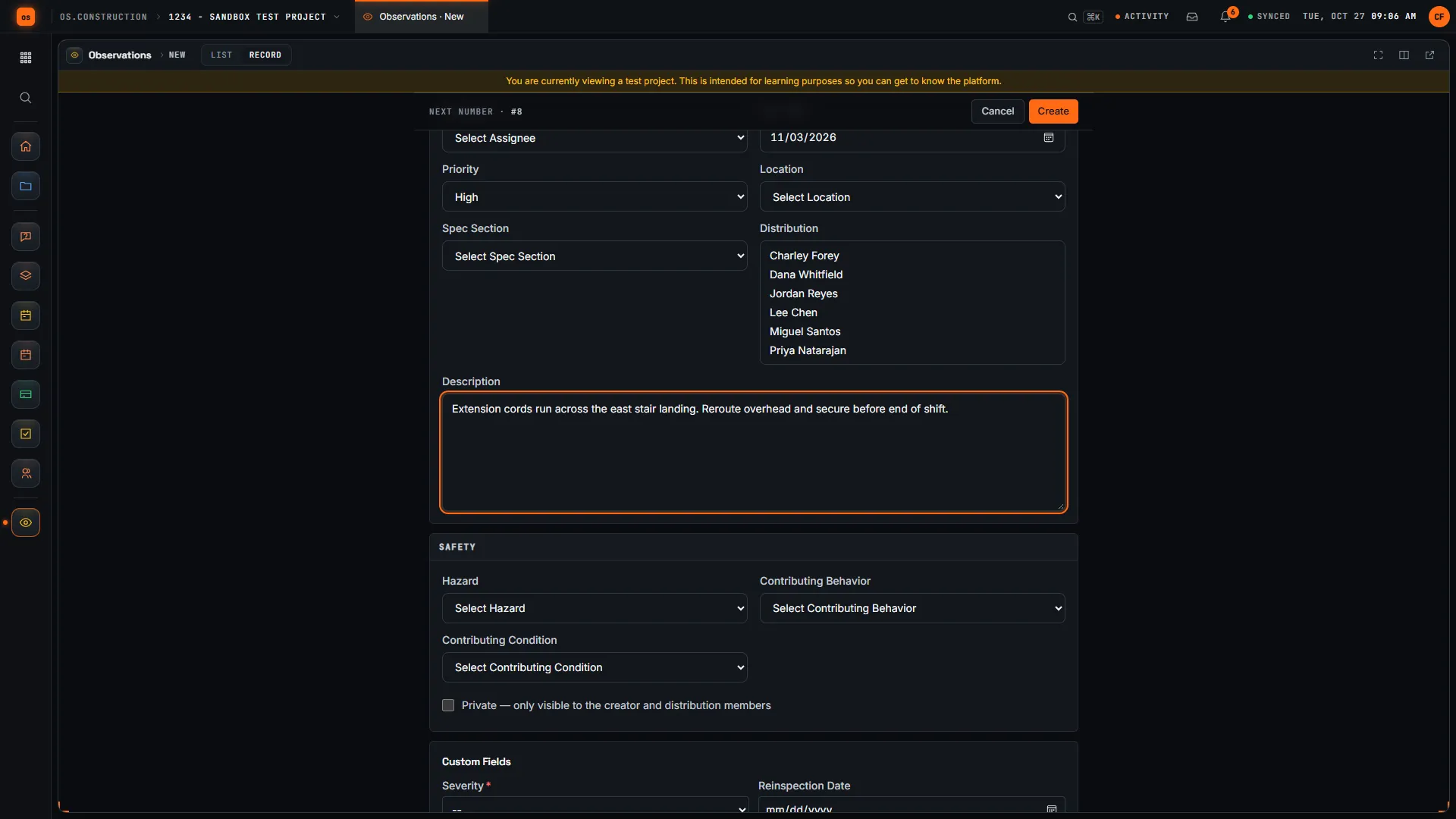
If your company has set up custom fields for observations, they appear on the form and the observation too.
Respond and follow up
- Response Log: anyone working the observation adds a response, with its own attachments. This is where the fix is described and photographed.
- Send Email: people with edit access can email the observation to its distribution list (or other recipients) with a subject and message. The app records when it was sent. Observations don’t send emails automatically on create or status change.
- Linked Drawings: link the sheet where the issue is.
- Linked RFIs & Punch Items: link related records already in the project.
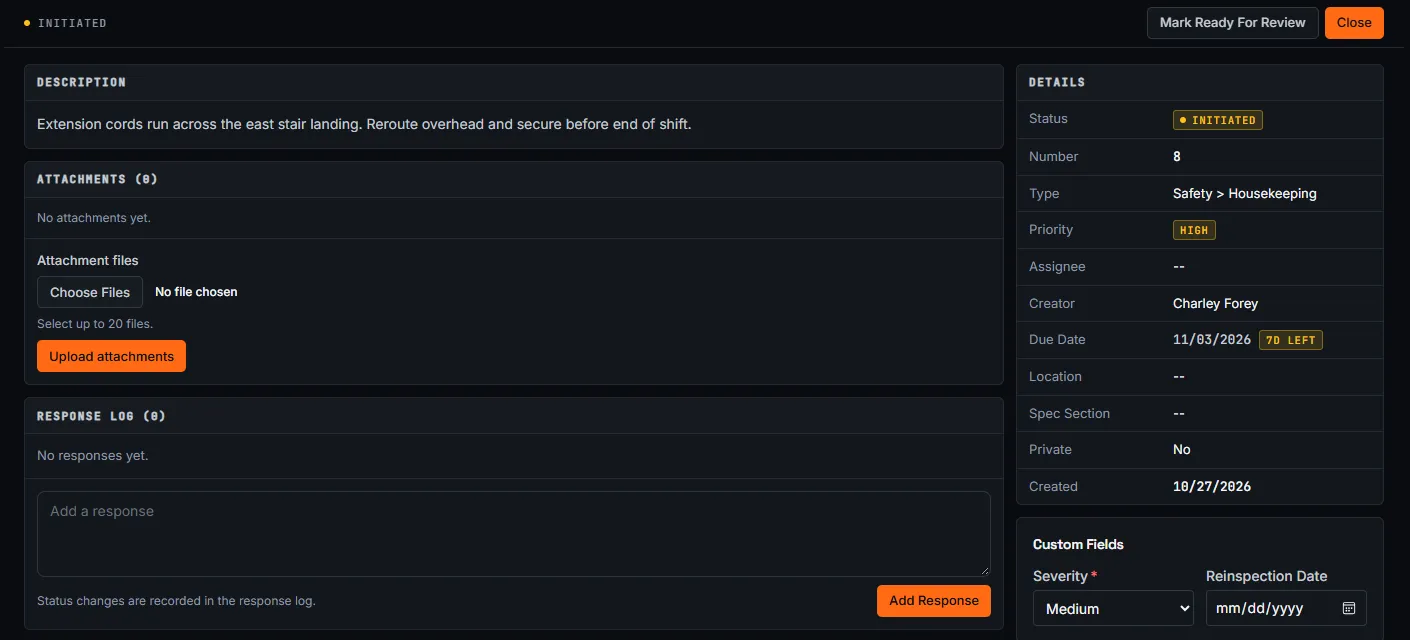
Escalate to an RFI or punch item
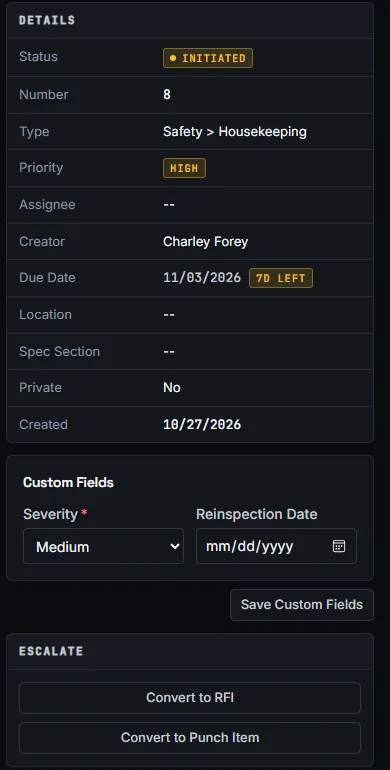
Some observations need more than a fix. The Escalate panel on the observation has:
- Convert to RFI when the observation raises a design question. See RFIs.
- Convert to Punch Item when it’s a defect to track to completion near closeout. See Punch list.
Once converted, the panel shows View linked RFI or View linked Punch Item, and the new record links back to the observation it came from.
Common mistakes
Mistake: Telling someone about a hazard and not writing it down
In the app: An observation takes a minute to log and keeps a dated, assigned record with a response log.
Mistake: Closing because the trade said it was fixed
In the app: Ready For Review sits before Closed; Not Accepted sends it back with a response saying why.
Mistake: Retyping an observation as an RFI or punch item
In the app: Convert to RFI and Convert to Punch Item create the new record and link both ways.
Mistake: No proof of the fix
In the app: Responses take their own attachments, so the photo of the fix sits next to the photo of the problem.
Mistake: Logging the same kind of observation from scratch every day
In the app: Save it as a template under Manage Templates and start from it.
Checklist: an observation someone can close
Before you click Create
- The type matches the category: Safety, Quality, Commissioning or Warranty.
- The title says what was seen and where: “Extension cords across east stair landing”.
- One assignee who can fix it, and a due date that matches the risk.
- The description says what “fixed” looks like.
- Location and spec section are set, so the list can be filtered by them.
- The Safety panel is filled in for safety observations.
- Photos go on as attachments right after you create it.
- If it’s really a design question or a closeout defect, convert it instead of leaving it open.
What it connects to
- RFIs and punch items: converted records link back to the observation, and you can link existing ones.
- Inspections: a failed inspection item creates a linked observation. See Inspections.
- Meetings: a meeting topic can link to an observation.
- My open items: open observations assigned to you show with your other work. See Find your way around.
- Analytics: where Analytics is turned on for your company, Analyze on the observation list opens the quality and safety report pack, with observations by category and hazard. See Live dashboards.
What it doesn’t do today
- No PDF export from the Observations tool. Use filters and saved views to share a current view.
- No automatic email on create or status change. Use Send Email.
- Attachments upload up to 20 files at a time.
- No native phone app. Observations run in your phone’s browser; native apps are planned. See Field tools on phones.
FAQ
What’s the difference between an observation and a punch item? An observation records something seen at any point in the job, including safety issues. A punch item is a specific defect to fix before the owner accepts the work. You can convert an observation into a punch item when it becomes one.
Can I export observations to PDF? Not from the Observations tool today. Use the list’s filters and saved views to share a current view with the project.
Who sees a private observation? The creator, the assignee and the people on the distribution list.
Can I reuse the same observation setup? Yes. Save it as a template under Manage Templates, then pick it under Start from a Template when you create the next one.
Is an observation the same as an incident? No. An observation is something seen that needs a response. Injuries and other incidents are logged in the separate Incidents tool.
Can I close an observation without review? Yes: Initiated can move straight to Closed, for example when the person who logged it fixed it on the spot. Use Ready For Review whenever someone else did the work.
Template
There’s no separate observation template, because the app’s own Manage Templates covers repeat observations. For inspections that create observations, start from the inspection checklist starter pack; near turnover, the punch list template.
Related
- Inspections: checklist-based inspections
- Punch list: defects to close before acceptance
- Daily log: the day’s record, including safety violations
- Glossary: Punch list, Audit trail, Warranty period, RFI
Keep exploring
Related across os.construction
- GlossaryWarranty PeriodThe time after completion during which the contractor must correct defective work, typically one year from substantial completion plus any longer manufacturer or specified warranties.
- GlossaryInspection ChecklistA list of items checked before work is covered or accepted, answered pass, fail or not applicable, so quality checks are the same every time.
- DocsInspections: checklists, sign-off and recurrenceBuild an inspection checklist template, run inspections against it with pass, fail and N/A responses, follow up on failures, sign and close.
- Free toolInspection checklist starter packFree QA inspection checklists for pre-pour, framing and MEP rough-in.
- ExplainerSafety observations to closed: building a safety recordLog a safety observation in os.construction, get it fixed, reviewed and closed, then read the record it builds: leading indicators, TRIR and trends.
- DocsField tools on phonesDaily logs, photos, observations, RFIs and punch items entered from a phone browser land directly in the job record, so the office sees what the field sees. Native apps are Planned.
Was this helpful?
Run it on your own project.
Start a 14-day free trial. Want a say in what ships next? Join the founding program.
14-day free trial. Pricing for paid plans isn't set yet. Talk to us. Already have an account? Sign in →