Punch list: create, assign and close items
Create punch items with a manager, final approver and assignees, let trades mark their work resolved, then review, approve and close each item.
On this page
A punch list is the work that has to be fixed before the owner accepts the building. In the Punch List tool, each item has a location, the trades who have to fix it, a manager who runs it and a final approver who signs it off. Open it from the project’s Project Tools menu.
Punch is where a job either finishes cleanly or drags on for months. The work itself is small; the problem is bookkeeping. Which items are really done? Whose turn is it? Did anyone look before it was crossed off? The Punch List tool answers those three questions on every item, so the list you hand the owner is one you can stand behind.
- Who uses it
- Supers and project engineers who walk and manage punch; trades who fix it; the owner or architect who signs it off.
- When
- From the first area turnover through substantial completion and the final walk.
- What it holds
- Title, location, assignees, manager, final approver, due date, type, priority, cost and schedule impact, photos and linked drawings.
- Connects to
- ObservationsInspectionsMeetingsCloseout
How an item moves to closed
The usual path, and who acts at each step:
| Step | Status | Who acts |
|---|---|---|
| 1 | Initiated → Work Required | Punch item manager |
| 2 | Each assignee clicks Resolve on their line | Assignees |
| 3 | Ready for Review | Manager checks the work |
| 4 | Ready to Close, or Work Not Accepted (back to the assignees) | Manager |
| 5 | Close Punch Item, or Not Accepted by Creator (back to Work Required) | Final approver |
An item can also go In Dispute when a trade doesn’t agree it’s theirs, and back to Initiated or Work Required once settled. A closed item can be reopened to Work Required. The bar on the item shows how many assignees have resolved their part.
Each assignee’s line shows Unresolved, Ready for Review or Resolved. Assignees use Resolve and Return on their own line only while the item is in Work Required, Work Not Accepted or Ready for Review.
Who has the ball
Ball in Court follows the status, so the list can always be filtered to what’s waiting on one person:
| While the item is | Ball in court |
|---|---|
| Initiated, Work Required, Work Not Accepted or In Dispute | The assignees who haven’t resolved their part (all assignees once everyone has, or the manager if there are none) |
| Ready for Review | The punch item manager |
| Ready to Close | The final approver |
| Not Accepted by Creator | The item’s creator |
| Closed | Nobody |
How teams use it
The super walks Level 2 with a tablet on Monday morning. For each defect she picks a template (Paint touch-up, Door hardware, Ceiling tile) that fills in the type, priority, manager, final approver and assignee, adds the room as the Location and taps Save & Create New. Forty minutes later, 36 items are in the list, each with a location and a trade, and she adds photos to the ones that need them from the item’s Attachments.
On Wednesday she filters to Ready for Review, walks only those rooms, and either marks each one Ready to Close or Work Not Accepted with a comment. Nothing gets crossed off because someone said so in the hallway.
The painting foreman opens the list filtered to his company. He sees only what’s his, each item with a room and a photo. When a touch-up is done he clicks Resolve on his own line. On items shared with the electrician, the progress bar shows his part is done even though the item isn’t.
When an item lists painting for damage the drywall crew caused, the item goes In Dispute instead of sitting unworked, and the manager settles it on the record.
The owner’s architect is the final approver. Their ball-in-court filter shows only items that are Ready to Close: the GC has already checked them. For each one they close it, or send it back with Not Accepted by Creator, which puts it back to Work Required.
At substantial completion, the closed count and the remaining open items are on the punch list cards, and every closed item shows who reviewed and who closed it. That record is what the retainage conversation is built on.
The punch list
Cards across the top count Open Items, Overdue, Ready for Review (awaiting sign-off) and Closed (accepted); click one to filter the list.
The list shows #, Title, Status, Ball in Court, Assignees, Location and Due Date. Filter by Status, Ball In Court, Assignee, Approver, Priority, Trade, Type, Location and Due (Overdue, Next 7 Days or No Due Date), search, and save views.
Select items to Mark Ready for Review, Close or Delete them in bulk. Deleted items go to the Recycle Bin tab and can be restored.
Show the data as a table
| Item | Closed | Open | Total |
|---|---|---|---|
| Drywall and paint | 18 | 7 | 25 |
| Electrical | 11 | 3 | 14 |
| Mechanical | 9 | 6 | 15 |
| Doors and hardware | 6 | 4 | 10 |
| Flooring | 5 | 1 | 6 |
| Fire protection | 3 | 2 | 5 |
Filter by Trade and the list gives you this picture for your own job. The useful number isn’t the total; it’s the share still open per trade. A trade with a high open share and few Ready for Review items isn’t working its list, and that’s a call to make before the next walk.
Create a punch item
-
Click + Create
Or pick a template under Start from a Template to fill in the type, priority and people.
-
General Information
Title and Number are required (the next number is filled in). Set Due Date (three days out by default), Type and Priority (Low, Medium or High).
-
Roster
Punch Item Manager and Final Approver are required. Add the trades who have to fix it as Assignee(s), and anyone to keep informed on the Distribution List.
-
Classification
Location, Cost Code, Schedule Impact and Cost Impact (Yes (Known), Yes (Unknown), No Impact, TBD or N/A) and Reference. Check Private to limit it to admins, the manager, assignees and the distribution list.
-
Save
Save & Create New keeps you on the form for the next item, useful on a walk.
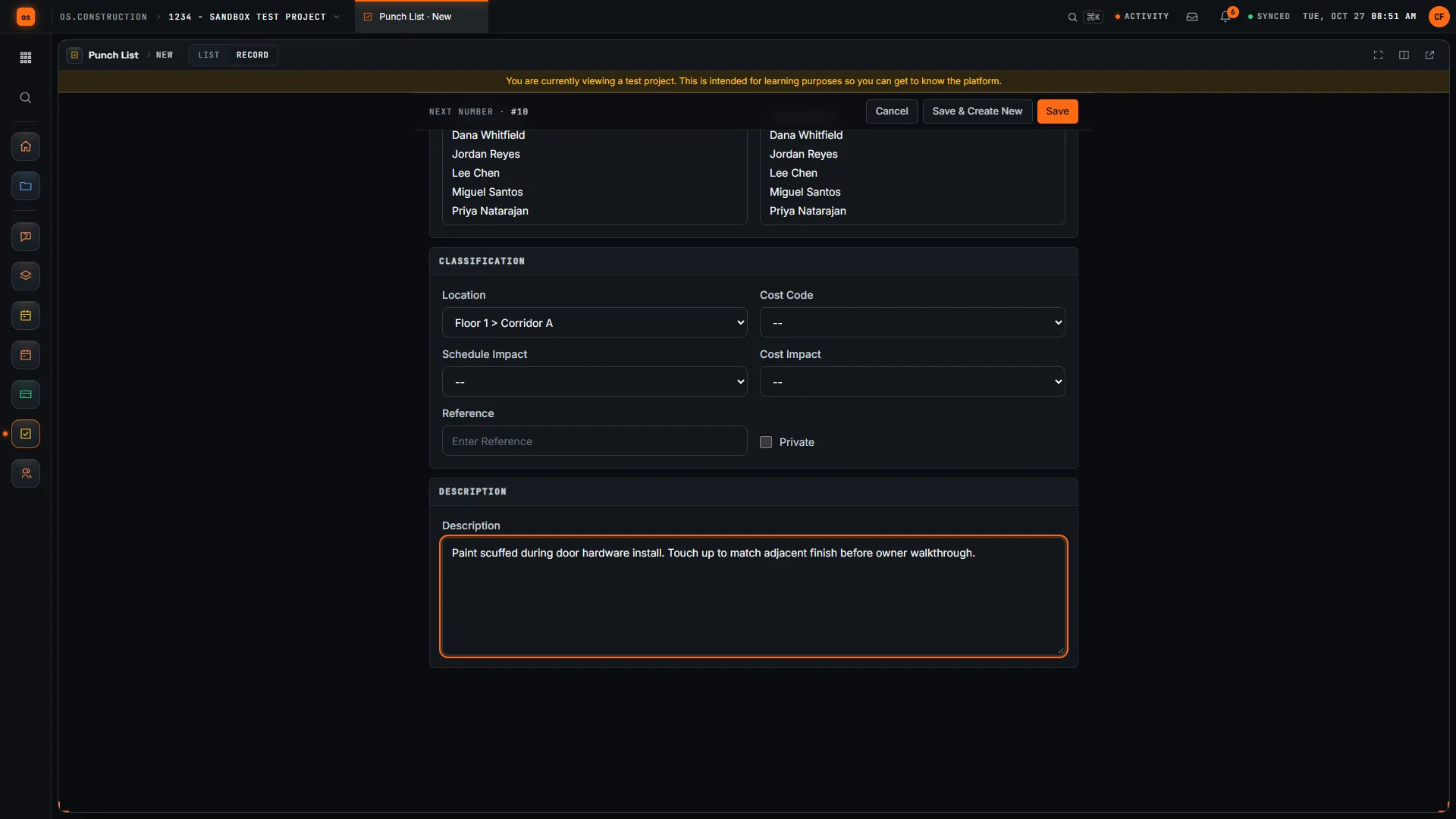
After saving, upload photos under Attachments (up to 20 files) and link the sheet under Linked Drawings.
On the item
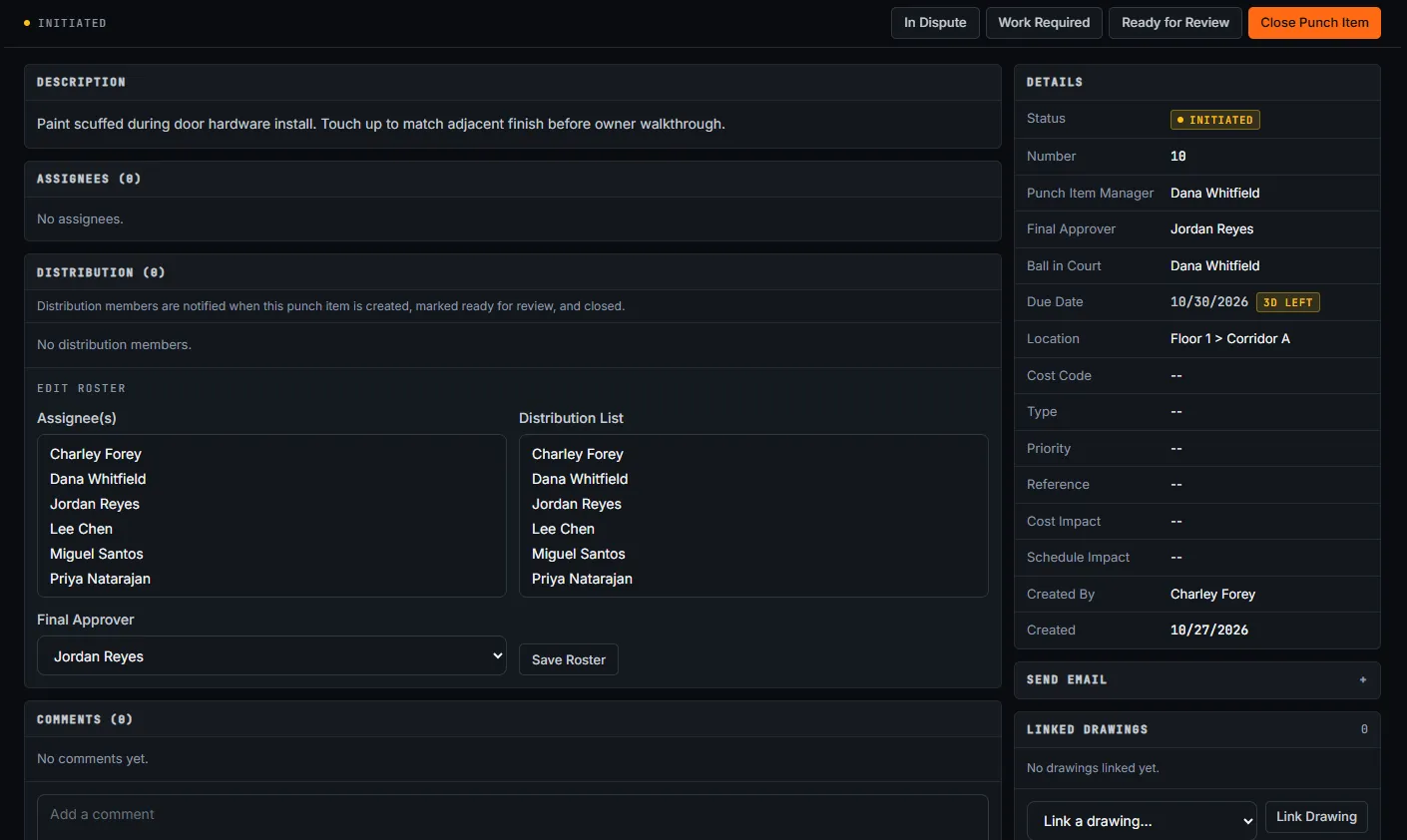
Description, the assignee lines, Distribution, Edit Roster, a Comments thread, Activity, linked drawings, Linked Observations and the change history. Send Email sends the item to its distribution list (or other recipients) with a subject and message, once it’s out of Draft; the app doesn’t email on status changes.
The people on the item get in-app notifications when it’s created and when its status changes, and the manager, creator and assignees are notified of new comments.
Templates
Punch Item Templates save a name with a default type, priority, assignee, manager, final approver, distribution list and description. Mark a template Active to offer it when creating items.
Five or six templates cover most of a typical walk: one per common defect type with the trade already assigned. They’re the biggest time saver on a long walk.
Where punch items come from
Most are created on a walk. You can also Convert to Punch Item from an observation, which links the two. A failed inspection item creates an observation, which you can then convert.
Common mistakes
Mistake: "Fix paint" with no room, wall or photo
In the app: Location comes from the project's location list, and photos and linked drawings sit on the item, so the trade can find it without a phone call.
Mistake: Crossing an item off because the trade said it was done
In the app: Resolve, Ready for Review, Ready to Close and Close are separate steps for the trade, the manager and the final approver.
Mistake: One item for three trades, and no idea who is finished
In the app: Each assignee has their own line and Resolve button, and the progress bar shows how many have resolved.
Mistake: Arguments about whose scope it is, settled in the hallway
In the app: In Dispute puts the disagreement on the item, and the change history records how it was settled.
Mistake: Typing the same manager, approver and trade on every item
In the app: Active templates fill them in, and Save & Create New keeps you on the form.
Mistake: A closed item that comes back at the final walk
In the app: Reopen it to Work Required instead of creating a duplicate, so its history stays in one place.
Checklist: before the owner’s walk
Punch list ready for sign-off
- Every item has a location a stranger could find and at least one photo.
- Every item has a manager, a final approver and the trade that owns the fix.
- Disputed items are settled, not left In Dispute.
- Filter by Ready for Review and walk those items yourself before the owner does.
- Items you checked are Ready to Close, so the final approver’s ball-in-court view is complete.
- Overdue items have a comment saying why and a new due date.
- Observations that are really defects have been converted to punch items.
What it connects to
- Observations and inspections: an observation converts to a punch item and the two stay linked; a failed inspection item creates the observation.
- Drawings and locations: the item links the sheet and uses the project’s location list.
- Meetings: a meeting topic can link to a punch item, so the weekly meeting points at the real record.
- My open items: what’s waiting on you across the project. See Find your way around.
- Analytics: where Analytics is turned on for your company, Analyze on the punch list opens the quality and safety report pack, and open and late punch items also show in the project management pack. See Live dashboards.
- Closeout: the punch list is the evidence for substantial completion and the retainage that follows. See Closeout and retainage release.
What it doesn’t do today
- No export from the Punch List tool. Filter and save a view to share the current list in the app.
- No automatic email on status changes. Send Email sends an item when you choose; in-app notifications cover status changes.
- Attachments upload up to 20 files at a time.
- No native phone app. Punch runs in your phone’s browser; native apps are planned. See Field tools on phones.
FAQ
Can a subcontractor close their own punch item? No. Assignees mark their part resolved. The manager reviews and the final approver closes.
Can I export the punch list? There’s no export from the Punch List tool today. Filter and save a view to share the current list in the app.
Can I add photos? Yes, as attachments on the item, up to 20 files at a time.
What does Ball in Court show? Who has to act next on the item, so the list can be filtered to what’s waiting on each person. See Who has the ball.
What’s the difference between Work Not Accepted and Not Accepted by Creator? Work Not Accepted is the manager rejecting the trade’s work at review; it goes back to the assignees. Not Accepted by Creator is the final approver rejecting an item at sign-off; it goes back to Work Required.
Can one item have several trades? Yes. Add each as an assignee. Each has their own line and resolves their own part.
What’s the difference between a punch item and an observation? An observation records something seen at any point in the job, including safety issues. A punch item is a defect to fix before acceptance. Convert an observation when it becomes one.
Template and walkthrough
Walking with paper or a spreadsheet today? The free punch list template has the same columns as the app: location, trade, priority, due date, status and ball in court. A video walkthrough of creating a punch item is shown at the top of this page when it’s published.
Related
Keep exploring
Related across os.construction
- ExplainerPunch list to closeout, on one recordFollow a deficiency from a failed inspection item to an observation, a punch item, review and sign-off, and see what closing punch means for retainage.
- GlossaryCloseoutThe final phase of a project: work finished, documents delivered, final payments and lien waivers exchanged, and the job closed financially.
- GlossaryPunch ListThe list of incomplete or defective items that must be fixed before the owner accepts the work and final payment is released.
- Free toolPunch list closeout calculatorWeeks to clear the punch list at your close and add rates, and the rate a target needs.
- Free toolPunch list templateFree construction punch list template.
- DocsCloseout and retainage releaseHow closeout requirements are planned to attach to each subcontract at buyout, collect through the job, and gate retainage release on both the owner side and the sub side.
Was this helpful?
Run it on your own project.
Start a 14-day free trial. Want a say in what ships next? Join the founding program.
14-day free trial. Pricing for paid plans isn't set yet. Talk to us. Already have an account? Sign in →