Meetings: agendas, minutes and action items
Plan a project meeting, set up a recurring series, record attendance and minutes by topic, carry open items forward, and turn topics into tasks.
On this page
- The meeting loop
- How teams use it
- The meeting log
- Set up a recurring series
- Create a meeting and its agenda
- Hold the meeting and record minutes
- Turn topics into tasks
- Carry open items forward
- Record who got the minutes
- Common mistakes
- Checklist: a meeting that closes things
- What it connects to
- What it doesn’t do today
- FAQ
- Template and walkthrough
- Related
Watch the walkthrough · 1:49
Schedule a project meeting with a clear agenda
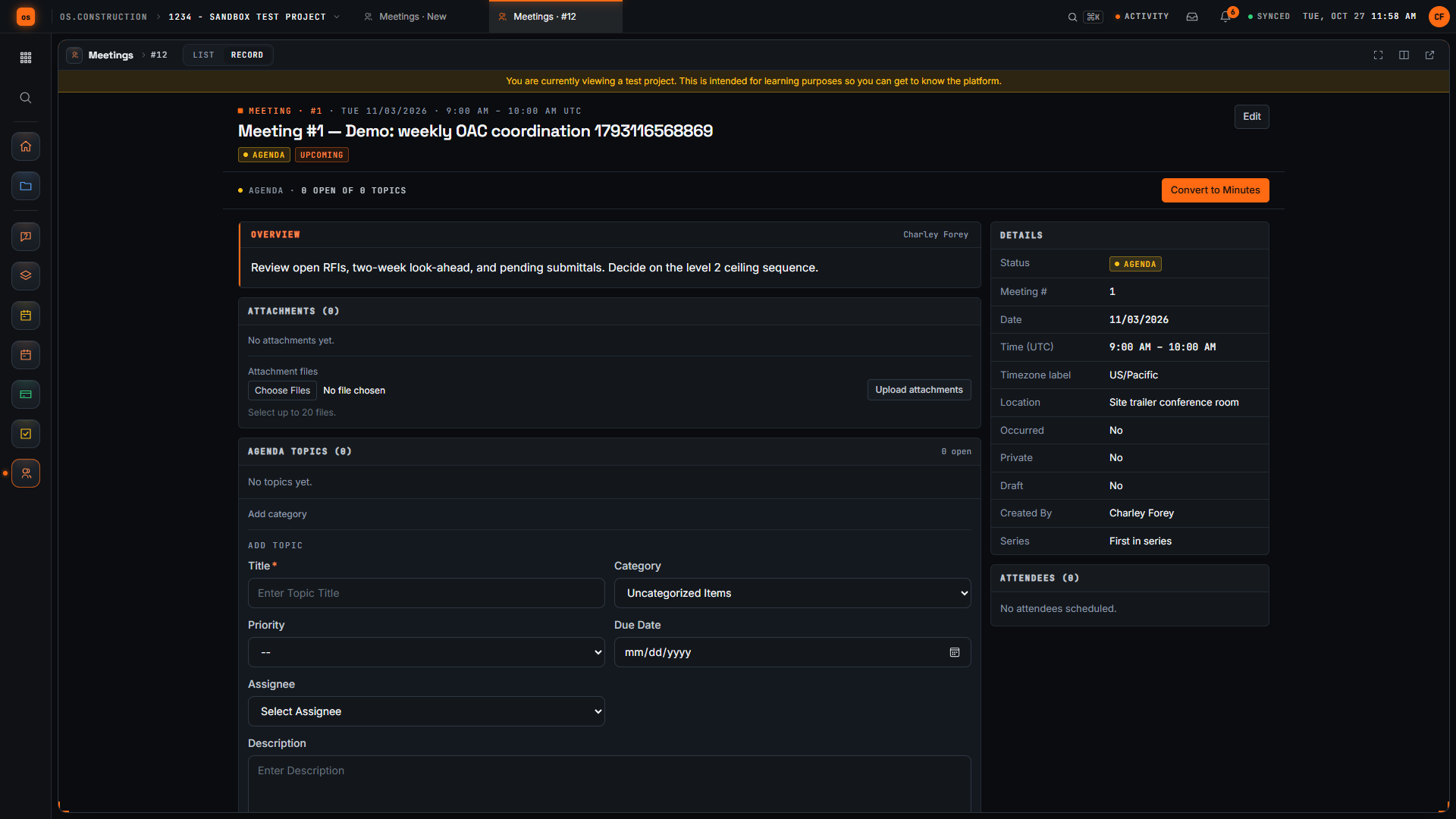
- 0:00Open Create Meeting
- 0:19Give the meeting a clear title
- 0:35Check the date and time
- 0:54Add the location
- 1:10Write the overview
- 1:27Create the meeting
- 1:38Review the saved meeting
Read the transcript
Here's the Create Meeting page in our local sample project. A good meeting record tells everyone what we're meeting about, where, and what we want to decide. Let's set one up together.
We start with a title people will recognize in a list. Ours is the weekly owner, architect and contractor coordination meeting. The demo adds a unique reference so each recording creates a separate sample record.
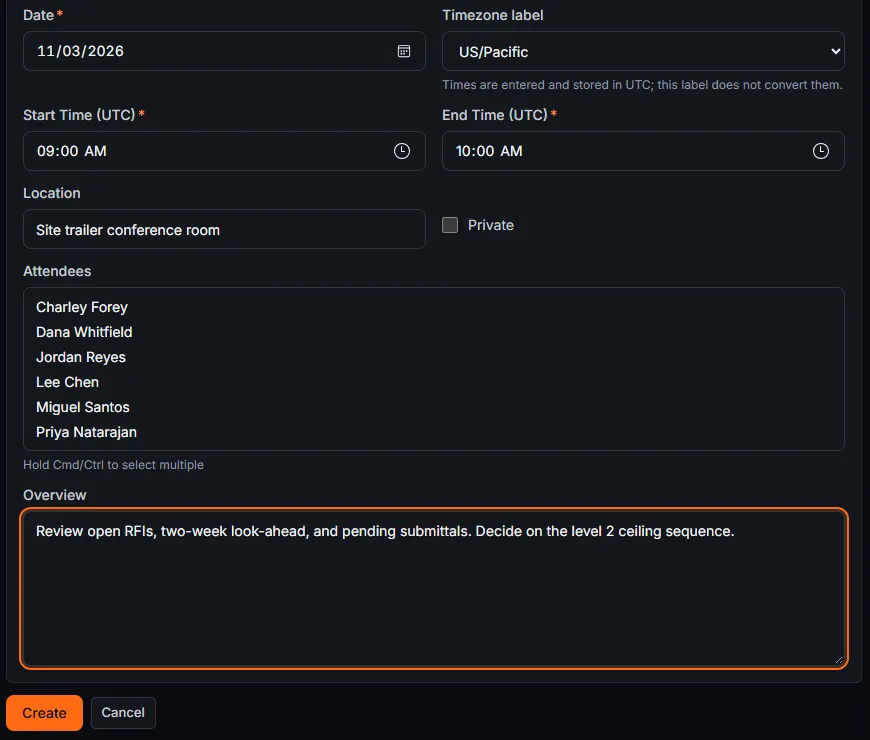
Next, let's check the date and time. The form suggests a date, a time zone, and a start and end time. We keep the suggested values in this sample; set them to match your real meeting.
Now we add where the meeting happens. For this sample it's the site trailer conference room.
In Overview, we write the agenda and the decision we need. Our sample covers open RFIs, the two-week look-ahead, pending submittals, and one decision on the level 2 ceiling sequence.
Then we select Create. The app saves the meeting and opens its record, with the meeting number and our title in the header.
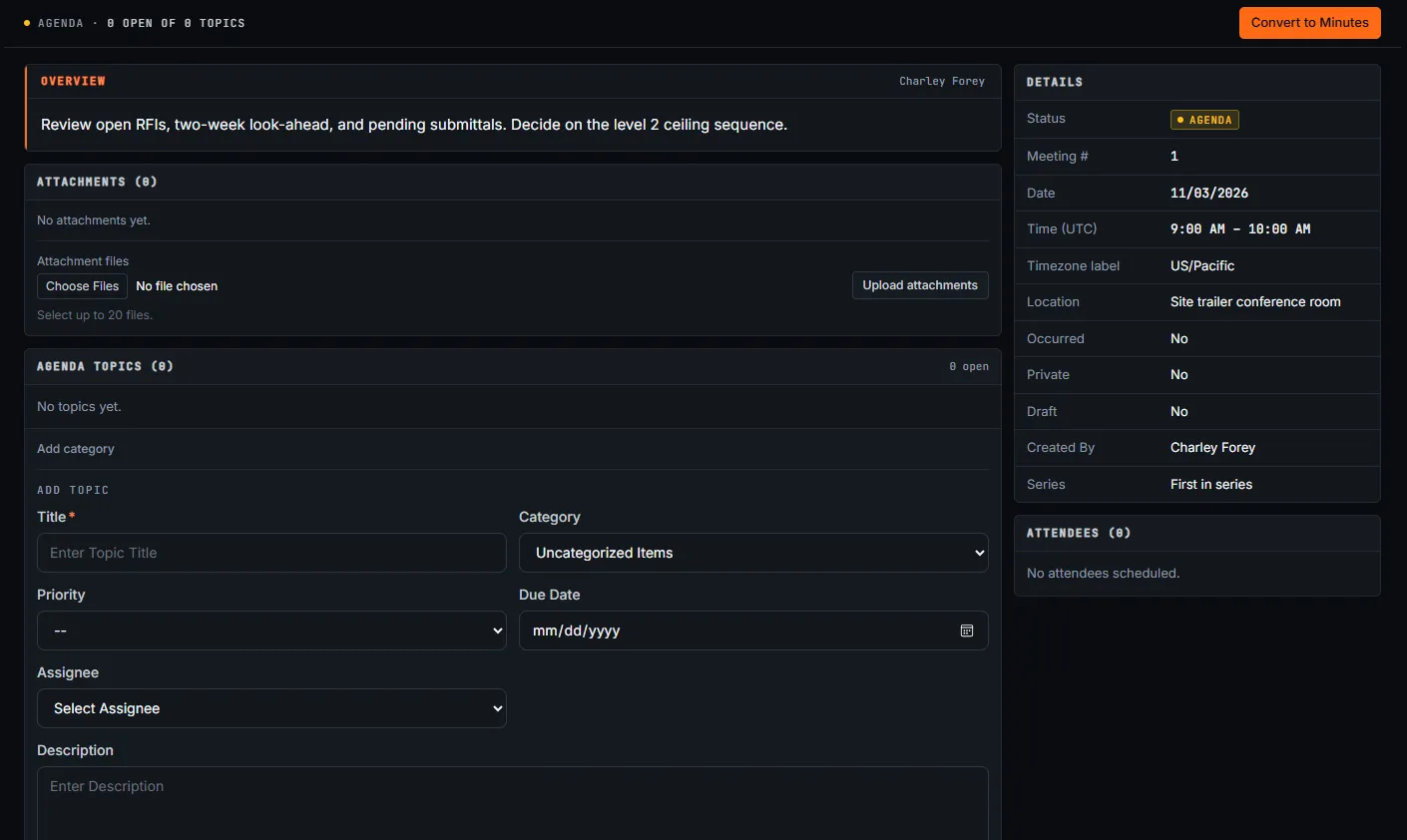
Here's our saved meeting. Let's check that the location and agenda came through. We've created a meeting with a clear title, a place, and an overview the team can prepare for.
Video page with chaptersStep-by-step guideMore in Field: daily logs & tasks
The Meetings tool holds each project meeting from agenda to minutes: the topics, who attended, what was decided, and what’s still open for next time. Open it from the project’s Project Tools menu.
Most construction meetings fail the same way: the minutes go out as a document, the open items live in that document, and next week someone retypes them into a new agenda, dropping a few on the way. In os.construction a topic is a record. It has an owner and a due date, it links to the RFI or submittal it’s about, and when it isn’t closed it carries into the next meeting by itself.
- Who uses it
- The PM or project engineer who runs the meeting; everyone who attends or receives the minutes.
- When
- Weekly OAC and subcontractor meetings, pre-installation meetings, safety meetings, any standing series.
- What it holds
- Agenda topics with owner and due date, attendance, minutes per topic, overall minutes, attachments and history.
- Connects to
- TasksRFIsSubmittalsPunch listObservations
The meeting loop
A meeting is either Agenda or Minutes. Convert to Minutes is one way. Topics are separate: each one is open until someone closes it, and closed topics can be reopened. That’s what makes the carry-forward work: the next meeting picks up whatever is still open, wherever it started.
How teams use it
The PM sets up the weekly OAC meeting once. Set up Recurring Series with a Weekly cadence, 9:00 to 10:00, in the site trailer, for the number of weeks left on the job. Before each meeting, the project engineer adds topics under categories (safety, schedule, RFIs, submittals, changes) and links each one to its RFI or submittal.
In the meeting, the PM converts it to minutes, marks attendance, and writes the decision on each topic. Two topics need someone to do something by Friday, so Create task on each. After the meeting, Create Follow-up Meeting builds next week’s agenda with every open topic already in it under Business Arising from Previous Minutes.
The drywall foreman attends the subcontractor meeting every Thursday. The topics assigned to him show on his My open items, each with a due date and a link to the RFI or punch item it’s about. He doesn’t have to read the whole set of minutes to find his three items.
When a topic is about a ceiling sequence that depends on an RFI answer, he opens the linked RFI from the topic and sees the current status, not a paraphrase of it from last week.
The owner’s rep wants a clean record of decisions. Every meeting in the series is one numbered record with attendance, minutes and a history of every change. Topic numbers like 12.3 (meeting 12, topic 3) make it easy to point at a decision.
When a dispute comes up months later about who agreed to a substitution, the minuted topic, its linked submittal and the meeting’s change history are all in one place.
The meeting log
Tiles count Upcoming meetings (with the next date), Agenda meetings not yet minuted, Minutes recorded, and Past meetings. The list shows #, Title, Date, Time, Location, Status and the number of Attendees. Filter by Status (Agenda or Minutes) and Date (Upcoming or Past), search, and save views.
Select meetings to Convert to Minutes or Delete them. Deleted meetings go to the Recycle Bin tab, where they can be restored.
Set up a recurring series
For a standing meeting, open Set up Recurring Series: enter a Series Title, First Meeting Date, Start Time and End Time, a Cadence (Weekly, Biweekly or Monthly), the Number of Occurrences and Location, then Generate Series.
Create a meeting and its agenda
-
Click + Create Meeting
Enter Title, Date, Start Time and End Time, Location, the Attendees and an Overview. Check Private to limit it to the creator, attendees and Meetings admins.
-
Add topics
On the meeting, use Add Topic for each agenda item: Title, Category, Priority (High, Medium or Low), Due Date, Assignee and Description. Topics are grouped by category and numbered by meeting and topic (for example 12.3).
-
Link the record it’s about
Link record on a topic connects it to an RFI, submittal, punch item or observation.
-
Attach files
Upload drawings, sketches or a printed agenda under Attachments (up to 20 files).
Hold the meeting and record minutes
- Click Convert to Minutes. The meeting moves from Agenda to Minutes; this can’t be undone.
- Mark each attendee Present, Absent, Conference or For Distribution Only and click Save.
- Use Edit minutes and order on each topic to record what was said, and Close topics that are settled.
- Use Edit on the meeting for the overall Meeting minutes and Conclusion.
Every change is kept in the meeting’s history.
Write the decision, not the conversation. “Architect to issue revised damper detail by Friday; ceiling close-in on L3 holds until then” is a minute someone can act on. Three paragraphs of who said what isn’t.
Turn topics into tasks
Create task on a topic opens a new task linked to it, and the topic lists its tasks. Meeting notes and participants aren’t copied into the task: write the follow-up and choose who can see it.
Carry open items forward
Create Follow-up Meeting on a minuted meeting creates the next one in the series. Open topics from the previous meeting appear under Business Arising from Previous Minutes, each showing which meeting it came from.
Show the data as a table
| Item | Carried forward | New this week | Total |
|---|---|---|---|
| Meeting 1 | 0 | 12 | 12 |
| Meeting 2 | 8 | 7 | 15 |
| Meeting 3 | 9 | 6 | 15 |
| Meeting 4 | 7 | 5 | 12 |
| Meeting 5 | 5 | 6 | 11 |
| Meeting 6 | 4 | 4 | 8 |
The orange part of each bar is the work the carry-forward does for you. On paper, every one of those topics is retyped onto the next agenda, and the ones that get dropped are usually the ones that matter. When the carried-forward share keeps growing week after week, the meeting is collecting problems instead of closing them: look at who owns the oldest topics.
Record who got the minutes
Record Distribution lists the recipients (attendees are pre-checked) and adds an entry to Distribution History. This is a local record of who the minutes went to. It doesn’t send email or give anyone access, so send the minutes the way your team normally does.
Common mistakes
Mistake: Retyping open items into next week's agenda
In the app: Create Follow-up Meeting carries every open topic into the next meeting, showing which meeting it came from.
Mistake: Action items owned by "Team" or "All"
In the app: A topic has one Assignee and a Due Date, and open topics show on that person's My open items.
Mistake: Minutes that retell an RFI instead of pointing at it
In the app: Link record connects the topic to the RFI, submittal, punch item or observation, so readers open the real record.
Mistake: Editing last month's minutes after the fact without a trace
In the app: Every change to a meeting is kept in its history.
Mistake: Two people in two time zones reading different start times
In the app: Times are stored in UTC and labelled so on the form, and the timezone label is shown next to them.
Checklist: a meeting that closes things
Before, during and after
- The series is set up once, with the cadence and number of occurrences for the job.
- Previous open items are at the top of the agenda (Create Follow-up Meeting does this).
- Every topic has a category, an assignee and a due date before the meeting starts.
- Topics about an RFI, submittal, punch item or observation are linked to it.
- Attendance is marked and saved right after Convert to Minutes.
- Each topic’s minutes state the decision, the owner and the date.
- Anything that needs work before next week is a task, created from the topic.
- Settled topics are closed, so they don’t carry forward.
- Distribution is recorded, and the minutes are sent the way your team sends them.
What it connects to
- Tasks: a topic lists the tasks created from it, and each task links back.
- Linked records: topics point at the RFI, submittal, punch item or observation they’re about.
- My open items: open topics assigned to you show with your other open work. See Find your way around.
- Analytics: where Analytics is turned on for your company, Analyze on the meeting list opens the project management pack, which counts open meeting action items. See Live dashboards.
- History: every change to a meeting is kept. See Audit log and history.
What it doesn’t do today
- No email of the minutes. Record Distribution keeps a record of who received them; it doesn’t send anything.
- No PDF export of minutes.
- No time-zone conversion. Times are UTC; the timezone label is a label.
- No On Hold button for topics. Close and reopen them, and note the wait in the topic’s minutes.
- Converting to minutes can’t be undone.
- Notes and participants aren’t copied into tasks created from a topic.
FAQ
Does the app email the minutes? No. Record Distribution keeps a record of who received them; it doesn’t send anything.
Can I export minutes to PDF? Not today.
Can I put a topic on hold? Topics can be closed and reopened from the meeting. Use the topic’s minutes to note that it’s waiting.
What’s an OAC meeting? Owner–architect–contractor: the regular meeting where the three parties review progress, open RFIs, submittals and changes. Use a recurring series for it.
What happens to a topic that isn’t closed? When you use Create Follow-up Meeting, it appears in the next meeting under Business Arising from Previous Minutes, showing the meeting it came from.
Can I change an attendee’s attendance after the meeting? Yes. Attendance is marked per person on the minuted meeting and saved; changes are kept in the meeting’s history.
Who can see a private meeting? The creator, the attendees and Meetings admins.
Template and walkthrough
Still running meetings from a document? The free construction meeting minutes template uses the same structure as the app: attendance, numbered topics, a decision, an owner and a due date per topic, and a linked record column. A video walkthrough of creating a meeting is shown at the top of this page when it’s published.
Related
- Tasks: follow-ups from meeting topics
- RFIs and Submittals: the records most topics are about
- Schedule: review the 3-week look-ahead in the meeting
- Audit log and history
- Glossary: RFI, Submittal, Look-ahead schedule
Keep exploring
Related across os.construction
- DocsTasks: track follow-ups to closedCreate a project task, assign it, move it from Initiated to Closed on the list or board, and leave progress comments the next person can act on.
- GlossaryMeeting MinutesThe written record of a project meeting: who attended, what was decided on each topic, who owns each open item and by when.
- DocsSchedule: import, look-ahead and GanttImport a P6 XER or Microsoft Project XML schedule, read it as a list, 3-week look-ahead, calendar or Gantt, and update progress on each activity.
- Blogos.construction is open for trialsThe app is live at app.os.construction. Start a 14-day free trial: project management and project financials today, with separate company accounting workflows and planned AI agents. Here's exactly what's live and what isn't.
- GlossaryBall in CourtWho has to act next on an RFI, submittal, punch item or other open record, so the item never waits without an owner.
- BlogSchedule a project meeting with a clear agendaCreate a project meeting in os.construction with a recognizable title, a location and an overview of what the team needs to decide.
Was this helpful?
Run it on your own project.
Start a 14-day free trial. Want a say in what ships next? Join the founding program.
14-day free trial. Pricing for paid plans isn't set yet. Talk to us. Already have an account? Sign in →