On this page
- Give the meeting a title people will recognize
- Add the place and the agenda
- Create it and check the record
- Video transcript
- Open Create Meeting
- Give the meeting a clear title
- Check the date and time
- Add the location
- Write the overview
- Create the meeting
- Review the saved meeting
- Try it for your next coordination meeting
A meeting record is useful when people can tell from the list what the meeting is for, where it happens, and what decision it should reach.
This walkthrough creates one sample coordination meeting with a title, location and overview, then checks the saved record in a local sample project.
Recorded in a local instance of the actual os.construction app using the seeded Sandbox Test Project. The meeting, location and agenda are invented sample data. No attendees are invited in this example.
Watch this walkthrough on YouTube.
Give the meeting a title people will recognize
Open Create Meeting in your project’s Meetings tool. Use a title that reads well in a list. The example is Weekly OAC coordination, with a unique demo reference.
The form suggests a date, a timezone label, and start and end times. The form notes that times are entered and stored in UTC, and the timezone label does not convert them. The recording keeps the suggested values. Set them to match your real meeting.
Add the place and the agenda
Enter a Location. The sample uses the site trailer conference room.
Use Overview for the agenda and the decision you need. The sample says:
Review open RFIs, two-week look-ahead, and pending submittals. Decide on the level 2 ceiling sequence.
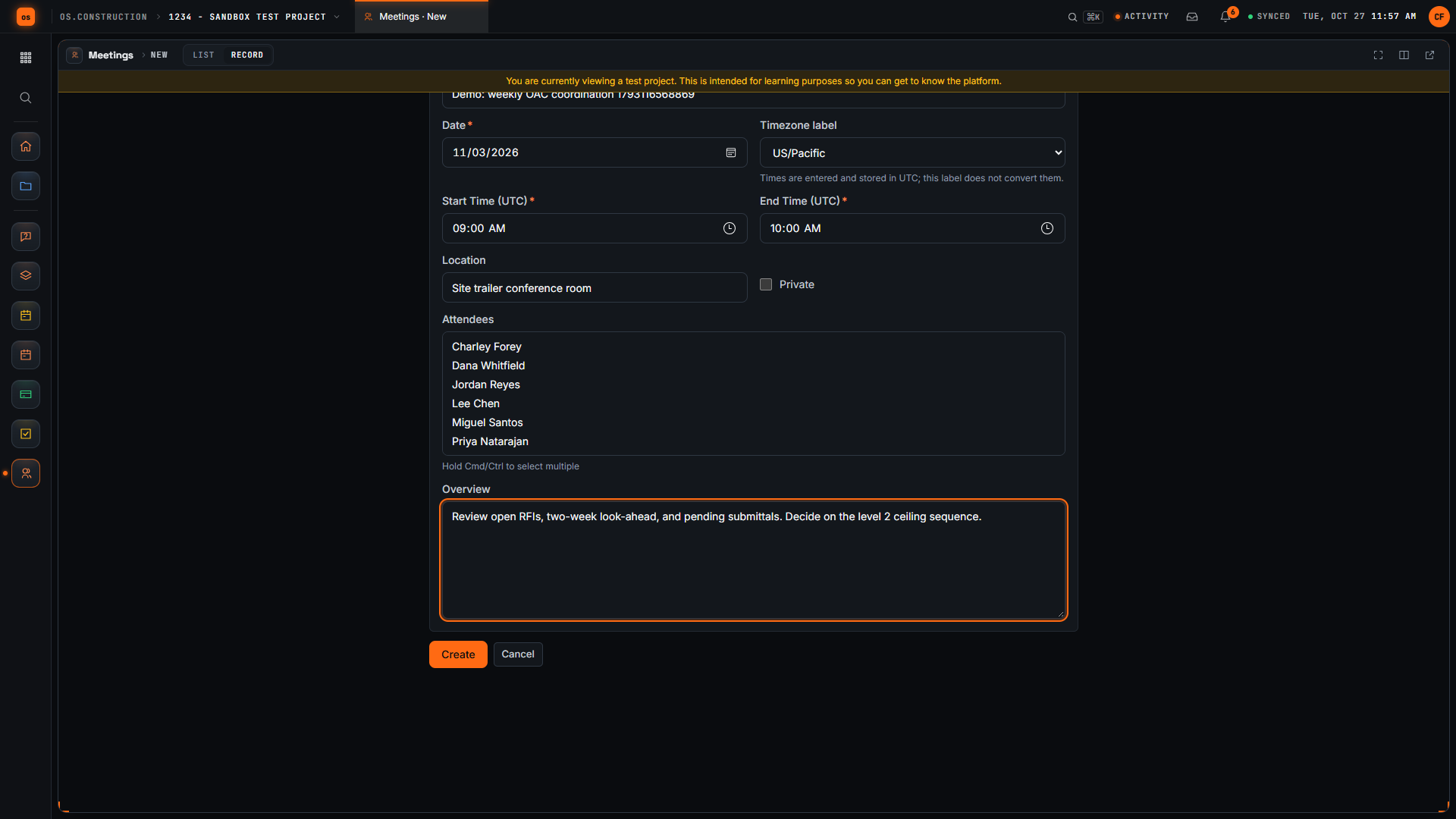
This example invites no attendees. Choose attendees for your team’s real meeting.
Create it and check the record
Select Create. The meeting record opens with its number and title in the header.
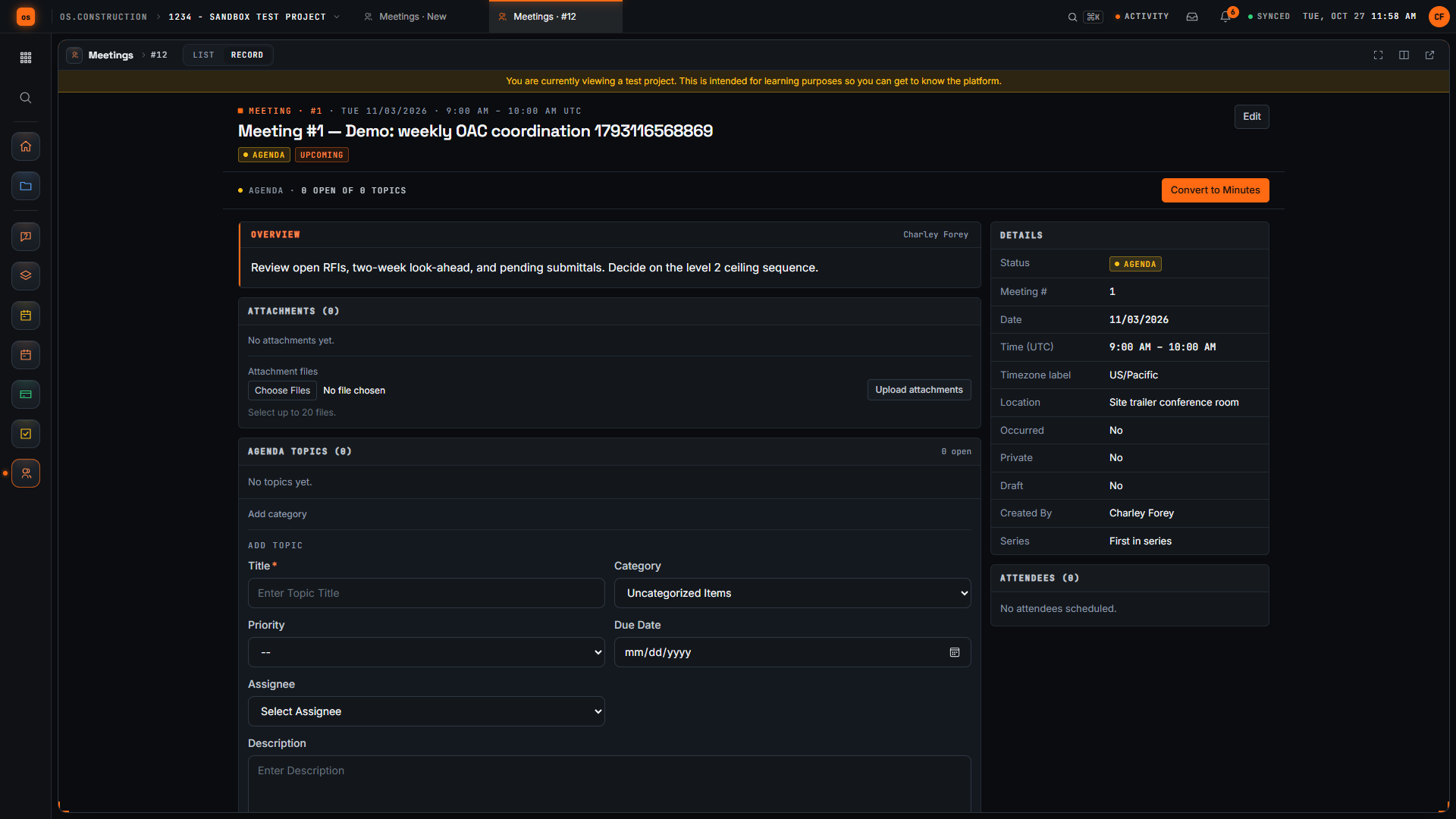
- The title is the one you want people to see in the list.
- Overview shows the agenda and the decision.
- Details shows the date, time and location.
Agenda topics, minutes and attendee invitations are available on the record and are outside this recording.
Video transcript
Open Create Meeting
Here’s the Create Meeting page in our local sample project. A good meeting record tells everyone what we’re meeting about, where, and what we want to decide. Let’s set one up together.
Give the meeting a clear title
We start with a title people will recognize in a list. Ours is the weekly owner, architect and contractor coordination meeting. The demo adds a unique reference so each recording creates a separate sample record.
Check the date and time
Next, let’s check the date and time. The form suggests a date, a time zone, and a start and end time. We keep the suggested values in this sample; set them to match your real meeting.
Add the location
Now we add where the meeting happens. For this sample it’s the site trailer conference room.
Write the overview
In Overview, we write the agenda and the decision we need. Our sample covers open RFIs, the two-week look-ahead, pending submittals, and one decision on the level 2 ceiling sequence.
Create the meeting
Then we select Create. The app saves the meeting and opens its record, with the meeting number and our title in the header.
Review the saved meeting
Here’s our saved meeting. Let’s check that the location and agenda came through. We’ve created a meeting with a clear title, a place, and an overview the team can prepare for.
Try it for your next coordination meeting
Create an os.construction account or open the app. Write the decision you need into the overview before the meeting starts.
Explore the platform on os.construction, watch Construction-OS walkthroughs on YouTube, or follow os.construction on LinkedIn. For a question about your team’s meeting process, email Charley.
Your next step
Try it on the sample project.
Create an account, open the sample project and run this workflow yourself with sample data.
Try it in the app- Next · Cost & accountingLog a potential change as a change eventWatch the next walkthrough
- DocsMeetings: agendas, minutes and action itemsPlan a project meeting, set up a recurring series, record attendance and minutes by topic, carry open items forward, and turn topics into tasks.
- Video libraryMore in Field: daily logs & tasksEvery walkthrough, grouped by workflow.
Share this article