Role guide · Owner’s representative
The owner’s rep’s week, traceable to the source.
You protect the owner’s budget, schedule and quality. Here is how an owner’s rep works in os.construction, either inside the contractor’s project or on the owner’s own, and what you can trace without asking for backup.
A owner’s representative’s week in os.construction
- Monday
OAC meeting: open items carried from last week, decisions recorded per topic with an owner and due date.
Meetings - Tuesday
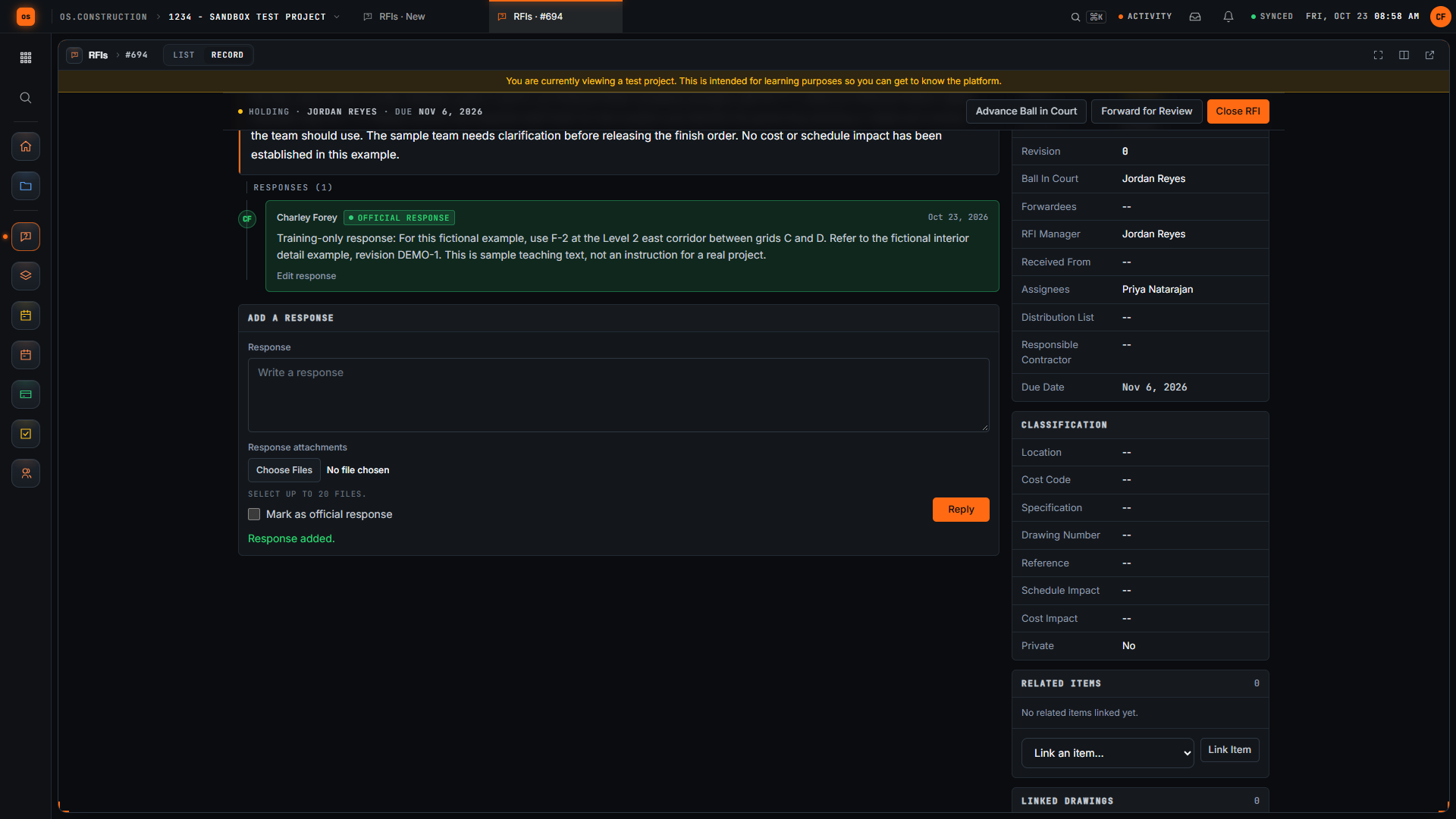
Read RFIs that touch scope and cost, with the official response that settled each one.
RFIs - Wednesday
Review a change: the change event, its origin RFI, the priced lines and the schedule impact.
Change Events, Change Orders - Thursday
Month-end weeks: review the pay app line by line against the contract and the executed changes.
Payment Applications - Friday
Punch and quality: what is open, overdue or ready for review, and what was signed off.
Punch List, Inspections
- RFI and official responseWhy the scope changed
- Change eventOrigin RFI, rough cost
- Change order approvedReviewer and date recorded
- Pay app line 2Executed changes added automatically
- Punch closedFinal approver signs off
Text version
- RFI and official response: Why the scope changed
- Change event: Origin RFI, rough cost
- Change order approved: Reviewer and date recorded
- Pay app line 2: Executed changes added automatically
- Punch closed: Final approver signs off
The tools in your seat
- MeetingsAgenda, attendance, minutes by topic and open items carried to the next meeting.Read the guide →
- RFIsQuestions, official responses and links to drawings, submittals and change events.Read the guide →
- Change Events and Change OrdersEach change linked to where it came from, with reviewer and review date recorded on approval.Read the guide →
- Payment ApplicationsG702/G703-style pay apps; a pay app can also be built against a commitment, so the owner side can review a contractor line by line.Read the guide →
- BudgetPreviewOn the owner’s own project: budget by cost code, approved and pending changes, forecast and snapshots.Read the guide →
- Punch ListOpen, overdue, ready-for-review and closed items, with a final approver on each.Read the guide →
Getting in: Two ways in. The contractor invites you to their project with a permission template they set (owner’s reps are often Read Only on the project tools and None on internal cost tools). Or the owner runs its own workspace, with the contractor’s contract as a commitment, its own budget and change log.
Entered once, used everywhere it matters
Backup is a link, not a request
A change order traces back to its change event and origin RFI, with the photos and quotes attached where the team put them.
Line 2 of the pay app ties to the change log
Executed change orders on the contract are added to the pay app automatically, so the change total on the bill matches the approved changes.
Minutes don’t lose open items
Create Follow-up Meeting brings open topics forward under Business Arising from Previous Minutes, each showing where it started.
Who approved what is on the record
PCO approvals record the reviewer and the date, and every edit sits in the item’s change history.
Project Financials follows project money; company Accounting covers the ledger, AP, AR, payroll and controls. AI agents remain planned; preview tools are marked above.
Walkthroughs and screens from the app
Watch the walkthrough · 1:57
Create a draft RFI and open it
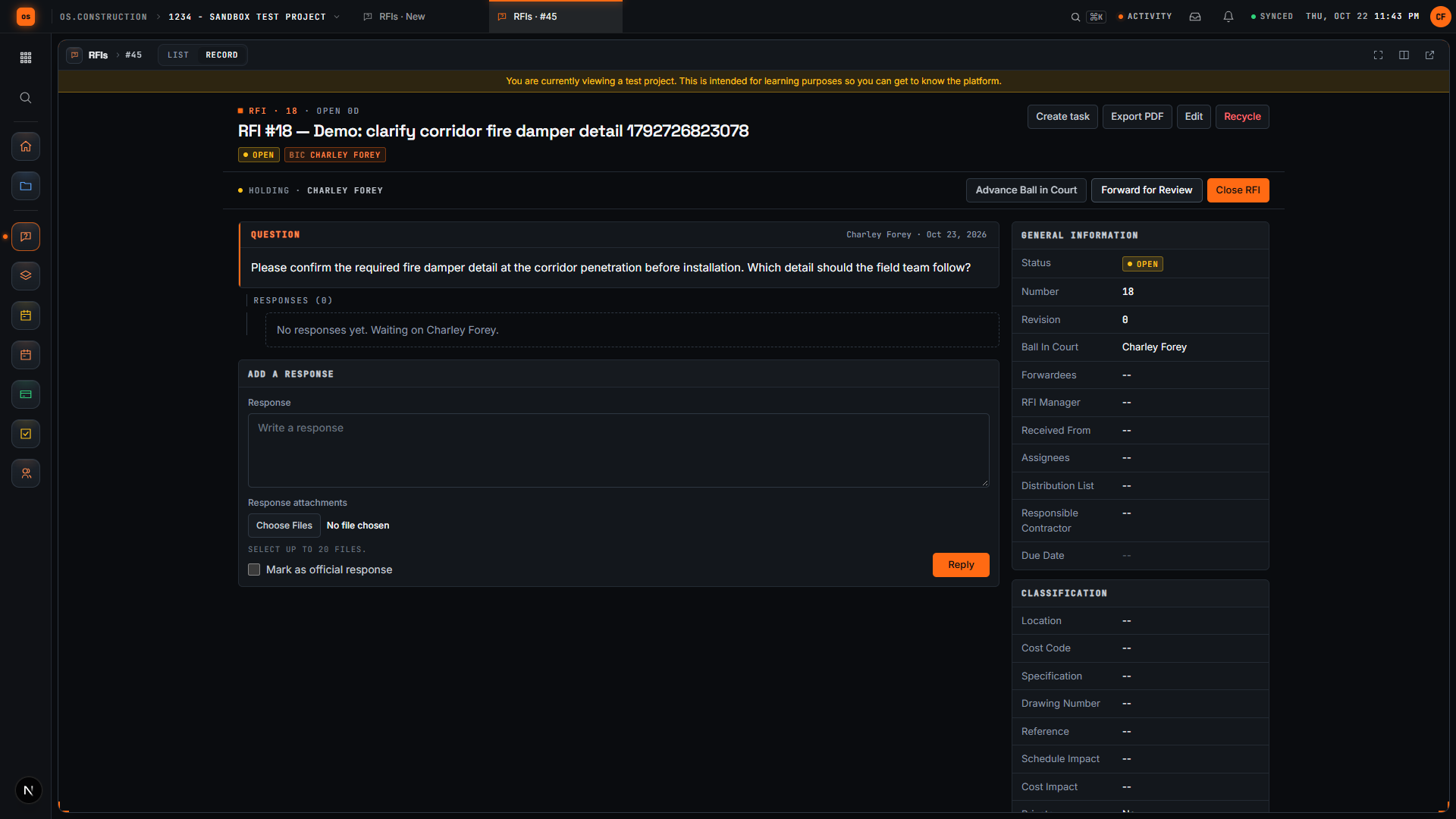
- 0:00Start a new request for information
- 0:27Give the RFI a clear subject
- 0:59Write the question
- 1:15Save the draft
- 1:28Review the saved question
- 1:43Open the RFI
Read the transcript
Here we are in the actual os.construction app, using a local sample project. On the New RFI page, we can prepare a question and save it as a draft before opening it.
Use a subject that tells the reviewer what needs clarification. In this example, we are asking about the corridor fire damper detail. The demo adds a unique reference so each recording creates a separate sample record.
State the decision the team needs. Our question asks the reviewer to confirm the required fire damper detail before installation and identify which detail the field team should follow.
Select Create as Draft. The app saves the RFI and opens its detail page. We will check that the Open RFI action is available before moving forward.
The saved record now has its own detail page. Review the subject and question here. A draft gives the team a chance to check the request before opening it.
Select Open RFI. Wait for the Open RFI action to disappear after the update. Close RFI remains available. We have written a request, saved it as a draft, reviewed it, and moved it into the open workflow.
Video page with chaptersStep-by-step guideMore in RFIs & submittals
Watch the walkthrough · 1:49
Schedule a project meeting with a clear agenda
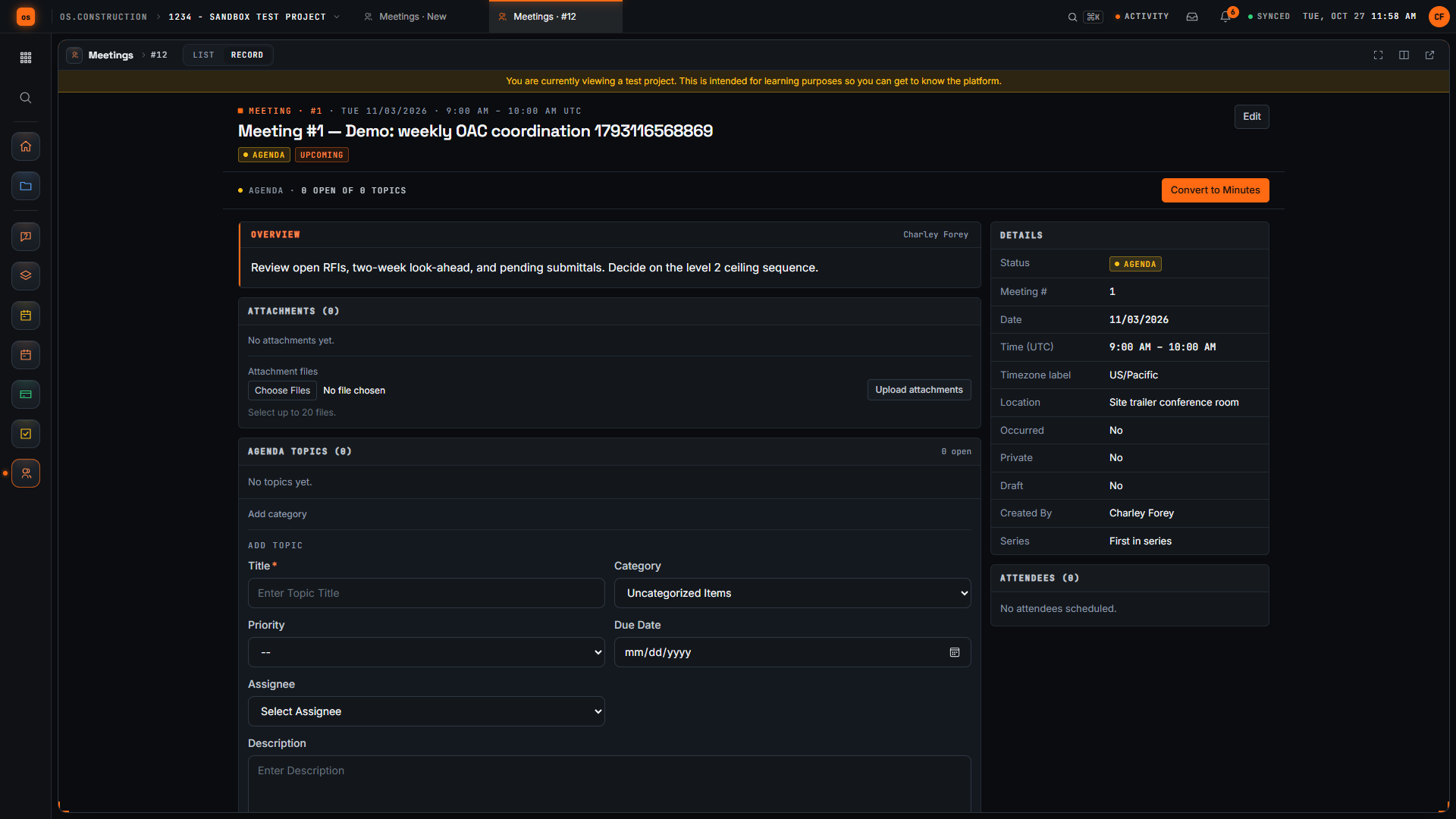
- 0:00Open Create Meeting
- 0:19Give the meeting a clear title
- 0:35Check the date and time
- 0:54Add the location
- 1:10Write the overview
- 1:27Create the meeting
- 1:38Review the saved meeting
Read the transcript
Here's the Create Meeting page in our local sample project. A good meeting record tells everyone what we're meeting about, where, and what we want to decide. Let's set one up together.
We start with a title people will recognize in a list. Ours is the weekly owner, architect and contractor coordination meeting. The demo adds a unique reference so each recording creates a separate sample record.
Next, let's check the date and time. The form suggests a date, a time zone, and a start and end time. We keep the suggested values in this sample; set them to match your real meeting.
Now we add where the meeting happens. For this sample it's the site trailer conference room.
In Overview, we write the agenda and the decision we need. Our sample covers open RFIs, the two-week look-ahead, pending submittals, and one decision on the level 2 ceiling sequence.
Then we select Create. The app saves the meeting and opens its record, with the meeting number and our title in the header.
Here's our saved meeting. Let's check that the location and agenda came through. We've created a meeting with a clear title, a place, and an overview the team can prepare for.
Video page with chaptersStep-by-step guideMore in Field: daily logs & tasks
Templates, calculators and lessons for this role
Straight answers for a owner’s representative
Will I see the contractor’s internal costs?
Only what their permission template gives you. A common setup for owner’s reps is Read Only on project tools and None on internal cost tools like Budget and Commitments.
Can I approve change orders in the app?
Approving a PCO needs the right permission on Change Orders on that project. On the contractor’s project that is their decision; on the owner’s own project you set it.
Can lien waivers be checked against the pay app?
Not today. Lien waiver tracking is planned; waivers stay outside the app for now.
Can the pay app be printed for the lender?
Not today. The G702 and G703 are on screen in the pay app.
Try the week on the sample project
Every trial includes Riverside Medical Center #24-118, with the records this page talks about. 14-day free trial. Pricing for paid plans isn't set yet.