On this page
- Start with the decision you need
- Save the request as a draft
- Review the saved record
- Open the RFI and confirm the transition
- What this walkthrough has—and has not—completed
- Put the workflow to work
- Video transcript
- Start a new request for information
- Give the RFI a clear subject
- Write the question
- Save the draft
- Review the saved question
- Open the RFI
A useful request for information makes the decision easy to find: what needs clarification, where it applies, and what the reviewer should answer. The draft stage gives you a place to check that question before opening the record.
This walkthrough follows one example from the New RFI form to an open RFI. The example asks which fire damper detail the field team should follow at a corridor penetration. It demonstrates the software workflow, not an answer to that technical question.
Recorded in a local instance of the actual os.construction app using the seeded Sandbox Test Project. This is sample data, not a production customer project.
Watch this walkthrough on YouTube.
Start with the decision you need
Before typing, put the request into one sentence: what does the field team need the reviewer to confirm? A subject such as “Clarify corridor fire damper detail” is easier to scan than “Question” or “Please review.”
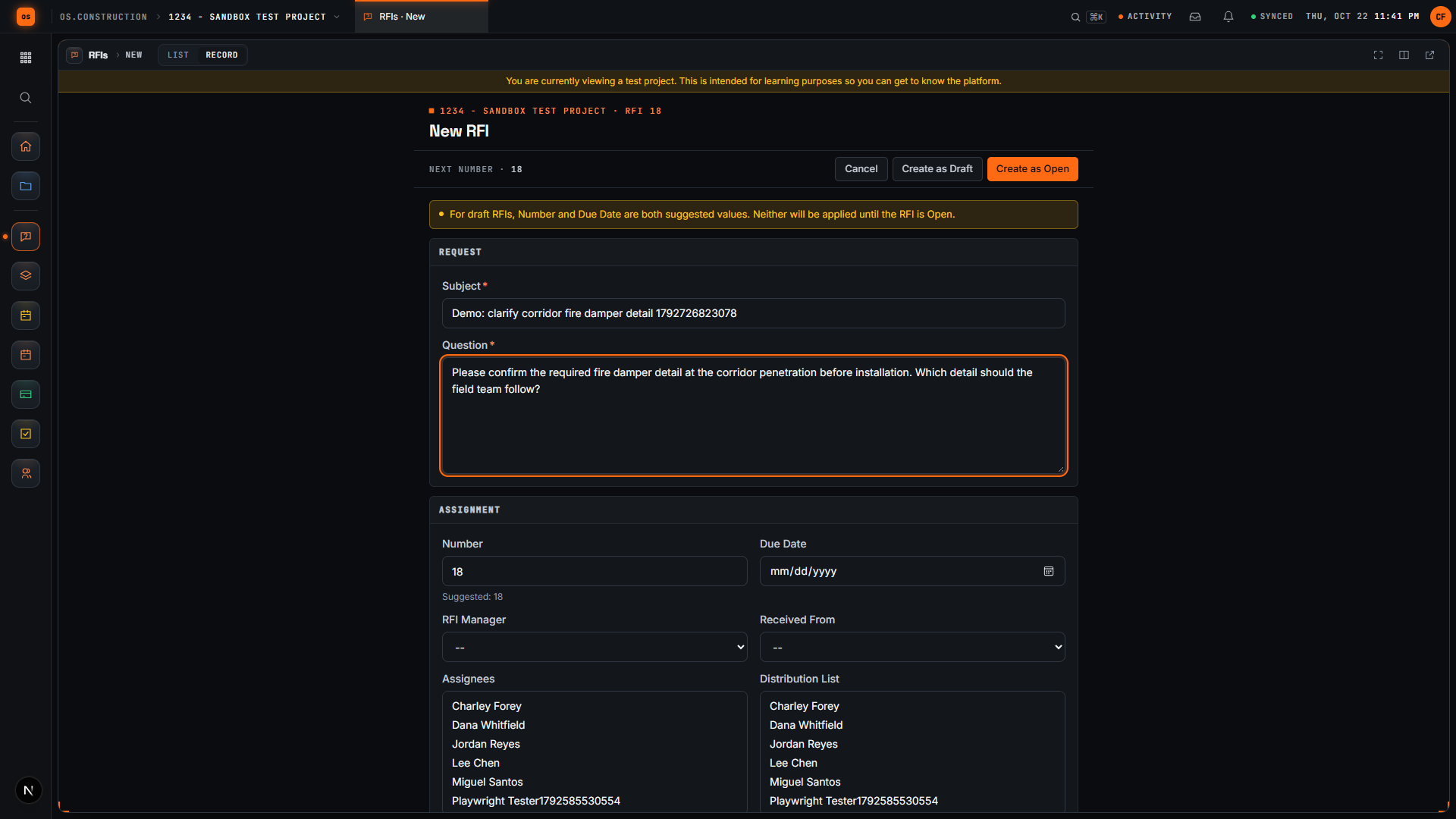
In the Question field, the recorded example says:
Please confirm the required fire damper detail at the corridor penetration before installation. Which detail should the field team follow?
For your own request, replace the example location with the precise area involved and identify the drawing or detail you want the reviewer to examine. Keep facts you have observed separate from the answer you are asking someone else to provide. If several unrelated decisions are mixed into the question, consider whether separate requests would be clearer.
The sample subject includes a unique demo reference so repeated recordings create distinct records. You do not need to copy that reference into your own subject.
Save the request as a draft
On the New RFI page, enter the subject and question, then select Create as Draft. Wait for the saved detail page to load before navigating elsewhere.
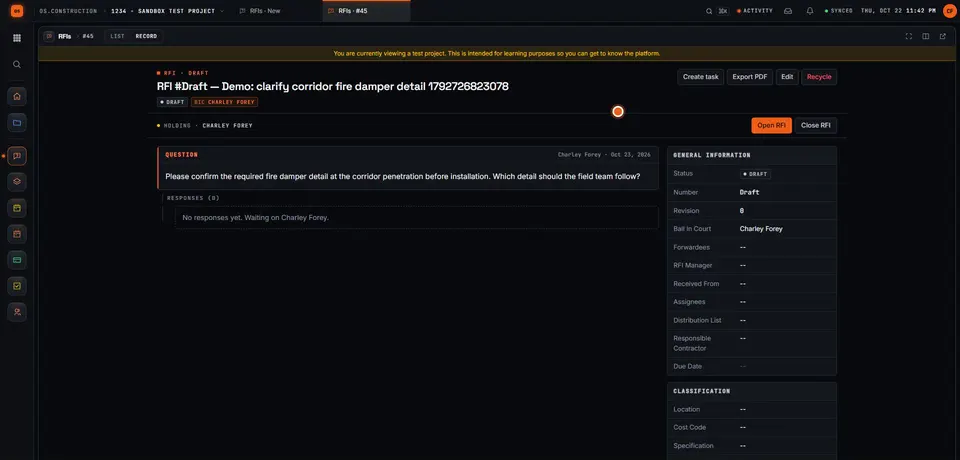
The form explains that, for draft RFIs, Number and Due Date are suggested values that are not applied until the RFI is open. The recorded draft displays Draft in its heading and status area. Use that visible state to confirm where the request is in the workflow.
This example deliberately concentrates on the subject, question, and draft-to-open transition. It does not demonstrate assigning reviewers, setting a due date, uploading attachments, or distributing the request. Complete the information your team’s process requires before opening a real project record.
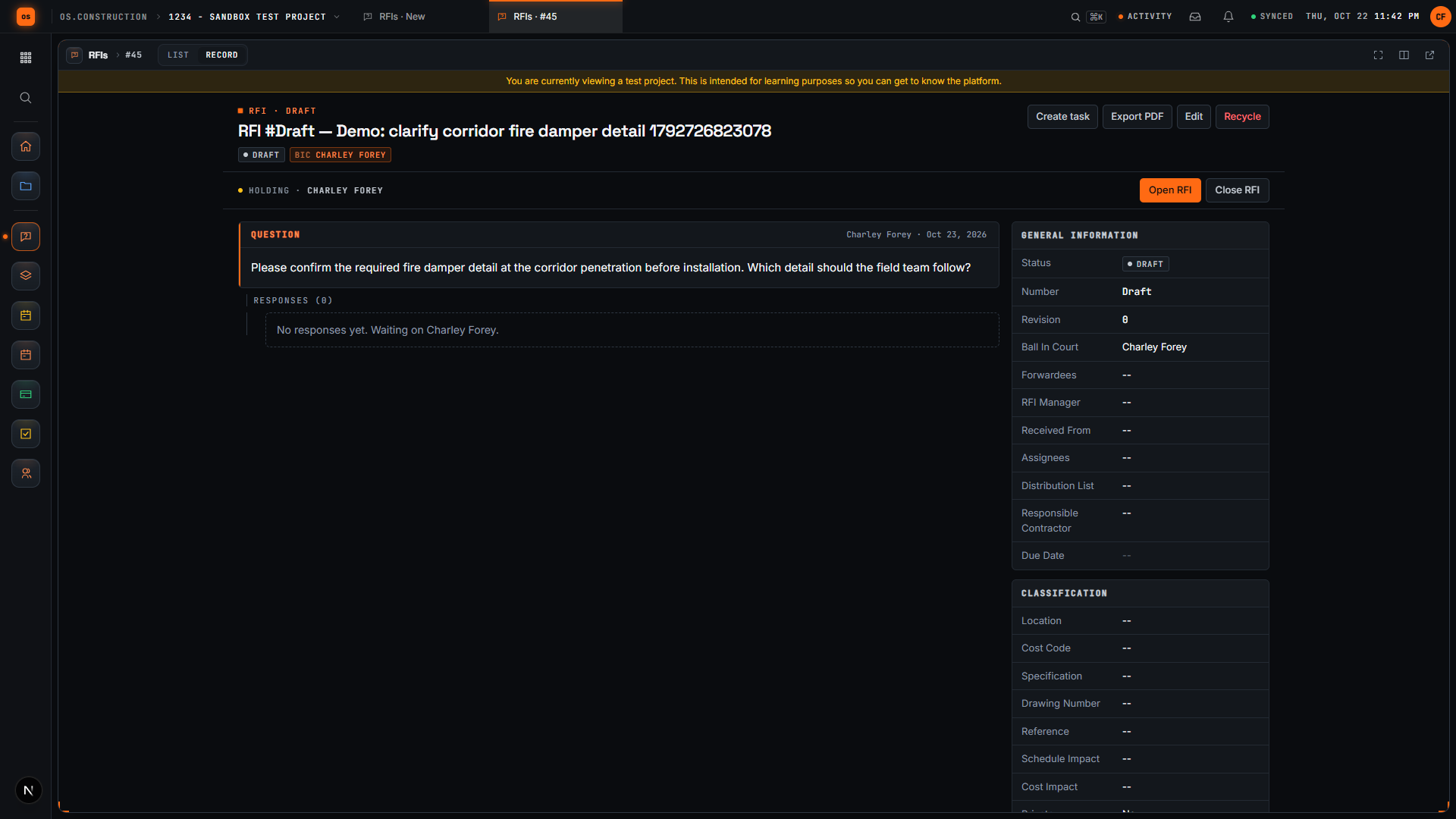
- Draft status. While it is a draft, BIC (ball in court) is the creator.
- The saved Question. Read it back here rather than from memory.
- Open RFI is offered because the record is still a draft.
- Close RFI is offered on a draft too, so seeing it does not prove the RFI is open.
Review the saved record
Read the question on the detail page, rather than relying only on what you remember typing. Check these points:
- Decision: Can the reviewer tell exactly what you need confirmed?
- Location: Is the area involved clear enough to investigate?
- Reference: Have you identified the information the reviewer should consult?
- Scope: Does the request ask one clear question, or would separate requests help?
- Project: Are you working in the intended project?
In the recording, the saved subject and question match the form entries. This is a useful checkpoint: you can see the record that was actually saved before taking the next action.
Open the RFI and confirm the transition
Select Open RFI when the draft is ready. Give the app time to finish updating, then check the resulting state.
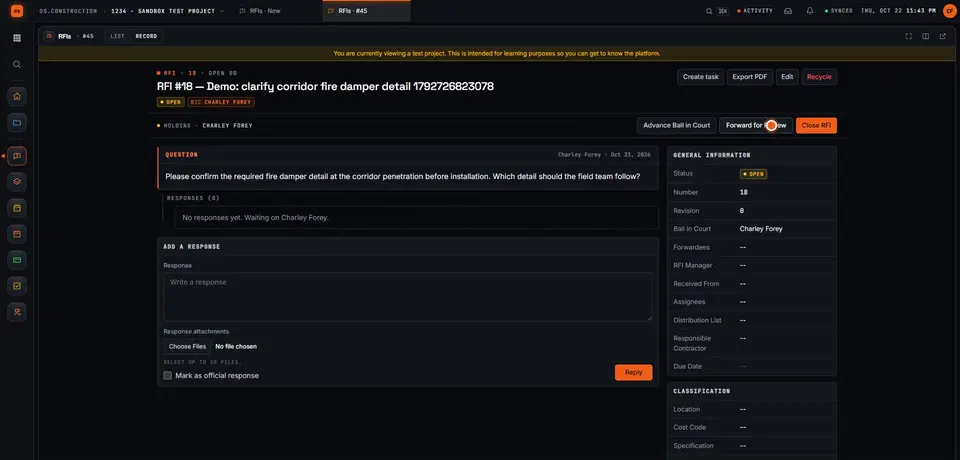
In this example, the final detail page shows Open, displays an RFI number, and no longer offers the Open RFI action. Close RFI remains available.
Do not use the presence of Close RFI alone as proof that opening succeeded. It was also available on the recorded draft. The status and disappearance of the Open RFI action distinguish the completed transition from a draft that is still waiting for an update.
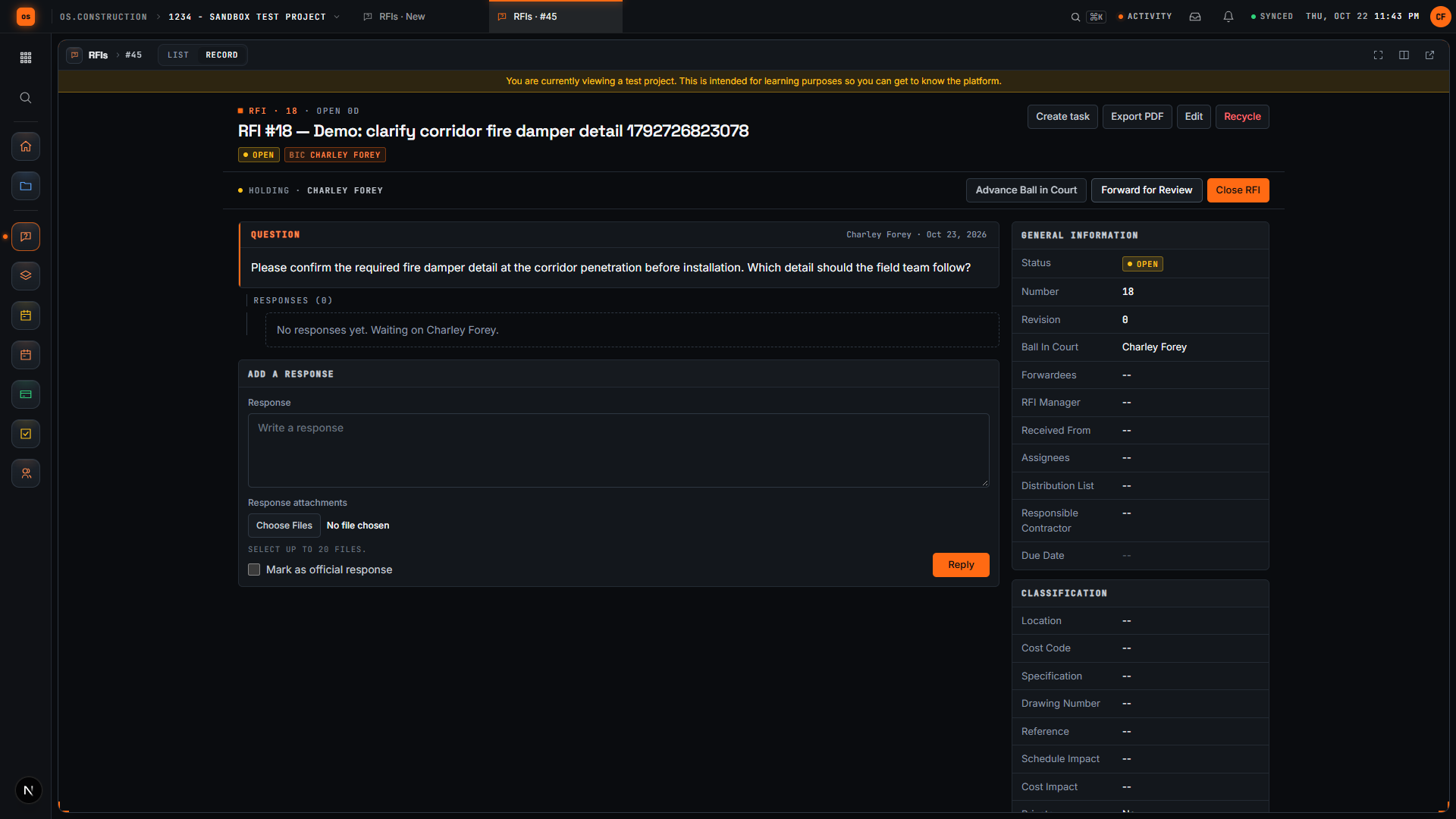
- Status reads Open and the RFI now has its number.
- Ball In Court names who acts next. This sample has no assignees or RFI manager, so the creator holds it.
- Open RFI is gone. Advance Ball in Court, Forward for Review and Close RFI take its place.
- Add a Response and select Reply. Check Mark as official response on the answer that settles the question.
What this walkthrough has—and has not—completed
You now have a saved, open request containing the subject and question you reviewed. That is the end of this walkthrough. It has not answered the technical question, recorded an official response, or closed the RFI.
Keep the next decision separate: who needs to respond, and what information will make that response useful? The RFI tool guide describes the wider workflow. You can also open os.construction to work in your own authorized project.
Put the workflow to work
Ready to try this in your own project? Create your os.construction account or open the app. Start with one clear question and confirm the saved result before moving on.
Still exploring? See how os.construction works and watch more walkthroughs on YouTube. For a question about your team’s workflow, email Charley. You can also follow os.construction on LinkedIn.
Video transcript
Start a new request for information
Here we are in the actual os.construction app, using a local sample project. On the New RFI page, we can prepare a question and save it as a draft before opening it.
Give the RFI a clear subject
Use a subject that tells the reviewer what needs clarification. In this example, we are asking about the corridor fire damper detail. The demo adds a unique reference so each recording creates a separate sample record.
Write the question
State the decision the team needs. Our question asks the reviewer to confirm the required fire damper detail before installation and identify which detail the field team should follow.
Save the draft
Select Create as Draft. The app saves the RFI and opens its detail page. We will check that the Open RFI action is available before moving forward.
Review the saved question
The saved record now has its own detail page. Review the subject and question here. A draft gives the team a chance to check the request before opening it.
Open the RFI
Select Open RFI. Wait for the Open RFI action to disappear after the update. Close RFI remains available. We have written a request, saved it as a draft, reviewed it, and moved it into the open workflow.
Your next step
Try it on the sample project.
Create an account, open the sample project and run this workflow yourself with sample data.
Try it in the app- Next · RFIs & submittalsOpen an RFI and check the first responseVideo coming soon. Read the doc: RFIs
- DocsRFIsCreate, route, answer and close RFIs in the app. Ball in court, distribution, official responses, related items, private RFIs and PDF export.
- Video libraryMore in RFIs & submittalsEvery walkthrough, grouped by workflow.
Share this article