On this page
- Name the change and mark its scope
- Add a rough line item
- Create it and check the saved record
- Video transcript
- Start a new change event
- Name the possible change
- Mark the scope
- Describe what happened
- Choose a cost code for the line
- Add a rough line item
- Enter a rough amount
- Create the change event
- Check the saved line item
- Try it on your next possible change
A change event is the place to write down a possible change before anyone prices or approves it. Logging it early keeps the cost question visible while the team works out who pays.
This walkthrough logs one sample change event, marks it Out of Scope, adds a single rough line item, and checks the saved record in a local sample project.
Recorded in a local instance of the actual os.construction app using the seeded Sandbox Test Project. The change, scope and amount are invented sample data, not a real cost claim.
Watch this walkthrough on YouTube.
Name the change and mark its scope
Open New Change Event in your project’s Change Events tool. Give the event a title that says what changed. The example uses Added fire sealant at corridor penetrations, with a unique demo reference.
Set Scope to what your team believes today. The sample chooses Out of Scope, meaning the work appears to sit outside the current contract. You can change it later as the facts settle.
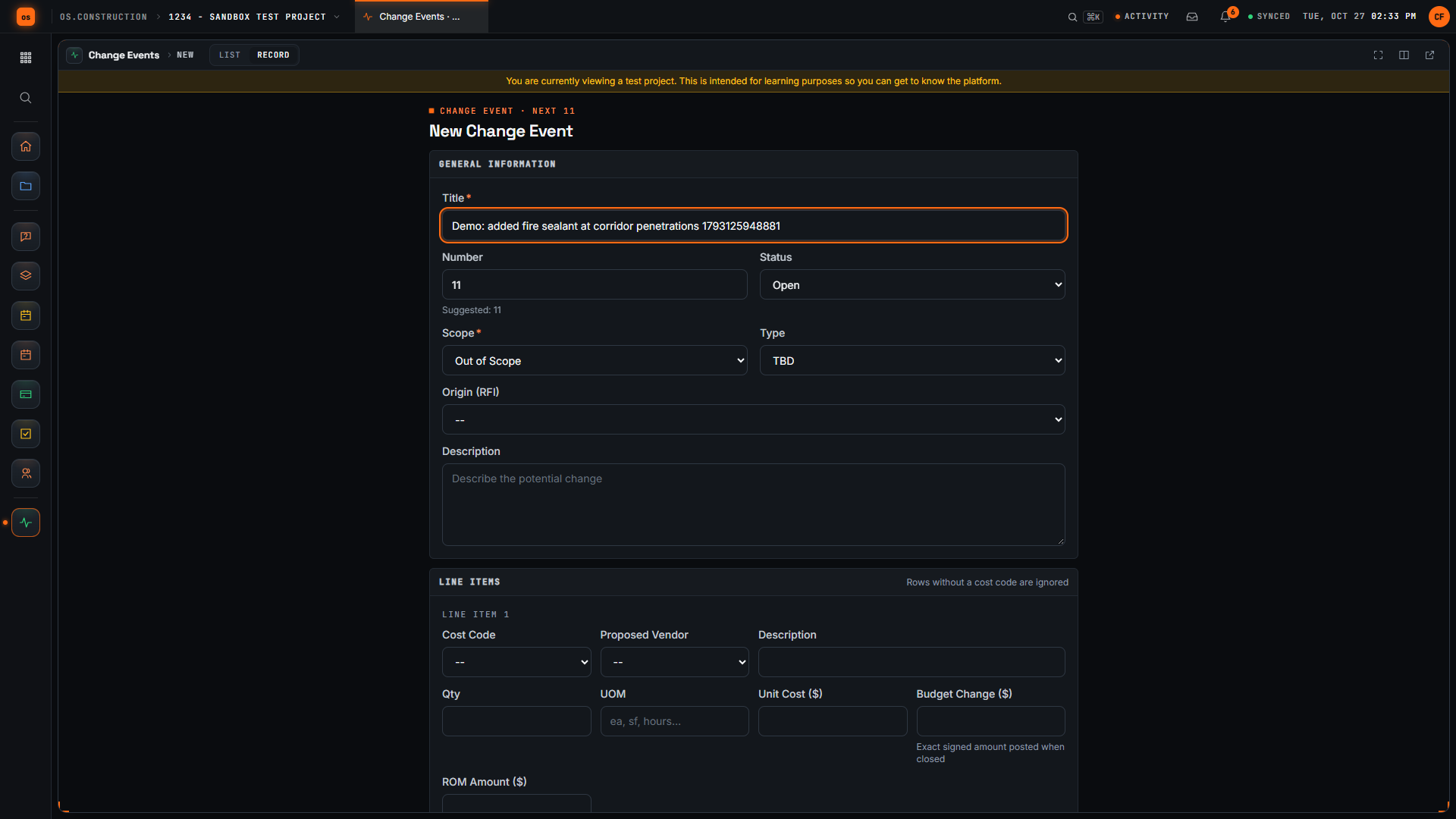
Use Description to explain what happened and why it may cost money. The sample says the inspector asked for extra fire sealant at corridor penetrations that are not shown on the drawings.
Add a rough line item
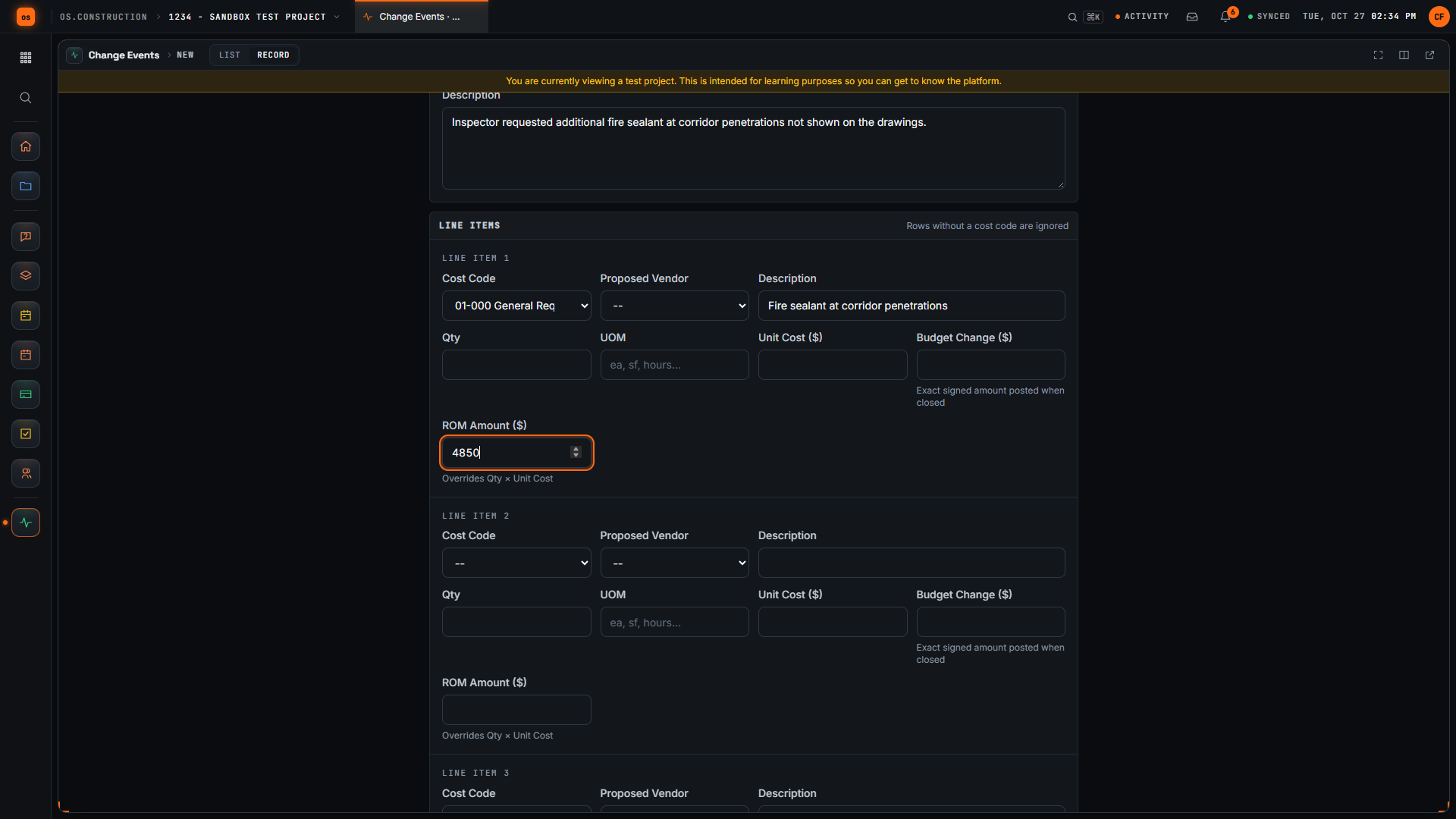
Under Line Items, choose a Cost Code first. The form notes that rows without a cost code are ignored, so pick the code your team tracks the work against. The sample uses General Requirements.
Add a short description and a rough amount. The sample enters 4,850 as an early estimate. It is not an approved price.
Create it and check the saved record
Select Create Change Event. The detail page opens with the event number and title in the header.
Check three things on the saved record:
- The header shows the Open status and the Out of Scope tag.
- Line Items lists your line with its cost code and amount.
- The description panel matches what you wrote.
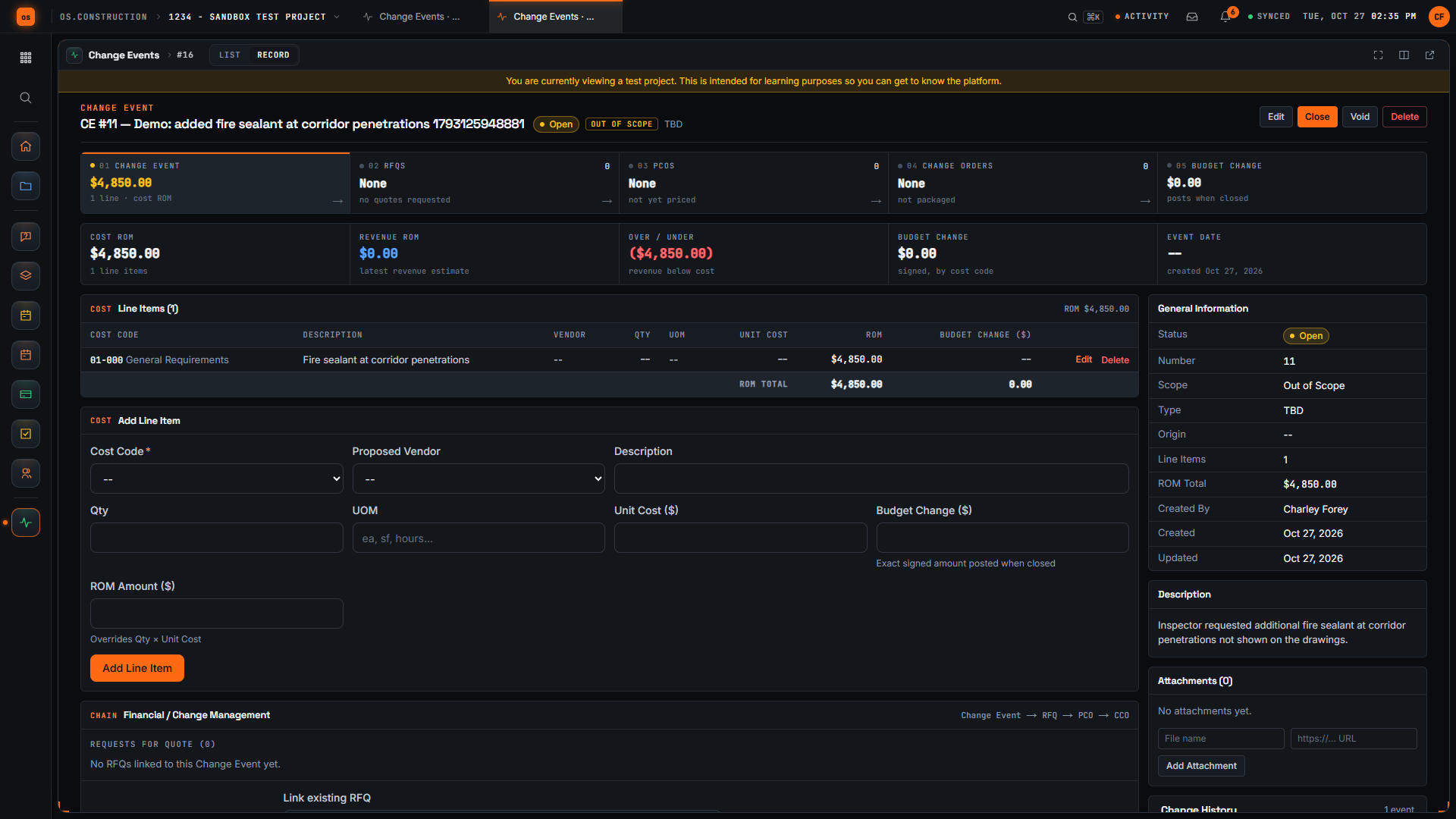
This walkthrough stops at the saved change event. Requests for quote, PCOs and change orders are later steps in the chain shown on the record and are outside this recording.
Video transcript
Start a new change event
Here we are on the New Change Event page in our local sample project. A change event is where we note a possible change early, before anyone prices or approves it. Let’s log one together.
Name the possible change
First, we give it a title that says what changed. Our example is added fire sealant at corridor penetrations. The demo adds a unique reference so each recording creates its own sample record.
Mark the scope
Next, we set Scope. For this sample we choose Out of Scope, which tells the team we believe the work sits outside the current contract. Pick whatever your team has actually agreed.
Describe what happened
In Description, we explain what happened and why it may cost money. Our sample says the inspector asked for extra fire sealant at corridor penetrations that aren’t shown on the drawings.
Choose a cost code for the line
Now let’s add a line item. We start with the cost code, because a line needs one to be saved. For this sample we use General Requirements; choose the code your team actually tracks this work against.
Add a rough line item
In the Line Items section, we type a short description of the work. One line is enough to start, and we can refine it later.
Enter a rough amount
Then we enter a rough amount for that line. It’s an early estimate, not an approved price, and we can refine it later.
Create the change event
Now we select Create Change Event. The app saves it and opens the detail page with its number and our title in the header.
Check the saved line item
Here’s the change event we created. The header shows the Open status and the Out of Scope tag, and our new line appears in Line Items with its rough amount. We have logged the possible change, marked its scope, and recorded a first estimate, so pricing can move forward from here.
Try it on your next possible change
Create an os.construction account or open the app. Log the next possible change the day you hear about it.
Explore the platform on os.construction, watch Construction-OS walkthroughs on YouTube, or follow os.construction on LinkedIn. For a question about your team’s change process, email Charley.
Your next step
Try it on the sample project.
Create an account, open the sample project and run this workflow yourself with sample data.
Try it in the app- Next · Cost & accountingRecord a T&M ticket in the fieldVideo coming soon. Read the doc: T&M tickets: record extra work in the field
- DocsChange events and change ordersTrack a change from the first sign of it to an executed change order. Change events, potential change orders, packages, commitment change orders and budget posting in the app.
- Video libraryMore in Cost & accountingEvery walkthrough, grouped by workflow.
Share this article