T&M tickets: record extra work in the field
Record time-and-material work the day it happens. Labor, equipment and material lines with cost codes, a field sign-off name, and review to Approved.
On this page
A T&M ticket records extra work as it happens: who worked, what equipment ran, what material went in, and who signed for it. The T&M Tickets tool keeps each ticket as lines with quantities, unit costs and cost codes, then takes it through submit and review. Open it from the project’s Project Tools menu, under Financials.
Extra work that isn’t written down the day it happens is the easiest money on a job to lose. A week later nobody remembers whether it was four hours or six, and the owner’s rep who saw it has moved on. A ticket with lines, a work date and a signer’s name, reviewed and approved, is the backup that turns extra work into a change order instead of an argument. See the glossary entry for time and material ticket for how T&M fits a contract.
- Who uses it
- Foremen and supers who write tickets; PMs and admins who review them; owners' reps who sign in the field.
- When
- The same day the extra work happens, then at review before the change is priced.
- What it holds
- Title, work date, description, labor, equipment and material lines with quantity, unit cost and cost code, signer, reviewer, attachments.
- Connects to
- Cost codesChange ordersDaily log
How a ticket moves
| Status | What happens | Next |
|---|---|---|
| Draft | Being written | Submitted |
| Submitted | Sent for review, optionally with a signer’s name | Approved or Rejected |
| Approved | Accepted | Draft (with Reopen) |
| Rejected | Not accepted | Submitted again |
- Submit can be done by the ticket’s creator (with edit permission) or an admin. Type the field signer’s name in Signed By when you submit. This is a typed name, not a drawn signature.
- Approve, Reject, Reopen and Delete are admin actions.
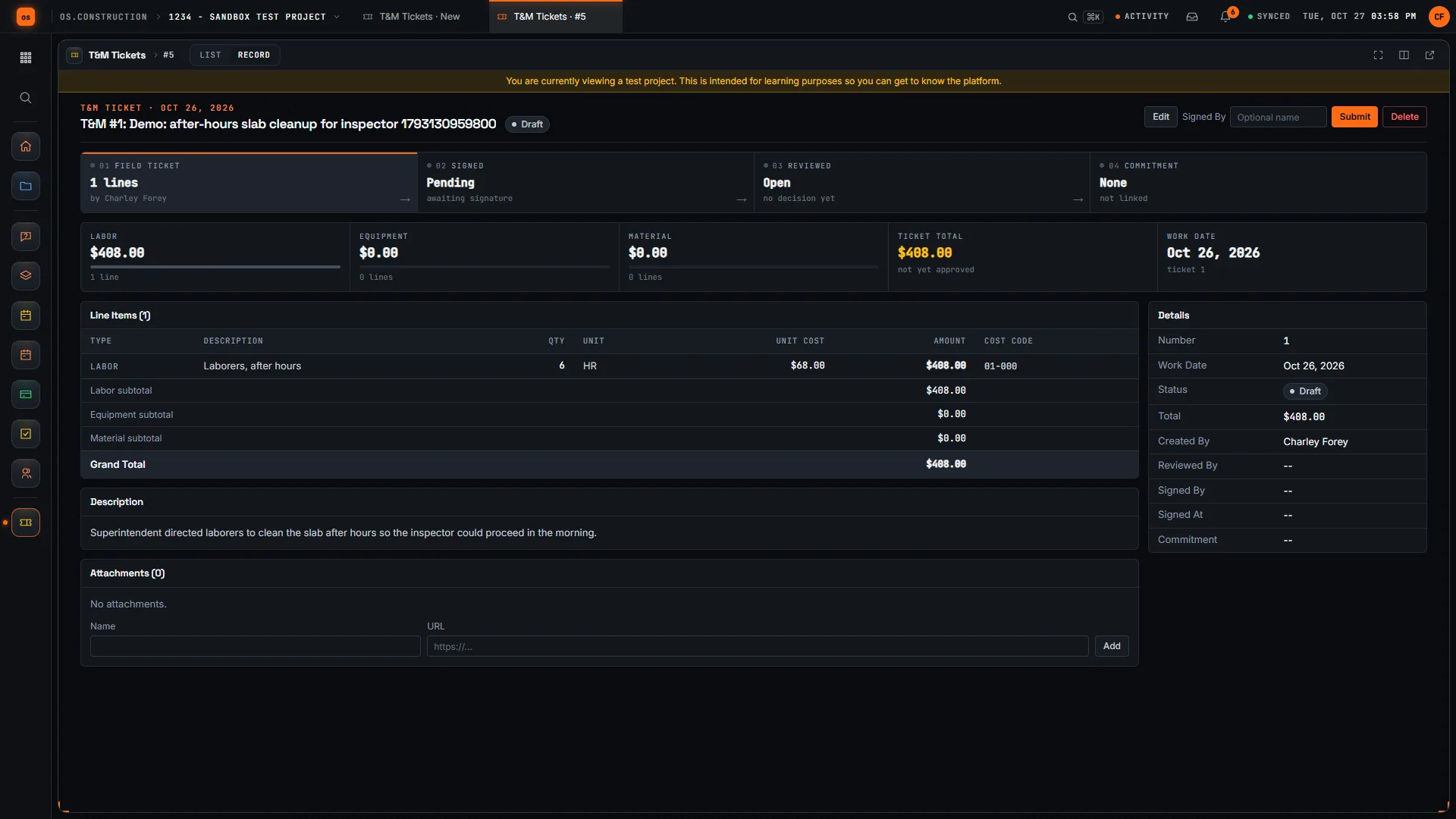
- The stage strip on the ticket shows where it is: Field ticket, Signed, Reviewed, Commitment.
How teams use it
At 2 pm the electrical foreman is told to core-drill four extra penetrations on L3 that aren’t on the drawings. Before the crew leaves, he writes a ticket on his phone: title “Extra core drills, L3 corridor”, today’s work date, a description of who directed it and why it’s extra, and three lines: labor hours, the core drill rental and the bits used, each with a cost code.
He submits it with the GC super’s name in Signed By. The next morning his PM sees it in Awaiting sign-off and knows the backup for the change exists before anyone prices it.
The GC’s project admin reviews submitted tickets every Friday. The list totals the labor, equipment and material value of the tickets in front of her. She opens each, checks the lines against the daily log for the same date, and approves or rejects.
When a sub changes a line after approval, the ticket goes back to Draft and needs approval again, so an approved ticket always matches the lines that were approved. Approved tickets become the backup when the change event and change order are written.
The owner’s rep is asked to sign a T&M ticket in the field. The ticket shows each line: who, how many hours, what equipment, what material, at what unit cost. The rep’s name is recorded as the signer when the ticket is submitted.
When the change order arrives weeks later, the approved ticket behind it shows exactly what was signed for, line by line, with the work date.
The ticket list
Tiles at the top total All tickets (with how many are drafts), tickets Awaiting sign-off, Approved tickets, and the value of Labor, Equipment and Material.
The list shows #, Title, Work Date, Status, Lines and Total, with a page total at the bottom. Filter by Status and search by title, number or line item.
Show the data as a table
| Item | Labor | Equipment | Material | Total |
|---|---|---|---|---|
| Extra core drills, L3 | $1,140 | $180 | $96 | $1,416 |
| Re-route sleeve, grid C-4 | $2,280 | $0 | $340 | $2,620 |
| Temporary protection | $760 | $0 | $615 | $1,375 |
| Debris haul after leak | $1,520 | $850 | $0 | $2,370 |
The list’s tiles give you the same split for every ticket on the job. Labor is almost always the largest part of a T&M ticket, and the part most often disputed, which is why hours, people and the work date belong on the ticket the same day.
Create a ticket
-
Click + Create
You need create permission on T&M Tickets.
-
Fill in the ticket
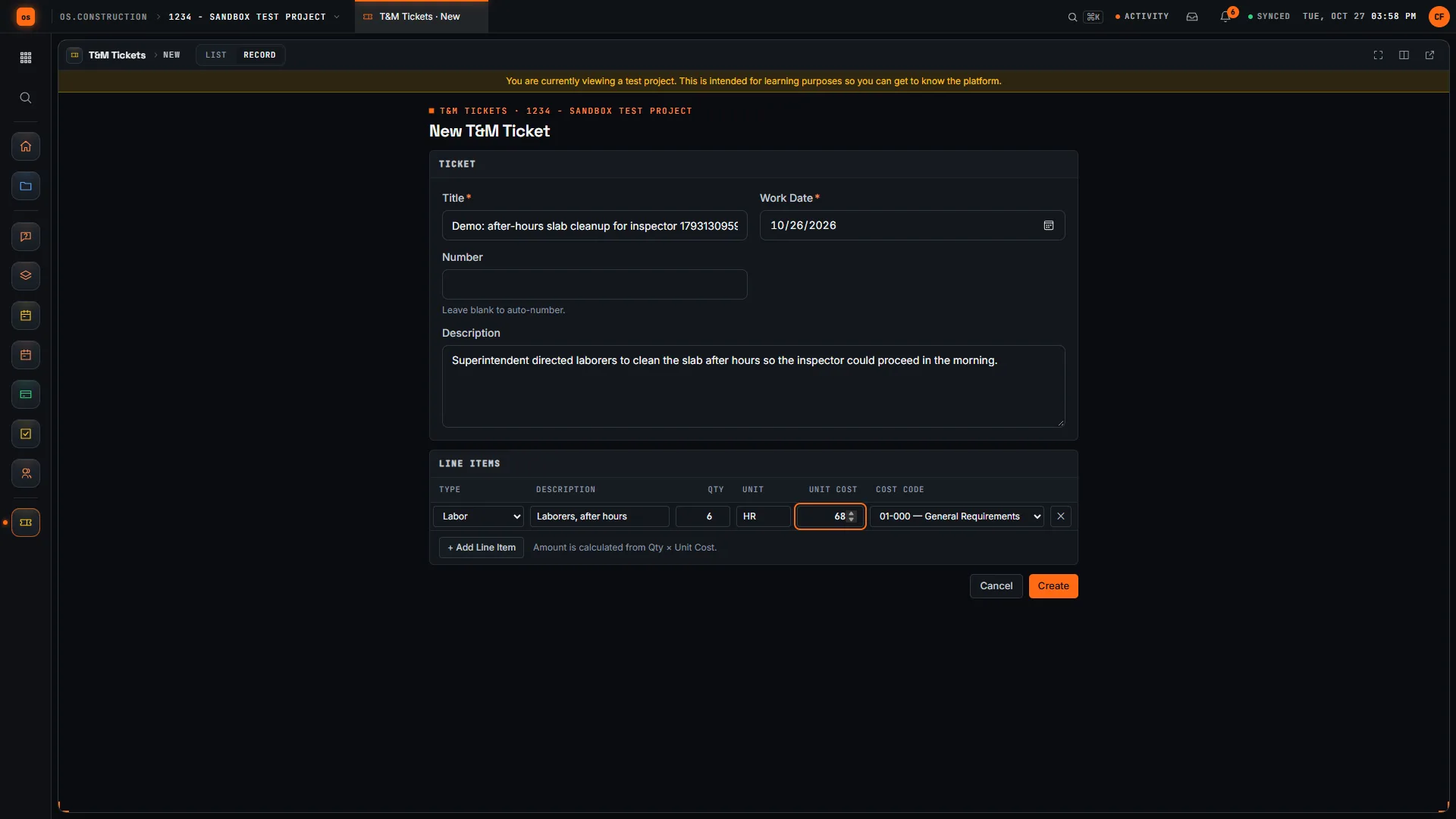
Title and Work Date are required. Leave Number blank to auto-number. Use Description for what the work was and why it was extra.
-
Add line items
Click + Add Line Item for each line. Pick a Type (Labor, Equipment or Material), then Description, Qty, Unit, Unit Cost and Cost Code. Each line’s amount is Qty × Unit Cost, and the ticket total is the sum of the lines.
-
Create it
The ticket starts as a Draft.
Here’s what a complete ticket looks like, line by line. Illustrative sample data.
| Type | Description | Qty | Unit | Unit cost | Amount |
|---|---|---|---|---|---|
| Labor | Journeyman electrician, core drilling | 8 | hr | $95.00 | $760.00 |
| Labor | Apprentice, setup and cleanup | 4 | hr | $95.00 | $380.00 |
| Equipment | Core drill rig, half day | 1 | ea | $180.00 | $180.00 |
| Material | 4 in. diamond core bit, wear allowance | 2 | ea | $48.00 | $96.00 |
| Ticket total | $1,416.00 |
What’s on a ticket
Subtotals by Labor, Equipment and Material and a Ticket total, the Line Items table with subtotals per type, the Description, Attachments (added as a name and a link, for example to photos stored elsewhere) and Details: number, work date, status, total, created by, reviewed by, signed by and when.
The Commitment stage shows a linked subcontract or purchase order when the ticket has one. That link can be set through the REST API today; the ticket form doesn’t set it, so it shows “not linked” on most tickets.
Common mistakes
Mistake: Writing the ticket at the end of the week
In the app: Work Date is required on every ticket, and the ticket can be written on a phone in the browser before the crew leaves.
Mistake: "Extra work, 6 hours" with no breakdown
In the app: Each line has a type, quantity, unit, unit cost and cost code, and the total is the sum of the lines.
Mistake: Approving a ticket, then the lines quietly change
In the app: Changing line items clears the approval and signature and sends the ticket back to Draft.
Mistake: Adding markup on the ticket
In the app: Lines are quantity × unit cost only. Markup belongs on the priced change, not the field record.
Mistake: No idea which tickets are still waiting
In the app: The Awaiting sign-off tile and the status filter show what's submitted and not yet reviewed.
Checklist: a ticket that gets paid
Before you submit
- The work date is the day the work happened.
- The description says who directed the work and why it’s outside the contract scope.
- Labor lines name the trade and hours, one line per rate.
- Equipment lines name the machine and the time it ran.
- Material lines name the item and the quantity used.
- Every line has a cost code.
- The field signer’s name goes in Signed By when you submit.
- Photos are linked under Attachments.
What it connects to
- Cost codes: each line is coded, so the cost lands where it belongs. See Cost codes and budgets.
- Change orders: the approved ticket is the backup when you create the change event and change order.
- Daily log: check the ticket against manpower and equipment logged for the same day. See Daily log.
- My open items: tickets waiting on you show with your other work. See Find your way around.
- Analytics: where Analytics is turned on for your company, Analyze on the ticket list opens the field operations report pack, with the T&M amount pending. See Live dashboards.
What it doesn’t do today
- No automatic change order. Tickets don’t link to change events or change orders in the app today.
- No markup on the ticket. Lines are quantity × unit cost.
- No drawn or electronic signature. The signer’s name is typed at submit.
- No PDF export of a ticket.
- Attachments are links, added as a name and a URL, not uploaded files.
- The commitment link isn’t on the form. It can be set through the API.
FAQ
Does a T&M ticket create a change order automatically? No. Tickets don’t link to change events or change orders in the app today. Use the approved ticket as backup when you create the change event and change order.
Can I add markup to a ticket? No. Lines are quantity × unit cost. Apply markup when you price the change. See markup vs margin.
Can the owner’s rep sign on a phone? The ticket records the signer’s typed name at submit. There’s no drawn or electronic signature.
Can I export a ticket to PDF? Not today.
Who can approve a ticket? Admins on T&M Tickets. Approve, Reject, Reopen and Delete are admin actions.
Why did my approved ticket go back to Draft? Someone changed its line items. That clears the approval and the signature so the new lines are approved on their own.
Can I attach photos? Add them as attachments with a name and a link to where the photos are stored.
Template and walkthrough
Writing tickets on paper today? The free T&M ticket template has the same line layout as the app (type, description, quantity, unit, unit cost, cost code, amount) and a sign-off block. A video walkthrough is shown at the top of this page when it’s published.
Related
- Daily log: manpower and equipment for the same day
- Change orders: turning extra work into a contract change
- Cost codes and budgets
- Glossary: Time and materials ticket, Time and materials contract, Change event, Change order
Keep exploring
Related across os.construction
- GlossaryTime and Materials Ticket (T&M Ticket)A daily field record of labor hours, materials and equipment used on extra work, signed by the other party as backup for payment.
- PlatformRole guide: Subcontractor project managerA sub PM’s week in os.construction.
- Free toolT&M ticket templateFree time and material ticket template.
- ExplainerT&M tickets: from the field to a priced changeWrite a T&M ticket in os.construction, get it signed and approved, then carry it by hand into a change event, a priced PCO and a change order.
- GlossaryConstruction Change Directive (CCD)A written order from the owner directing a change in the work before owner and contractor agree on price or time.
- BlogField to ledger: why daily logs are financial documentsThe daily log is usually treated as a field formality. It's actually the first record of almost every number accounting cares about: labor, equipment, deliveries, delays and changes. Here's what to capture, and how it flows to cost, billing and claims.
Was this helpful?
Run it on your own project.
Start a 14-day free trial. Want a say in what ships next? Join the founding program.
14-day free trial. Pricing for paid plans isn't set yet. Talk to us. Already have an account? Sign in →