Schedule: import, look-ahead and Gantt
Import a P6 XER or Microsoft Project XML schedule, read it as a list, 3-week look-ahead, calendar or Gantt, and update progress on each activity.
On this page
The Schedule tool puts the project schedule next to everything else on the job. Import it from Primavera P6 or Microsoft Project, or add activities by hand, then read it the way each person needs: the field as a 3-week look-ahead, the office as a Gantt with the critical path. Open it from the project’s Project Tools menu.
On most jobs the schedule is a PDF that’s out of date the day it’s printed, and the only person who can read the native file is the scheduler. Here the scheduler keeps working in their own tool, and everyone else works from the current revision in the app: the super from the look-ahead, the PM from the Gantt, the submittal coordinator from the activities their submittals are tied to.
- Who uses it
- The scheduler who imports updates; supers who update progress; PMs, subs and owners who read it.
- When
- At every schedule update, and every week in the look-ahead meeting.
- What it holds
- Activities with planned, baseline and actual dates, % complete, dependencies, resources, WBS codes and revisions.
- Connects to
- SubmittalsMeetingsDaily log
How an activity is tracked
The flags are worked out from the dates and progress on each activity, measured from the schedule’s data date (or today, if there isn’t one):
| Flag | When it shows |
|---|---|
| Overdue | The finish date has passed and the activity isn’t at 100% |
| At Risk | It finishes inside the next three weeks, isn’t done, and hasn’t started or is at 0% |
| Behind (on the activity) | It’s late against the data date |
How teams use it
The scheduler exports the monthly update from P6 as XER and imports it. The preview shows the counts of tasks, resources, assignments and dependencies, so a broken export is caught before it becomes the current view. The new file becomes a new revision; last month’s is still there under Schedule Revision.
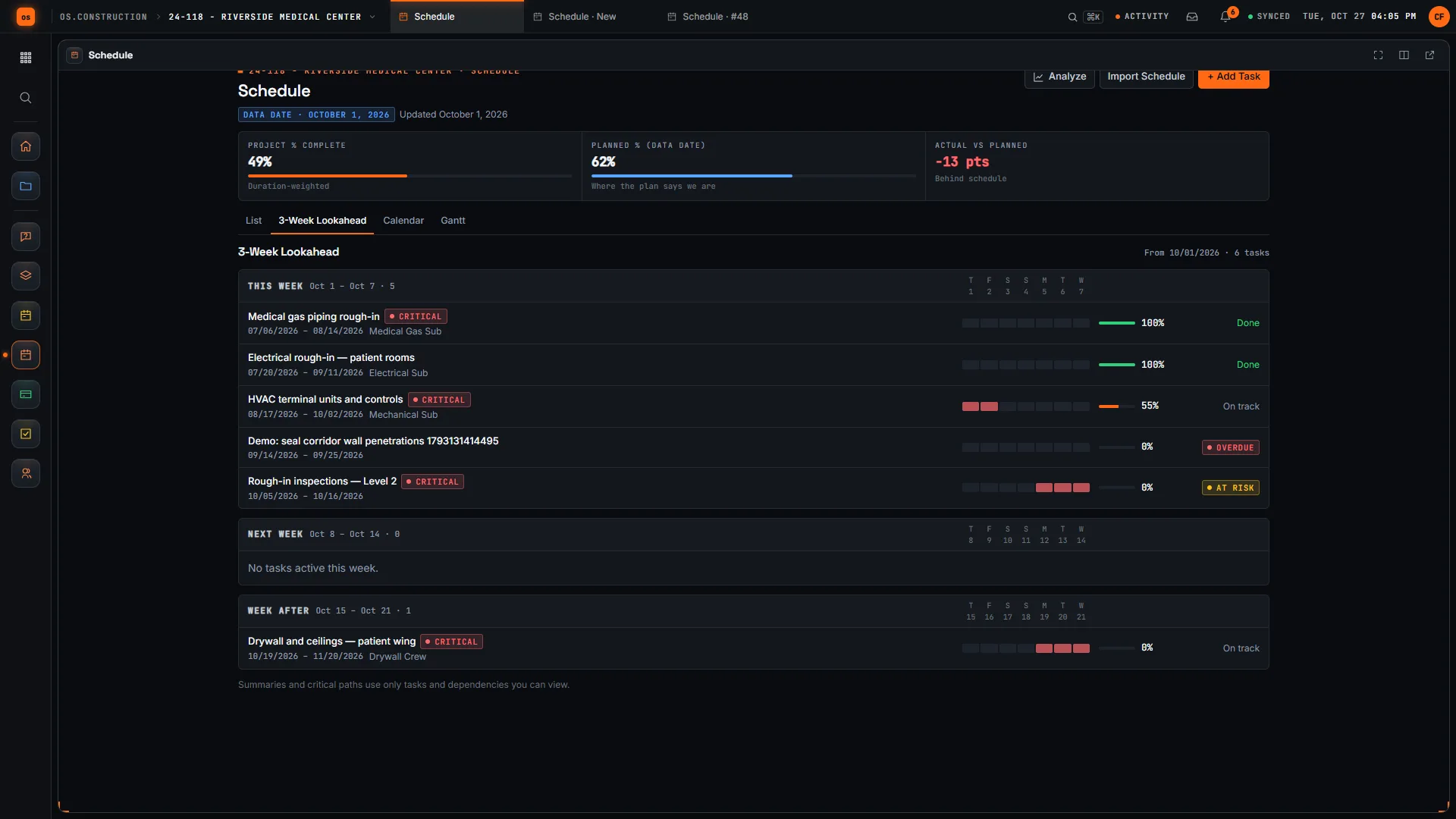
On Monday the super opens the 3-Week Lookahead, filters nothing, and reads three columns: This Week, Next Week, Week After. Two activities next week are At Risk because they haven’t started. He updates progress on the ones that did start (actual start and percent complete) and takes the At Risk list to the subcontractor meeting.
The steel erector’s PM doesn’t have P6. In the app she opens the look-ahead and sees her activities for the next three weeks, which predecessors they depend on, and whether anything is flagged. On the Gantt she can see the critical path running through her erection sequence.
When her crew starts an activity early, the super updates its progress in the app. The schedule of record still comes from the next import, so she raises bigger changes with the scheduler.
The owner wants to know if the job is on track, not read a Gantt. The list and look-ahead show Project % Complete (weighted by duration), Planned % (Data Date) and Actual vs Planned at the top.
Each update is a revision, so the owner’s rep can compare this month’s revision with last month’s in the app instead of comparing two PDFs.
Import a schedule
-
Click Import Schedule
Importing needs admin permission on Schedule.
-
Choose the file
A UTF-8 Primavera P6 XER or Microsoft Project XML file, up to 2 MiB. MPP and P6 XML files aren’t supported: export XER or XML from your scheduling tool.
-
Preview Import
Review the counts of Tasks, Resources, Assignments and Dependencies, and the task table, before you commit.
-
Import Schedule
Each new file becomes a new revision and the current view. Pick an earlier one with Schedule Revision and View Revision. Activities added by hand stay across revisions. Download Original XML/XER gets the file back.
Four views
| View | What it’s for |
|---|---|
| List | The work breakdown: Task Name, Start, Finish, Duration, % Complete, Resources, with Milestone and Critical badges |
| 3-Week Lookahead | Activities grouped into This Week, Next Week and Week After, flagged Overdue or At Risk |
| Calendar | A month grid of activities |
| Gantt | Bars with Predecessors, a Today line, the Data Date and the Critical Path |
List and look-ahead show Project % Complete (weighted by duration), Planned % (Data Date) and Actual vs Planned. The critical path on the Gantt is calculated from the dependencies of the activities you can see. Gantt bars aren’t draggable; change dates on the activity.
The look-ahead starts at the data date and runs 21 days. Each activity sits in the week it’s first active, summary activities are left out, and open activities from before the window are included so overdue work still shows.
Show the data as a table
| Item | No flag | At Risk | Overdue | Total |
|---|---|---|---|---|
| This Week | 9 | 2 | 3 | 14 |
| Next Week | 10 | 2 | 0 | 12 |
| Week After | 8 | 1 | 0 | 9 |
Read it left to right in the weekly meeting. Overdue work is a conversation about recovery. At Risk work is a conversation about the next two weeks: these activities finish inside the window and nobody has started them. That second list is the one that saves time, because there’s still room to act.
Add and update activities
+ Add Task adds an activity: Task Name, Parent Task, Start Date, Finish Date, Percent Complete, WBS Code, Milestone, On the critical path, Resources and Notes. Edit Task adds an Assignee.
On an activity:
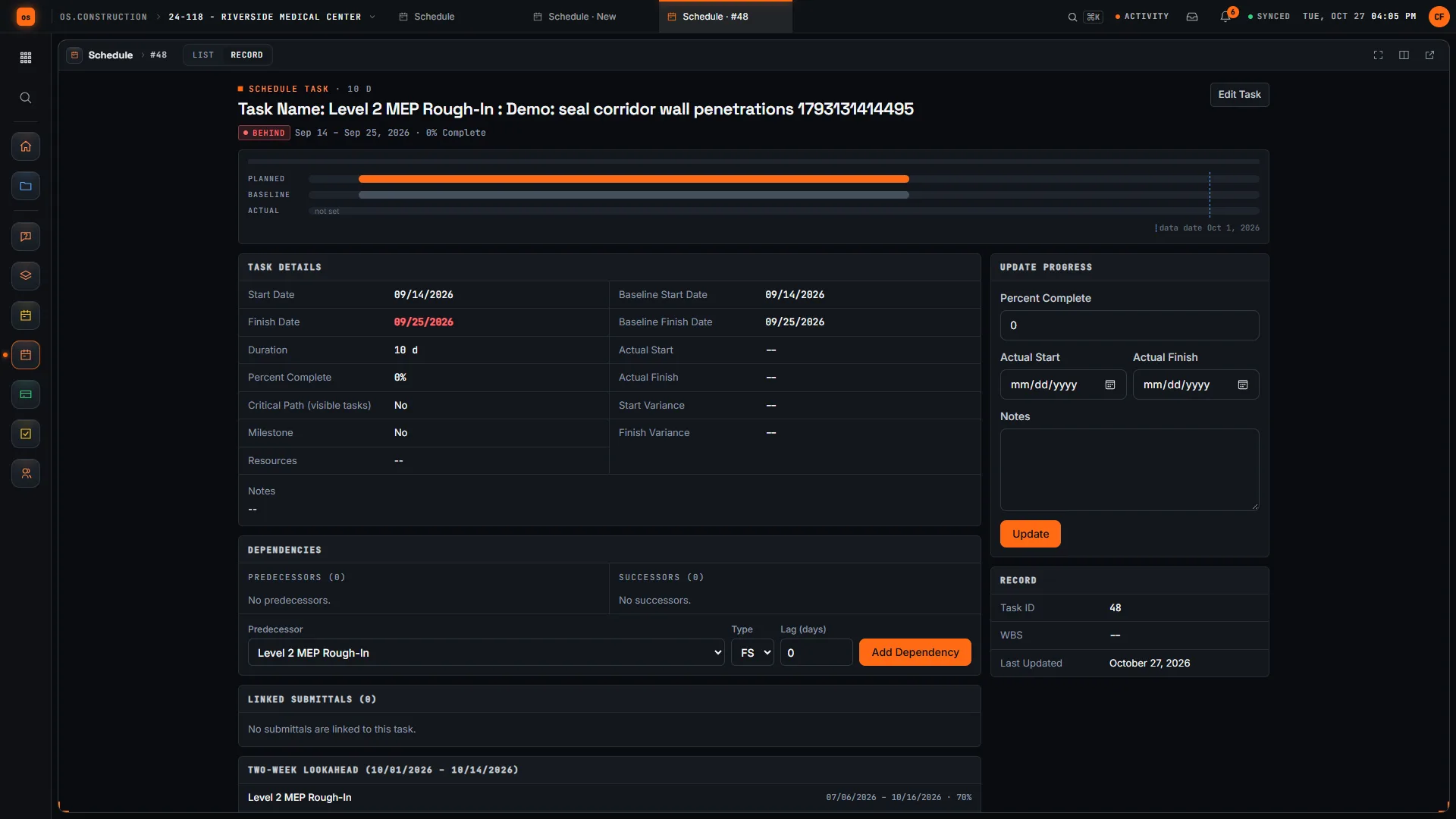
- Update Progress: Percent Complete, Actual Start, Actual Finish and Notes, then Update.
- Planned, Baseline and Actual dates side by side, with a Behind badge when it’s late against the data date. Baselines come from the imported file.
- Dependencies: add a Predecessor with a Type (FS, SS, FF or SF) and Lag (days), or remove one.
- Subtasks, a two-week look-ahead around the activity, and Linked Submittals that point at it.
Common mistakes
Mistake: Printing the schedule as a PDF and calling it current
In the app: Each import is a revision, and the current one is what everyone in the app reads.
Mistake: Importing a broken export and finding out a week later
In the app: Preview Import shows the counts of tasks, resources, assignments and dependencies, and the task table, before you commit.
Mistake: Losing last month's schedule when you load this month's
In the app: Earlier revisions stay available under Schedule Revision, and Download Original gets the file back.
Mistake: A look-ahead that only shows what's late
In the app: At Risk flags work that finishes inside three weeks and hasn't started, while there's still time to act.
Mistake: Ordering long-lead material without looking at the activity it feeds
In the app: Submittals link to schedule activities and show under Linked Submittals on the activity.
Checklist: a schedule update that holds up
Each time you import
- Export XER (P6) or XML (Microsoft Project), UTF-8, under 2 MiB.
- Set the data date in your scheduling tool before you export.
- In the preview, check the task and dependency counts against your scheduling tool.
- After import, open the Gantt and check the critical path looks like the one you expect.
- Open the 3-week look-ahead and read the Overdue and At Risk activities.
- Take the At Risk list to the weekly meeting and assign follow-ups.
- Leave earlier revisions in place for comparison.
What it connects to
- Submittals: a submittal can point at a schedule activity, and the activity lists its linked submittals. See Submittals.
- Meetings: review the look-ahead in the weekly meeting and turn At Risk items into topics and tasks. See Meetings.
- Search: activities are found by name, WBS code and notes.
- Analytics: where Analytics is turned on for your company, Analyze on the schedule opens the schedule report pack: late tasks, late critical tasks, milestones in the next 30 days and finish variance. See Live dashboards.
What it doesn’t do today
- No export back to P6 or Microsoft Project. Import is one way, and there’s no schedule export besides the original file. Keep the master in your scheduling tool and re-import each update.
- No MPP or P6 XML files. Export XER or Microsoft Project XML.
- No baselines for activities added by hand. Baselines come from the imported file.
- No dragging Gantt bars. Change dates on the activity.
- No rescheduling or resource leveling. Changing a date or a dependency doesn’t move other activities. The app works out the critical path (the zero-float activities) from the dependencies, but your scheduling tool is still the scheduling engine.
FAQ
Can I edit the schedule in the app and send it back to P6? No. Import is one way, and there’s no schedule export besides the original file. Keep the master in your scheduling tool and re-import each update.
Why is my .mpp file rejected? Save it as Microsoft Project XML first.
Where do baselines come from? From the imported file. Activities added by hand don’t have a baseline.
Can I link submittals to an activity? Yes, from the submittal side. They then show under Linked Submittals on the activity. See Submittals.
What does At Risk mean? The activity finishes inside the next three weeks, isn’t done, and hasn’t started or is at 0%. It’s the early warning; Overdue is the late one.
Why doesn’t a summary activity show in the look-ahead? The look-ahead lists working activities only. Summary rows that are the parent of other activities are left out.
Who can import a schedule? People with admin permission on Schedule. See Roles and permissions.
Templates
There’s no schedule template, because the schedule comes from your scheduling tool. For the meeting where you review the look-ahead, use the meeting minutes template, and for what actually happened each day, the daily log checklist.
Related
- Daily log: what actually happened each day
- Submittals: procurement tied to activities
- Meetings: review the look-ahead every week
- Glossary: Critical path, Float, Look-ahead schedule, Percent complete
Keep exploring
Related across os.construction
- GlossaryLook-Ahead ScheduleA short-range schedule, usually two to six weeks, that breaks the master schedule into the specific tasks crews will perform next.
- Free toolThree-week look-ahead templateFree three-week look-ahead schedule template.
- GlossaryCritical PathThe longest chain of dependent activities in a schedule; any delay to an activity on it delays project completion.
- ExplainerThe 3-week look-ahead: catching overdue and at-risk workRun the weekly look-ahead in os.construction: read Overdue and At Risk flags, move the data date, update progress, and take the right list to the meeting.
- PlatformRole guide: SuperintendentA superintendent’s week in os.construction.
- BlogWhat owners actually want in a monthly reportMost owner reports are long because nobody decided what they're for. Owners read them for four things: where the money is, where the schedule is, what's at risk, and what they need to decide. Here's a structure that answers those, and the numbers that have to tie out.
Was this helpful?
Run it on your own project.
Start a 14-day free trial. Want a say in what ships next? Join the founding program.
14-day free trial. Pricing for paid plans isn't set yet. Talk to us. Already have an account? Sign in →