The 3-week look-ahead: catching overdue and at-risk work
Overdue tells you what already slipped. At Risk tells you what's about to: work that finishes in the next three weeks and nobody has started. Move the data date below and watch the flags change.
Move the data date, and watch the flags change
Eight activities on Riverside's level 2 and 3. Nobody updates progress in this demo, so you can see what the look-ahead would show each week if the field went quiet. The flags follow the app's rules, set out in the schedule docs. Illustrative activities.
…
This Week
Next Week
Week After
Overdue: finish date passed, not doneAt Risk: finishes in the window, not startedNo flag
The Monday routine
01 Start from the current revision
The scheduler keeps working in Primavera P6 or Microsoft Project and imports a P6 XER or Project XML file (up to 2 MiB) each update; every changed file becomes a new revision, and you can preview before it's committed. Everyone else reads the same revision in the app. The data date at the top says how current it is.
02 Read the two flags, not the whole schedule
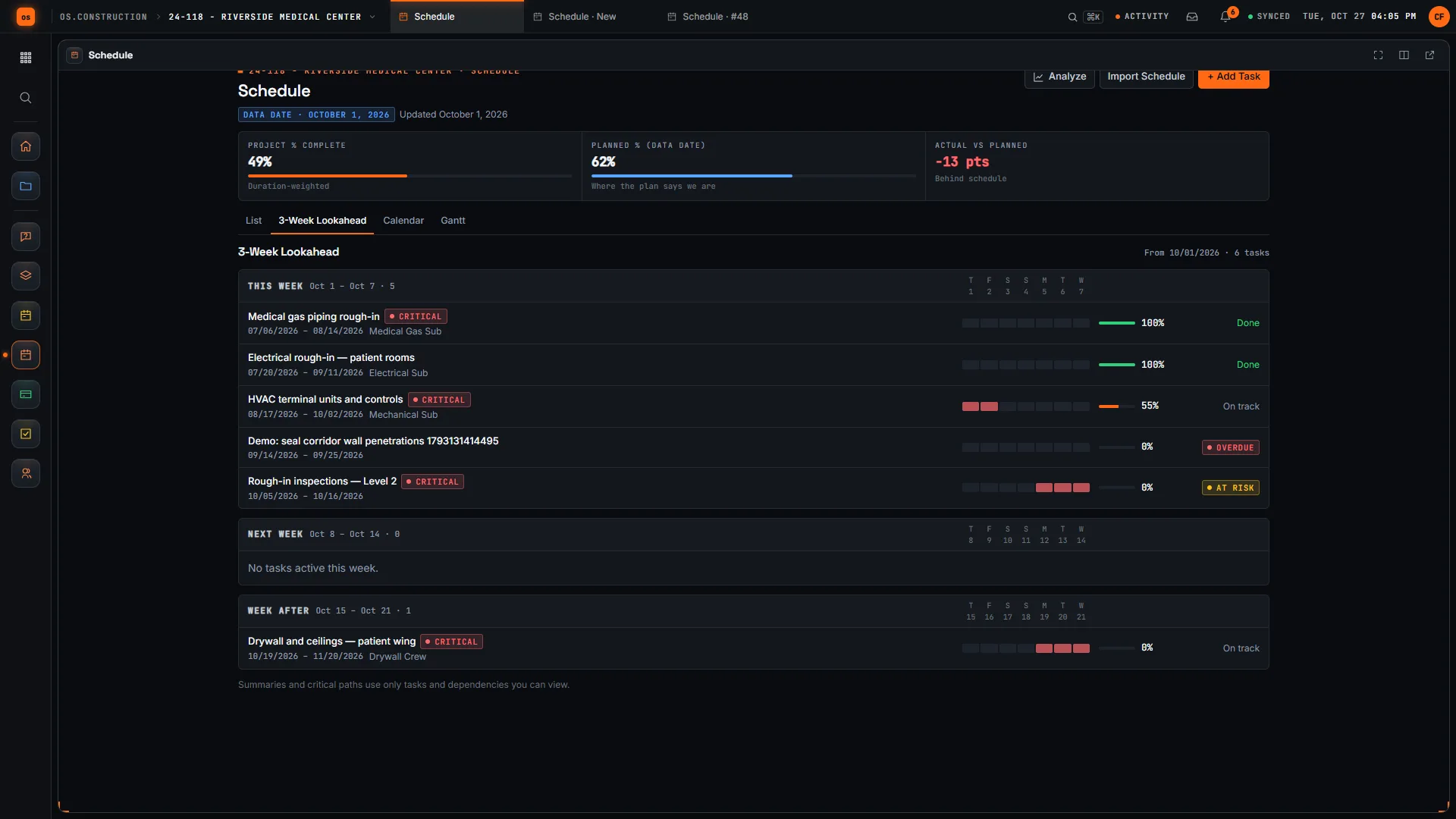
The 3-Week Lookahead tab groups activities into This Week, Next Week and Week After from the data date, and keeps anything still open from before it, so overdue work doesn't fall off the list. On Riverside, the corridor penetrations are Overdue and the level 2 rough-in inspections are At Risk. The header shows Project % Complete against Planned % (Data Date): 49% against 62% is 13 points behind.
03 Open the late one and update it
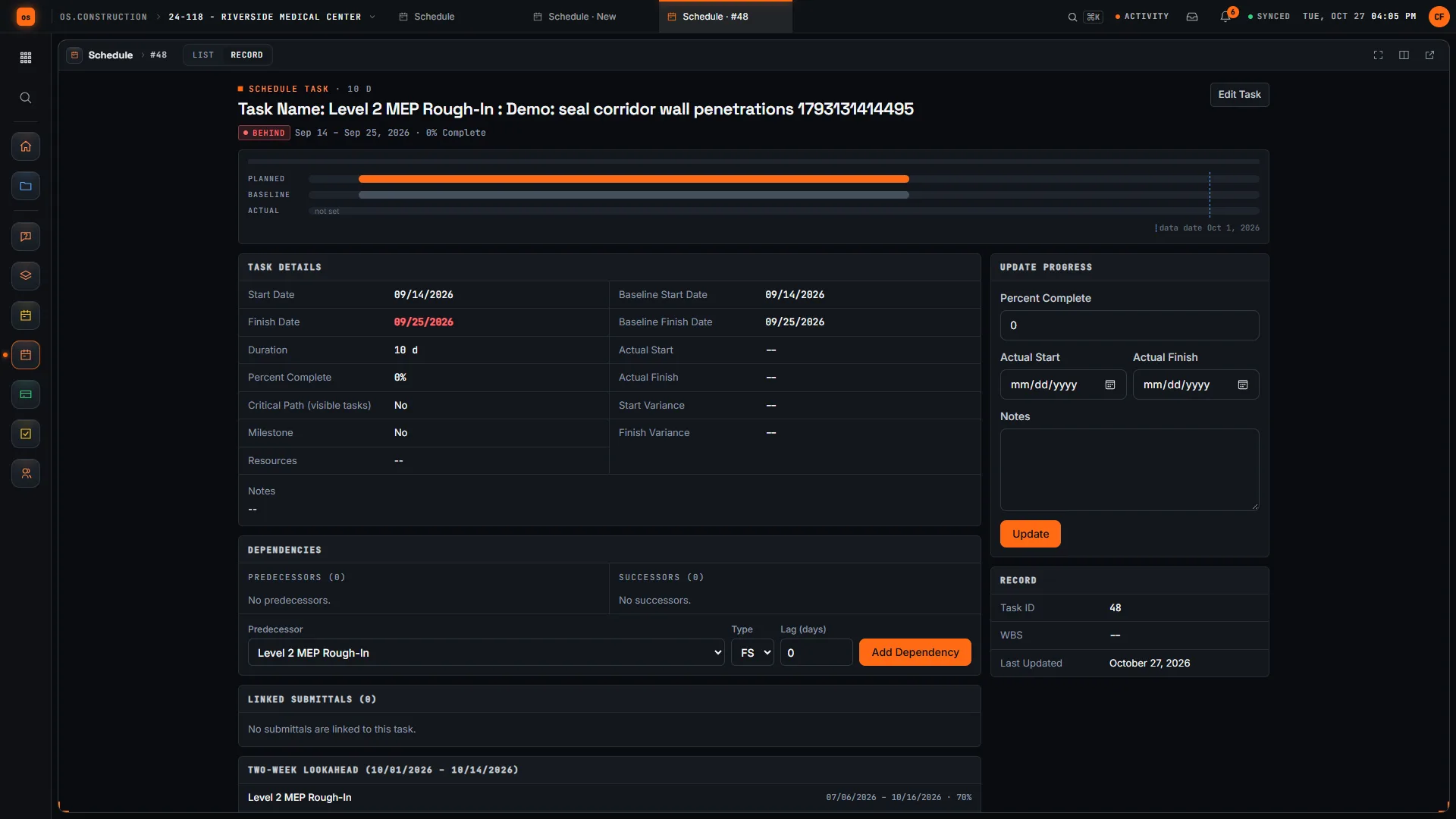
An activity's page shows planned against baseline against actual, its dependencies, the submittals linked to it and a two-week look-ahead around it. Update Progress records percent complete and the actual start and finish. An activity with an actual start and some progress is no longer At Risk; one at 100% drops off the flags.
04 Take At Risk to the meeting
Overdue is a recovery conversation. At Risk is the useful one: there's still time to get a crew, a submittal or an inspection lined up. Turn each At Risk activity into a meeting topic and a task with an owner, so it comes back next week either started or explained.
Not today: dragging Gantt bars to change dates (change them on the activity), importing Microsoft Project MPP or Primavera P6 XML files, and sending the look-ahead to subs from the app. Progress you record in the app isn't written back to P6 or Project.
Keep going
Keep exploring
Related across os.construction
- DocsSchedule: import, look-ahead and GanttImport a P6 XER or Microsoft Project XML schedule, read it as a list, 3-week look-ahead, calendar or Gantt, and update progress on each activity.
- GlossaryLook-Ahead ScheduleA short-range schedule, usually two to six weeks, that breaks the master schedule into the specific tasks crews will perform next.
- Free toolThree-week look-ahead templateFree three-week look-ahead schedule template.
- GlossaryCritical PathThe longest chain of dependent activities in a schedule; any delay to an activity on it delays project completion.
- PlatformRole guide: Owner’s representativeAn owner’s rep’s week in os.construction.
- Free toolMeeting minutes templateFree OAC and weekly meeting minutes template.
Sample project included
Try this workflow on the sample project
Every trial workspace includes a sample project with sample data, so you can follow these steps in the app before touching a live job.
Want this on live job data?
The schedule, its imports and the 3-week look-ahead are live in os.construction. Gantt bars aren't draggable, and Microsoft Project MPP files can't be imported.
14-day free trial. Pricing for paid plans isn't set yet. Talk to us. Already have an account? Sign in →
All figures are illustrative sample data, not a real project. Contract terms and state law decide how retainage, stored materials and change orders work on your job. Check both.