Your weekly OAC meeting, start to finish
The owner–architect–contractor meeting is where decisions get made and then forgotten. Follow one week on Riverside Medical Center: agenda, minutes, tasks with owners, and the items that come back next week by themselves.
Every topic ends somewhere
Meeting #12 has three topics. One becomes a task with an owner, one is closed, and one stays open and comes back under Business Arising in meeting #13.
- 12.1 RFI-212 fire dampers (linked to RFI-212) becomes a task to confirm damper lead time.
- 12.2 Storefront glazing finish (linked to the submittal) is closed: Rev 1 approved.
- 12.3 Level 2 ceiling sequence stays open and appears in meeting #13 under Business Arising from Previous Minutes.
From agenda to follow-up
01 Set up the series once
Set up Recurring Series takes a title, first date, start and end time, a weekly, biweekly or monthly cadence, the number of occurrences and a location, then generates every meeting. Times are entered and stored in UTC; the timezone on a meeting is a label.
02 Build the agenda from the record
Each agenda topic has a category, priority, due date, assignee and description, and is numbered by meeting and topic (12.1, 12.2). Link record ties a topic to the RFI, submittal, punch item or observation it's about, so nobody has to look up "the damper thing".
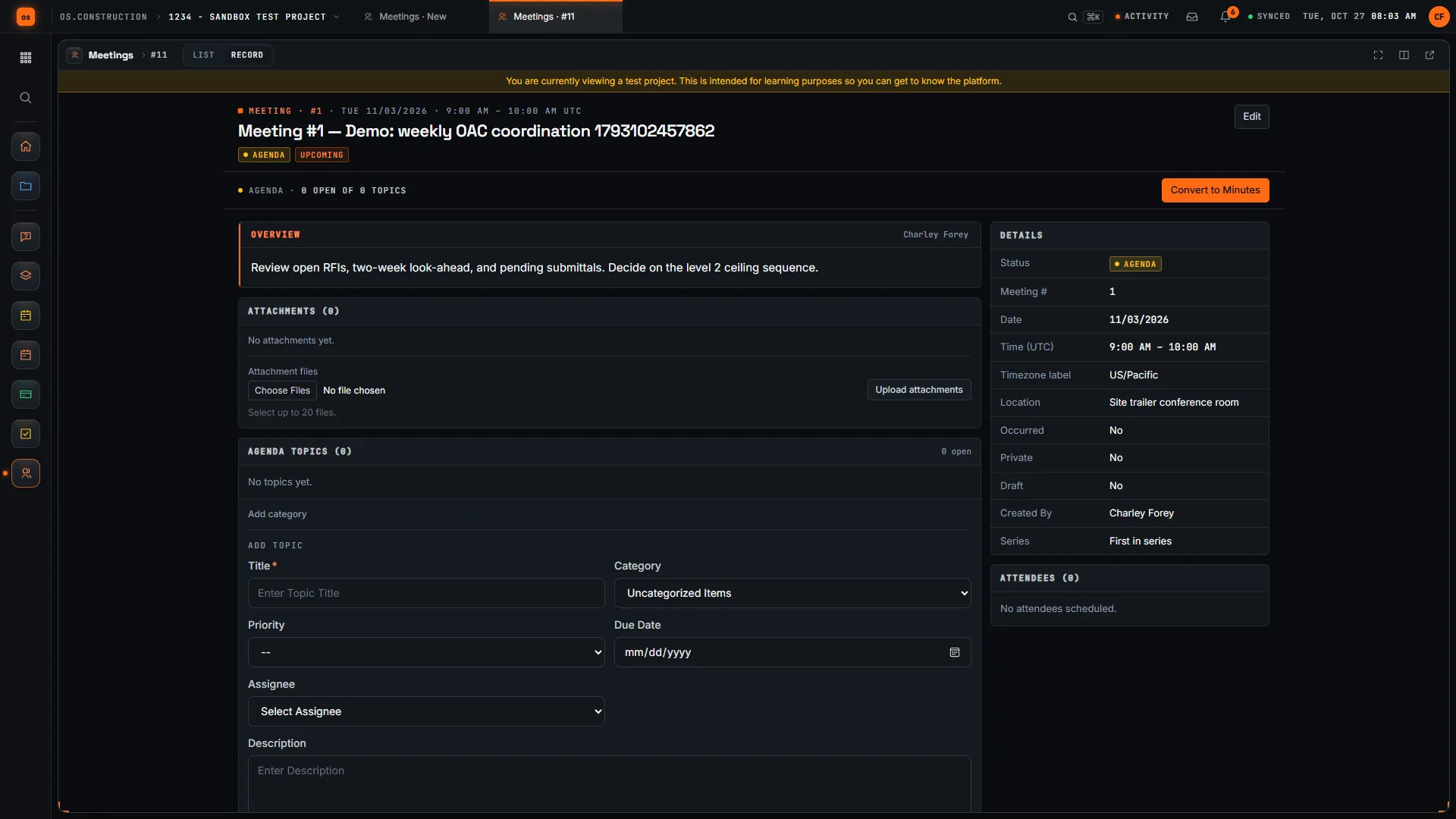
Watch the walkthrough · 1:49
Schedule a project meeting with a clear agenda
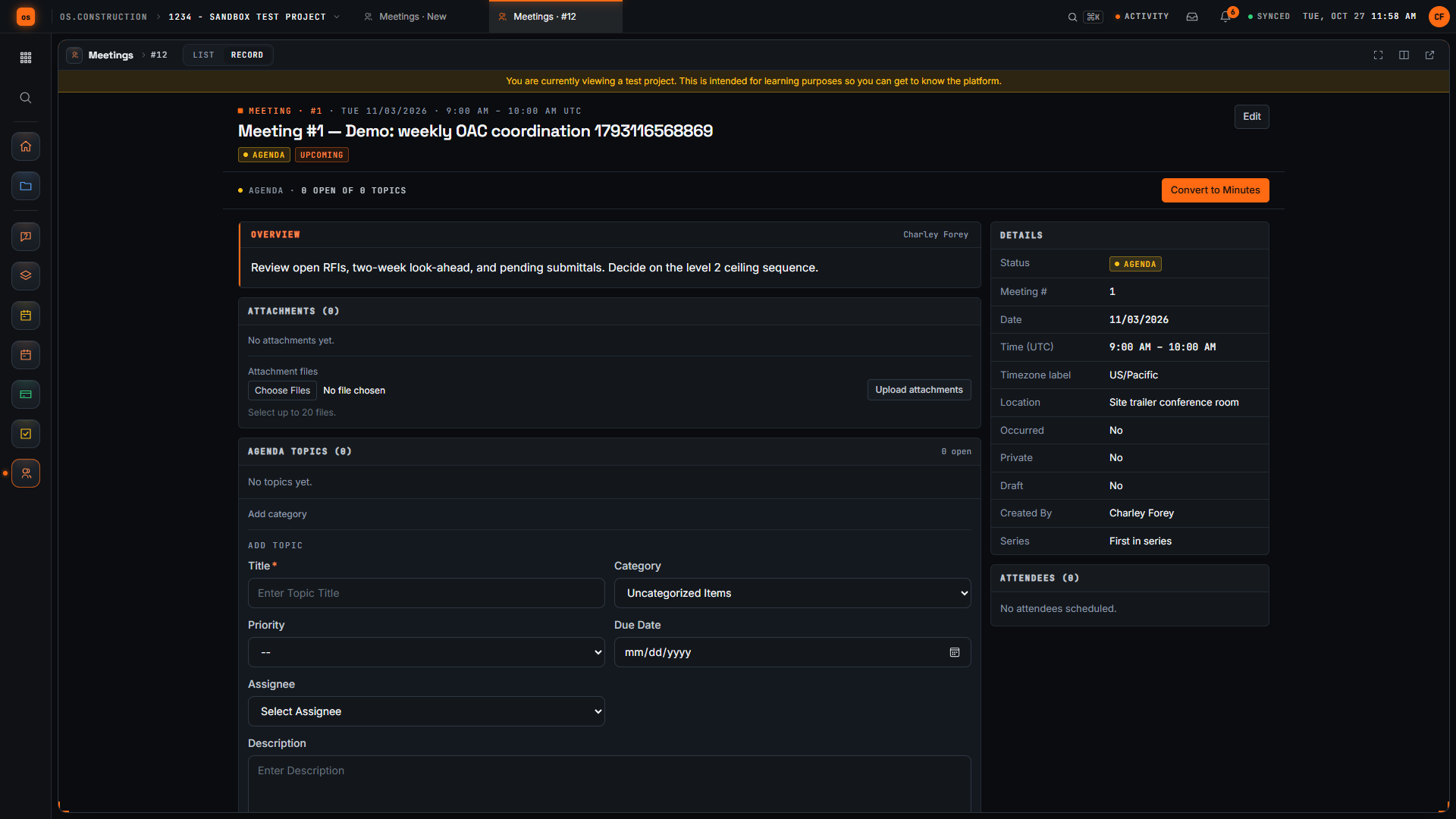
- 0:00Open Create Meeting
- 0:19Give the meeting a clear title
- 0:35Check the date and time
- 0:54Add the location
- 1:10Write the overview
- 1:27Create the meeting
- 1:38Review the saved meeting
Read the transcript
Here's the Create Meeting page in our local sample project. A good meeting record tells everyone what we're meeting about, where, and what we want to decide. Let's set one up together.
We start with a title people will recognize in a list. Ours is the weekly owner, architect and contractor coordination meeting. The demo adds a unique reference so each recording creates a separate sample record.
Next, let's check the date and time. The form suggests a date, a time zone, and a start and end time. We keep the suggested values in this sample; set them to match your real meeting.
Now we add where the meeting happens. For this sample it's the site trailer conference room.
In Overview, we write the agenda and the decision we need. Our sample covers open RFIs, the two-week look-ahead, pending submittals, and one decision on the level 2 ceiling sequence.
Then we select Create. The app saves the meeting and opens its record, with the meeting number and our title in the header.
Here's our saved meeting. Let's check that the location and agenda came through. We've created a meeting with a clear title, a place, and an overview the team can prepare for.
Video page with chaptersStep-by-step guideMore in Field: daily logs & tasks
03 Hold it, and take minutes on the topics
Convert to Minutes moves the meeting from Agenda to Minutes; it can't be undone. Mark each attendee Present, Absent, Conference or For Distribution Only. Record what was said on each topic, and close the ones that are settled. Every change is kept in the meeting's history.
04 Turn decisions into tasks
Create task on a topic opens a task linked to it, and the topic lists its tasks. The task has its own owner, due date and status, and remembers which meeting and topic it came from. Notes and participants aren't copied, so write the follow-up in the task.
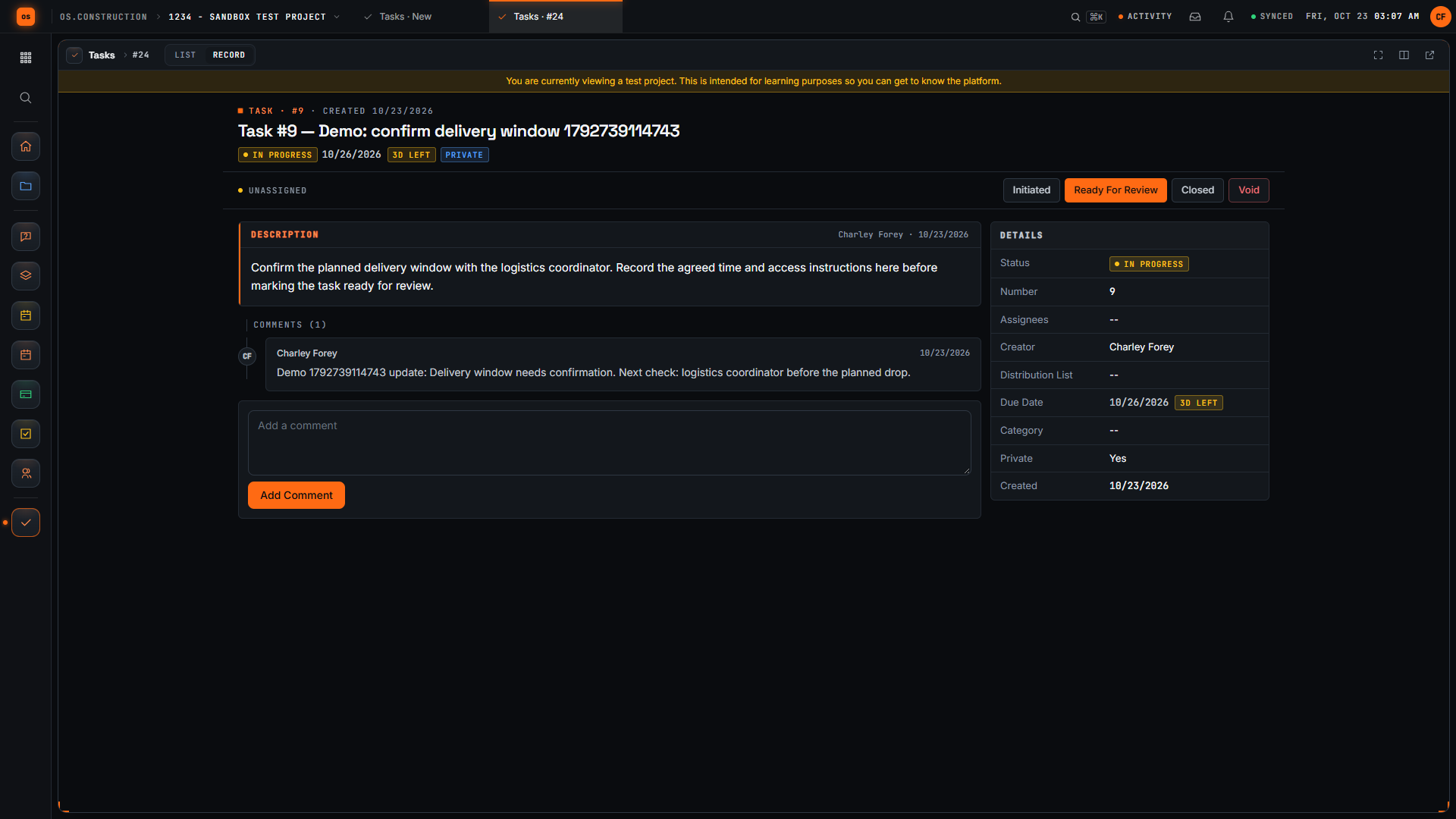
Watch the walkthrough · 2:33
Create a task and post a progress update
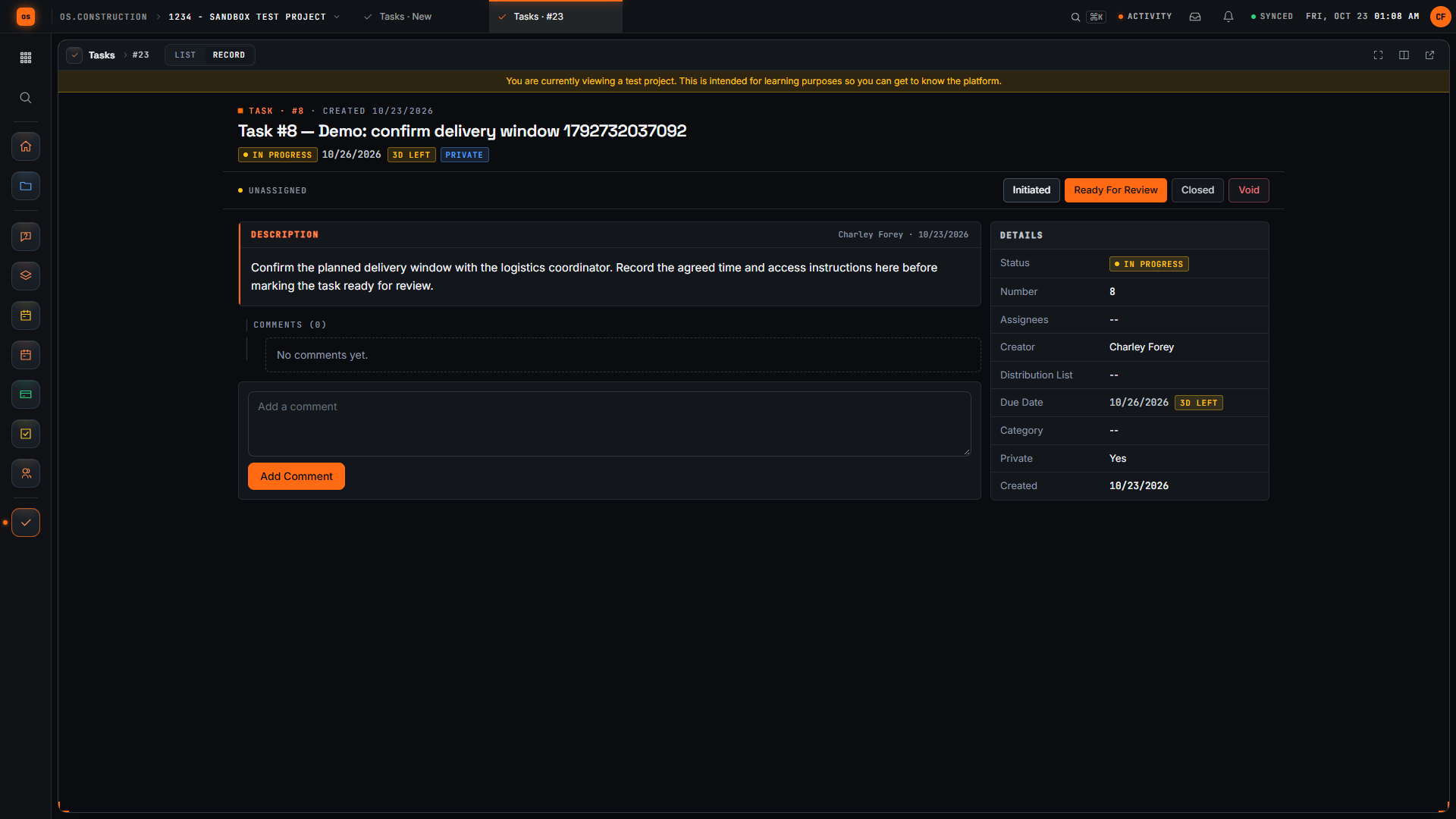
- 0:00Start a project task
- 0:22Name the follow-up clearly
- 0:49Describe what the follow-up needs
- 1:09Save the task and inspect its detail page
- 1:25Move the sample task into progress
- 1:49Write a useful progress comment
- 2:05Save the update
- 2:18Review the saved progress context
Read the transcript
Open Create Task in the sample project. A useful task names a specific follow-up and gives the next reader enough context to understand what needs to happen. We will save this example, change its status, and add an update.
Give the task an action-oriented title. Confirm delivery window tells the reader what needs attention. The unique demo reference distinguishes this sample record from other recordings.
Use Description to explain the expected result. Our invented example asks for the delivery window, the agreed time, and access instructions. Review the task's other fields before saving. This recording leaves assignees and distribution empty.
Select Create and wait for the task detail page. Confirm the title and description. The saved record now has a task number and a current status that the project team can use to track the follow-up.
For this sample, select In Progress. Check the current status in the task header after the update. A status change records the stage of the task; the delivery window itself still needs confirmation.
Add a comment that explains the next check. Our sample update says that the delivery window needs confirmation and identifies who to check with. This gives the reader more context than the status alone.
Select Add Comment. Wait for the text to appear in the saved comment list. Read the saved update so you can confirm the task contains the information you intended to leave.
Here is the saved update on the task. We have created a specific follow-up, moved its status into progress, and recorded the next check. Keep updating the record as the work changes so another reader can understand what remains.
Video page with chaptersStep-by-step guideMore in Field: daily logs & tasks
05 Record who got the minutes
Record Distribution lists recipients (attendees pre-checked) and adds an entry to Distribution History. It's a record, not a send: share the minutes the way your team normally does.
06 Next week starts where this one ended
Create Follow-up Meeting on a minuted meeting creates the next one in the series. Open topics appear under Business Arising from Previous Minutes, each showing the meeting it came from. Nothing open falls off the list because someone forgot to copy it.
Is the meeting closing things?
If carried-forward topics keep growing, the meeting is talking, not deciding. Illustrative sample data: six weekly meetings, not from a real project or drawn by the app.
Keep going
Keep exploring
Related across os.construction
- GlossaryMeeting MinutesThe written record of a project meeting: who attended, what was decided on each topic, who owns each open item and by when.
- GlossarySubmittalShop drawings, product data, samples or other documents a contractor sends to the design team for review before buying or installing materials.
- PlatformRole guide: Owner’s representativeAn owner’s rep’s week in os.construction.
- Free toolMeeting minutes templateFree OAC and weekly meeting minutes template.
- Free toolAction item trackerFree action item tracker for construction PMs.
- PlatformRole guide: Project managerA GC project manager’s week in os.construction.
Sample project included
Try this workflow on the sample project
Every trial workspace includes a sample project with sample data, so you can follow these steps in the app before touching a live job.
Want this on live job data?
Meetings, recurring series, tasks from topics and carried-forward items are live in os.construction. The app records who got the minutes; it doesn't email them.
14-day free trial. Pricing for paid plans isn't set yet. Talk to us. Already have an account? Sign in →
All figures are illustrative sample data, not a real project. Contract terms and state law decide how retainage, stored materials and change orders work on your job. Check both.