Follow-ups with one owner and a date.
Meetings, RFIs and coordination produce follow-ups that aren’t an RFI, a submittal or a punch item. Put them on one list, each with an owner, a due date and what done looks like.
Action item tracker
os.construction · free template- Project
- Owner of this list
- Reviewed at
- Last updated
Action items
| # | Action | Source | Owner | Due | What done looks like | Status | Latest update |
|---|---|---|---|---|---|---|---|
| 14 | Confirm delivery window for AHU-2 (SAMPLE · delete this row) | OAC 12.5 | Mechanical PM | Agreed date, time and access instructions sent to super | In progress | Supplier proposing two dates | |
| 15 | Send revised door hardware schedule to architect | Submittal 08 71 00-2 | Doors & hardware | Resubmittal logged and routed | Initiated | ||
| 16 | Walk L3 ceiling with fire protection before close-in | Coordination meeting | GC super | Walk done; issues logged as observations | Closed | Two items logged | |
Sample rows are illustrative and marked for deletion. Your contract, drawings and specifications govern. Template from os.construction/resources/templates/action-item-tracker
Using the action item tracker
- Write each action as a verb and an object: “Confirm delivery window for AHU-2”, not “AHU-2”.
- One owner per action. If two people have a part, split it.
- Say what done looks like, so whoever reviews it knows what to check.
- Note where it came from (meeting item, RFI, coordination issue) so the context is one lookup away.
- Review the open list at the same meeting every week, and have owners update their latest-update column before it.
- InitiatedOwner, due date, definition of done
- In progressBeing worked; updates posted
- Ready for reviewOwner says it’s doneNot done yet: back to “In progress”
- ClosedChecked against “done”
Text version
- Initiated: Owner, due date, definition of done
- In progress: Being worked; updates posted
- Ready for review: Owner says it’s done
- Closed: Checked against “done”
Not done yet: from “Ready for review” back to “In progress”.
Do this in os.construction instead of a spreadsheet
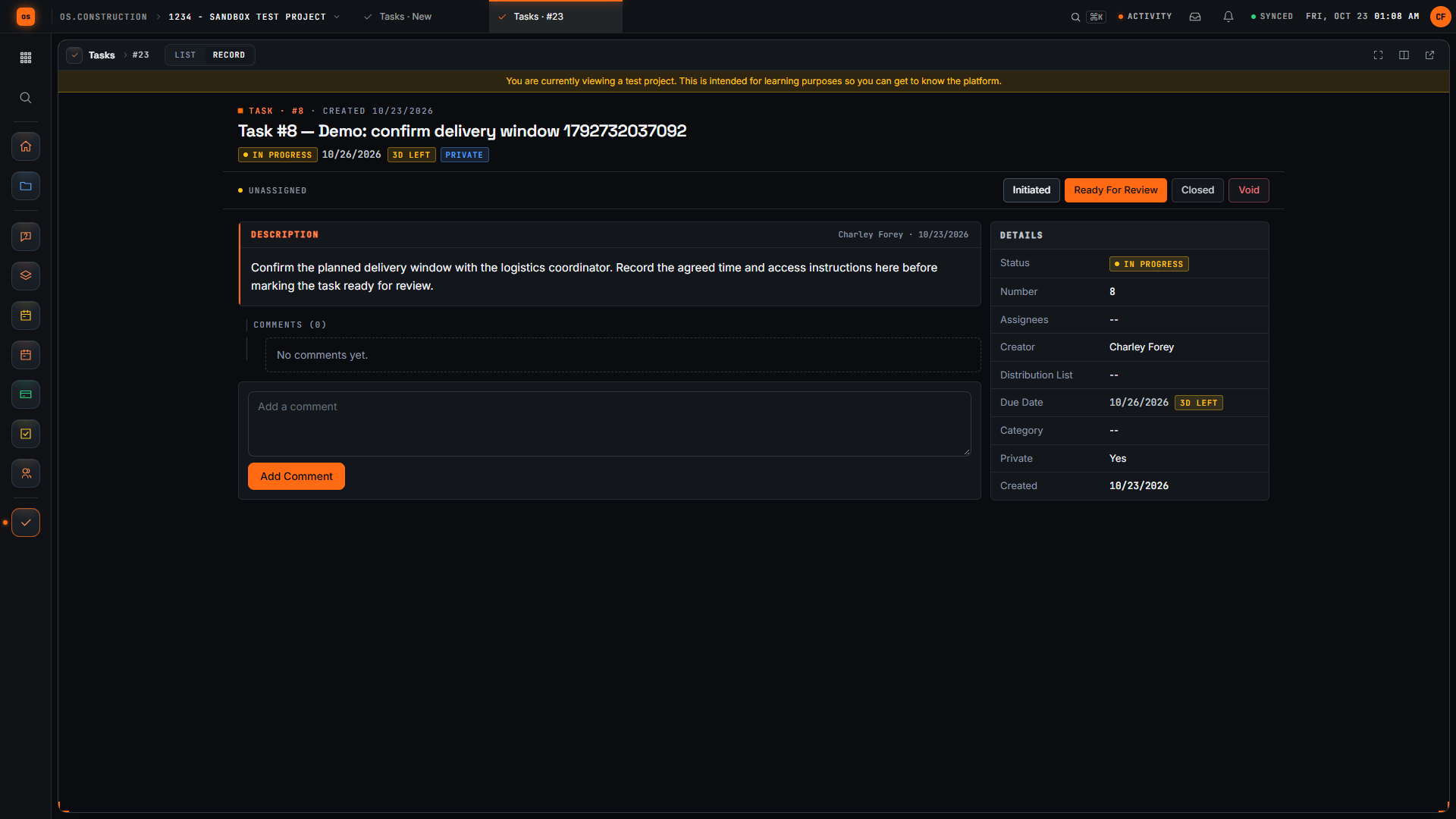
Tasks in os.construction are the project’s follow-up list: assignees, a distribution list, a due date, and statuses from Initiated through In Progress and Ready For Review to Closed or Void, on a list or a board. Comments with @mentions notify people, Create task on a meeting topic or an RFI opens a task linked to it, and the filtered list exports to CSV.
Watch the walkthrough · 2:33
Create a task and post a progress update
- 0:00Start a project task
- 0:22Name the follow-up clearly
- 0:49Describe what the follow-up needs
- 1:09Save the task and inspect its detail page
- 1:25Move the sample task into progress
- 1:49Write a useful progress comment
- 2:05Save the update
- 2:18Review the saved progress context
Read the transcript
Open Create Task in the sample project. A useful task names a specific follow-up and gives the next reader enough context to understand what needs to happen. We will save this example, change its status, and add an update.
Give the task an action-oriented title. Confirm delivery window tells the reader what needs attention. The unique demo reference distinguishes this sample record from other recordings.
Use Description to explain the expected result. Our invented example asks for the delivery window, the agreed time, and access instructions. Review the task's other fields before saving. This recording leaves assignees and distribution empty.
Select Create and wait for the task detail page. Confirm the title and description. The saved record now has a task number and a current status that the project team can use to track the follow-up.
For this sample, select In Progress. Check the current status in the task header after the update. A status change records the stage of the task; the delivery window itself still needs confirmation.
Add a comment that explains the next check. Our sample update says that the delivery window needs confirmation and identifies who to check with. This gives the reader more context than the status alone.
Select Add Comment. Wait for the text to appear in the saved comment list. Read the saved update so you can confirm the task contains the information you intended to leave.
Here is the saved update on the task. We have created a specific follow-up, moved its status into progress, and recorded the next check. Keep updating the record as the work changes so another reader can understand what remains.
Video page with chaptersStep-by-step guideMore in Field: daily logs & tasks
Try it on the sample project
Every trial workspace includes a sample project to run this workflow on. 14-day free trial. Pricing for paid plans isn't set yet.
Questions about the action item tracker
What belongs on an action item list?
Follow-ups that aren’t already tracked as an RFI, submittal, punch item or change: confirmations, coordination walks, documents to send, decisions to chase.
How is an action item different from an RFI?
An RFI is a formal question about the contract documents with its own log and response. An action item is any follow-up someone owes; sending an RFI can itself be an action item.
How often should I review it?
Weekly, at the same meeting, with every owner updating their items beforehand. Overdue items go to the top.
Can I export tasks from os.construction?
Yes. The task list exports the current filtered view to CSV.
Are new tasks visible to everyone?
Not by default: new tasks are private to admins, assignees, the distribution list and the creator unless you uncheck Private.
Keep going
- GlossaryLook-Ahead Schedule
- GlossaryRequest for Information (RFI)
- GlossarySubmittal
- Free resourceMeeting minutes template
- TemplatePunch list template
- TemplateMeeting minutes template
- TemplateInspection checklist starter pack
- TemplateT&M ticket template
- TemplateRFI writing checklist
- TemplateDaily log checklist
- TemplateChange event log
- TemplateThree-week look-ahead template
- TemplateSafety observation log
Keep exploring
Related across os.construction
- PlatformRole guide: Owner’s representativeAn owner’s rep’s week in os.construction.
- Free toolMeeting minutes templateFree OAC and weekly meeting minutes template.
- PlatformProjectsRFIs, submittals, change orders and daily logs on the same record as the money.
- Free toolRFI response time calculatorPaste your RFI log: median turnaround, share answered in the contract period, late open RFIs.
- DocsSchedule: import, look-ahead and GanttImport a P6 XER or Microsoft Project XML schedule, read it as a list, 3-week look-ahead, calendar or Gantt, and update progress on each activity.
- ExplainerThe 3-week look-ahead: catching overdue and at-risk workRun the weekly look-ahead in os.construction: read Overdue and At Risk flags, move the data date, update progress, and take the right list to the meeting.