Tasks: track follow-ups to closed
Create a project task, assign it, move it from Initiated to Closed on the list or board, and leave progress comments the next person can act on.
On this page
Tasks are the project’s follow-up list: the things someone has to do that aren’t an RFI, a submittal or a punch item. Each task has an owner, a due date, a status and a comment thread. Open it from the project’s Project Tools menu.
A follow-up that lives in a notebook, a text thread or the bottom of last week’s minutes has no owner anyone can see and no date anyone is held to. A task fixes both. It also stays attached to the meeting topic or RFI it came from, so a month later you can still see why it existed.
- Who uses it
- Project managers and engineers who assign follow-ups; supers, subs and consultants who do them.
- When
- Every day. Most tasks are born in a weekly meeting, an RFI or a coordination review.
- What it holds
- Title, assignees, distribution list, due date, description, status and a comment thread with @mentions.
- Connects to
- MeetingsRFIsMy open items
How a task moves
| Status | Meaning |
|---|---|
| Initiated | Created, not started |
| In Progress | Being worked |
| Ready For Review | Done, waiting for someone to check |
| Closed | Done and checked |
| Void | Cancelled |
On the task, each status is a button; the usual next step is highlighted. Who can set which status depends on permissions: assignees with Standard access can move their own tasks through In Progress and Ready For Review, and closing or voiding needs the right permission. See Roles and permissions.
How teams use it
The Tuesday OAC meeting ends with eleven open items. Instead of retyping them into an email, the project engineer clicks Create task on each meeting topic that needs a follow-up. Every task is linked to the topic it came from, has an assignee and a due date, and shows up on that person’s My open items.
By Thursday the board shows the picture: four tasks still Initiated, five In Progress, two Ready For Review. The PM opens the two in review, reads the comments, and closes one. The other goes back to In Progress with a comment saying what’s missing. Next Tuesday the meeting starts from the board, not from memory.
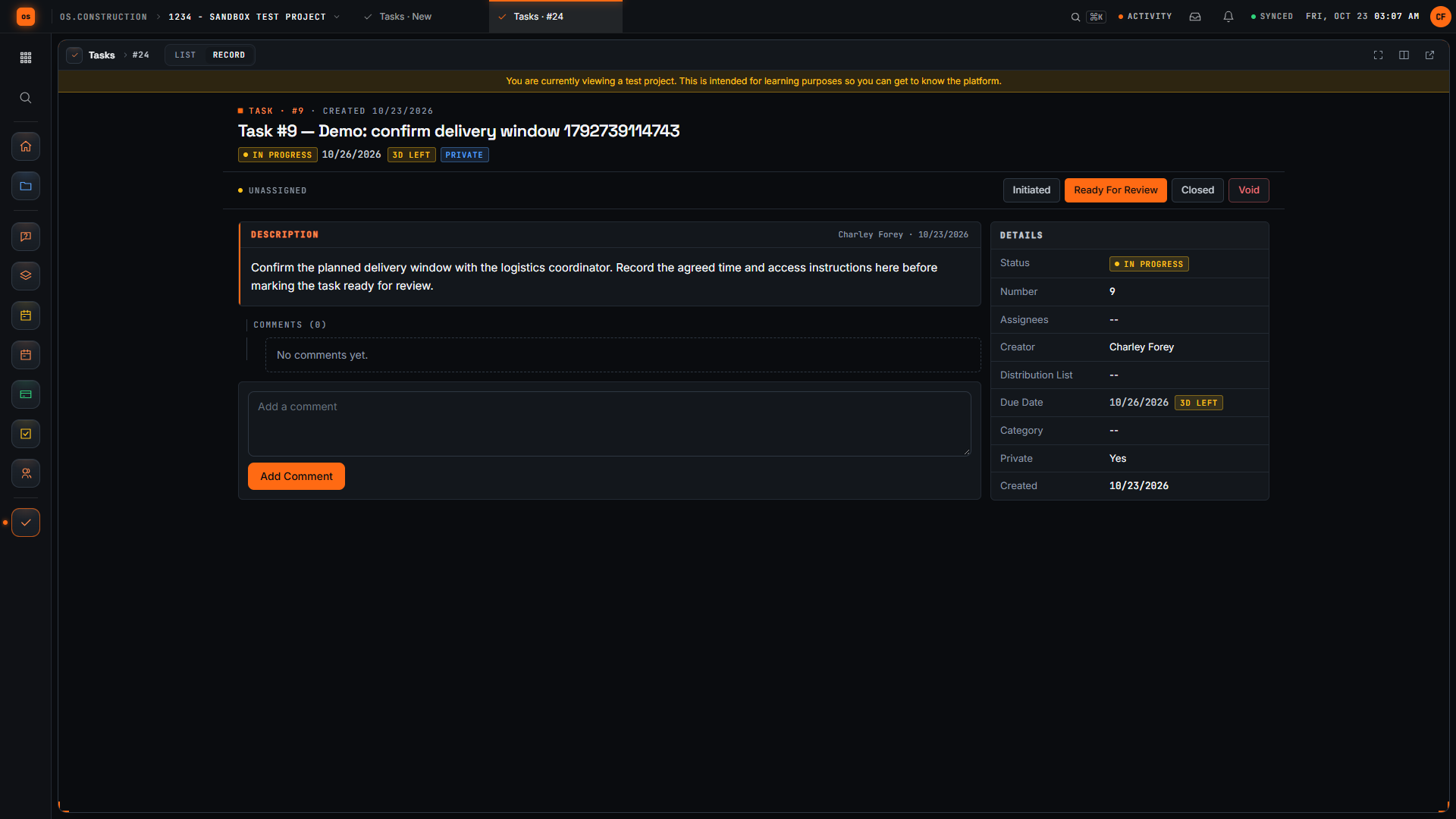
The mechanical foreman is assigned “Confirm delivery window for AHU-2”. The description says what a useful answer contains: the agreed time, the access route and who meets the truck. He moves the task to In Progress, adds a comment once the supplier confirms, and sets it to Ready For Review.
He doesn’t need to chase anyone to prove he did it: the comment and the status change are on the task with his name and the time. If the GC sends it back, the comment says why.
The owner’s rep asked for a revised finish schedule at the last meeting. The GC creates a task assigned to their own PM, with the owner’s rep on the distribution list so they can follow it. When the PM sets it to Ready For Review with a comment saying where the revision is, the owner’s rep sees it, and the task closes when they confirm.
For the owner, the value is the record: action items from every meeting, tracked to Closed, with the comments showing what actually happened.
The task list and board
Four tiles count tasks by status and filter the list when clicked: Initiated, In Progress, For Review and Closed.
- List shows #, Title, Description, Status, Assignee(s) and Due Date. A due date shows days late, Today, or days left when it’s within a week.
- Board shows one column per status, with each task’s assignee.
Filter by Status and Assignees, search, and save a filter set as a named view; check Shared to share it with the project. Select rows to Set a status on several tasks, Delete them, or Export CSV. Export in the header downloads the current filtered list as a CSV.
A useful habit is one saved view for each meeting you run: “assigned to subs, not closed” is the list you review at the start of the subcontractor meeting.
Show the data as a table
| Item | On time | Late | Total |
|---|---|---|---|
| Project engineer | 5 | 3 | 8 |
| Site superintendent | 6 | 1 | 7 |
| Mechanical sub | 3 | 2 | 5 |
| Architect | 2 | 2 | 4 |
| Owner's rep | 1 | 0 | 1 |
Filter the list by assignee and the due date column shows which tasks are late. The chart sketches what a mid-job list often looks like once someone sorts it: lateness clusters around a few people, and those are the conversations to have first.
Create a task
-
Click + Create
Number is filled with the next number. Enter a Title that names the action.
-
Set owner and date
Pick Assignee(s) and anyone to keep informed in Distribution List. Due Date defaults to three days out.
-
Write the expected result
Use Description to say what “done” looks like, so the reviewer knows what to check.
-
Check visibility, then Create
Private is checked by default: the task is visible only to admins, assignees, the distribution list and the creator. Uncheck it to share it with everyone on the project.
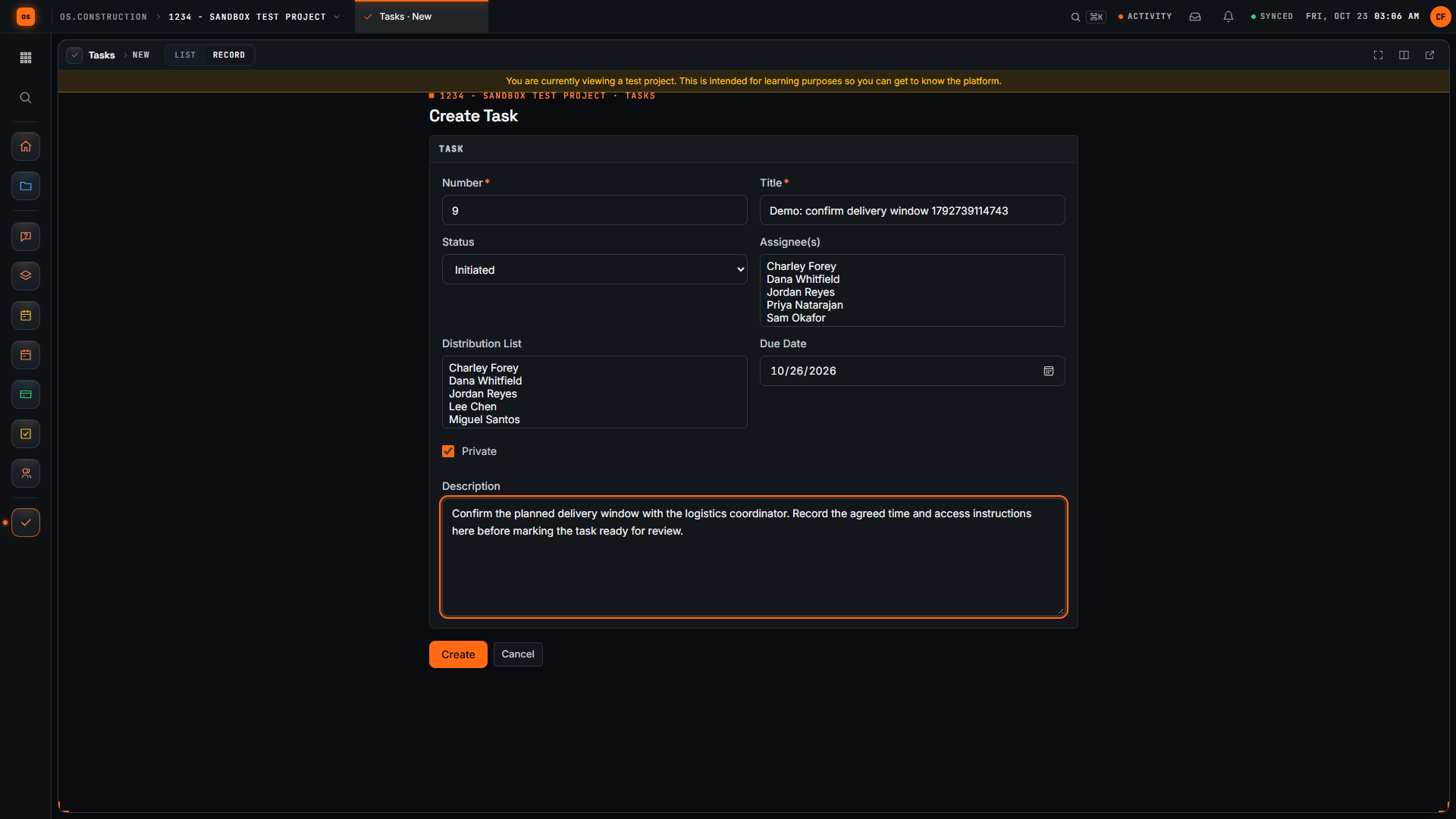
Assignees get an in-app notification when the task is created.
Leave a useful comment
The status says where a task is; the comment says why and what’s next. Type it under Comments and click Add Comment. @mention someone to notify them. Assignees and the creator are notified of new comments and status changes.
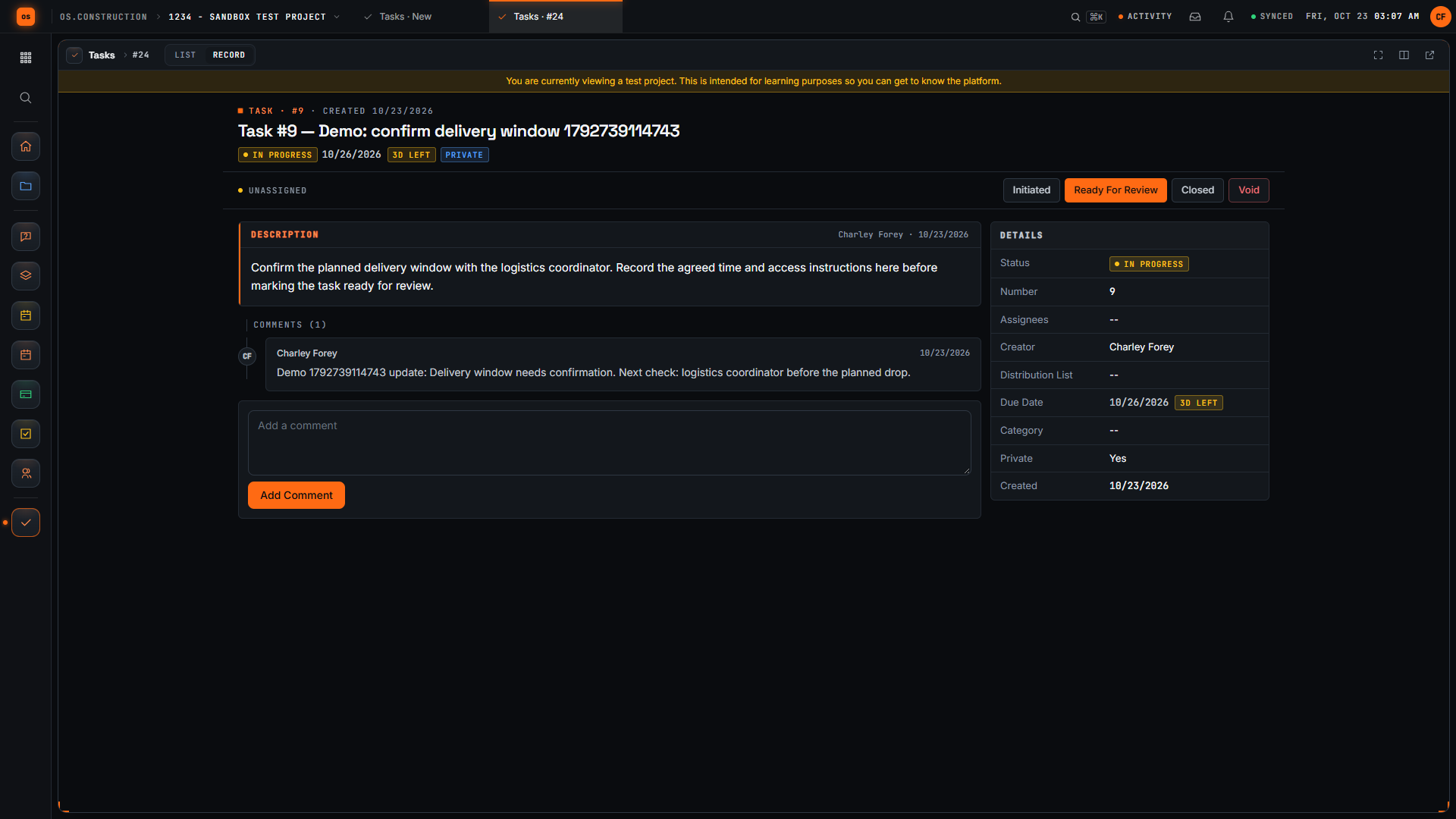
A good progress comment has three parts: what changed, what’s still unknown, and the next check with a date. “Supplier confirmed Tuesday 7 am, east gate. Still waiting on the crane permit; will confirm by Friday” is a comment someone else can act on. “Working on it” isn’t.
Tasks from other records
Create task on a meeting topic, an RFI or a coordination issue opens the task form already linked to it. The task shows where it came from, and the source lists the tasks created from it. Meeting notes and participants aren’t copied, so write the follow-up in the task itself.
Common mistakes
Mistake: A follow-up with three owners, or none
In the app: Each task has named assignees and shows on their My open items. Pick the person who answers for it; put everyone else on the distribution list.
Mistake: A title that names a topic, not an action
In the app: The list and board show the title, so write "Confirm AHU-2 delivery window", not "AHU-2".
Mistake: Closing a task because the assignee said it was done
In the app: Ready For Review sits between In Progress and Closed, and closing needs the right permission, so someone checks first.
Mistake: A colleague can't see the task you assigned them
In the app: New tasks are private by default, visible to admins, assignees, the distribution list and the creator. Uncheck Private to share it with the project.
Mistake: Forgetting why a task existed
In the app: A task created from a meeting topic or RFI stays linked to it, and the source lists its tasks.
Checklist: a task someone can finish
Before you click Create
- The title starts with a verb and names the thing: confirm, send, revise, check.
- One person answers for it. Others are on the distribution list.
- The due date is a date someone agreed to, not just the three-day default.
- The description says what “done” looks like and what to attach or link.
- Private is set the way you mean it: checked for internal follow-ups, unchecked for project-wide ones.
- If it came from a meeting topic or an RFI, you created it from there, so it stays linked.
What it connects to
A task isn’t a separate to-do app bolted onto the project. It’s a record in the same data core as the meeting, RFI or coordination issue it came from.
- Source records: the meeting topic, RFI or coordination issue lists the tasks created from it.
- My open items: each person’s list of what’s waiting on them, across tools. See Find your way around.
- Analytics: where Analytics is turned on for your company, Analyze on the task list opens the project management report pack, with open and late tasks. See Live dashboards.
- Export: the filtered list downloads as a CSV.
What it doesn’t do today
- No attachments on a task. Put links in the description or a comment, or attach files to the record the task came from.
- Most fields are set at creation. After that you change the status and add comments.
- Meeting notes and participants aren’t copied into a task created from a topic. Write the follow-up in the task.
- No recurring tasks. For a standing check, use a recurring inspection or a meeting series.
FAQ
Can I attach files to a task? Not today. Put links in the description or comment, or attach files to the record the task came from.
Can I edit a task after creating it? You can change its status and add comments. The other fields are set when you create it.
How do I delete a task? Select it on the list and use Delete. Deleting needs the delete permission.
Why can’t a colleague see my task? New tasks are private by default. Add them as an assignee or to the distribution list, or uncheck Private when you create it.
Can a subcontractor close their own task? Assignees with Standard access can move their own tasks through In Progress and Ready For Review. Closing needs the right permission, so a reviewer usually closes it.
When should something be a task, not an RFI or a punch item? A question for the design team is an RFI. A defect to fix before the owner accepts the work is a punch item. Anything else someone has to do is a task.
Can I get the list out of the app? Yes. Export downloads the filtered list as a CSV, and you can select rows to export just those.
Watch it, and a template for the meeting
Watch the walkthrough · 2:33
Create a task and post a progress update
- 0:00Start a project task
- 0:22Name the follow-up clearly
- 0:49Describe what the follow-up needs
- 1:09Save the task and inspect its detail page
- 1:25Move the sample task into progress
- 1:49Write a useful progress comment
- 2:05Save the update
- 2:18Review the saved progress context
Read the transcript
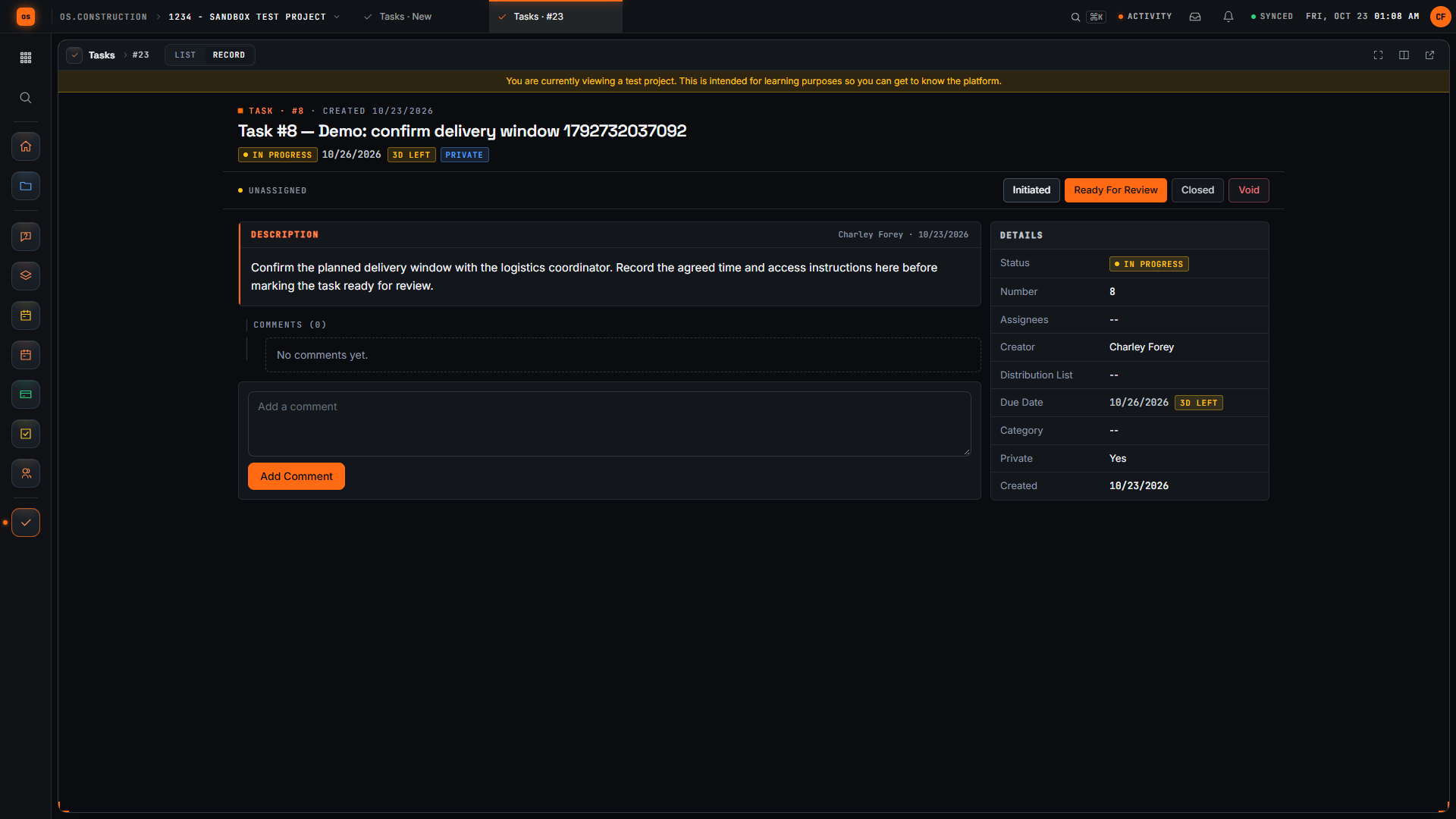
Open Create Task in the sample project. A useful task names a specific follow-up and gives the next reader enough context to understand what needs to happen. We will save this example, change its status, and add an update.
Give the task an action-oriented title. Confirm delivery window tells the reader what needs attention. The unique demo reference distinguishes this sample record from other recordings.
Use Description to explain the expected result. Our invented example asks for the delivery window, the agreed time, and access instructions. Review the task's other fields before saving. This recording leaves assignees and distribution empty.
Select Create and wait for the task detail page. Confirm the title and description. The saved record now has a task number and a current status that the project team can use to track the follow-up.
For this sample, select In Progress. Check the current status in the task header after the update. A status change records the stage of the task; the delivery window itself still needs confirmation.
Add a comment that explains the next check. Our sample update says that the delivery window needs confirmation and identifies who to check with. This gives the reader more context than the status alone.
Select Add Comment. Wait for the text to appear in the saved comment list. Read the saved update so you can confirm the task contains the information you intended to leave.
Here is the saved update on the task. We have created a specific follow-up, moved its status into progress, and recorded the next check. Keep updating the record as the work changes so another reader can understand what remains.
Video page with chaptersStep-by-step guideMore in Field: daily logs & tasks
Running action items on paper today? The meeting minutes template has a topic table with an owner and a due date per row, the same shape as a task.
Related
- Meetings: turn agenda topics into tasks
- RFIs: create a task from an RFI
- Find your way around: My open items across tools
- Glossary: Look-ahead schedule, Audit trail
Keep exploring
Related across os.construction
- DocsMeetings: agendas, minutes and action itemsPlan a project meeting, set up a recurring series, record attendance and minutes by topic, carry open items forward, and turn topics into tasks.
- GlossaryMeeting MinutesThe written record of a project meeting: who attended, what was decided on each topic, who owns each open item and by when.
- DocsSchedule: import, look-ahead and GanttImport a P6 XER or Microsoft Project XML schedule, read it as a list, 3-week look-ahead, calendar or Gantt, and update progress on each activity.
- Blogos.construction is open for trialsThe app is live at app.os.construction. Start a 14-day free trial: project management and project financials today, with separate company accounting workflows and planned AI agents. Here's exactly what's live and what isn't.
- BlogWhy construction needs an operating system, not another appMost contractors don't have a software problem. They have a seams problem: the same number lives in five systems and none of them agree. The fix is a shared record, not another tool.
- GlossaryBall in CourtWho has to act next on an RFI, submittal, punch item or other open record, so the item never waits without an owner.
Was this helpful?
Run it on your own project.
Start a 14-day free trial. Want a say in what ships next? Join the founding program.
14-day free trial. Pricing for paid plans isn't set yet. Talk to us. Already have an account? Sign in →