Create a task and post a progress update
Create a task with a clear ask, move it to In Progress and leave an update the whole team can see.
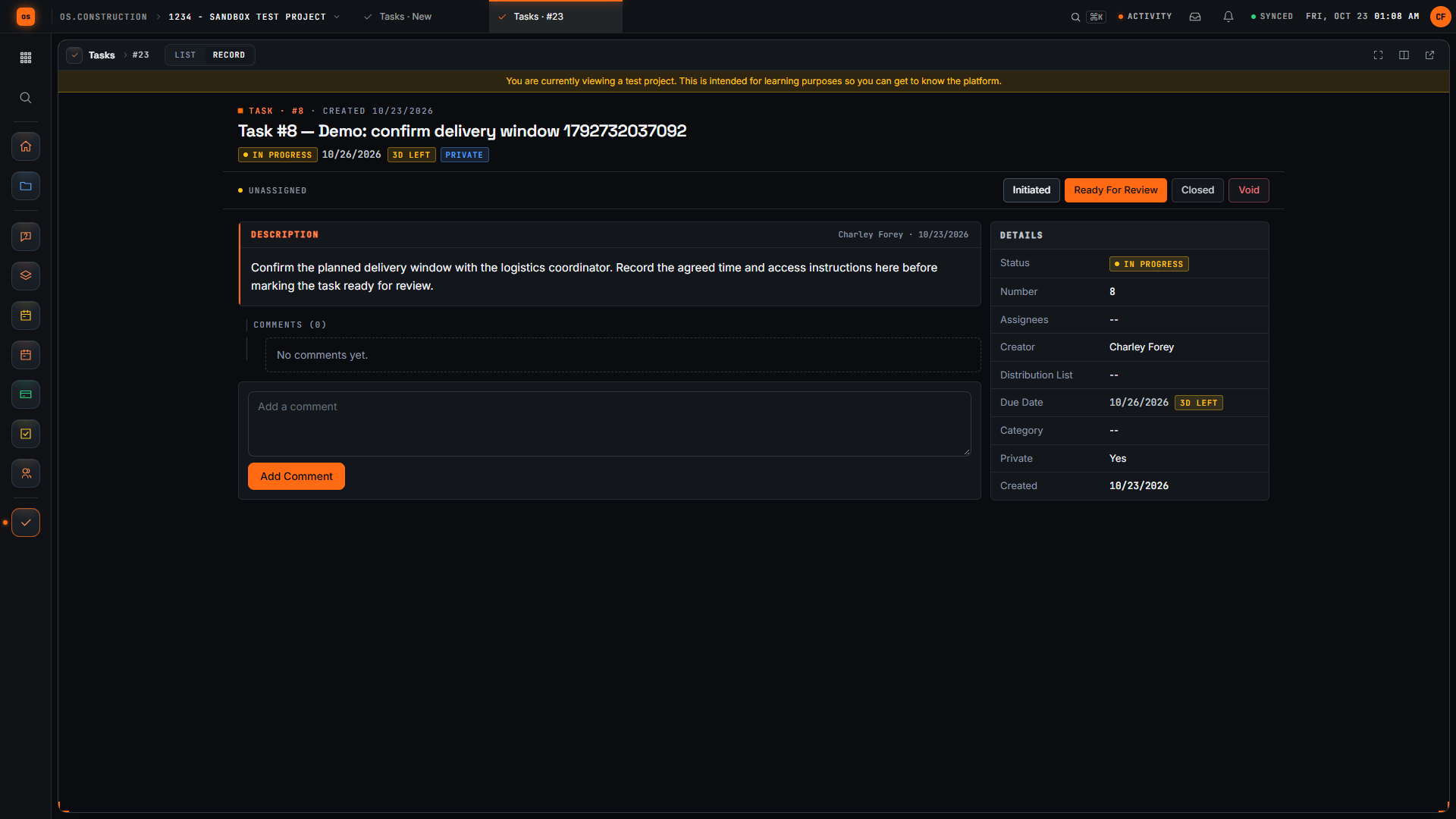
Each step in a few seconds
Short silent loops cut from the walkthrough. Scroll sideways for every step.
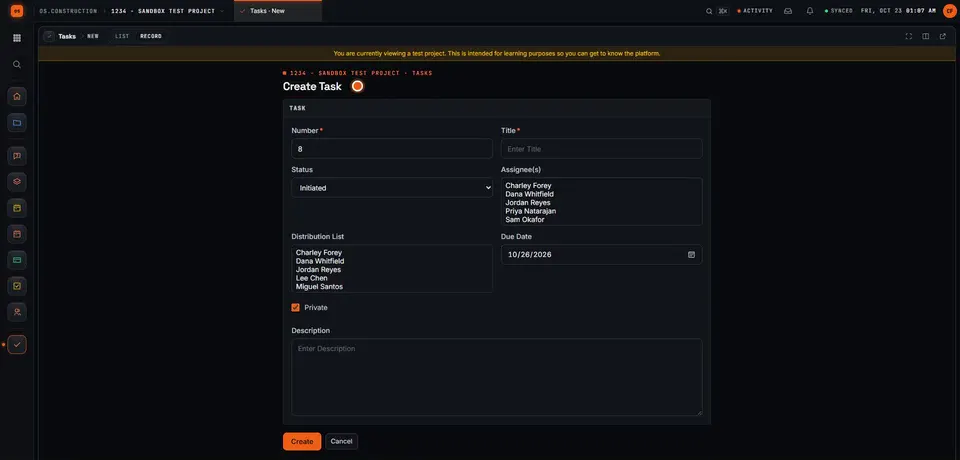
Step 1Start a project task · sample data, no sound 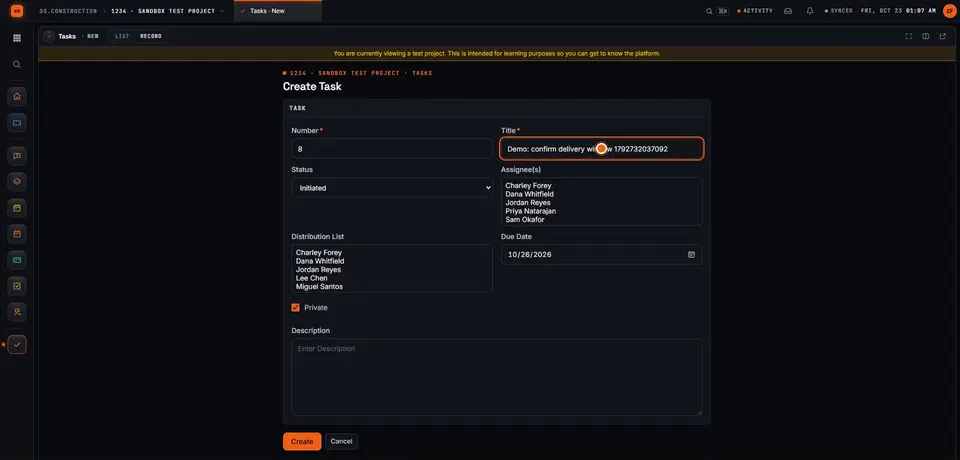
Step 2Name the follow-up clearly · sample data, no sound 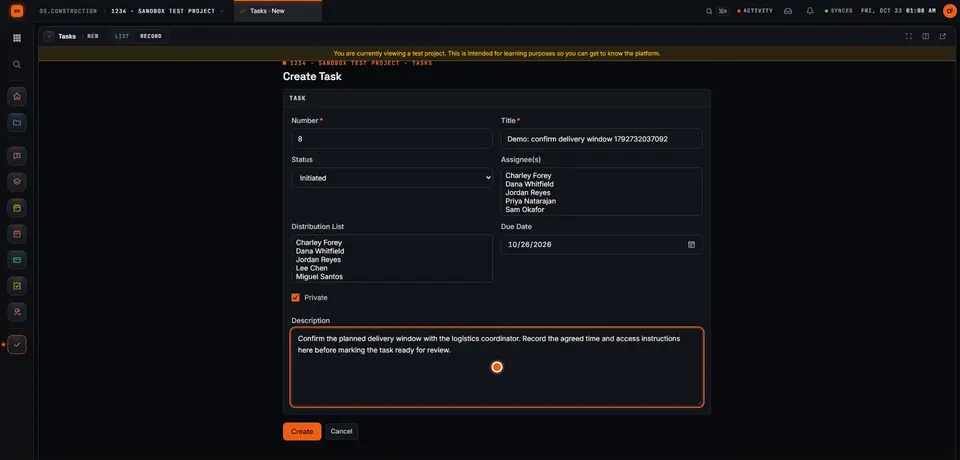
Step 3Describe what the follow-up needs · sample data, no sound 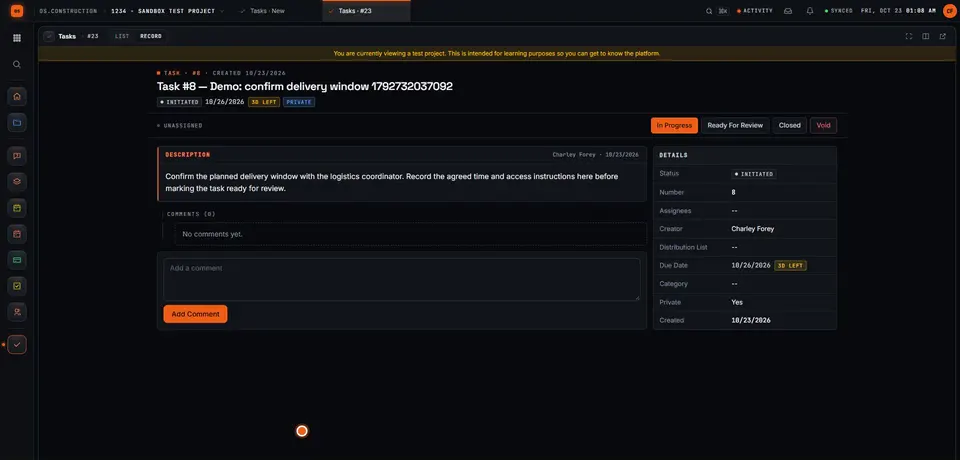
Step 4Save the task and inspect its detail page · sample data, no sound 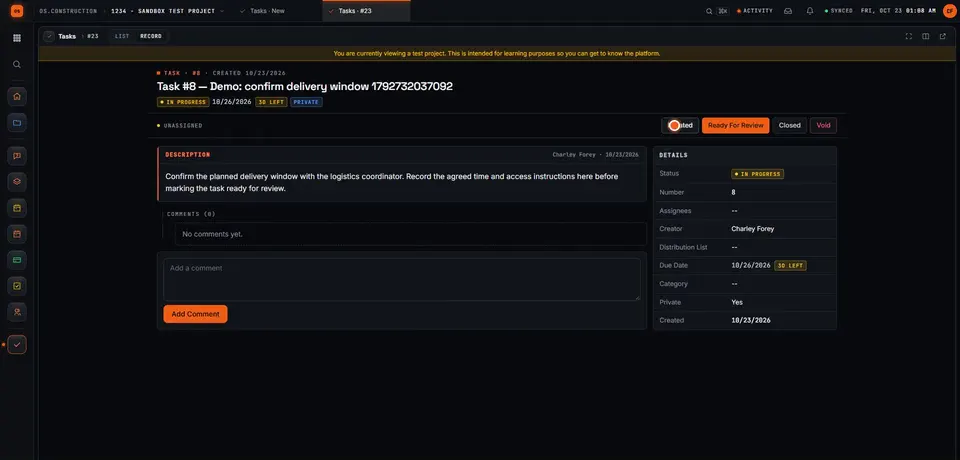
Step 5Move the sample task into progress · sample data, no sound 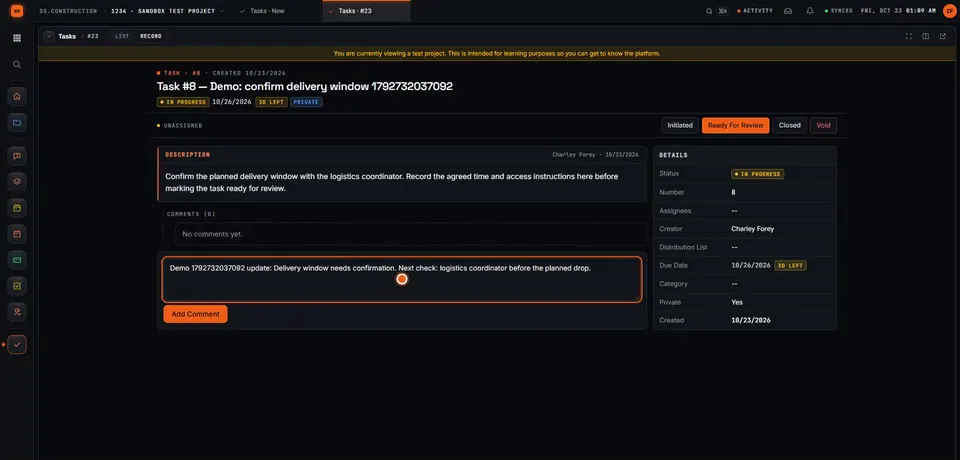
Step 6Write a useful progress comment · sample data, no sound 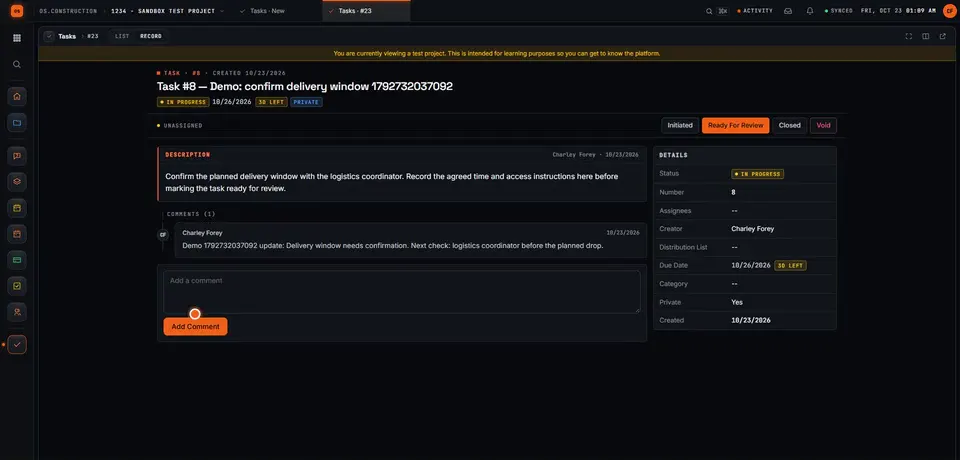
Step 7Save the update · sample data, no sound 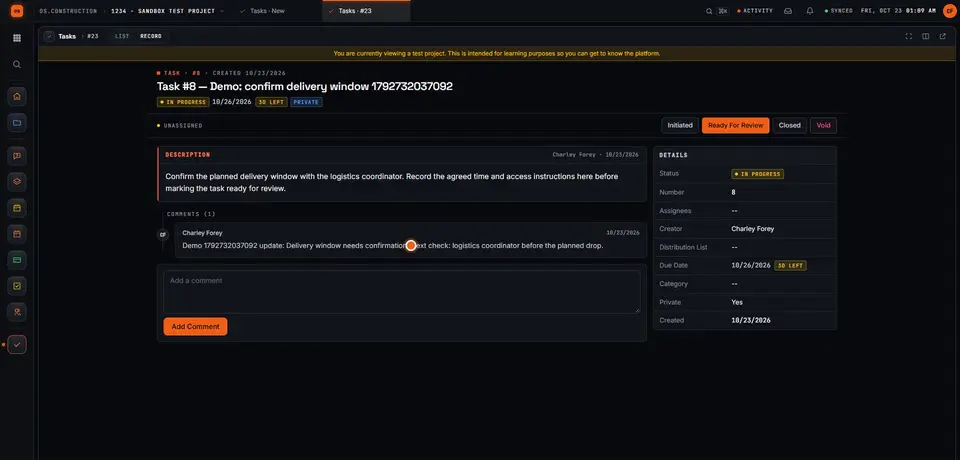
Step 8Review the saved progress context · sample data, no sound
Chapters
- 0:00 Start a project task
- 0:22 Name the follow-up clearly
- 0:49 Describe what the follow-up needs
- 1:09 Save the task and inspect its detail page
- 1:25 Move the sample task into progress
- 1:49 Write a useful progress comment
- 2:05 Save the update
- 2:18 Review the saved progress context
Video transcript
Open Create Task in the sample project. A useful task names a specific follow-up and gives the next reader enough context to understand what needs to happen. We will save this example, change its status, and add an update.
Give the task an action-oriented title. Confirm delivery window tells the reader what needs attention. The unique demo reference distinguishes this sample record from other recordings.
Use Description to explain the expected result. Our invented example asks for the delivery window, the agreed time, and access instructions. Review the task's other fields before saving. This recording leaves assignees and distribution empty.
Select Create and wait for the task detail page. Confirm the title and description. The saved record now has a task number and a current status that the project team can use to track the follow-up.
For this sample, select In Progress. Check the current status in the task header after the update. A status change records the stage of the task; the delivery window itself still needs confirmation.
Add a comment that explains the next check. Our sample update says that the delivery window needs confirmation and identifies who to check with. This gives the reader more context than the status alone.
Select Add Comment. Wait for the text to appear in the saved comment list. Read the saved update so you can confirm the task contains the information you intended to leave.
Here is the saved update on the task. We have created a specific follow-up, moved its status into progress, and recorded the next check. Keep updating the record as the work changes so another reader can understand what remains.
Your next step
Try it on the sample project.
Create an account, open the sample project and run this workflow yourself with sample data.
Try it in the app- Next · Field: daily logs & tasksCreate a punch item with an owner and locationVideo coming soon. Read the doc: Punch list: create, assign and close items
- DocsDaily logRecord each day on site in the Daily Log, copy entries from a previous day, complete and reopen a day, and export it to PDF or CSV.
- Video libraryMore in Field: daily logs & tasksEvery walkthrough, grouped by workflow.