Esc

↑↓ move↵ openIndex · Pagefind
Project management

Ball in Court

Definition

Who has to act next on an RFI, submittal, punch item or other open record, so the item never waits without an owner.

Ball in court names the person or company that has to do the next thing on an open item: answer the RFI, review the submittal, fix the punch item, approve the change. It moves as the item moves. When the architect answers an RFI, the ball goes back to the contractor’s RFI manager to review and distribute the answer.

Why it matters

Most late RFIs and submittals aren’t hard questions. They are items sitting with someone who doesn’t know it’s their turn. A log sorted by ball in court is a chase list: it tells the weekly meeting exactly who to ask about what, and it is the record of where time was spent if a delay is argued later.

Worked example

Illustrative, on Riverside Medical Center (sample data): RFI-212 is opened to the architect, so the ball is in the architect’s court. When the response comes in, the ball moves to the GC’s RFI manager, who checks that it answers the question, marks it official and distributes it. Sorting the RFI log by ball in court before the OAC meeting shows which open items are waiting on the design team and which are waiting on the GC.

Common mistakes

  • Tracking only “open” or “closed”, so nobody knows whose turn it is.
  • Updating ball in court by hand and forgetting to, so the log goes stale.
  • Leaving the ball with “the team” instead of one person or company.

How os.construction handles it

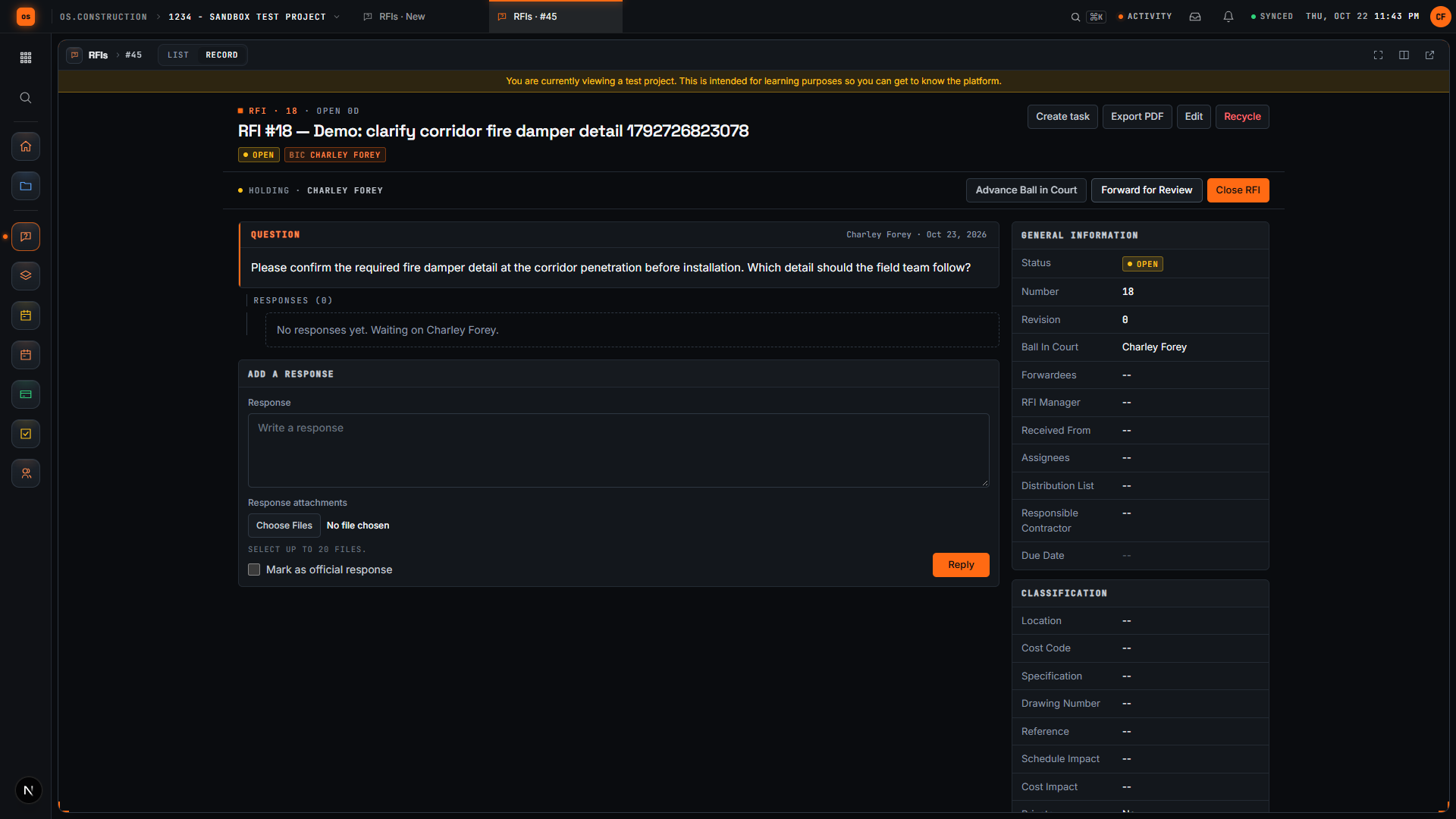
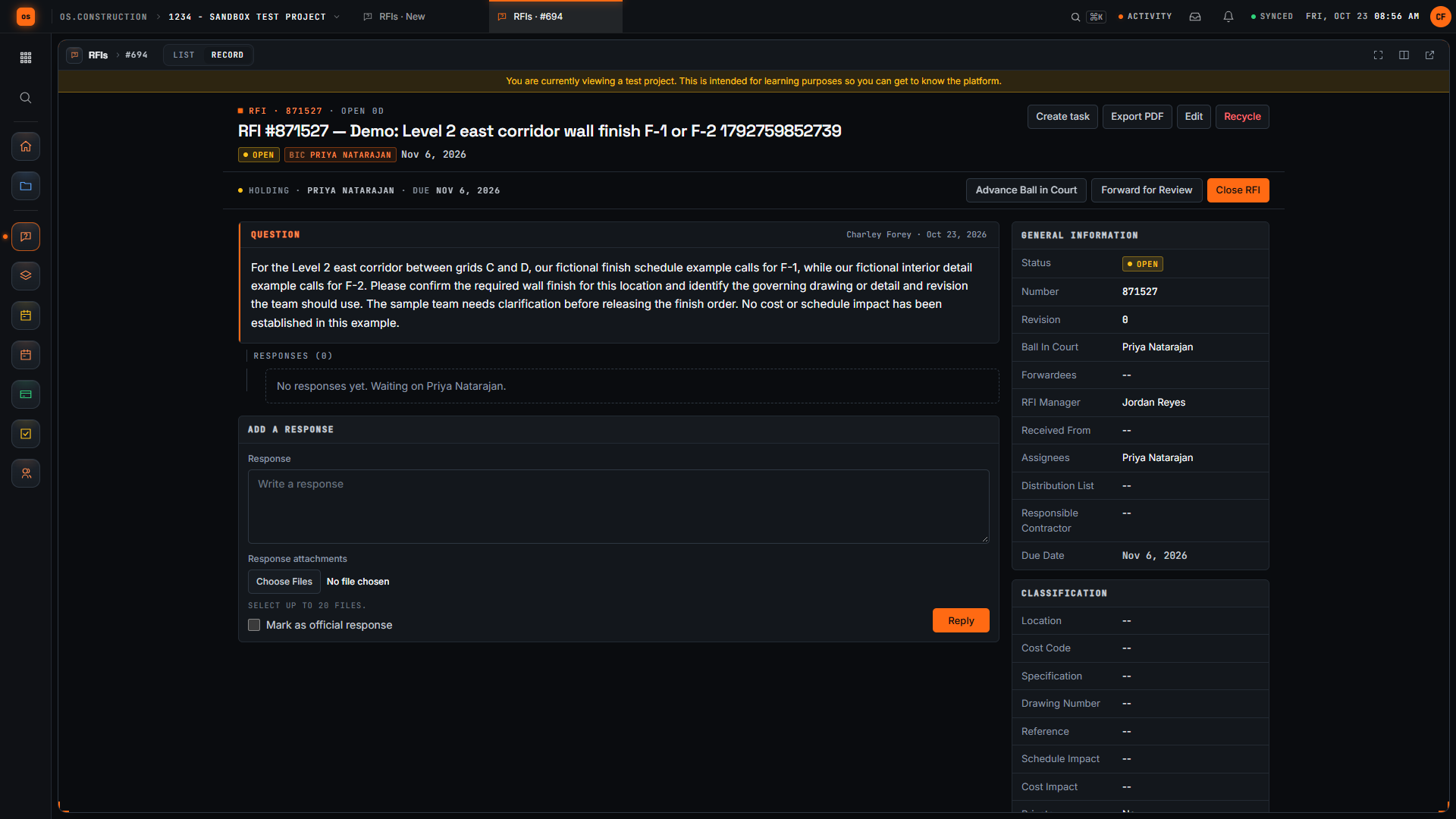
On RFIs, ball in court is worked out from the RFI’s state: the creator while it’s a draft, the assignees while it’s open without a response, and the RFI manager once a response is in. Advance Ball in Court and Forward for Review move it by hand. Submittals move it step by step through their approval workflow, and punch items show it in the list. See RFIs.
See it in the app

Ball in Court in os.construction

RFIs work out ball in court from their state, so the log can be filtered to what is waiting on each person. Read the guide: RFIs.

  1. 1Creator
  2. 2Assignees
  3. 3RFI manager
  4. 4Nobody: closed

Watch the walkthrough · 1:57

Create a draft RFI and open it

  1. 0:00Start a new request for information
  2. 0:27Give the RFI a clear subject
  3. 0:59Write the question
  4. 1:15Save the draft
  5. 1:28Review the saved question
  6. 1:43Open the RFI
Read the transcript

Here we are in the actual os.construction app, using a local sample project. On the New RFI page, we can prepare a question and save it as a draft before opening it.

Use a subject that tells the reviewer what needs clarification. In this example, we are asking about the corridor fire damper detail. The demo adds a unique reference so each recording creates a separate sample record.

State the decision the team needs. Our question asks the reviewer to confirm the required fire damper detail before installation and identify which detail the field team should follow.

Select Create as Draft. The app saves the RFI and opens its detail page. We will check that the Open RFI action is available before moving forward.

The saved record now has its own detail page. Review the subject and question here. A draft gives the team a chance to check the request before opening it.

Select Open RFI. Wait for the Open RFI action to disappear after the update. Close RFI remains available. We have written a request, saved it as a draft, reviewed it, and moved it into the open workflow.

Open sample RFI showing the architect as Ball In Court in the General Information panel.
Ball in court on an open RFI. Sample data.

Try it on the sample project in a free trial.

Start free trial Sign in
Open file