Create a draft RFI and open it
Write a clear question, save the RFI as a draft, review the record and confirm it actually opened.
Each step in a few seconds
Short silent loops cut from the walkthrough. Scroll sideways for every step.
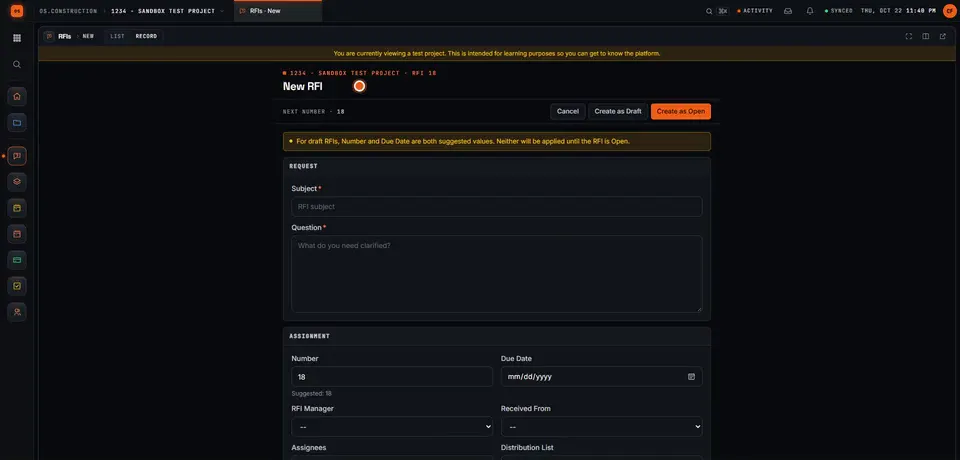
Step 1Start a new request for information · sample data, no sound 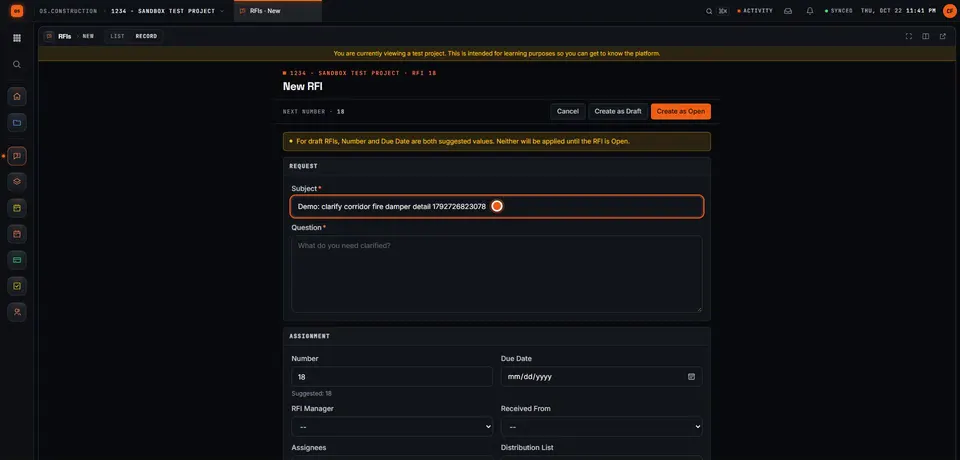
Step 2Give the RFI a clear subject · sample data, no sound 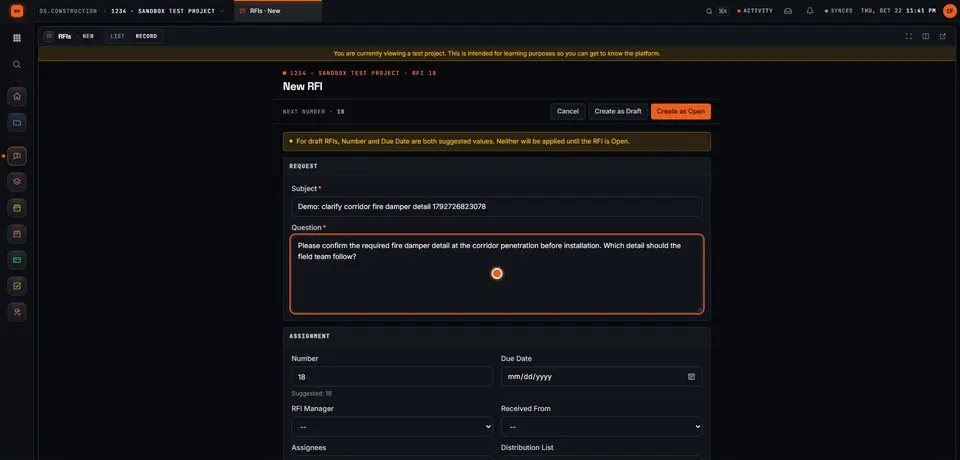
Step 3Write the question · sample data, no sound 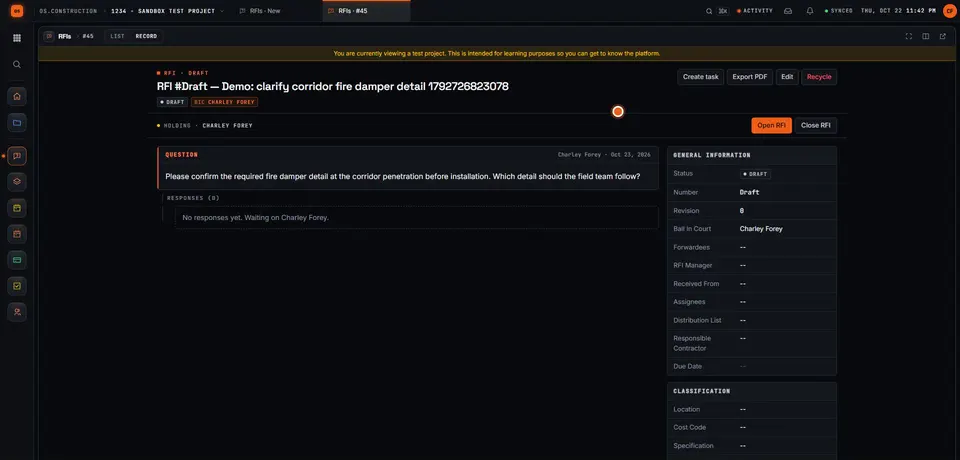
Step 4Save the draft · sample data, no sound 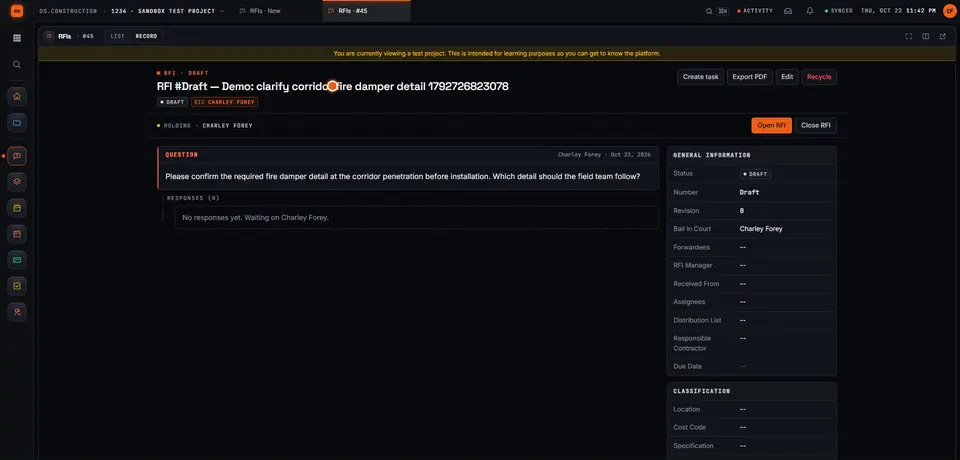
Step 5Review the saved question · sample data, no sound 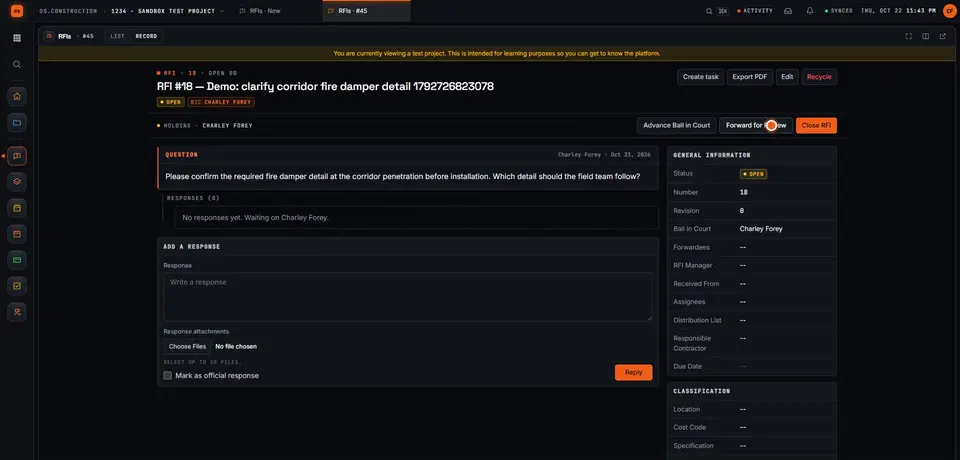
Step 6Open the RFI · sample data, no sound
Chapters
- 0:00 Start a new request for information
- 0:27 Give the RFI a clear subject
- 0:59 Write the question
- 1:15 Save the draft
- 1:28 Review the saved question
- 1:43 Open the RFI
Video transcript
Here we are in the actual os.construction app, using a local sample project. On the New RFI page, we can prepare a question and save it as a draft before opening it.
Use a subject that tells the reviewer what needs clarification. In this example, we are asking about the corridor fire damper detail. The demo adds a unique reference so each recording creates a separate sample record.
State the decision the team needs. Our question asks the reviewer to confirm the required fire damper detail before installation and identify which detail the field team should follow.
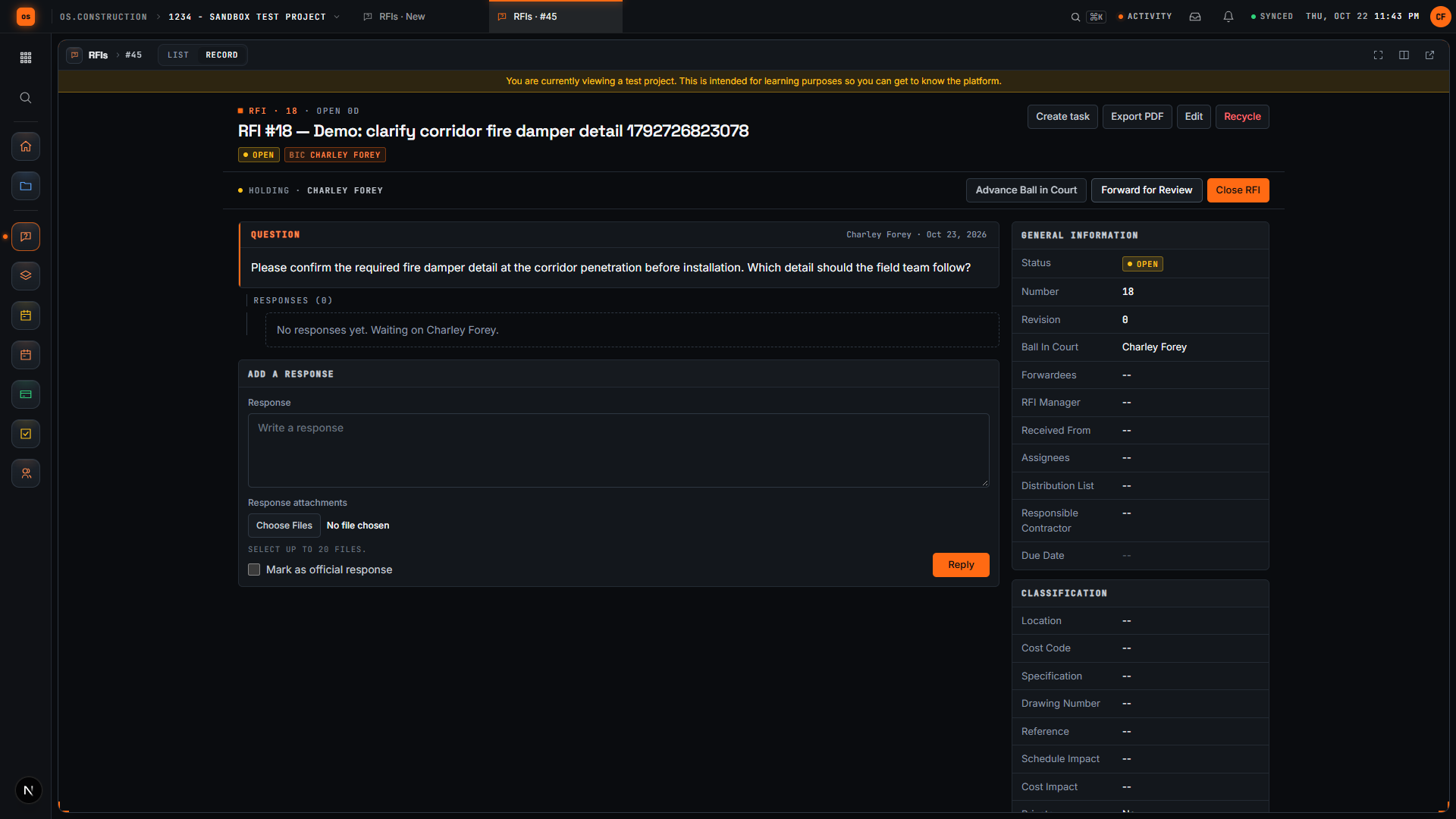
Select Create as Draft. The app saves the RFI and opens its detail page. We will check that the Open RFI action is available before moving forward.
The saved record now has its own detail page. Review the subject and question here. A draft gives the team a chance to check the request before opening it.
Select Open RFI. Wait for the Open RFI action to disappear after the update. Close RFI remains available. We have written a request, saved it as a draft, reviewed it, and moved it into the open workflow.
Your next step
Try it on the sample project.
Create an account, open the sample project and run this workflow yourself with sample data.
Try it in the app- Next · RFIs & submittalsOpen an RFI and check the first responseVideo coming soon. Read the doc: RFIs
- DocsRFIsCreate, route, answer and close RFIs in the app. Ball in court, distribution, official responses, related items, private RFIs and PDF export.
- Video libraryMore in RFIs & submittalsEvery walkthrough, grouped by workflow.