Esc

↑↓ move↵ openIndex · Pagefind
Project management

Meeting Minutes

Definition

The written record of a project meeting: who attended, what was decided on each topic, who owns each open item and by when.

Meeting minutes record a project meeting, most often the weekly owner–architect–contractor (OAC) meeting or the GC’s subcontractor coordination meeting. Good minutes list attendance, then each topic with a number, the decision, the owner and the due date. Open items from the previous meeting come first, so nothing drops off the list.

Why it matters

Minutes are how a decision made in a room becomes a commitment someone can be held to. They are also part of the project record: when a delay or change is disputed, the minutes show when an issue was raised, who was told and what was agreed.

Worked example

Illustrative, on Riverside Medical Center (sample data): topic 11.2, “Corridor fire damper detail”, is carried from meeting 11 into meeting 12 because RFI-212 is still open. The minutes record “Architect to issue detail; affects ceiling close-in”, with the architect as owner. When the answer comes, the topic is closed and the change it caused is tracked as a change event, not in the minutes.

Common mistakes

  • Writing the conversation instead of the decision.
  • Topics with no owner or due date (“team to review”).
  • Dropping last week’s open items instead of carrying them forward.
  • Retelling an RFI or submittal in the minutes instead of referencing its number.

How os.construction handles it

The Meetings tool holds the agenda, attendance (Present, Absent, Conference or For Distribution Only) and minutes per topic. Topics can link to an RFI, submittal, punch item or observation, Create task turns a topic into a tracked task, and Create Follow-up Meeting carries open topics into the next meeting. The app records who the minutes went to but doesn’t email them. See Meetings.
See it in the app

Meeting Minutes in os.construction

Record attendance and minutes per topic, turn topics into tasks, and carry open topics into the next meeting. Read the guide: Meetings.

  1. 1Agenda
  2. 2Minutes
  3. 3Task from topic
  4. 4Carried forward

Watch the walkthrough · 1:49

Schedule a project meeting with a clear agenda

  1. 0:00Open Create Meeting
  2. 0:19Give the meeting a clear title
  3. 0:35Check the date and time
  4. 0:54Add the location
  5. 1:10Write the overview
  6. 1:27Create the meeting
  7. 1:38Review the saved meeting
Read the transcript

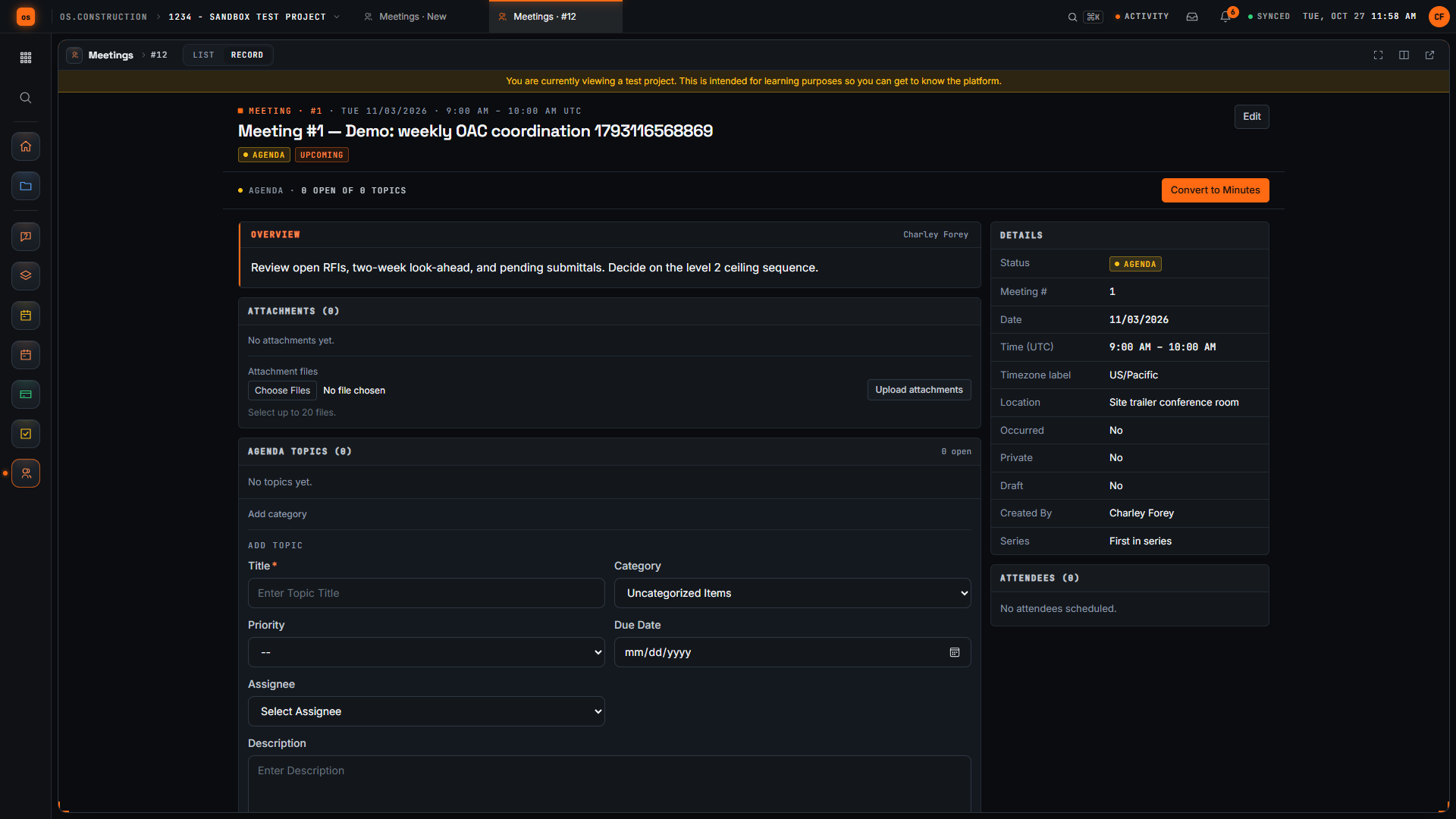
Here's the Create Meeting page in our local sample project. A good meeting record tells everyone what we're meeting about, where, and what we want to decide. Let's set one up together.

We start with a title people will recognize in a list. Ours is the weekly owner, architect and contractor coordination meeting. The demo adds a unique reference so each recording creates a separate sample record.

Next, let's check the date and time. The form suggests a date, a time zone, and a start and end time. We keep the suggested values in this sample; set them to match your real meeting.

Now we add where the meeting happens. For this sample it's the site trailer conference room.

In Overview, we write the agenda and the decision we need. Our sample covers open RFIs, the two-week look-ahead, pending submittals, and one decision on the level 2 ceiling sequence.

Then we select Create. The app saves the meeting and opens its record, with the meeting number and our title in the header.

Here's our saved meeting. Let's check that the location and agenda came through. We've created a meeting with a clear title, a place, and an overview the team can prepare for.

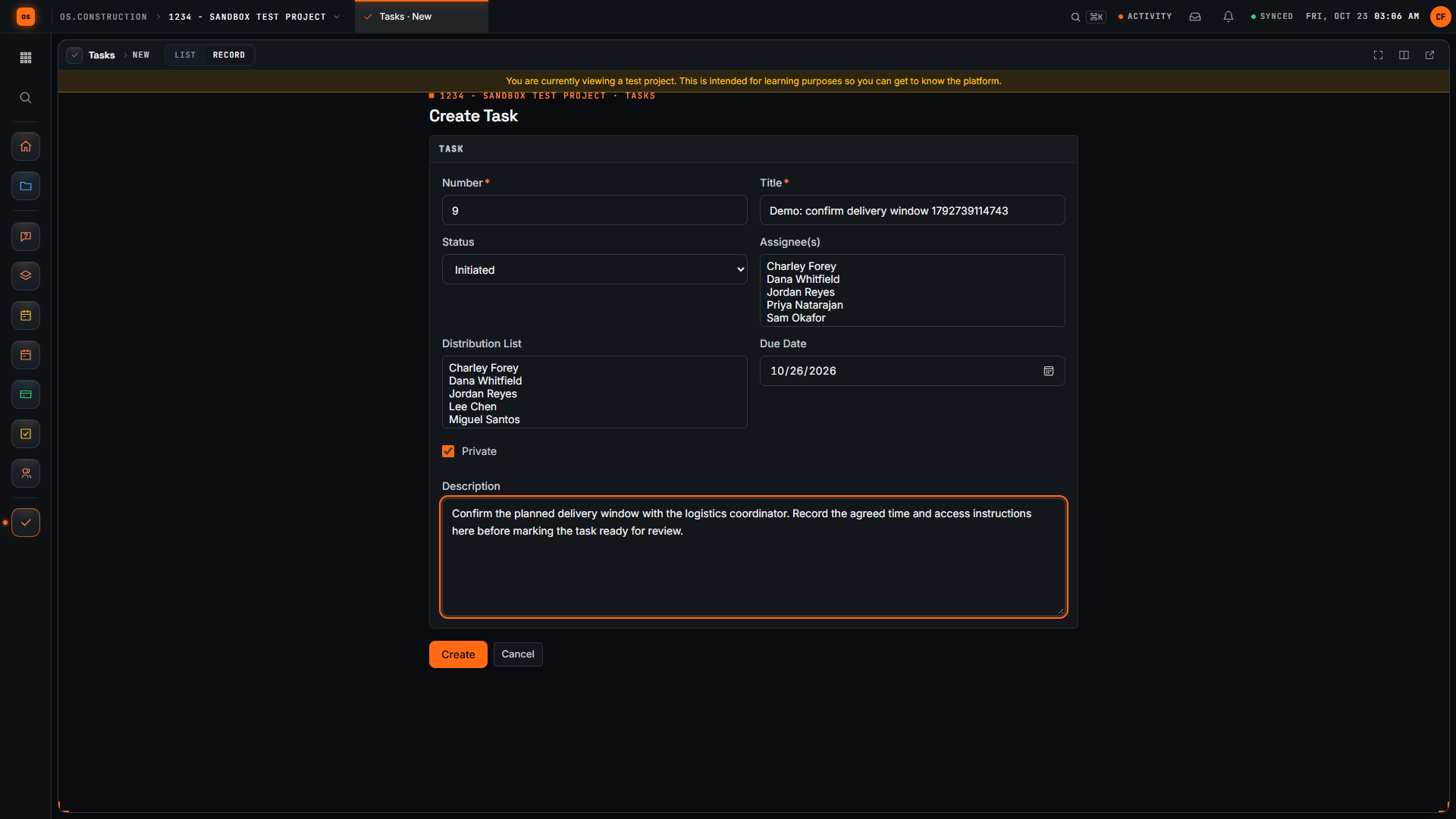
Create Task form with the title Confirm delivery window and a description asking for the agreed time and access instructions.
A follow-up task from a meeting topic. Sample data.

Try it on the sample project in a free trial.

Start free trial Sign in
Open file