Esc

↑↓ move↵ openIndex · Pagefind

A weekly meeting only helps if every open item has an owner and comes back next week. In the app, a meeting holds the agenda, attendance and minutes, and each topic can become a task.

Tasks are the project’s follow-up list: an owner, a due date, a status and a comment thread. A task’s status says where it is; the comment says why and what’s next.

From meeting topic to closed taskAgenda topic, then Minutes, then Task created from the topic, then In progress, with updates, then Follow-up meeting. Next week: from Follow-up meeting back to Agenda topic.Next weekAgenda topicOwner and due dateMinutesAttendance, what was decidedTask created from the topicLinked back to the meetingIn progress, with updatesComments and @mentionsFollow-up meetingOpen topics carried forward
  1. Agenda topicOwner and due date
  2. MinutesAttendance, what was decided
  3. Task created from the topicLinked back to the meeting
  4. In progress, with updatesComments and @mentions
  5. Follow-up meetingOpen topics carried forwardNext week: back to “Agenda topic”
From meeting topic to closed task
Text version
  1. Agenda topic: Owner and due date
  2. Minutes: Attendance, what was decided
  3. Task created from the topic: Linked back to the meeting
  4. In progress, with updates: Comments and @mentions
  5. Follow-up meeting: Open topics carried forward

Next week: from “Follow-up meeting” back to “Agenda topic”.

Hands-on · about 10 minutes · sample project

Exercise

  1. Open Meetings and click + Create Meeting. Give it a title, date, times and attendees. (Meeting times are entered in UTC.)
  2. Add Topic: a title, a category, an assignee and a due date. Use Link record to link it to RFI-212.
  3. Click Convert to Minutes (this can’t be undone), mark attendance and write one line of minutes on the topic.
  4. Click Create task on the topic. Write a title that names the action and a description of what done looks like.
  5. Open the task, move it to In Progress and add a comment that says what is known and what still needs checking.
  6. Back on the meeting, click Create Follow-up Meeting and find the topic under Business Arising from Previous Minutes.

14-day free trial. Pricing for paid plans isn't set yet. Everything here runs on the sample project in your own workspace.

Watch the walkthrough · 2:33

Create a task and post a progress update

  1. 0:00Start a project task
  2. 0:22Name the follow-up clearly
  3. 0:49Describe what the follow-up needs
  4. 1:09Save the task and inspect its detail page
  5. 1:25Move the sample task into progress
  6. 1:49Write a useful progress comment
  7. 2:05Save the update
  8. 2:18Review the saved progress context
Read the transcript

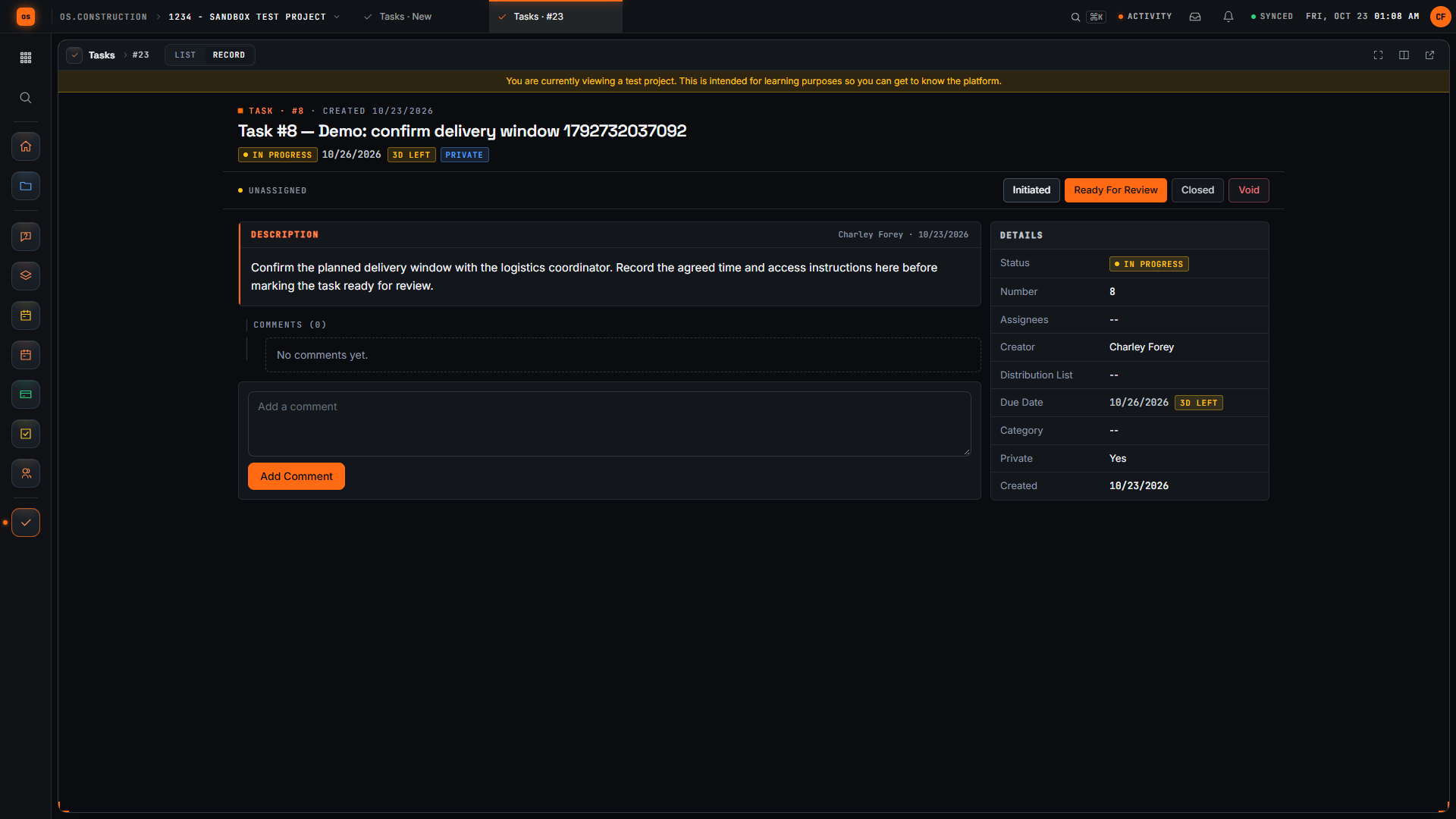
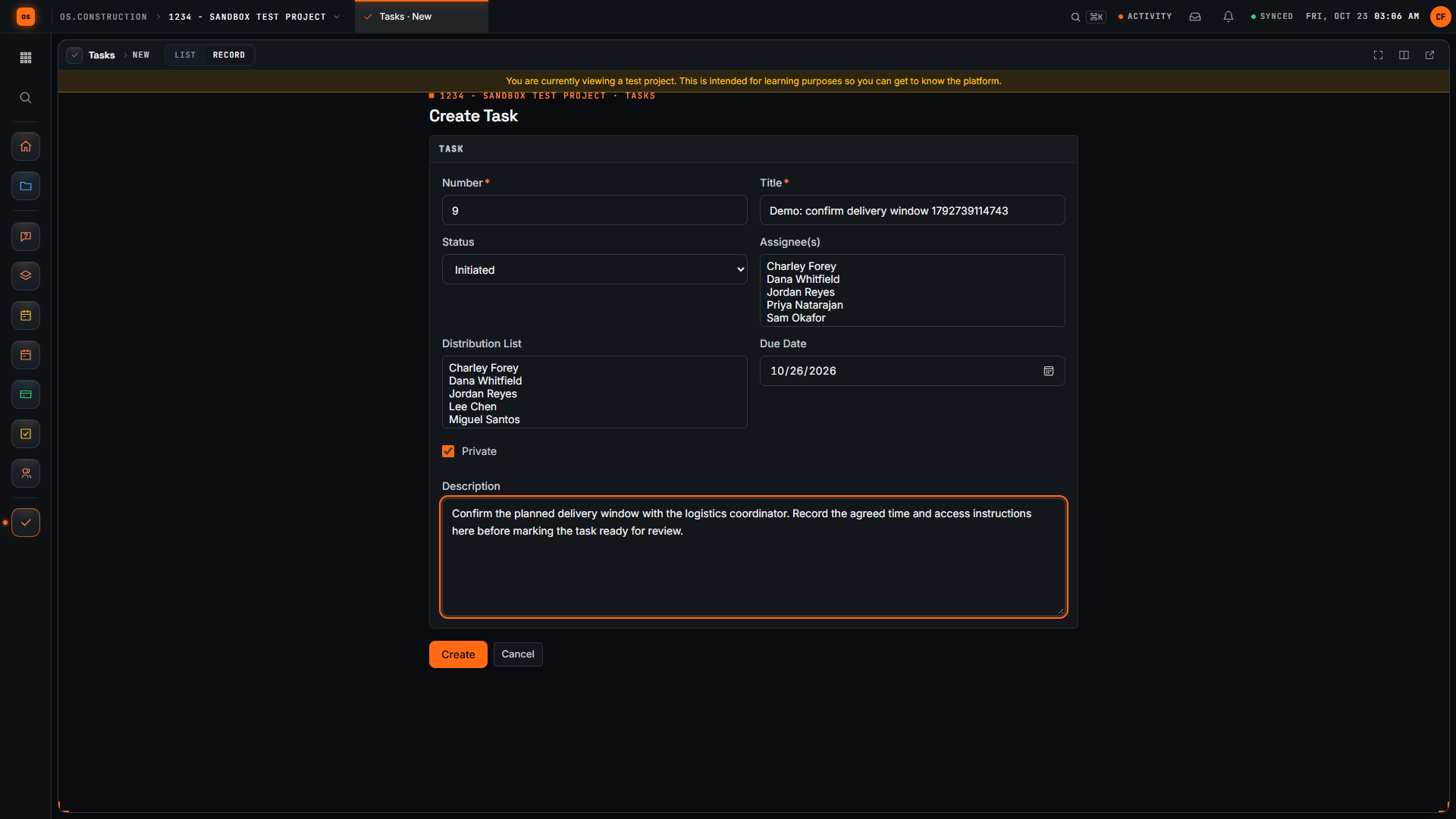
Open Create Task in the sample project. A useful task names a specific follow-up and gives the next reader enough context to understand what needs to happen. We will save this example, change its status, and add an update.

Give the task an action-oriented title. Confirm delivery window tells the reader what needs attention. The unique demo reference distinguishes this sample record from other recordings.

Use Description to explain the expected result. Our invented example asks for the delivery window, the agreed time, and access instructions. Review the task's other fields before saving. This recording leaves assignees and distribution empty.

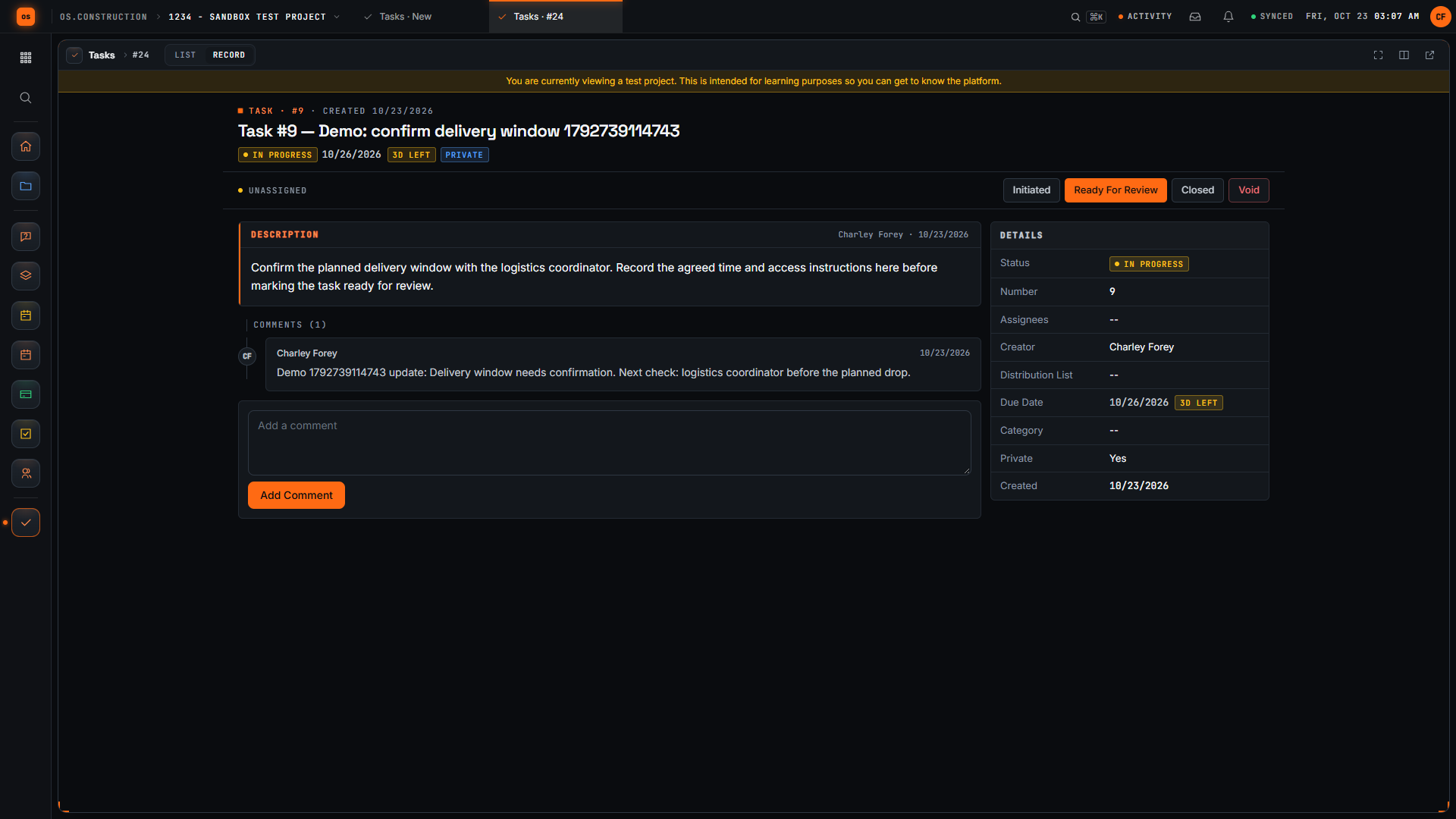
Select Create and wait for the task detail page. Confirm the title and description. The saved record now has a task number and a current status that the project team can use to track the follow-up.

For this sample, select In Progress. Check the current status in the task header after the update. A status change records the stage of the task; the delivery window itself still needs confirmation.

Add a comment that explains the next check. Our sample update says that the delivery window needs confirmation and identifies who to check with. This gives the reader more context than the status alone.

Select Add Comment. Wait for the text to appear in the saved comment list. Read the saved update so you can confirm the task contains the information you intended to leave.

Here is the saved update on the task. We have created a specific follow-up, moved its status into progress, and recorded the next check. Keep updating the record as the work changes so another reader can understand what remains.
In the app

Create Task form with the title Confirm delivery window and a description asking for the agreed time and access instructions.
A task that names the action and says what a useful result contains. Sample data.
Sample progress comment saved in the task’s Comments section, naming the next check.
A progress comment the next person can act on.

Check your work

Tick each step you finished

Progress is saved in this browser only.

Self-check

Does the app email the minutes?

No. Record Distribution keeps a record of who received them; send them the way your team normally does.

Why can’t a colleague see a task you created?

New tasks are private by default: visible to admins, assignees, the distribution list and the creator, unless you uncheck Private.

What does Create Follow-up Meeting carry forward?

Open topics from the previous meeting, listed under Business Arising from Previous Minutes with the meeting they came from.

Use it on your own job

Open file