Esc

↑↓ move↵ openIndex · Pagefind

The daily log is the record you reach for months later, when a delay, claim or dispute comes up. It only works if it is written every day, including the quiet ones.

In the app the daily log is one page per day with a section per log type: weather, manpower, notes, visitors, deliveries, equipment, delays, safety and more. Each entry saves on its own.

One day in the daily logOpen today, then Copy from previous day, then Weather, manpower, notes, then Complete Day, then Export PDF or CSV. Reopen Day: from Complete Day back to Weather, manpower, notes.Reopen DayOpen todayOne page per dayCopy from previous dayYesterday’s manpower as a startWeather, manpower, notesEach entry saves on its ownComplete DayEntries lockedExport PDF or CSVThe day’s report
  1. Open todayOne page per day
  2. Copy from previous dayYesterday’s manpower as a start
  3. Weather, manpower, notesEach entry saves on its own
  4. Complete DayEntries lockedReopen Day: back to “Weather, manpower, notes”
  5. Export PDF or CSVThe day’s report
One day in the daily log
Text version
  1. Open today: One page per day
  2. Copy from previous day: Yesterday’s manpower as a start
  3. Weather, manpower, notes: Each entry saves on its own
  4. Complete Day: Entries locked
  5. Export PDF or CSV: The day’s report

Reopen Day: from “Complete Day” back to “Weather, manpower, notes”.

Hands-on · about 10 minutes · sample project

Exercise

  1. Open Daily Log. It opens on today.
  2. Use ← Previous Day to look at a day already logged on the sample project.
  3. Back on today, click Copy from previous day to bring the last day’s manpower forward, then correct a headcount.
  4. Add an Observed Weather Conditions entry and a Note with a location, written as facts: times, counts, names.
  5. Check the acknowledgement and click Complete Day. Try to edit an entry, then click Reopen Day.
  6. Click Export PDF to download the day’s report.

14-day free trial. Pricing for paid plans isn't set yet. Everything here runs on the sample project in your own workspace.

Watch the walkthrough · 2:18

Add a note to the daily log

  1. 0:00Confirm the project and day
  2. 0:19Find the Notes section
  3. 0:52Write the field observation
  4. 1:14Save and inspect the entry
  5. 1:32Move to the previous day
  6. 1:48Return to the day
  7. 2:04Read the saved observation again
Read the transcript

Start with the project and date. We are in the local sample project's Daily Log, which opens on today. A useful field note tells the next reader what happened, where, and what needs attention next.

Scroll to Notes. This section has its own entry form. Keep an observation specific enough that another team member can understand the location, the time, and the next check without asking you to reconstruct the day.

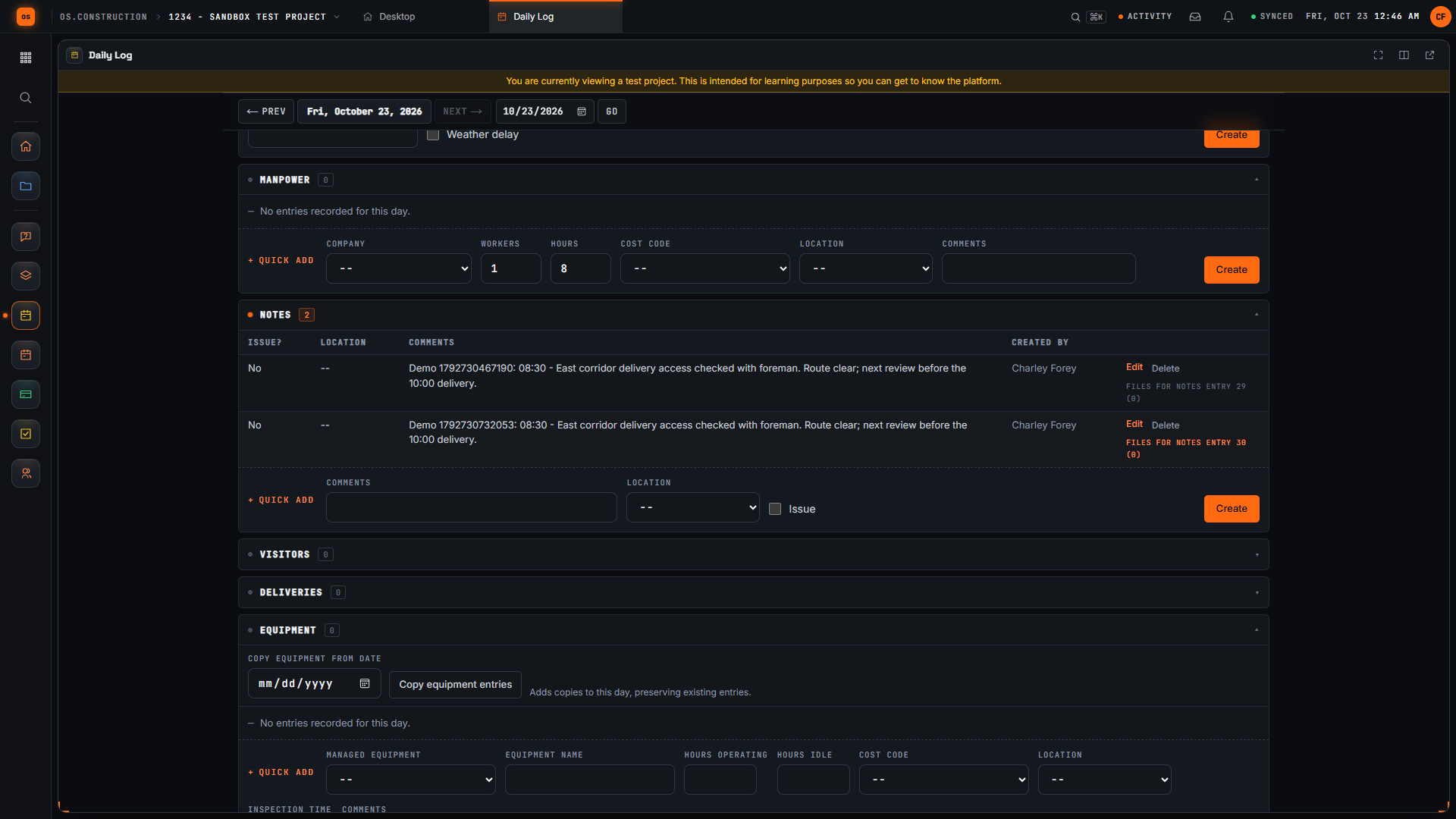
Our invented example records an access check at the east corridor, the time, and a follow-up before the delivery. The unique demo reference distinguishes this sample note from other recordings. Replace the example with facts you actually observed on your project.

Select Create in the Notes form. Wait for the new row to appear, then read the saved comment. Checking the row confirms the submitted text reached the day's log instead of remaining only in the form.

Use Previous Day to leave this day's view. Each day has its own log. The Today link lets us return to the day where we created the note and check that the saved entry is still there.

Select Today to return to the day where we created the note. Check the displayed date, then return to Notes to find the saved observation.

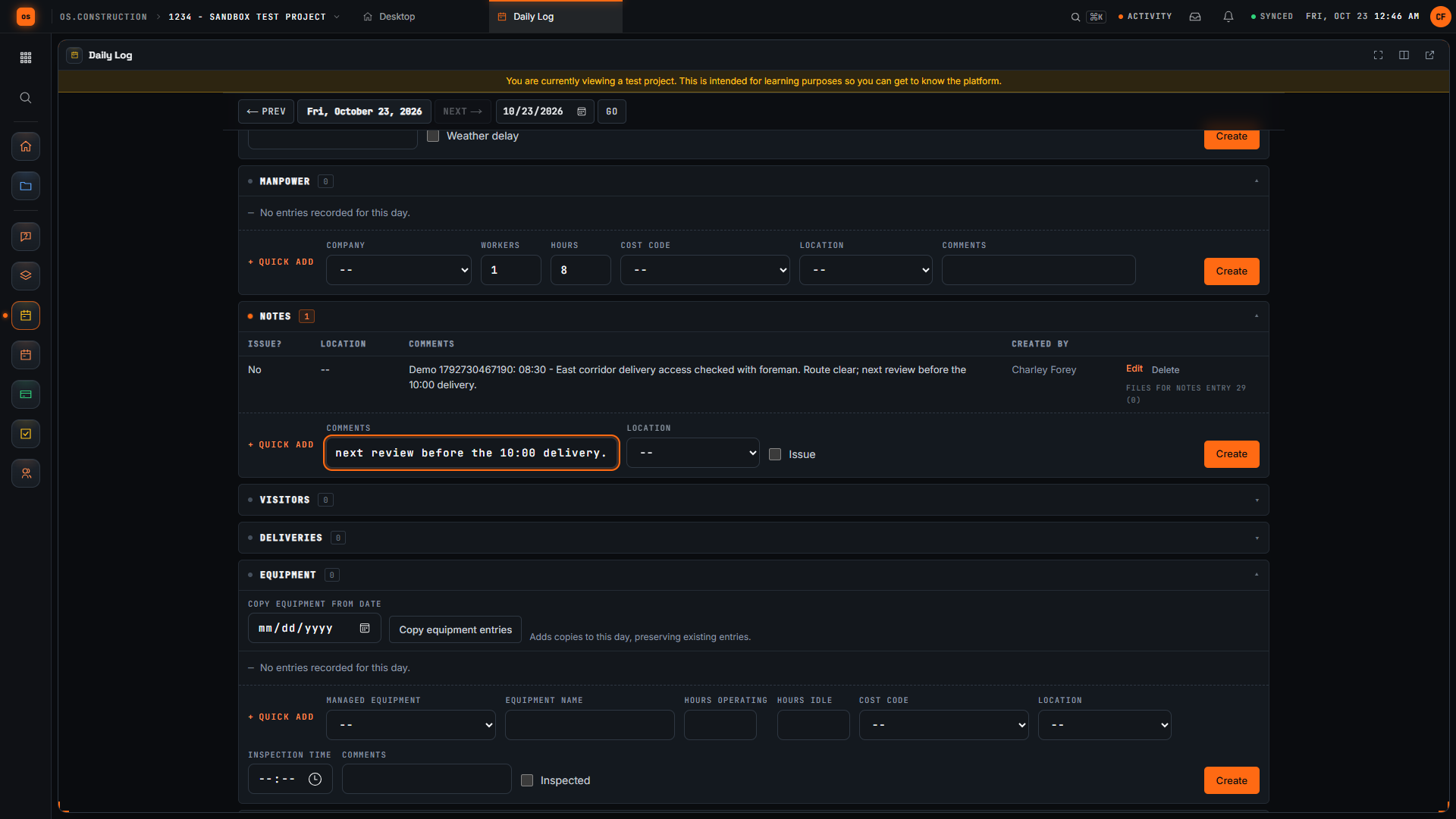
Here is the same note in the Notes table after returning to the day. Read the time, location, observation, and next check. We have saved a specific field note and confirmed that another reader can find its context again.
In the app

The Daily Log Notes form containing the sample observation about east corridor delivery access.
A note written as a field fact. Sample data, recorded in the app.
The saved sample field observation displayed as a row in the Daily Log Notes table.
The saved note in the day’s Notes table.

Check your work

Tick each step you finished

Progress is saved in this browser only.

Self-check

What does Complete Day do?

It records who completed the day and when, and locks its entries until someone clicks Reopen Day.

Can you complete a day with only a weather entry?

No. A day needs at least one eligible staff entry; weather or photos alone don’t count.

Does the daily log work offline on a phone?

It runs in the phone’s browser and needs a connection. Offline capture is planned.

Use it on your own job

Open file