On this page
- Confirm the project and date first
- Give the next reader enough context
- Save from the Notes form
- Leave the day and find the note again
- Check the result before moving on
- Video transcript
- Confirm the project and day
- Find the Notes section
- Write the field observation
- Save and inspect the entry
- Move to the previous day
- Return to the day
- Read the saved observation again
- Try one useful note with your team
A daily note helps the next person understand a moment on site. “Access checked” leaves questions. A note that names the time, location, observation, and next check gives that person something they can use.
This guide follows one Notes entry in the os.construction Daily Log. It covers writing the note, saving it, and checking it again after leaving the day.
Recorded in a local instance of the actual os.construction app using the seeded Sandbox Test Project. The field observation is invented sample data, not a report from an active construction site.
Watch this walkthrough on YouTube.
Confirm the project and date first
Open Daily Log from the project’s tools. Check the project name and the displayed date before typing. The recorded example starts on today in the Sandbox Test Project.
Daily Log groups entries by day. A useful comment filed under the wrong day is harder for another person to find. If you need a different date, use the date navigation described in the Daily Log guide.
Give the next reader enough context
Scroll to Notes and find its Comments field. Before saving, check four parts of the observation:
| Part | Question to answer | Recorded example |
|---|---|---|
| Time | When did you observe it? | 08:30 |
| Place | Where does it apply? | East corridor delivery access |
| Observation | What happened or what did you check? | Access checked with foreman; route clear |
| Follow-up | What should happen next, and when? | Next review before the 10:00 delivery |
The invented example says:
08:30 - East corridor delivery access checked with foreman. Route clear; next review before the 10:00 delivery.
Write facts you actually observed. If information came from someone else, make that clear. An unresolved question should remain a question; a note should not imply that another person has approved something when they have not.
The recording adds a unique demo reference so repeated sample runs stay distinguishable. Your own note can use the identifiers your team needs.
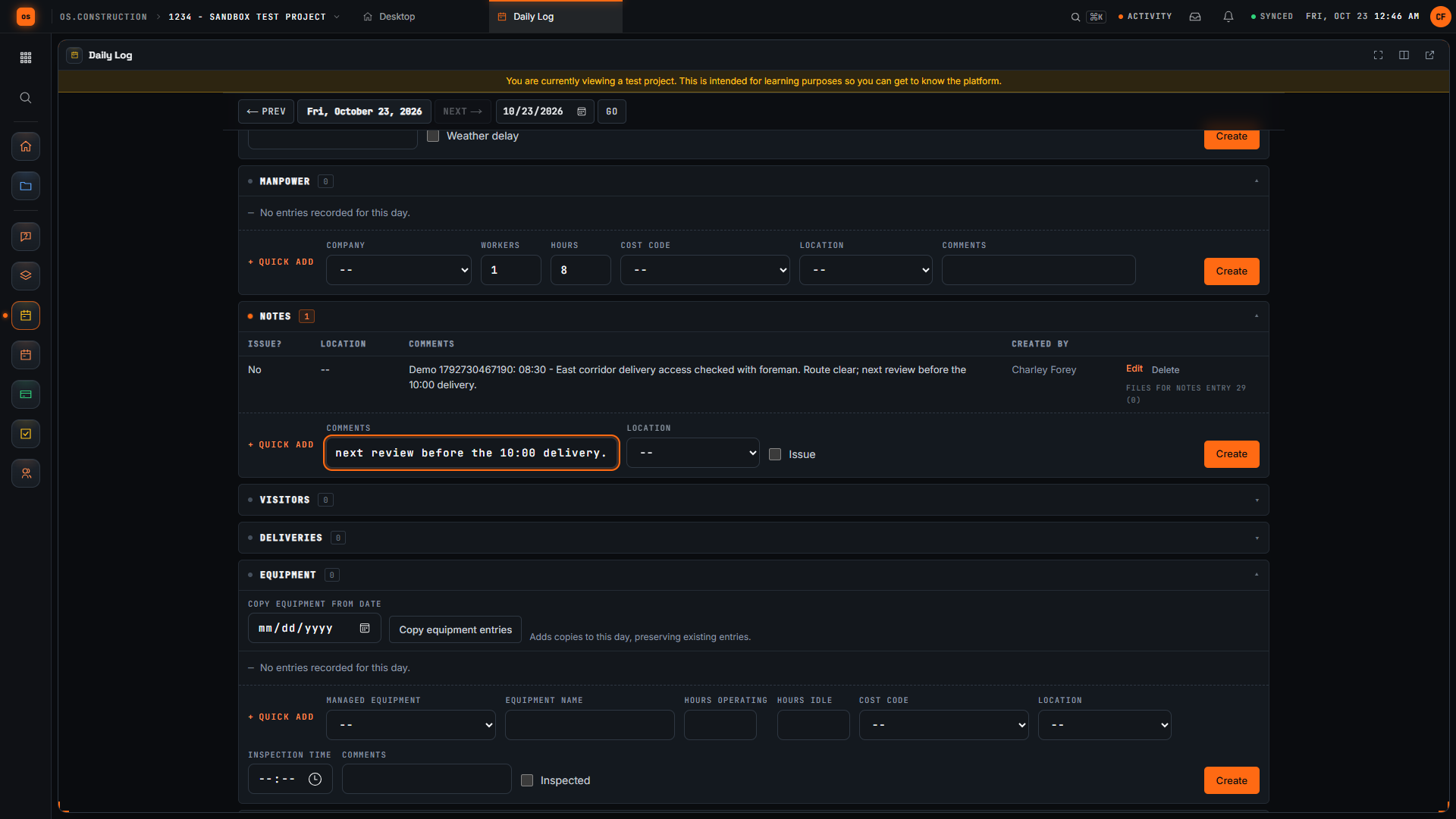
Save from the Notes form
Select Create in the Notes form. Daily Log has several sections with their own forms, so use the button associated with the note you just entered.
Wait for the new row to appear in the Notes table. Read the saved comment and check that the important details survived submission. Seeing text in the input before selecting Create is not evidence that it has been saved.
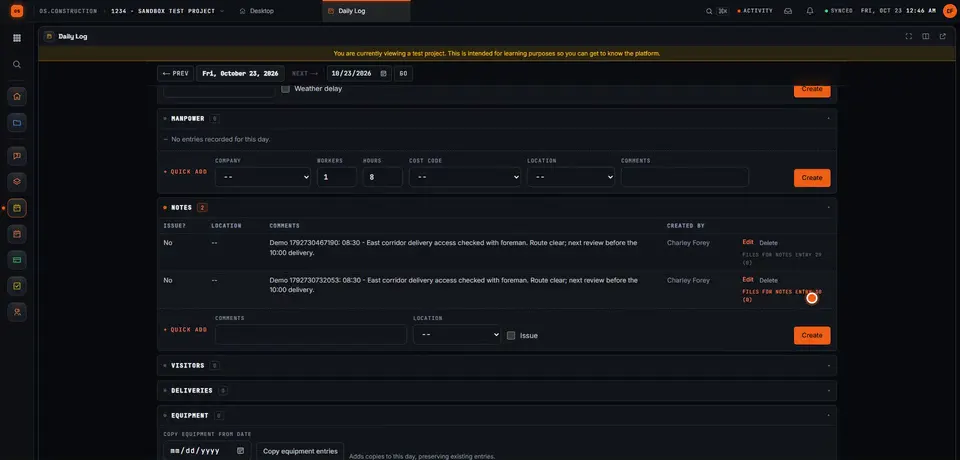
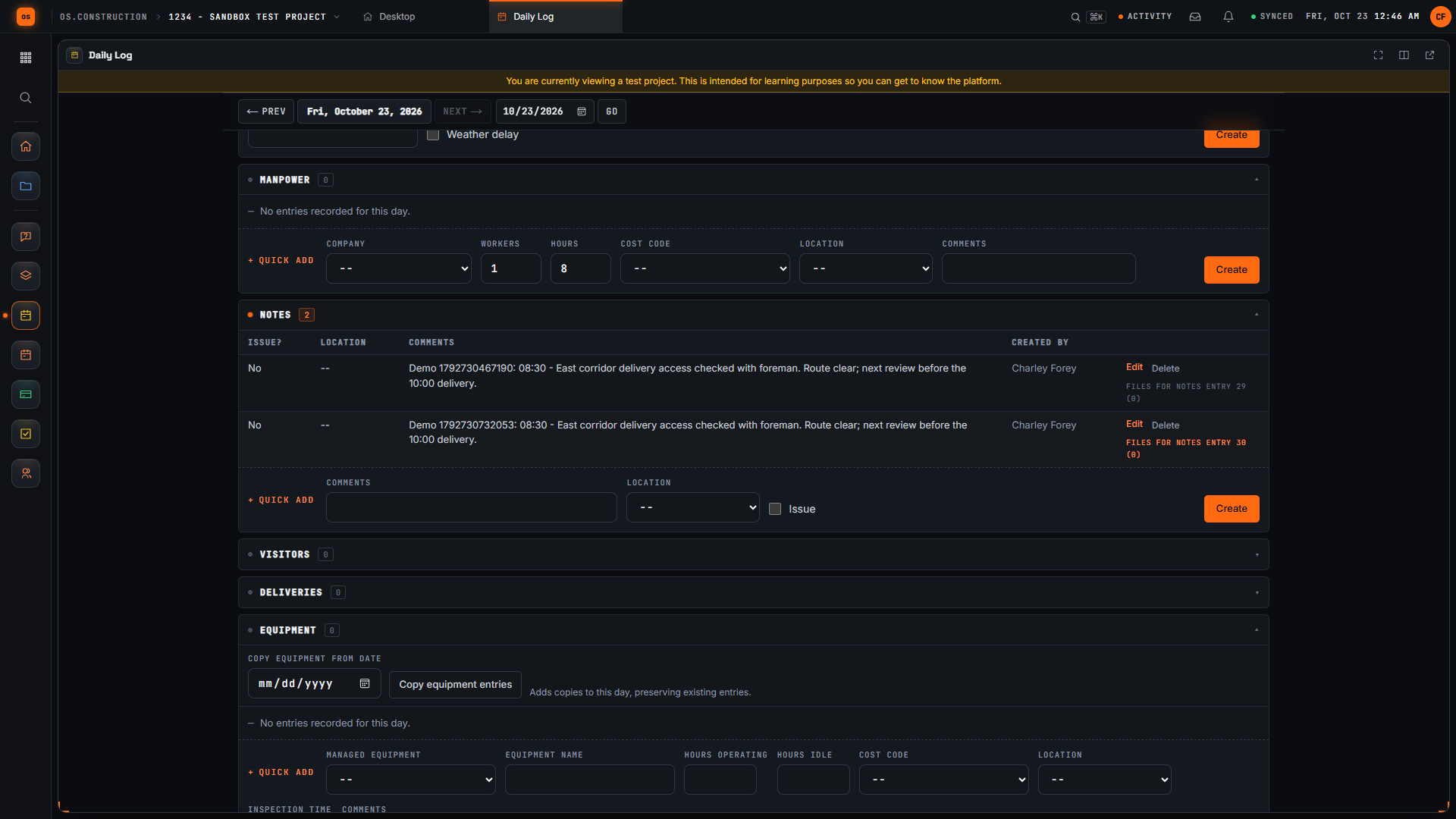
Leave the day and find the note again
Use Previous Day, then select Today to return. Find the same note in the Notes table and compare its comment with what you entered.
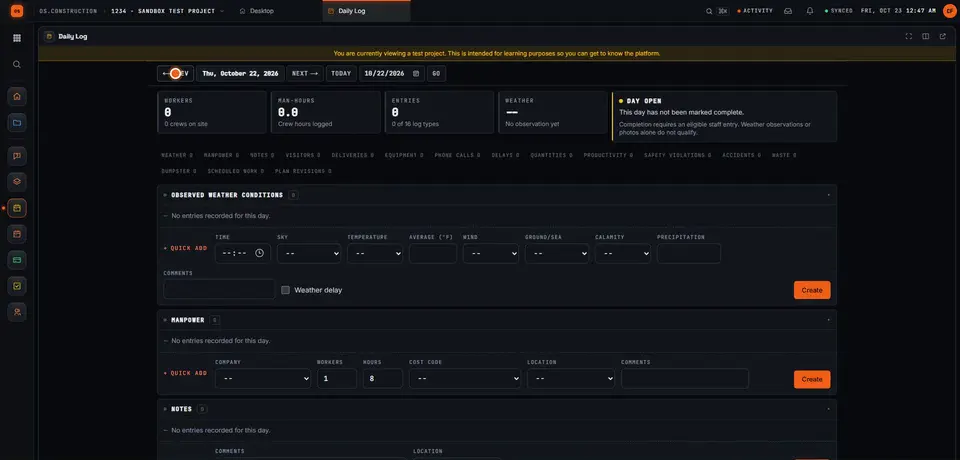
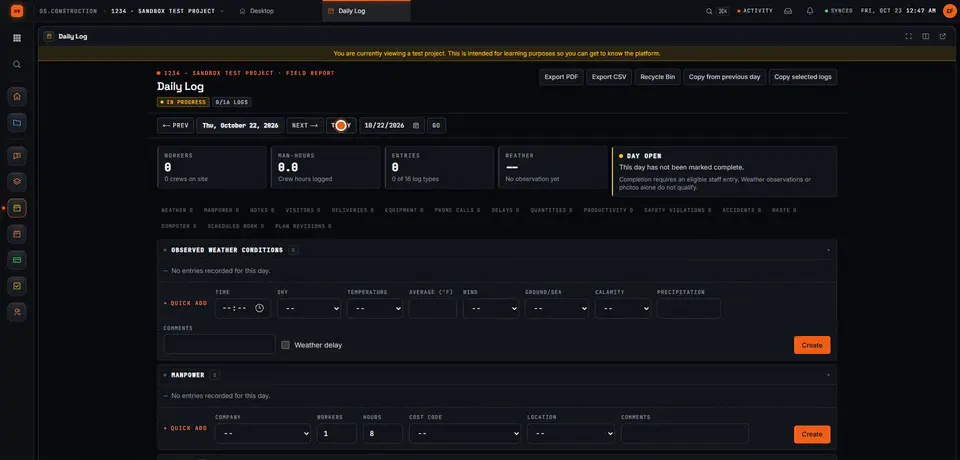
That return check matters because it verifies the note in the day you intended to update. If you cannot find an entry, confirm the project, the displayed date, and the section before creating another copy.
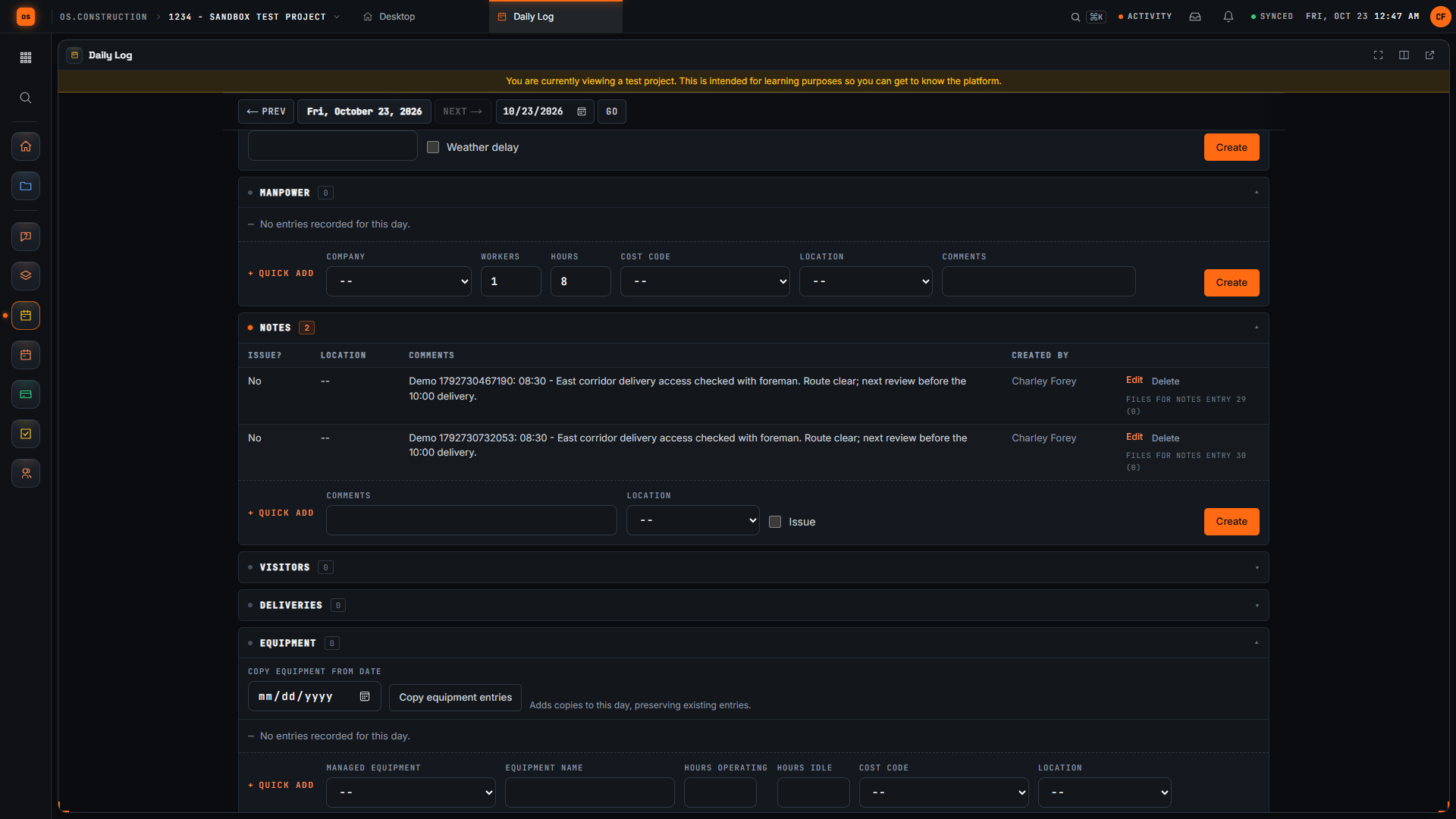
- ← Prev and the day being viewed. The walkthrough leaves with Previous Day and comes back with Today.
- Notes and its entry count.
- The row from this recording, identified by its Demo reference. The row above it is from an earlier sample run.
- The Create button inside the Notes form. Each section saves with its own button.
Check the result before moving on
- The project and day match the observation.
- The note names the location and what you actually observed.
- Any follow-up is clear to the next reader.
- The saved row remains visible after returning to the day.
This walkthrough creates one Notes entry. Manpower, attachments, copying entries, completing a day, and downloading a report are separate tasks. The Daily Log guide explains those controls and their requirements.
If the note needs someone to act, give the follow-up its own record:
Video transcript
Confirm the project and day
Start with the project and date. We are in the local sample project’s Daily Log, which opens on today. A useful field note tells the next reader what happened, where, and what needs attention next.
Find the Notes section
Scroll to Notes. This section has its own entry form. Keep an observation specific enough that another team member can understand the location, the time, and the next check without asking you to reconstruct the day.
Write the field observation
Our invented example records an access check at the east corridor, the time, and a follow-up before the delivery. The unique demo reference distinguishes this sample note from other recordings. Replace the example with facts you actually observed on your project.
Save and inspect the entry
Select Create in the Notes form. Wait for the new row to appear, then read the saved comment. Checking the row confirms the submitted text reached the day’s log instead of remaining only in the form.
Move to the previous day
Use Previous Day to leave this day’s view. Each day has its own log. The Today link lets us return to the day where we created the note and check that the saved entry is still there.
Return to the day
Select Today to return to the day where we created the note. Check the displayed date, then return to Notes to find the saved observation.
Read the saved observation again
Here is the same note in the Notes table after returning to the day. Read the time, location, observation, and next check. We have saved a specific field note and confirmed that another reader can find its context again.
Try one useful note with your team
Create an os.construction account or open the app. Start with one observed event, save it to the right day, and check the result.
Continue exploring on os.construction, watch Construction-OS walkthroughs on YouTube, or follow os.construction on LinkedIn. For a question about your team’s daily reporting process, email Charley.
Your next step
Try it on the sample project.
Create an account, open the sample project and run this workflow yourself with sample data.
Try it in the app- Next · Field: daily logs & tasksCreate a task and post a progress updateWatch the next walkthrough
- DocsDaily logRecord each day on site in the Daily Log, copy entries from a previous day, complete and reopen a day, and export it to PDF or CSV.
- Video libraryMore in Field: daily logs & tasksEvery walkthrough, grouped by workflow.
Share this article