Role guide · Superintendent
The superintendent’s week, captured once.
You own the site record: what happened, who was there, what failed, what’s extra. Here is how a super’s week runs in os.construction and what the office no longer has to ask you for.
A superintendent’s week in os.construction
- Every day
Daily log before you leave: weather, manpower by company, notes by location, deliveries, delays. Copy yesterday’s crews, correct them, complete the day.
Daily Log - Monday
Walk the three-week look-ahead with the foremen: what is overdue or at risk, and what has to be cleared first.
Schedule - Tuesday
Pre-pour or rough-in inspection from a checklist template. Failed items become observations with an owner.
Inspections, Observations - Wednesday
Owner-directed extra work: write the T&M ticket the same day, with lines by cost code and the signer’s name.
T&M Tickets - Thursday–Friday
Punch walk by area: locate items, assign one trade each, review what trades marked resolved before closing.
Punch List
- Daily log entryEvery day, phone browser
- Inspection item failsObservation with an owner
- Punch item or RFIConverted from the observation
- T&M ticket for extra workLines, cost codes, signer
- PM and officeSame records, no re-keying
Text version
- Daily log entry: Every day, phone browser
- Inspection item fails: Observation with an owner
- Punch item or RFI: Converted from the observation
- T&M ticket for extra work: Lines, cost codes, signer
- PM and office: Same records, no re-keying
The tools in your seat
- Daily LogOne page per day by log type; copy from previous day; complete and reopen; export PDF or CSV.Read the guide →
- ScheduleImported P6 or Project schedule as a 3-week look-ahead; update percent complete and actual dates.Read the guide →
- InspectionsChecklist templates, Pass/Fail/N/A responses, photos and observations on failures, signature.Read the guide →
- ObservationsSafety and quality issues with an assignee, due date and response log; convert to RFI or punch item.Read the guide →
- Punch ListLocated items with a manager, final approver and trades who resolve their own line.Read the guide →
- T&M TicketsLabor, equipment and material lines with cost codes, submitted with the field signer’s name.Read the guide →
Getting in: A company admin invites you and assigns a field template, typically Standard on Daily Log, Punch List, Observations, Inspections and RFIs and Read Only on Drawings and Schedule. It runs in your phone’s browser.
Entered once, used everywhere it matters
Yesterday’s crews aren’t retyped
Copy from previous day brings the last day’s manpower forward; you correct what changed.
A failed check doesn’t stay on a clipboard
A failed inspection item creates a linked observation, and the observation converts to a punch item or an RFI. Each record links back to where it came from.
Extra work is on the record the day it happens
A T&M ticket with lines, cost codes and a signer is in the same project the PM prices the change in.
The office reads the log instead of calling you
The PM sees the same daily log, look-ahead and open items; Export PDF gives the day’s report when someone outside needs it.
Project Financials follows project money; company Accounting covers the ledger, AP, AR, payroll and controls. AI agents remain planned; preview tools are marked above.
Walkthroughs and screens from the app
Watch the walkthrough · 2:18
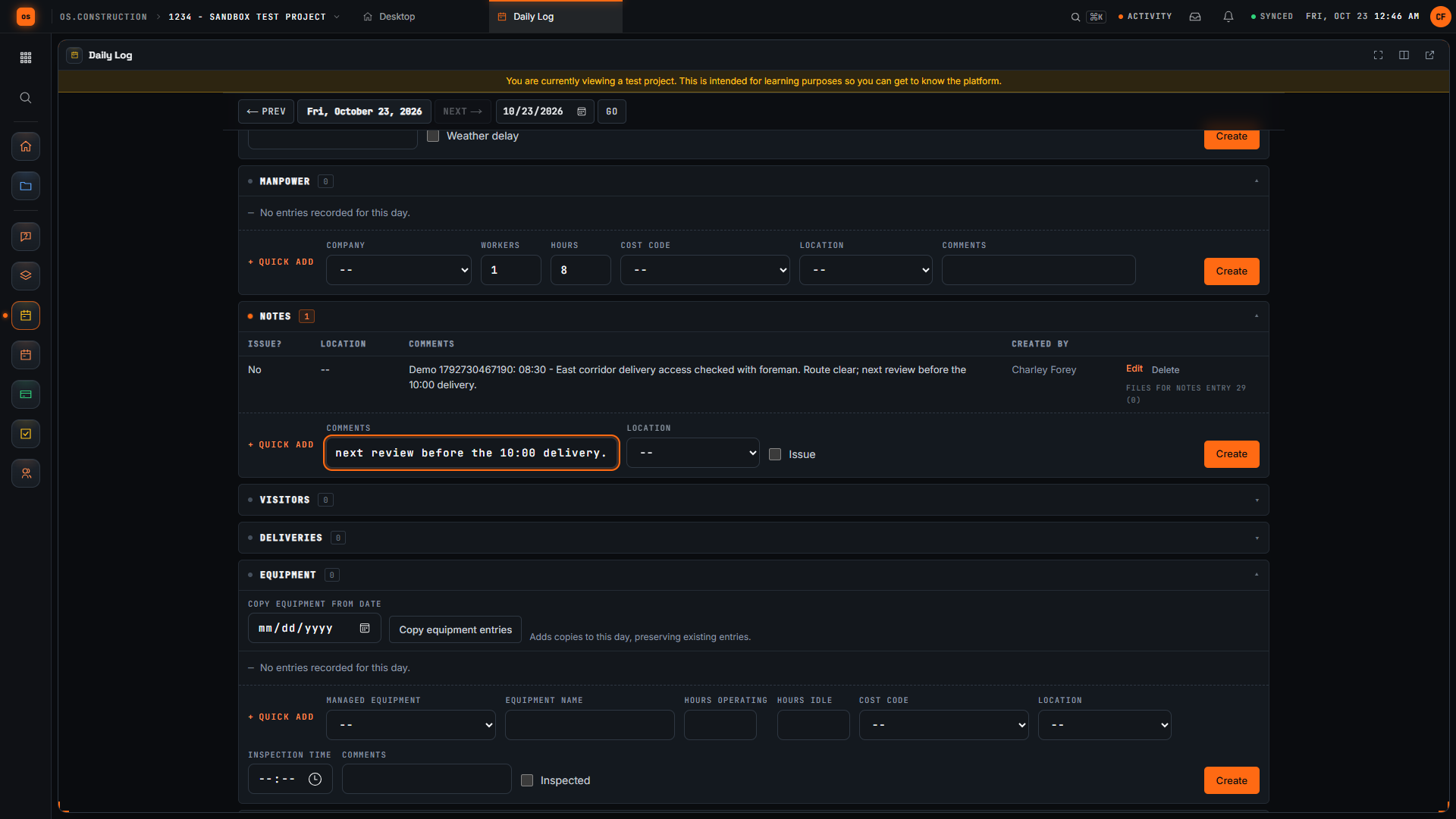
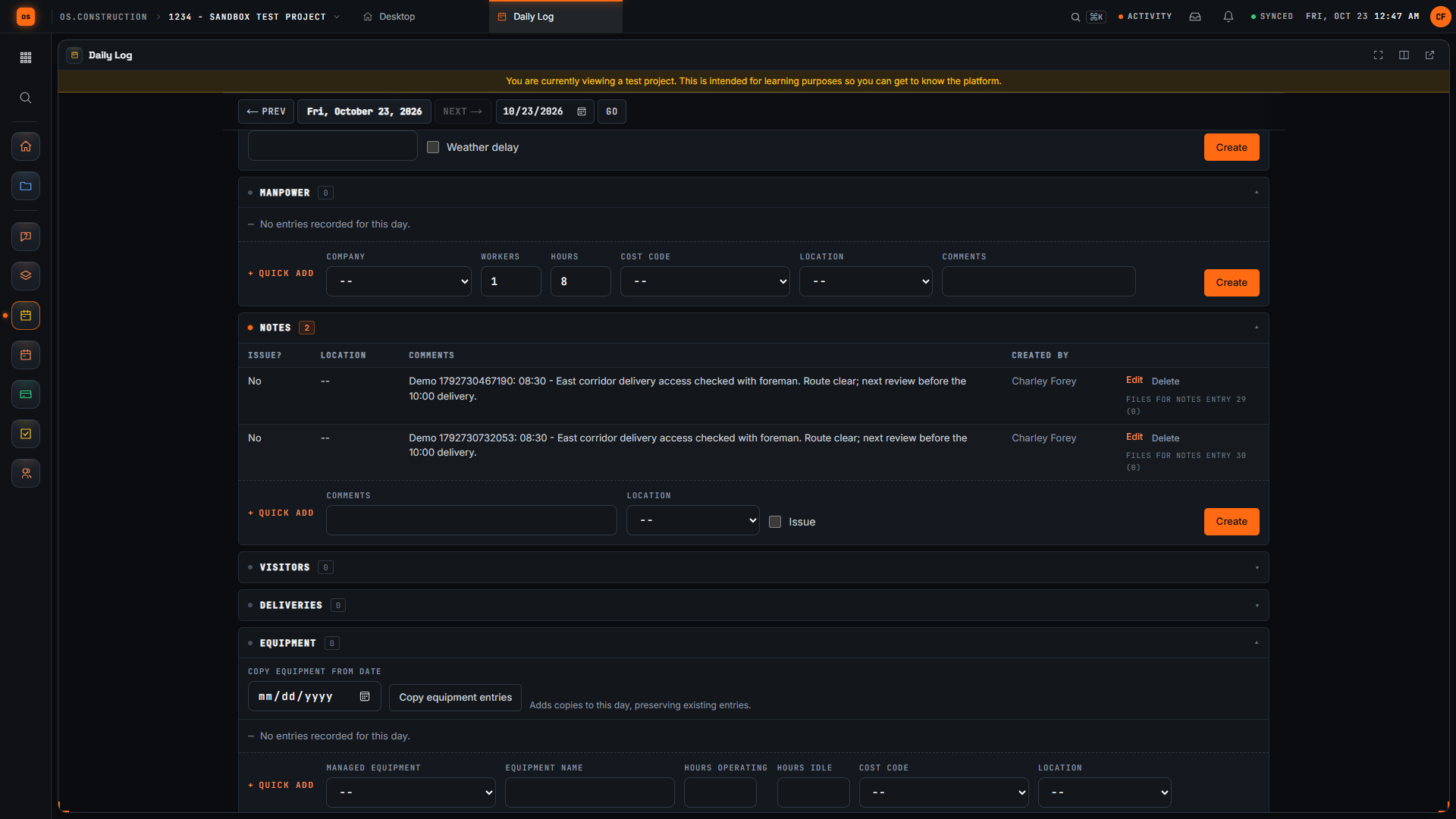
Add a note to the daily log
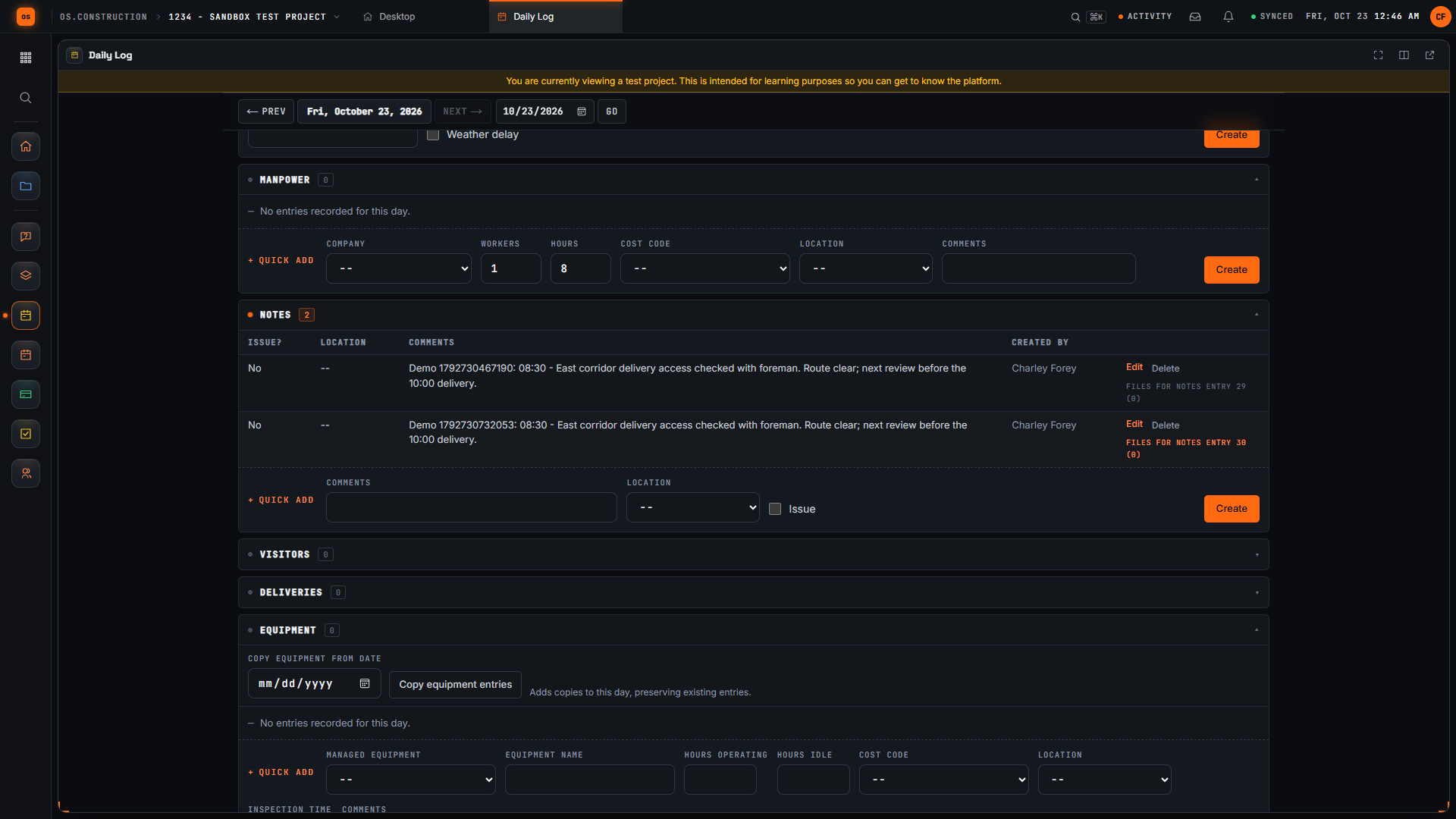
- 0:00Confirm the project and day
- 0:19Find the Notes section
- 0:52Write the field observation
- 1:14Save and inspect the entry
- 1:32Move to the previous day
- 1:48Return to the day
- 2:04Read the saved observation again
Read the transcript
Start with the project and date. We are in the local sample project's Daily Log, which opens on today. A useful field note tells the next reader what happened, where, and what needs attention next.
Scroll to Notes. This section has its own entry form. Keep an observation specific enough that another team member can understand the location, the time, and the next check without asking you to reconstruct the day.
Our invented example records an access check at the east corridor, the time, and a follow-up before the delivery. The unique demo reference distinguishes this sample note from other recordings. Replace the example with facts you actually observed on your project.
Select Create in the Notes form. Wait for the new row to appear, then read the saved comment. Checking the row confirms the submitted text reached the day's log instead of remaining only in the form.
Use Previous Day to leave this day's view. Each day has its own log. The Today link lets us return to the day where we created the note and check that the saved entry is still there.
Select Today to return to the day where we created the note. Check the displayed date, then return to Notes to find the saved observation.
Here is the same note in the Notes table after returning to the day. Read the time, location, observation, and next check. We have saved a specific field note and confirmed that another reader can find its context again.
Video page with chaptersStep-by-step guideMore in Field: daily logs & tasks
Templates, calculators and lessons for this role
Straight answers for a superintendent
Does it work offline?
Not yet. The app runs in the phone’s browser and needs a connection; offline capture is planned.
Can I attach photos?
Yes. Punch items, observations and inspections take photos and files as attachments, and daily log notes take attachments too.
Does the owner’s rep sign T&M tickets in the app?
The ticket records the signer’s typed name when it is submitted. There is no drawn or electronic signature.
Can I edit the schedule?
You update progress, actual dates and notes on activities. The master schedule stays in P6 or Microsoft Project and is re-imported; import is one way.
Try the week on the sample project
Every trial includes Riverside Medical Center #24-118, with the records this page talks about. 14-day free trial. Pricing for paid plans isn't set yet.