Role guide · Project manager
The project manager’s week, on one record.
You run the questions, the changes and the money. Here is a PM’s week in os.construction, the tools you would open, and what stops being retyped when they share one data core.
A project manager’s week in os.construction
- Monday
Prep the OAC meeting: open RFIs by ball in court, submittals waiting on review, pending changes. Carry last week’s open topics forward.
Meetings, RFIs, Submittals - Tuesday
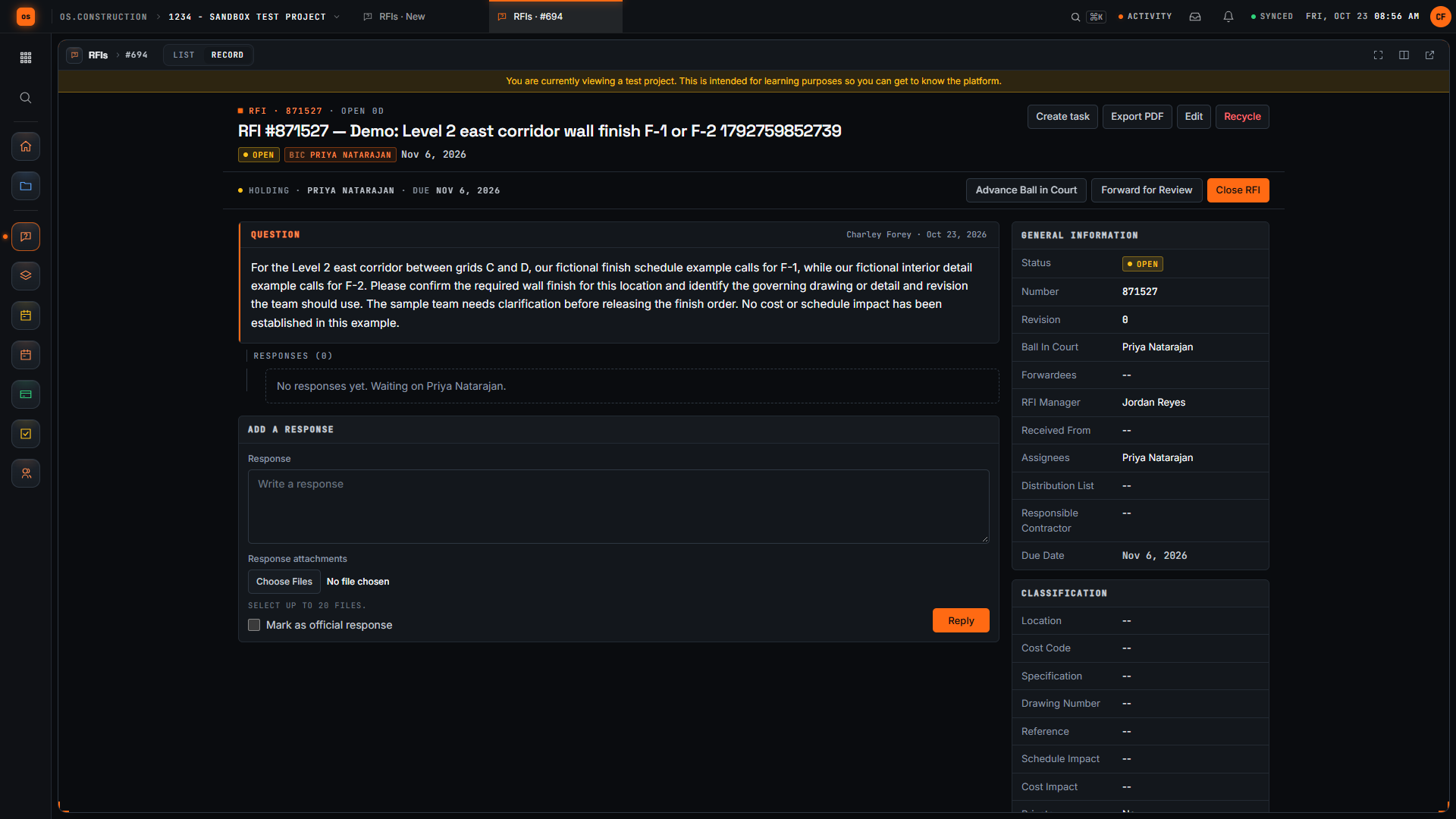
Send RFIs the field raised, each with one answerable question, an assignee and a due date tied to the schedule.
RFIs, Schedule - Wednesday
An RFI answer adds scope: open a change event with the RFI as its origin and a rough cost, then send it out for pricing.
Change Events, RFQs - Thursday
Price the PCO against the prime contract and the sub’s subcontract, submit for review, and check the budget forecast.
Change Orders, Commitments, Budget - Friday
Month-end weeks: draft the pay app. Executed change orders are already on line 2; enter this period’s progress on the G703.
Payment Applications
- RFI answeredAnswer adds scope
- Change eventOrigin RFI, rough cost
- PCO priced and approvedPrime contract and subcontract
- Budget updatedApproved and pending changes
- On the pay appExecuted COs on G702 line 2
Text version
- RFI answered: Answer adds scope
- Change event: Origin RFI, rough cost
- PCO priced and approved: Prime contract and subcontract
- Budget updated: Approved and pending changes
- On the pay app: Executed COs on G702 line 2
The tools in your seat
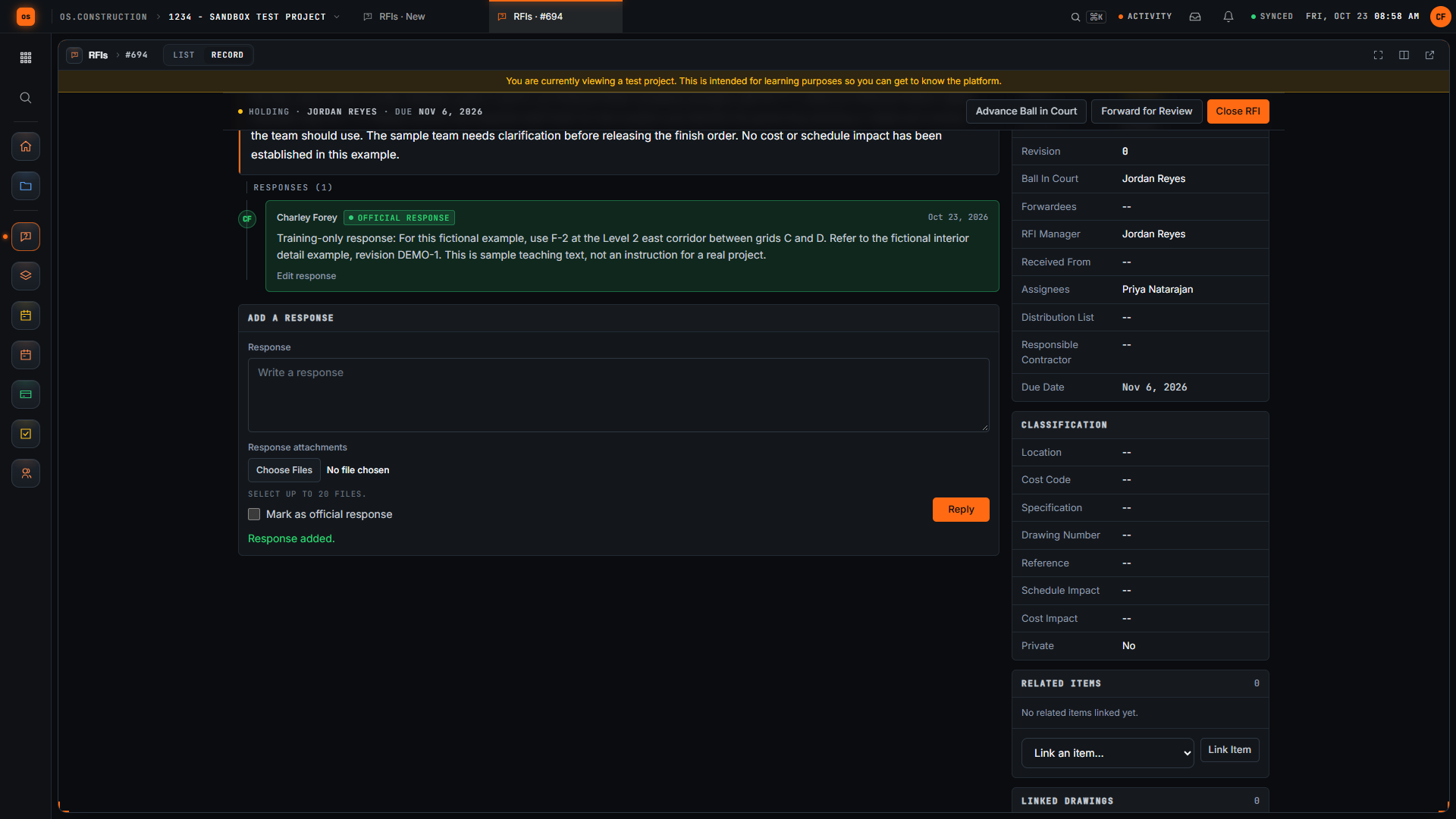
- RFIsDraft, open and track questions; ball in court is worked out for you; export the full RFI to PDF.Read the guide →
- SubmittalsThe submittal log with ordered approval workflows, revisions and delivery dates.Read the guide →
- Meetings and TasksAgenda topics linked to RFIs and submittals, minutes, follow-up meetings, and tasks from topics.Read the guide →
- Change Events and Change OrdersLog a change with its origin RFI and rough cost, price PCOs, approve and execute.Read the guide →
- BudgetPreviewOriginal budget by cost code with approved and pending changes, commitments, direct costs and a forecast.Read the guide →
- Payment ApplicationsG702/G703-style progress billing from the contract SOV, with executed change orders added automatically.Read the guide →
Getting in: Start a trial and you are company admin, with the sample project ready. On a team, a company admin invites you and gives you the Project Manager template on your projects.
Entered once, used everywhere it matters
The RFI answer doesn’t get retyped into the change log
A change event can name its origin RFI, and a PCO created from the change event copies its line items. The question, the change and the price stay linked.
Approved changes reach the budget and the bill without a hand-off
Approved owner changes show in Approved Budget Changes, pending ones in Pending, and executed change orders are added to line 2 of the pay app automatically.
The meeting points at the record instead of retelling it
A topic links to the RFI, submittal, punch item or observation it is about, and Create task turns it into a tracked follow-up.
Nobody asks who has the ball
RFIs and submittals show ball in court from their state and workflow, so the open list is also the chase list.
Project Financials follows project money; company Accounting covers the ledger, AP, AR, payroll and controls. AI agents remain planned; preview tools are marked above.
Walkthroughs and screens from the app
Watch the walkthrough · 1:57
Create a draft RFI and open it
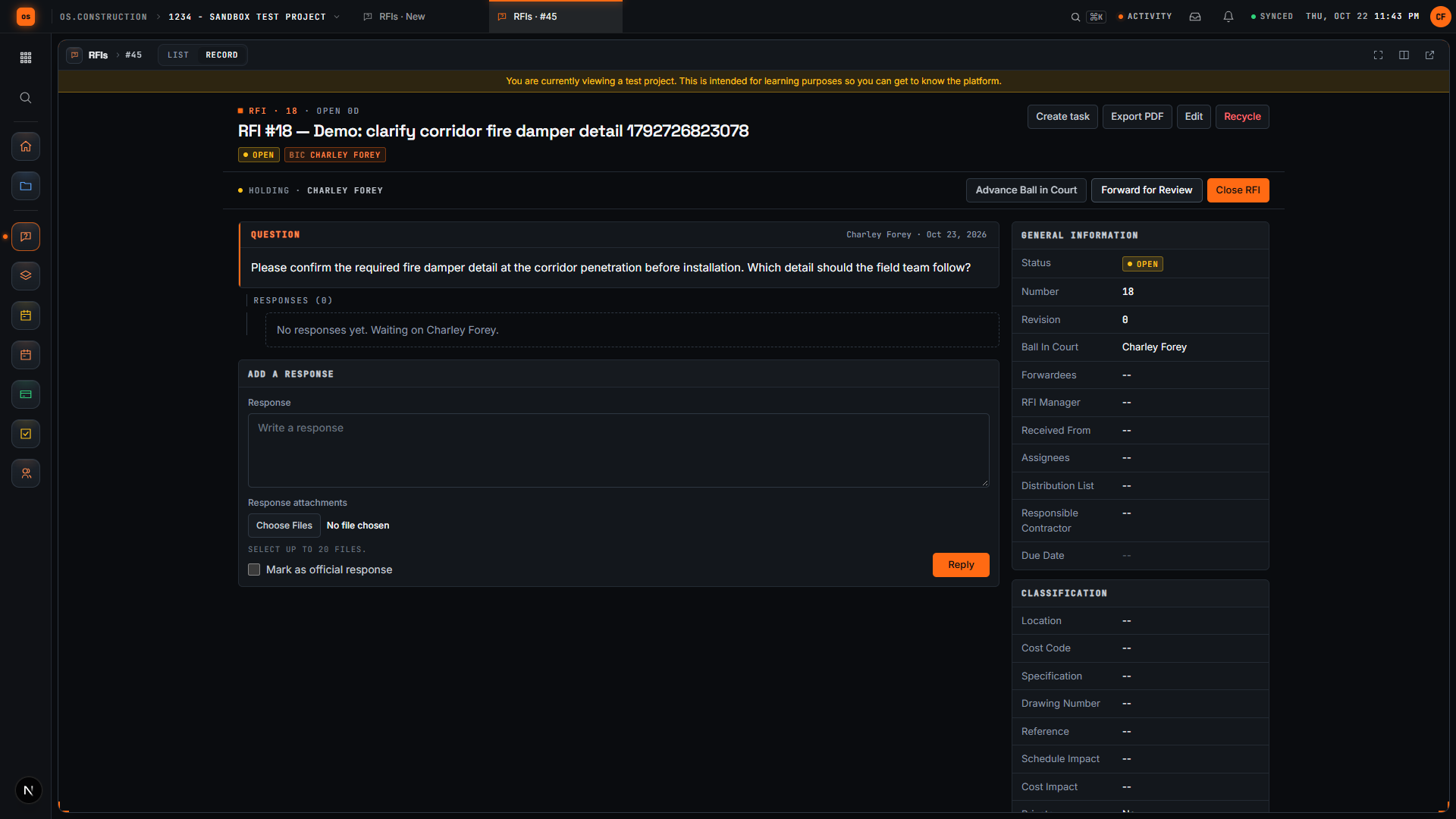
- 0:00Start a new request for information
- 0:27Give the RFI a clear subject
- 0:59Write the question
- 1:15Save the draft
- 1:28Review the saved question
- 1:43Open the RFI
Read the transcript
Here we are in the actual os.construction app, using a local sample project. On the New RFI page, we can prepare a question and save it as a draft before opening it.
Use a subject that tells the reviewer what needs clarification. In this example, we are asking about the corridor fire damper detail. The demo adds a unique reference so each recording creates a separate sample record.
State the decision the team needs. Our question asks the reviewer to confirm the required fire damper detail before installation and identify which detail the field team should follow.
Select Create as Draft. The app saves the RFI and opens its detail page. We will check that the Open RFI action is available before moving forward.
The saved record now has its own detail page. Review the subject and question here. A draft gives the team a chance to check the request before opening it.
Select Open RFI. Wait for the Open RFI action to disappear after the update. Close RFI remains available. We have written a request, saved it as a draft, reviewed it, and moved it into the open workflow.
Video page with chaptersStep-by-step guideMore in RFIs & submittals
Watch the walkthrough · 2:33
Create a task and post a progress update
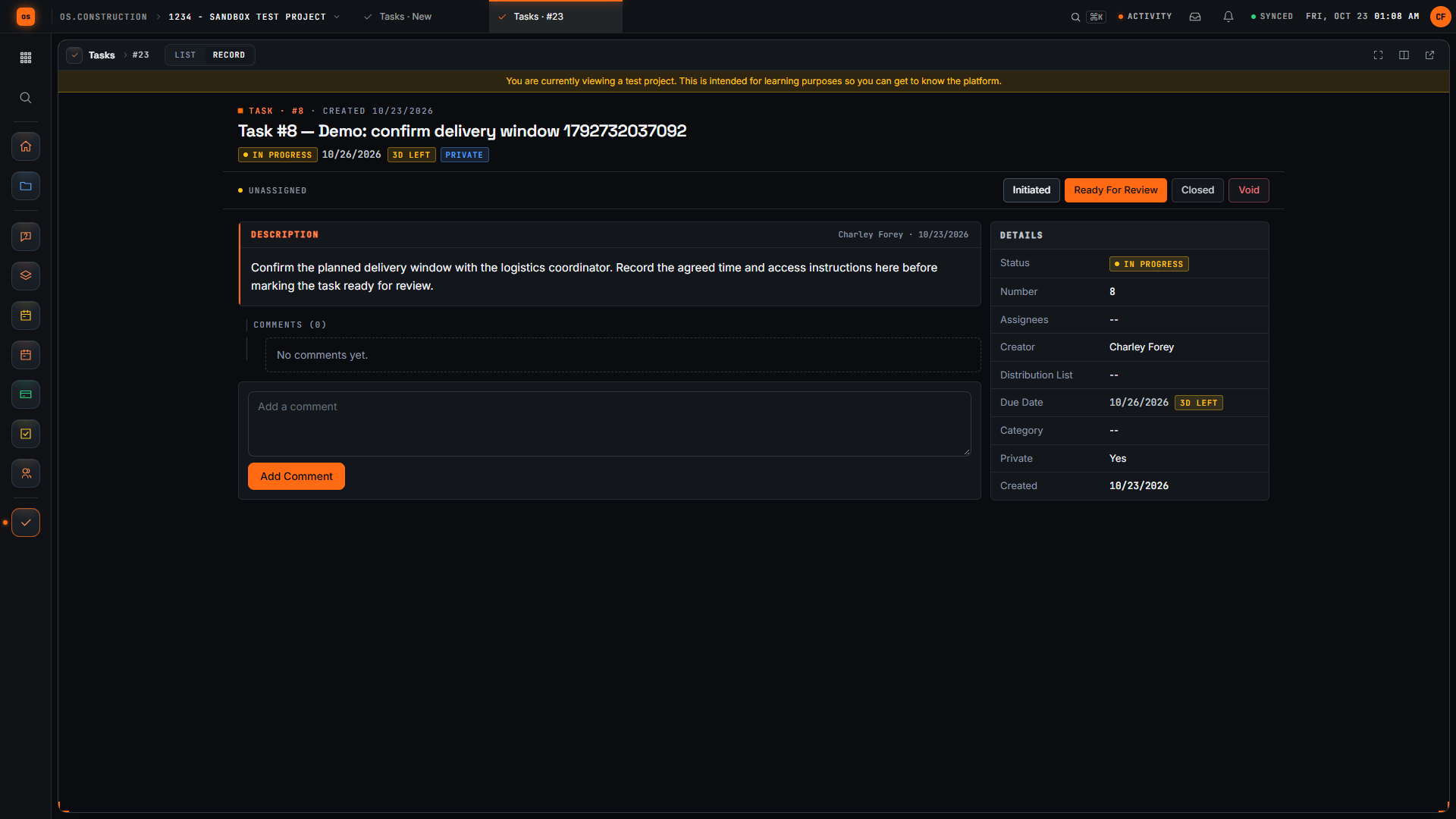
- 0:00Start a project task
- 0:22Name the follow-up clearly
- 0:49Describe what the follow-up needs
- 1:09Save the task and inspect its detail page
- 1:25Move the sample task into progress
- 1:49Write a useful progress comment
- 2:05Save the update
- 2:18Review the saved progress context
Read the transcript
Open Create Task in the sample project. A useful task names a specific follow-up and gives the next reader enough context to understand what needs to happen. We will save this example, change its status, and add an update.
Give the task an action-oriented title. Confirm delivery window tells the reader what needs attention. The unique demo reference distinguishes this sample record from other recordings.
Use Description to explain the expected result. Our invented example asks for the delivery window, the agreed time, and access instructions. Review the task's other fields before saving. This recording leaves assignees and distribution empty.
Select Create and wait for the task detail page. Confirm the title and description. The saved record now has a task number and a current status that the project team can use to track the follow-up.
For this sample, select In Progress. Check the current status in the task header after the update. A status change records the stage of the task; the delivery window itself still needs confirmation.
Add a comment that explains the next check. Our sample update says that the delivery window needs confirmation and identifies who to check with. This gives the reader more context than the status alone.
Select Add Comment. Wait for the text to appear in the saved comment list. Read the saved update so you can confirm the task contains the information you intended to leave.
Here is the saved update on the task. We have created a specific follow-up, moved its status into progress, and recorded the next check. Keep updating the record as the work changes so another reader can understand what remains.
Video page with chaptersStep-by-step guideMore in Field: daily logs & tasks
Templates, calculators and lessons for this role
Calculators
Straight answers for a project manager
Does os.construction replace our accounting system?
Financials follows a project's budget, commitments, changes, pay apps and cash. Company Accounting covers the ledger, AP, AR, payroll and controls. Evaluate your company's setup and reconcile records before changing your system of record.
Can I export an RFI or the budget?
Yes. Export PDF downloads a full RFI with its responses, and Export Budget CSV downloads the current budget. The G702/G703 can’t be printed from the app today.
Does it send email for every status change?
No. RFIs notify the people on them when a response is added; punch items, observations and inspections have a Send Email action you choose to use.
Can I bring our current projects over?
The import tool (preview) connects to one project management system today and brings over directory, RFIs, submittals, punch list, observations, daily log, documents and contracts.
Try the week on the sample project
Every trial includes Riverside Medical Center #24-118, with the records this page talks about. 14-day free trial. Pricing for paid plans isn't set yet.