A CPM schedule the whole job can read.
Import the P6 or Microsoft Project file, or build the network in the app. The engine calculates the dates and float, every save is kept as a version you can analyze and baseline, and the field reads the same schedule as a 3-week look-ahead.
14-day free trial. Pricing for paid plans isn't set yet.
From the scheduler's file to the field's week.
The top lane is the scheduler's work: import, calculate, analyze and export. The bottom lane is what the field sees, after a separate review: the look-ahead, the weekly work plan and progress from site.
Where schedules stop being used.
- Failure 01
A PDF that's out of date when it's printed
Only the scheduler can open the native file, so everyone else works from last month's PDF. The field plans the week from memory and the owner compares two printouts.
- Failure 02
Nobody can say whether the logic is sound
Open ends, long lags and hard constraints hide in a 2,000-activity file. The critical path looks fine until a delay claim makes someone look closely.
- Failure 03
Last month's schedule is gone
Each update overwrites the last, so nobody can show what the schedule said on the day a decision was made, or what changed between updates.
One network, calculated, versioned and read in the field.
The schedule lives on the project with the submittals, RFIs and inspections that gate its activities. Every save is a version the engine calculated, and every view reads one of those versions.
- 01
Bring in the P6 or Project file, and send it back
Import P6 XER, P6 XML or Microsoft Project XML up to 32 MiB, keep the original byte for byte, and adopt it into the Planner. Export the current plan or any saved version as XER, P6 XML or MSPDI; the compatibility guide lists what round-trips.
Answers failure 01P6 and Project import → - 02
A CPM engine that calculates the dates
Activities, WBS, calendars with exceptions, finish-to-start, start-to-start, finish-to-finish and start-to-finish relationships with lags, ten constraint types and progress against a data date. The engine works out early and late dates, total and free float and the longest path, and Why this date? traces how any activity got its date.
Answers failure 02Planning and CPM → - 03
Health, risk and earned schedule
Schedule analysis runs the DCMA 14-point checks with thresholds, sources and offenders, a Monte Carlo simulation of the finish, earned schedule against a baseline, and a compare of any two versions. Offenders open in the Planner and export to CSV.
Answers failure 02Schedule analysis → - 04
Every save kept as a version
Each save is an immutable, digest-verified version. Name a baseline, overlay it on the Gantt, and diff any two versions to see added, removed and edited activities and relationships. Results are retained with the version they describe.
Answers failure 03Baselines and versions → - 05
A look-ahead the field reads
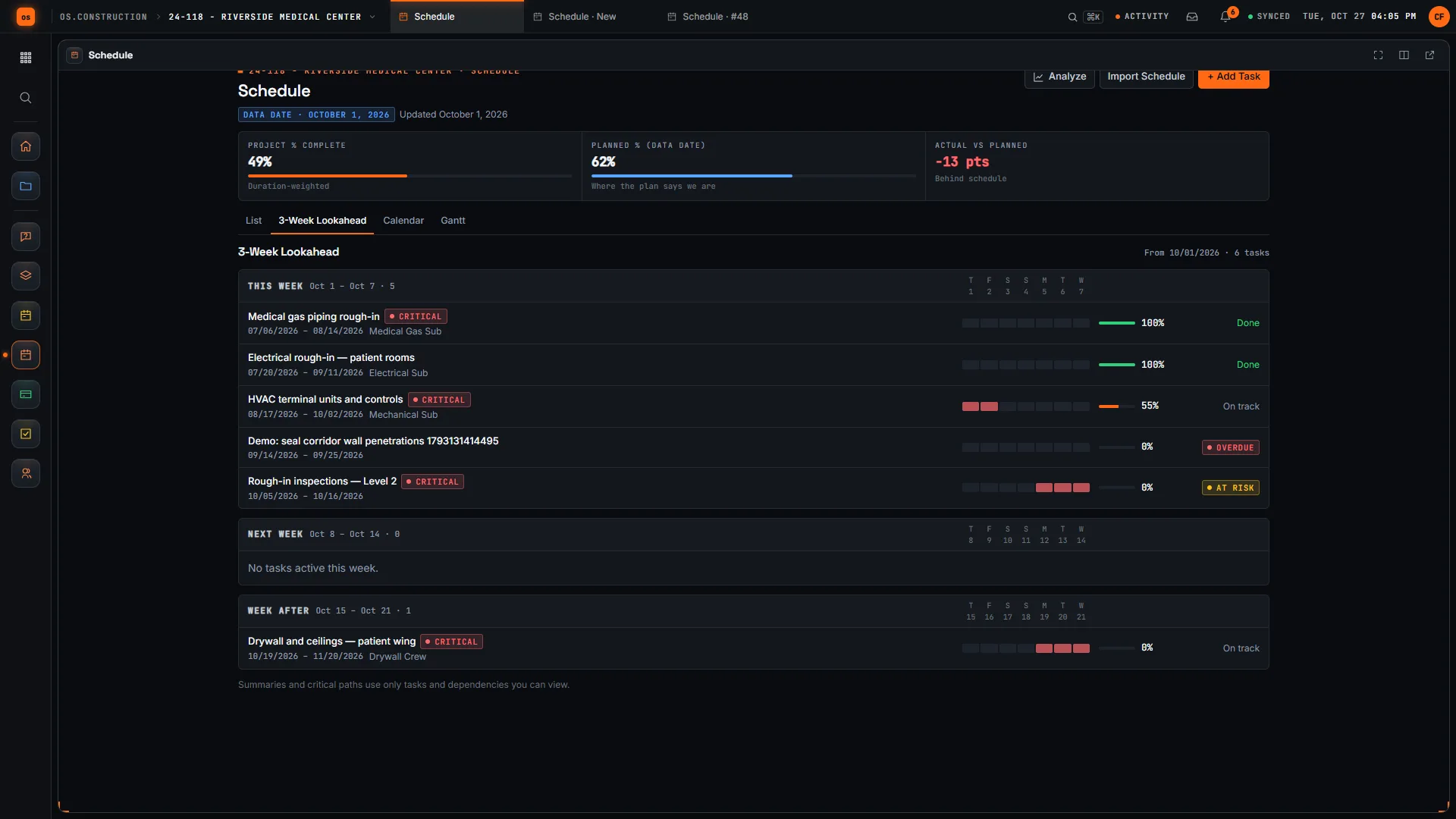
The field Schedule tool shows the current schedule as a list, a 3-week look-ahead flagged Overdue and At Risk, a calendar and a Gantt. Weekly work plans record what each trade commits to and report PPC, and field mode records progress on a phone without signal.
Answers failure 01Schedule field views →
The schedule, in the app.
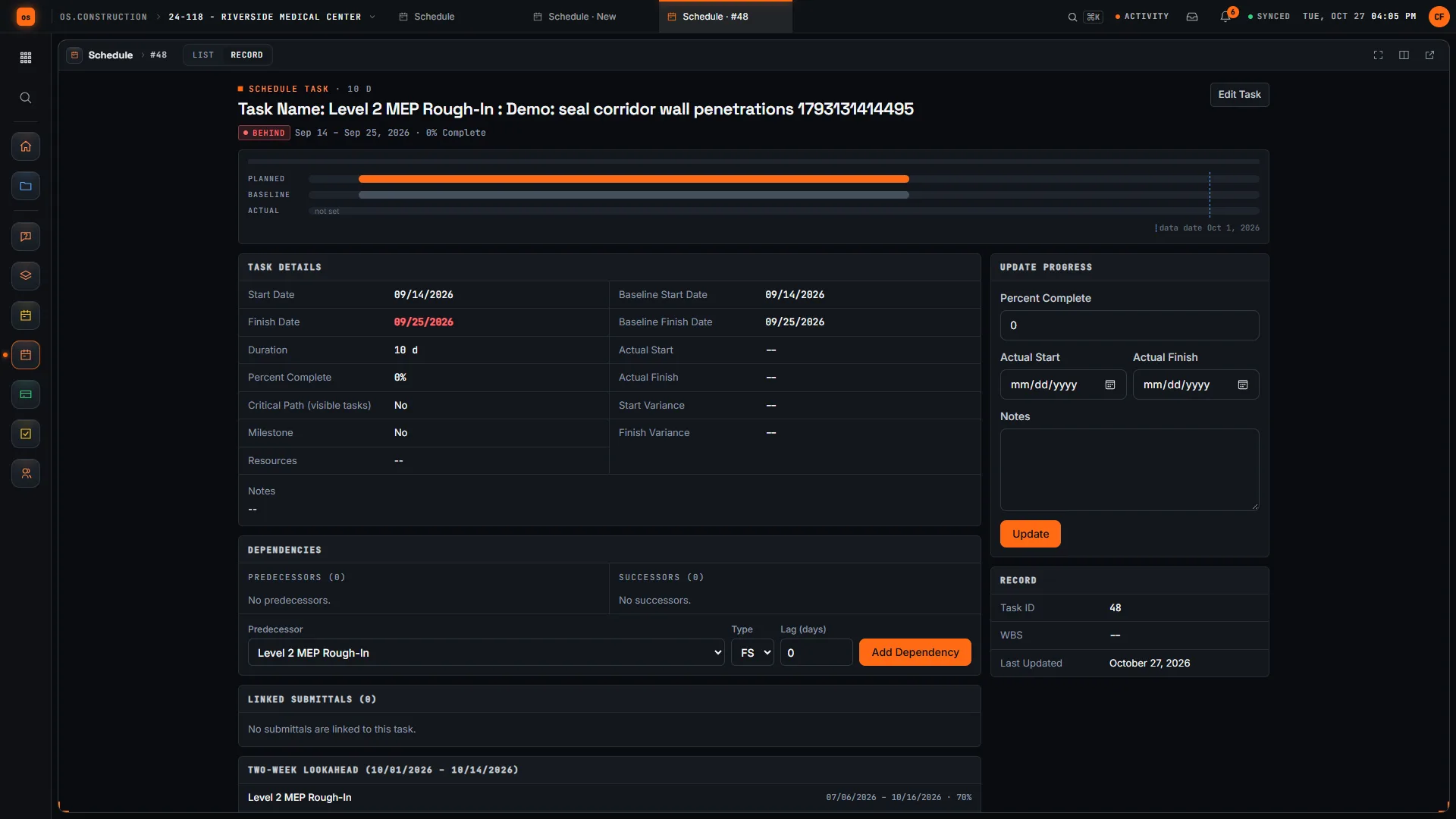
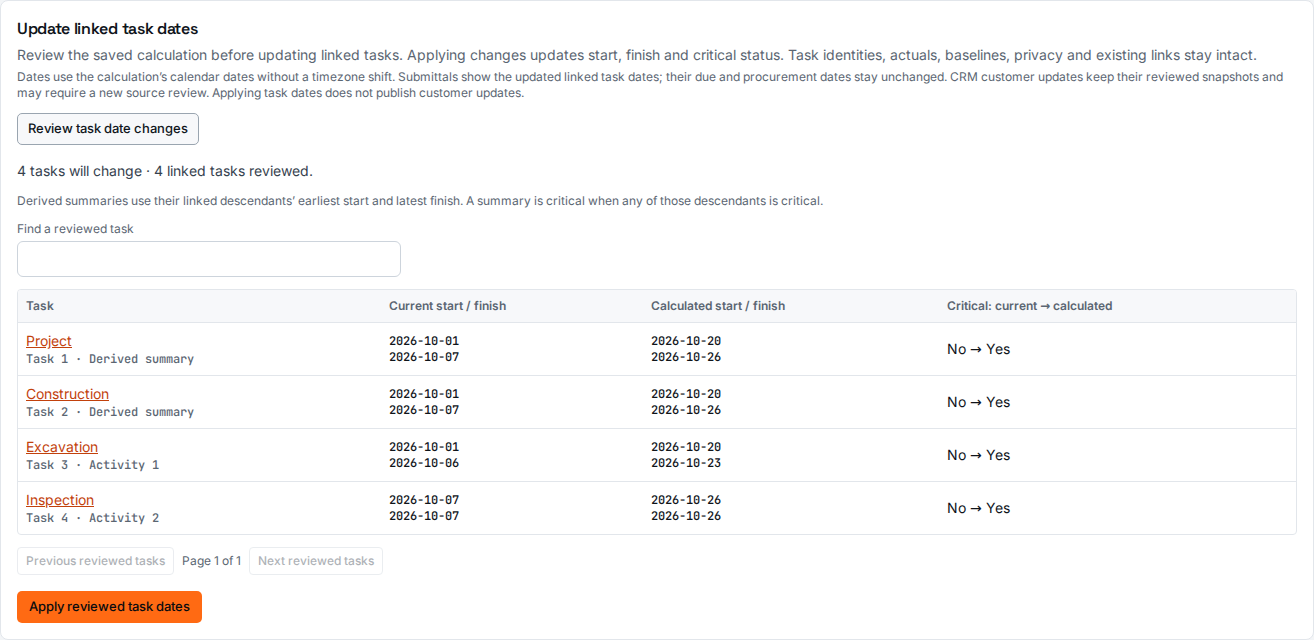
Real screens on sample data: the 3-week look-ahead with Overdue and At Risk flags, an activity that has fallen behind its baseline, and the Planner's review of calculated dates before they reach field tasks.
Rather click than read? Open the interactive demo: open RFI-212, turn it into CO #14, approve it and watch the budget and Pay App #9 update, on sample data in your browser.
Exactly what ships today.
Status comes from the app's own export, not from this page's copy. Live is in the product now; Preview is in the product with limits we document; Planned is not built yet.
- LiveSchedulePlanner with the CPM engine, P6 and Microsoft Project import and export, analysis, baselines and versions, and the field list, look-ahead, calendar and Gantt.
- LiveSubmittalsA submittal can be tied to a scheduled task and shows under Linked Submittals on the activity.
- LiveRFIsLinked RFIs show as constraints on the look-ahead.
- LiveInspectionsLinked inspections show as constraints on the look-ahead.
- LiveBudgetActivity costs can be reconciled to Budget lines in a retained report.
- LiveAnalyticsThe CPM pack reports critical, near-critical and negative-float counts and DCMA grade across projects.
Where we don't fit yet
- No .mpp upload. Microsoft Project .mpp files are not read. Save them as Microsoft Project XML first.
- Field dates move only after review. Saving or calculating a plan never changes field task dates. Publishing to field tasks is a separate reviewed step, and some cases, such as progressed work in mixed imported history, still need reconciliation.
- Leveling proposes, it doesn't apply. Resource leveling produces proposals and conflict reports. It doesn't change the plan, and schedule resource capacity is not verified crew availability.
- Some P6 items don't carry. P6 .plf layout files import on a best-effort basis and don't export, P6 baselines and financial periods are kept but not editable, and a few fields are dropped. The P6 compatibility guide lists each one.
Scheduling, the field Schedule tool, Submittals, RFIs, Inspections, Budget and Analytics are live today. Applying leveling proposals is still in development. See the full list on the changelog and the platform overview.
Your books, your data.
Permissions per tool
Permission templates set each tool to none, read only, standard or admin, enforced the same way in the app and the API.
MFA and SCIM
Authenticator-app sign-in for every user, and SCIM 2.0 provisioning from your identity provider.
Change history
Tracked changes record who changed which fields and when, shown as item history and in the activity feed.
Your data, exportable
Export lists to CSV and key records to PDF. Leaving should never mean losing your history.
REST API · 2,549 endpoints
Project and accounting records are available through the documented REST API, with OAuth tokens and signed webhooks for the tools you keep.
We don't hold SOC 2 or any other security certification today, and we won't imply that we do. Read exactly what is in place, or go straight to the API documentation.
What to look for in construction scheduling software.
Whatever you end up buying, these are the questions worth asking in a demo. They come from how schedules stop being used on real jobs, not from any one product's feature list.
Who it's for
General contractors, construction managers and owners who keep or review a CPM schedule, and the trades who work to it. A scheduler or project controls lead usually owns it; project managers, superintendents and owners' reviewers read it.
P6 and Project in and out
Owners often require P6 files. Import your own XER in the demo, export it again, and ask for a list of what survives the round trip and what doesn't.
Real CPM, not bars
Check that dates are calculated from logic, calendars and constraints, that all four relationship types and lags work, and that you can see why an activity is on its date.
Agreement with P6
If you exchange files with P6 users, ask how the engine is checked against P6's own dates and which settings, such as total float method and progress mode, it honors.
Schedule quality checks
Look for DCMA-style health checks that show the threshold, its source and the offending activities, so a reviewer can act on the result.
Versions and baselines
Every update should be kept. Ask to compare this month's schedule with last month's and with the baseline, activity by activity.
Something the field will read
A superintendent needs a three-week look-ahead, not a 2,000-row Gantt. Ask what the field sees, whether it works on a phone, and what happens with no signal.
Links to what gates the work
Submittals, deliveries, RFIs and inspections hold activities up. Check whether they can be tied to activities and shown as constraints.
Size and speed
Bring your largest schedule to the demo and time the import, the calculation and opening the Gantt.
Common questions.
What is construction scheduling software?
Software for building and updating the project schedule: activities, logic, calendars and constraints, a critical path calculated from them, progress against a data date, and the views the field and the owner read. CPM scheduling software calculates every early and late date and the float from the network rather than storing dates typed into bars.
Can I import my Primavera P6 or Microsoft Project schedule?
Yes. Import P6 XER, P6 XML or Microsoft Project XML files, UTF-8 and up to 32 MiB. The original file is kept byte for byte and can be downloaded again. Microsoft Project .mpp files are not supported; save them as XML first.
Can I send the schedule back to P6?
Yes. The current plan, or any saved version, exports as P6 XER, P6 XML or MSPDI. The P6 compatibility guide lists field by field what round-trips, what carries with a caveat and what is dropped. Export needs Schedule admin because the file discloses the whole network.
Does it check schedule quality?
Yes. Schedule analysis runs the DCMA 14-point checks on a saved version, with each threshold, its source and the offending activities, plus a Monte Carlo simulation of the finish, earned schedule against a baseline and a compare of any two versions. The DCMA metrics are indicators of where to look, not compliance triggers.
Can the field team use it without P6?
Yes. The field Schedule tool shows the current schedule as a list, a 3-week look-ahead with Overdue and At Risk flags, a calendar and a Gantt. Field mode keeps a project's schedule and look-ahead on a phone and records progress without signal, then syncs it as one new version.
Who can edit and calculate the schedule?
The Planner and schedule analysis need Schedule admin on the project, because dates and float come from the whole network, including private activities. Anyone with Schedule view can read the field views, weekly work plans and activity discussion for the activities they can see.
Read, calculate, then try it.
From the blog
Free tools
Explainers and docs
- Scheduling overview (guide)
- P6 compatibility
- Last Planner: weekly work plans and PPC
- The 3-week look-ahead: catching overdue and at-risk work
- How the critical path works: forward pass, backward pass, float
- Earned value, step by step: PV, EV, AC, CPI and SPI
- Construction submittal software
- Construction daily log software
Terms on this page: Critical path · Float · Data date · Schedule baseline · DCMA 14-point assessment · Monte Carlo P80 · Look-ahead schedule · Percent plan complete
Open the schedule on the sample project.
Start a 14-day free trial with the Riverside sample project already set up, or click through the interactive demo on sample data in your browser first.