On this page
A calculated plan and the schedule your field team reads are separate records. Save and calculate changes the plan. Publish native field schedule lets an authorized operator decide which activities become tasks, which existing tasks stay, and which reserved identities return.
This walkthrough applies to app versions with those Planner controls. It supports flat tasks and start/finish milestones with unstarted progress. It does not complete hierarchy, progressed-work or mixed-source reconciliation. Imported plans keep the separate reviewed task-date workflow.
Check access and the plan
You need admin permission on Schedule, Submittals and CRM, with all three tools enabled. Schedule read access alone does not grant publication access. Private records and cross-tool references affect the review, so permission is checked again when you apply.
Save and calculate the native plan. Check its calendars, durations, dependencies and reported issues before moving on. The native publication mapping does not copy dependencies, resource assignments, calendars or data date into field records. Existing manual changes, progressed work or unsupported references can block it.
Load choices and confirm policies
Open Publish native field schedule and select Load publication choices. Loading is read-only. Search by activity name or exact task ID; paging does not discard confirmed choices.
- Create a field task: explicitly confirm privacy, assignee and baseline policy. Defaults are private, unassigned and an empty baseline. You can instead initialize the baseline from the calculated dates. New progress is zero; actual dates are empty.
- Bind an existing task: select the exact eligible task ID. Similar names do not establish identity. Existing authored fields remain intact while calculated dates and criticality are reviewed.
- Restore the reserved task: restore the original task linked to that activity, rather than creating a replacement ID.
- Retain or retire a remaining task: make an explicit choice. Retention preserves the record; a task outside the current calculation’s coverage has unknown criticality. Retirement keeps the identity reserved and can be blocked by live references, dependencies or assignments.
Already-bound live activities receive calculated date/criticality review without a separate create decision. Confirm each policy draft before reviewing. A policy edit invalidates any earlier review immediately, even before you confirm the new choice.
Review, then apply
Choose Review field schedule changes. Read the operation counts and disclosures, then expand each row to compare its before/after fields. Check privacy, assignee, baseline and actual dates as well as start and finish. The stored critical flag is not a substitute for the row’s calculated-coverage status.
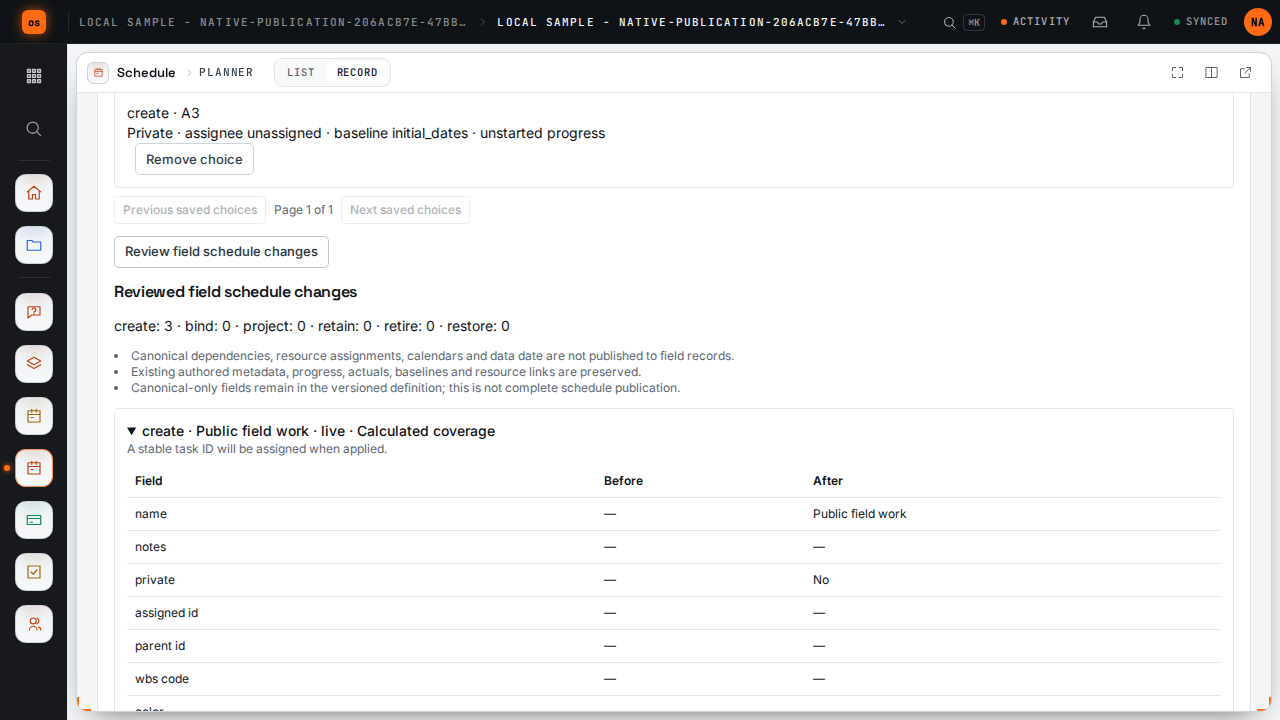
Resolve blockers before continuing. Choose Apply reviewed field schedule only when the review is supported and unblocked. The service rechecks the saved version, calculation, decisions, permissions and current records before committing. Success reports a publication ID and operation counts.
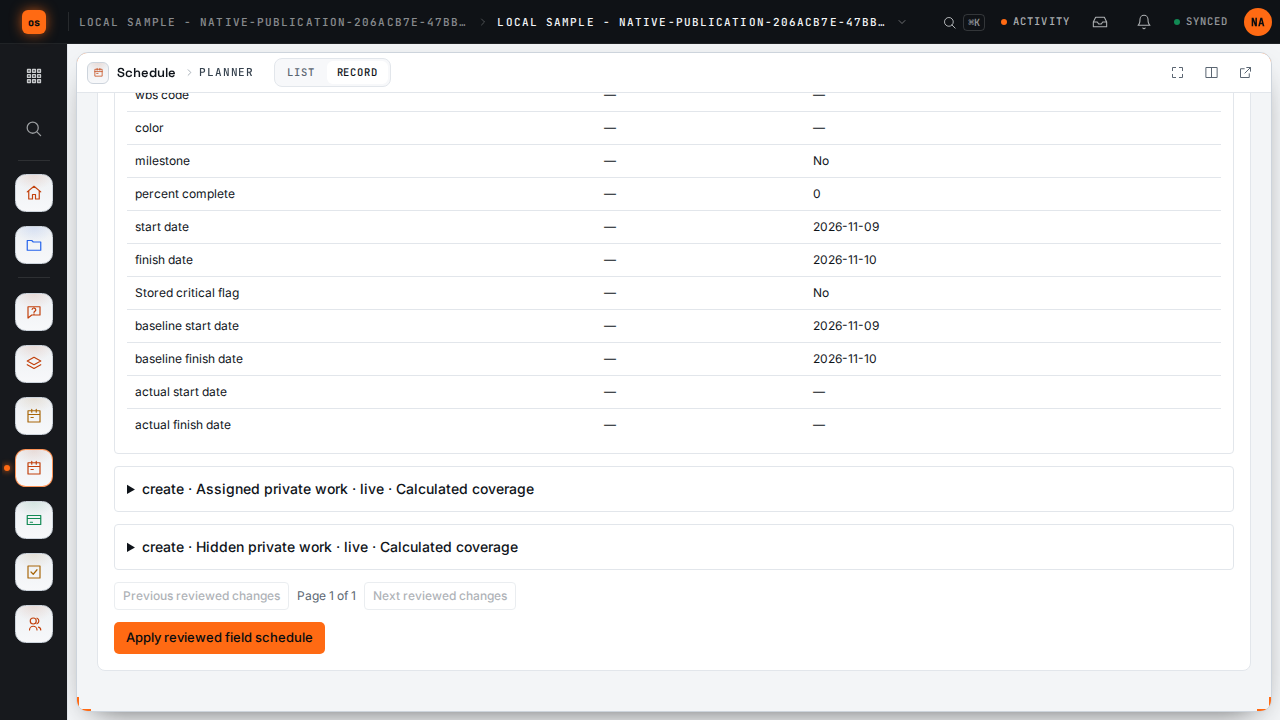
Open the field views after applying. Verify the resulting task dates and who can see the work. Linked submittals show task dates, but their independent due and procurement dates do not move. CRM snapshots may need another source review; this action neither rewrites nor publishes customer updates.
Keep identity through removal and restoration
Removing an activity from the plan and retiring its field task are separate decisions. Select the activity, choose Remove activity from plan, and confirm its exact ID. Dependencies, resource assignments or child activities must be reconciled first. Save and calculate, load publication choices, and explicitly retain or retire the field task before another review and apply.
To bring an activity back after a reload, use Restore a saved activity, then Load saved activities. The editor retrieves the latest saved definition for an identity missing from the current plan, including fields this editor does not display. It does not recreate old dependencies or assignments. Missing calendar, WBS or parent references must be reconciled first.
Restore the activity to the plan, save and calculate, then separately choose to restore the reserved field task and review the result. Its task ID remains the same. Restoration in the plan alone does not restore the field record.
History has an operational limit. Interactive history supports at most 64 saved versions, with additional size limits. On a saved plan, adding an activity also checks history to avoid reusing a reserved ID. A longer history therefore blocks both adding and restoring activities. The editor fails closed; a scalable history/reservation workflow remains unfinished. Do not treat this as unrestricted lifecycle support for a long-lived plan.
Handle a conflict or uncertain outcome
Unsaved plan edits and changed choices invalidate review. A conflict keeps your current in-memory plan and choices, but requires fresh inventory and review. Changed task rows require explicit confirmation. Permission loss removes application capability until access is restored. These UI drafts do not survive a page reload.
If a request’s outcome is uncertain, check the current field schedule before using Retry exact reviewed request. Inspect its retained choices: it sends the previous reviewed request, not later draft edits. Replay is accepted only while the applied state remains current. If that state changed, obtain a fresh review rather than forcing the old request through.
For complete operating boundaries, read the Schedule guide. For integrations using inventory, preview and apply requests, use the native publication API tutorial. Bring the weekly review checklist to the next schedule meeting.
Share this article