Buyout savings to commitment change
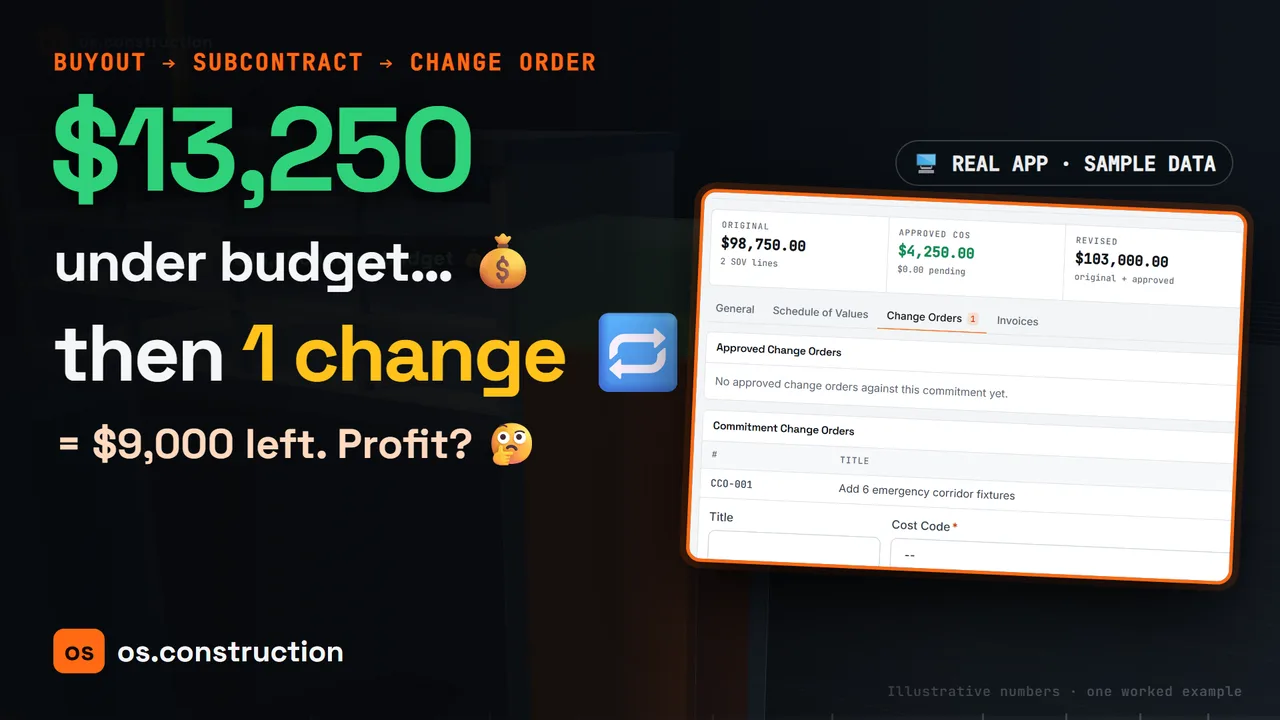
Your electrical subcontract came in $13,250 under budget. Is that profit? This video follows one package from bids to an awarded subcontract to a change on that subcontract, and shows where every dollar lands on the budget in os.construction.
The full walkthrough
Watch the walkthrough · 8:21
Buyout savings to commitment change (full walkthrough)
- 0:00The question
- 0:25What buyout is
- 1:13Buyout savings, the math
- 2:01In the app: snapshot, leveling and award
- 3:11Award to subcontract
- 3:45Buyout plan vs. the budget baseline
- 4:38A change to the commitment
- 5:25In the app: commitment change order
- 6:24Who this helps
- 6:56Five mistakes to avoid
- 7:25Your buyout checklist
- 7:52Try it yourself
Read the transcript
Your electrical subcontract just came in $13,250 under budget. Is that profit? Not yet. Watch what one change order does to it.
In the next few minutes, we'll follow one package from bids, to an awarded subcontract, to a change on that subcontract, and see exactly where each dollar lands on the budget. Then we'll do it for real in os.construction.
First, what is buyout? Your estimate carried a number for every trade. Buyout is the work of turning those numbers into signed subcontracts and purchase orders, one package at a time.
In our example, the estimate carried $112,000 for an electrical rough-in and fixtures package. That figure is illustrative, so we can do the math together.
Two bids come back. Bright Electric at ninety-eight thousand, seven hundred fifty dollars, and a second bidder at one hundred four thousand, two hundred dollars. The low bid is five thousand, four hundred fifty dollars below the next one.
Before anyone celebrates, you level the bids: same scope, same inclusions, same exclusions. A low number that leaves out work is not really a low number.
Buyout savings is simple arithmetic. The budgeted amount, minus the committed amount, minus anything the winning bid excluded that you will have to buy separately.
Here, one hundred twelve thousand dollars, minus ninety-eight thousand, seven hundred fifty, equals thirteen thousand, two hundred fifty dollars of gross buyout savings.
Now suppose leveling had found a $2,000 exclusion you must buy elsewhere. Net savings would drop to $11,250. In our example the leveled scope is complete, so we keep $13,250.
And savings are not profit yet. Many contractors hold them in contingency until the trade is well along. On a GMP job, the contract decides who keeps them.
Let's do it in the actual app. This is os.construction on a sample project with sample data. We'll follow the Electrical Rough-In and Fixtures bid package from start to finish.
Step one comes first for a reason. In the Budget tool, we capture a snapshot. The buyout plan compares the award against a frozen baseline, and that baseline has to exist before the award becomes a commitment.
Step two, the bid package. Across the top, the app tracks the package from registered bidders to award and commitment. Two bids are in, with a $5,450 spread.
On the Bid Leveling tab, the bids sit side by side, line by line. Panel boards and feeders at $40,000, plus light fixtures at $58,750, makes Bright Electric's $98,750 total.
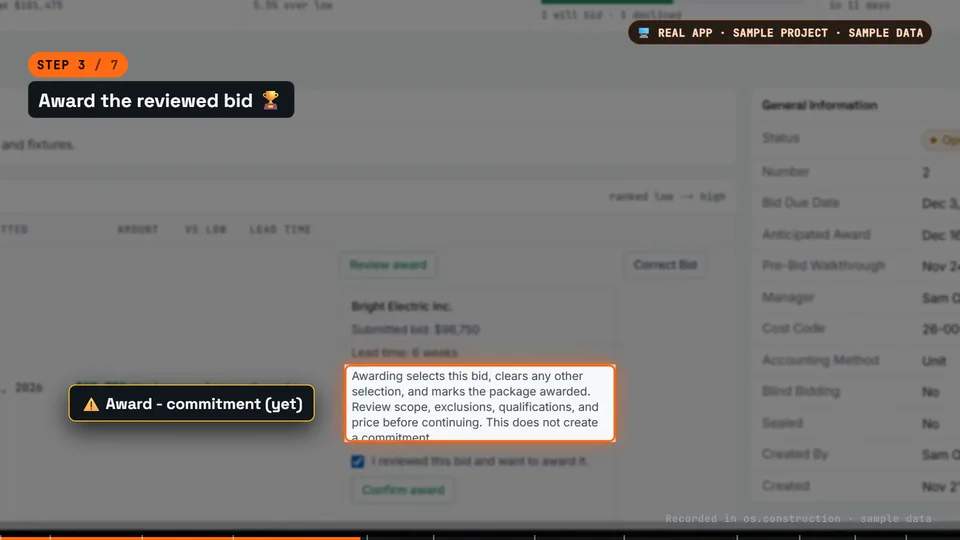
Step three, Review award. The app spells out what awarding does: it selects this bid and marks the package awarded. It does not create a commitment. We confirm we reviewed the bid, and award it.
Here is the chain we are building. Bid, award, commitment. Each record carries the one before it, so nobody retypes numbers in between.
Step four, Review commitment. We choose Subcontract. Every line needs a cost code, and the line total must match the bid amount. We confirm, and the app creates a draft commitment from the priced bid lines.
The package now shows the award to commitment receipt, with a fingerprint of the exact quote and cost codes at conversion. Later edits to the bid don't change it.
Step five, the buyout plan. We pick the snapshot we captured, and the app lays the award beside the frozen budget for that cost code.
The preview shows the revised budget, what was already committed, the headroom left, and the award. The variance column compares our allocation with the awarded quote. We approve, and the plan records this exact receipt, baseline, and allocation.
Step six. A commitment created from a bid starts as a draft, and the budget's committed costs only count approved or completed subcontracts. So the electrical line still shows zero committed. We set the subcontract to Approved.
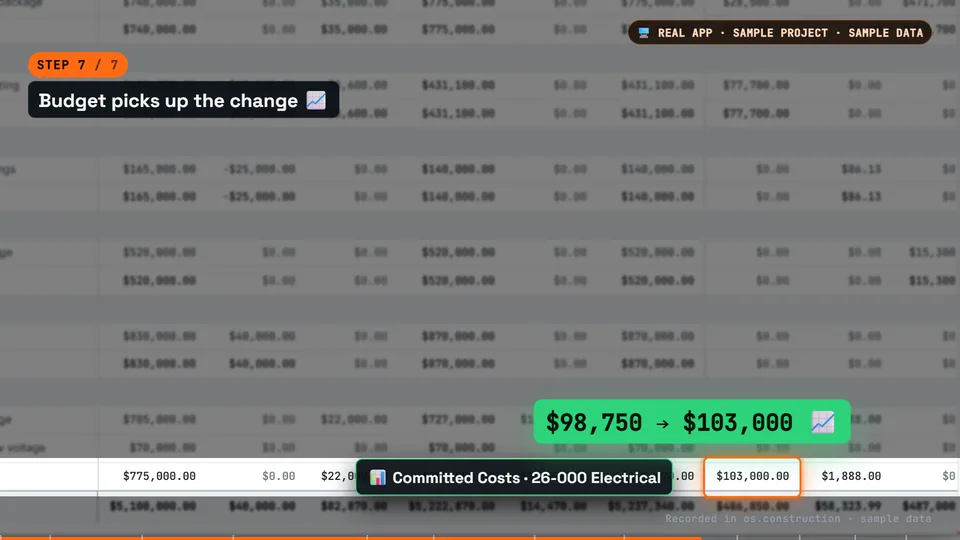
Back on the budget, committed costs for 26-000 Electrical now read $98,750. The award is on the books, straight from the bid.
Three weeks later, the owner adds six emergency light fixtures in the corridor. The electrician will do the work, so their subcontract has to change too.
The sub prices it at $4,250. $98,750 plus $4,250 makes a revised commitment of $103,000.
And our savings? $112,000 minus $103,000 leaves $9,000. That's why savings belong in contingency, not in profit, until the risk has passed.
Here's the classic failure. The change gets approved by email, the sub does the work, but the subcontract never changes. Then their next invoice exceeds the commitment, and nobody can say why.
In the app, we open the subcontract's Change Orders tab. Under Commitment Change Orders, we enter a title, the electrical cost code, and four thousand, two hundred fifty dollars, then create it.
It saves as a draft. Drafts don't reach committed costs on the budget. That's deliberate: a number nobody has approved should not move your forecast.
Now we approve it. Approved change orders show four thousand, two hundred fifty dollars, and the revised contract amount reads $103,000.
On the budget, committed costs for electrical went from $98,750 to $103,000. Same record, no re-entry, and the change is traceable back to its commitment.
So here's the whole chain: bid, award, commitment, commitment change, and budget. From here, the sub's invoices are entered against that commitment, so billing gets compared with the revised amount, not the original.
Picture a general contractor's project manager on a Monday morning. Instead of retyping a bid into a subcontract, they convert the award, and the lines, codes, and total carry over. This is an illustrative scenario, not a measured result.
Now picture a project accountant at month-end. The electrician bills for the added fixtures. Because the change order is already approved on the subcontract, the billing sits inside a $103,000 commitment instead of starting an argument.
Five mistakes to avoid. One: booking savings before you level out exclusions. Two: sending savings straight to profit.
Three: retyping the subcontract instead of converting the award. Four: quietly lowering the budget line instead of recording a budget modification.
And five: approving a change without issuing the commitment change order, or leaving it in draft, where it never reaches committed costs.
Here's your checklist. Capture a budget snapshot. Level the bids and price any exclusions. Award the reviewed bid.
Convert the award to a commitment, with a cost code on every line. Approve the buyout plan against your snapshot, and log savings line by line.
For every scope change, create a commitment change order and approve it. Then check committed costs on the budget.
Try it yourself. The subcontracts and commitment changes guide, the buyout savings glossary entry, and a printable checklist are all at os.construction. The links are in the description.
$13,250 under budget became $9,000 after one change. When every step lives on one record, that number never surprises you.
$13,250 under budget, then $9,000
| Estimate carry for the package | $112,000 |
|---|---|
| − Awarded subcontract (low leveled bid) | $98,750 |
| − Excluded scope bought separately | $0 |
| = Gross buyout savings | $13,250 |
| + Commitment change order (6 emergency fixtures) | $4,250 |
| = Revised commitment | $103,000 |
| Savings left vs. the carry | $9,000 |
If leveling had found a $2,000 exclusion you must buy elsewhere, net savings at buyout would have been $11,250. Report savings and losses line by line, and hold savings in contingency until the trade is well along. On a GMP job the contract decides who keeps them. The formula and GMP treatment are in the buyout savings glossary entry.
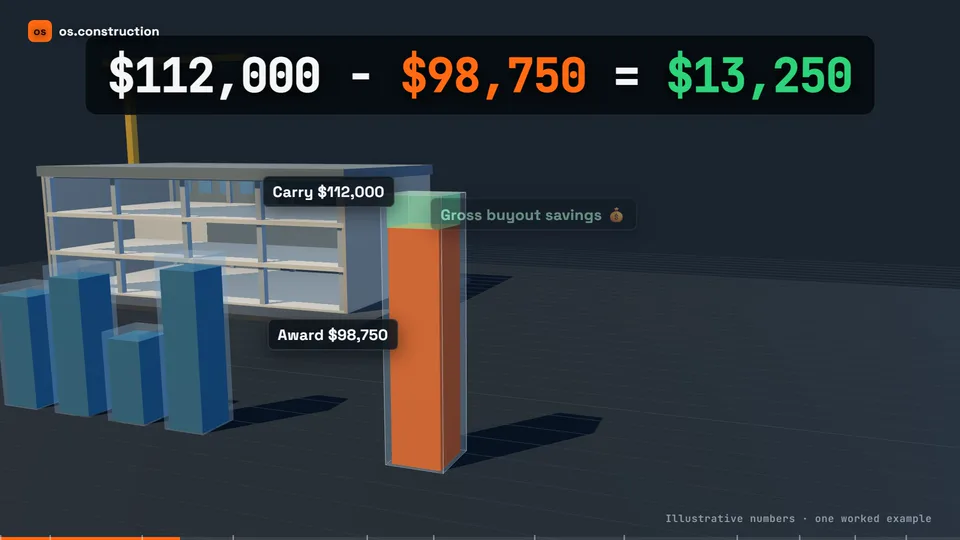
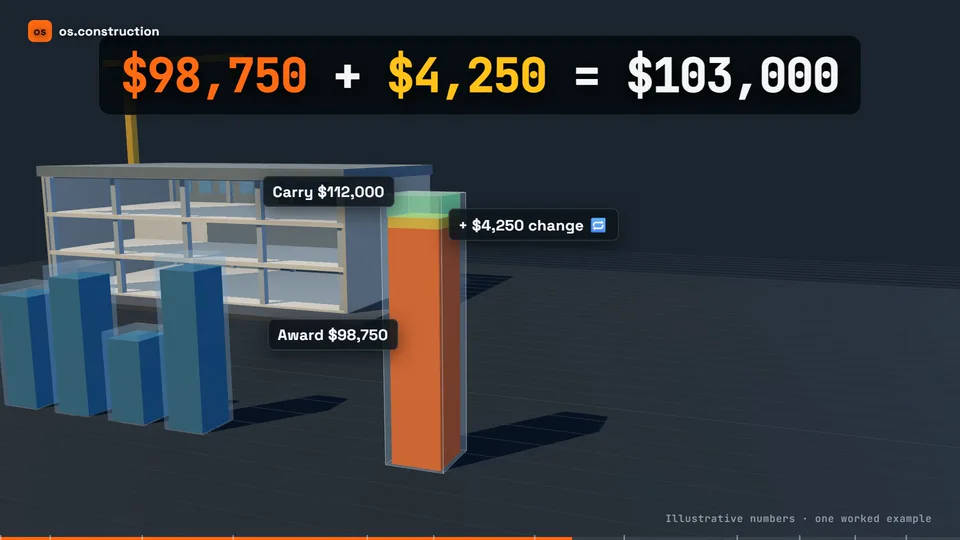
Bid → award → subcontract → change → budget
Each record carries the one before it, so nobody retypes the numbers. These are the values the app showed during the recording.
- 01BidsPackage #2 · ElectricalTwo submitted bids, leveled line by line$40,000 + $58,750 = $98,750Next bid $104,200 · spread $5,450
- 02AwardBright Electric Inc.Review award, confirm. No commitment yet$98,750Package status: Awarded
- 03SubcontractSC-004 · Draft → ApprovedCreated from the priced bid lines, with an award receiptOriginal $98,750Buyout plan approved vs. snapshot
- 04Commitment changeCCO-001 · ApprovedAdd 6 emergency corridor fixtures$98,750 + $4,250 = $103,000Revised contract amount
- 05Budget26-000 ElectricalCommitted Costs column$0 → $98,750 → $103,000Drafts are not counted
Seven steps
- 01Capture a budget snapshot first
Budget → Snapshots → name it and select Capture snapshot. The buyout plan only offers snapshots captured before the award becomes a commitment.
- 02Open the bid package and level the bids
The package header tracks 01 Registered to 06 Commitment. The Bid Leveling tab puts each submitted bid side by side, line by line, with the spread.
- 03Award the reviewed bid
Review award, tick the confirmation and Confirm award. Awarding marks the package awarded; it does not create a commitment. On packages that use a vendor release, a recorded recommendation and a second admin’s approval come first.
- 04Convert the award to a subcontract
Review commitment → Subcontract (or Purchase Order). Every line needs a cost code and the line total must match the bid amount. The commitment is created as a Draft with a frozen award receipt.
- 05Approve the buyout plan
Review buyout against captured Budget: pick your snapshot, review the allocation (revised budget, prior committed, headroom, receipt quote, variance) and approve.
- 06Approve the subcontract
Set the commitment status to Approved. The budget’s Committed Costs only count approved POs, approved or completed subcontracts and approved commitment change orders.
- 07Issue every change as a commitment change order
Change Orders tab → Commitment Change Orders: title, cost code, amount, Create CCO. It starts as a draft; Approve it and the revised contract amount and Committed Costs move together.
Five ways buyout savings quietly disappear
- ❌ Booking savings before leveling exclusions✅ Price every excluded item first: savings = budget − committed − scope bought separately.
- ❌ Sending savings straight to profit✅ Hold them in contingency (or the GMP savings pool) until the trade is well along.
- ❌ Retyping the subcontract instead of converting the award✅ Convert from the awarded bid so lines, codes and total carry over, with a receipt back to the quote.
- ❌ Quietly lowering the budget line✅ Record a budget modification so the savings stay visible.
- ❌ Approving a change without a commitment change order, or leaving it in draft✅ Create the CCO on the subcontract and approve it, or the next invoice will exceed the commitment.
Bid to budget in eight checks
- 📸 Capture a budget snapshot
- ⚖️ Level the bids and price any exclusions
- 🏆 Award the reviewed bid
- 📝 Convert the award to a commitment, with a cost code on every line
- 📊 Approve the buyout plan against your snapshot
- 💰 Log savings line by line (carry − award − exclusions)
- 🔁 Every scope change → a commitment change order, approved
- 📈 Check Committed Costs on the budget
📥 Download the buyout log template (CSV)
The CSV has one sample row with this video's numbers and one with an excluded-scope example. Delete them before use.
Keep exploring
Related across os.construction
- GlossaryBuyout SavingsThe difference between a trade's budgeted cost and the actual amount committed at buyout, positive when the subcontract or PO comes in under budget.
- GlossaryBuyoutThe process after award of turning the estimate into signed subcontracts and purchase orders, locking in actual costs and scope for each trade.
- Free toolBuyout log templateFree construction buyout log for Excel.
- DocsBuyout: from budget to committed costHow construction buyout turns budget lines into subcontracts and POs, how buyout savings and losses are measured per cost code, and how os.construction checks each award against a frozen budget snapshot.
- BlogHow to run a construction buyout: buy-by dates, a buyout log and where the savings goBuyout turns the estimate into signed subcontracts and purchase orders. Run it as a schedule, not a to-do list: work back from each package's need-on-site date to a buy-by date, bid and level, write the scope into the contract, record every variance against the budget, and track the log weekly. Here is each step with a worked buyout log.
- DocsBidding and buyout: award a package and check it against the budgetRun a bid package from vendor release to award, turn the awarded bid into a draft subcontract or PO, then approve a buyout plan against a captured budget snapshot.
Sample project included
Try this workflow on the sample project
Every trial workspace includes a sample project with sample data, so you can follow these steps in the app before touching a live job.
Want this on live job data?
Bidding, award to commitment, the buyout plan, commitment change orders and the budget's committed costs are live in os.construction. Budget and Commitments are in Preview.
14-day free trial. Pricing for paid plans isn't set yet. Talk to us. Already have an account? Sign in →
App figures are sample data from the Sandbox Test Project, recorded in a local instance of the app. The $112,000 estimate carry, the $2,000 exclusion, the 3D scenes and the two use-case vignettes are illustrative, not measured results. Your contract decides who keeps buyout savings.