From the field to the invoice: daily log to priced change
One piece of extra work through the daily log, a T&M ticket with typed lines, sign-off and review, then the change event and PCO that price it.
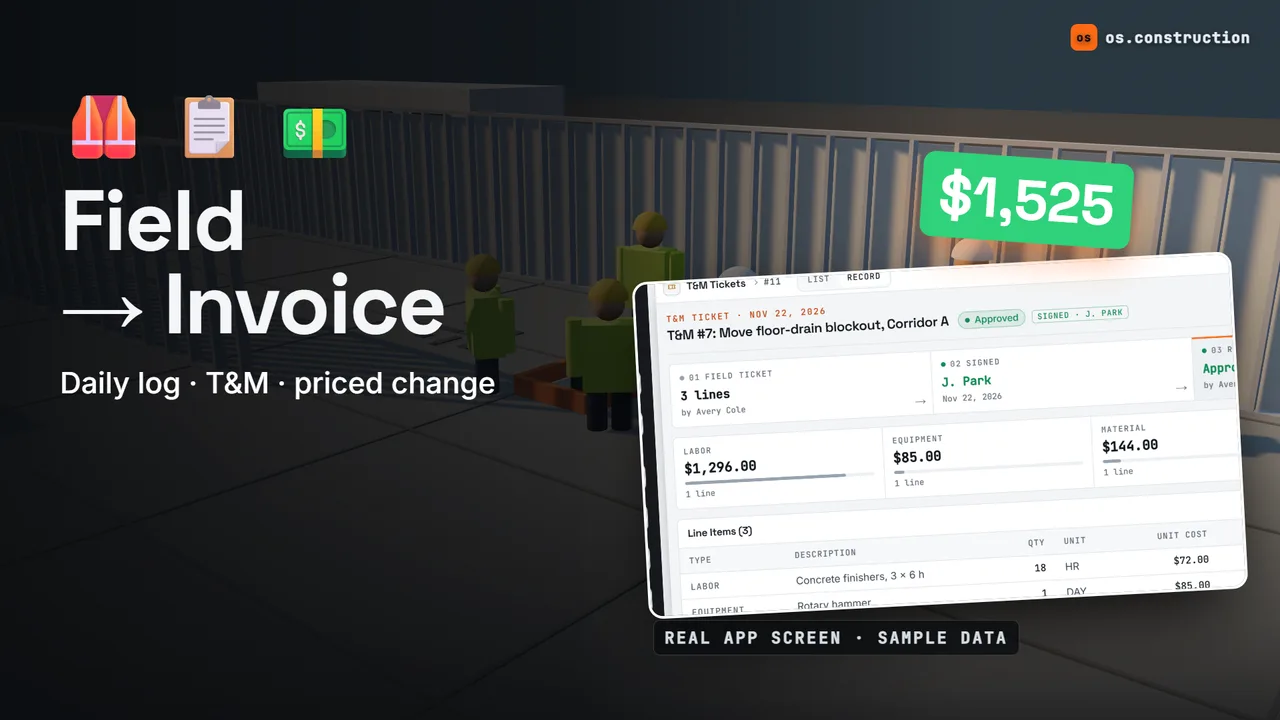 Loads from YouTube when played
Chapters
- 0:00 The 4 p.m. problem
- 0:26 Three records, one chain
- 1:07 Why the same day matters
- 1:40 Step 1: the daily log
- 2:55 Step 2: the T&M ticket
- 3:49 Step 3: sign-off and review
- 4:18 Step 4: carry it to a change event
- 5:24 Five mistakes that cost money
- 6:37 Month-end: the PM's check
- 6:54 Recap checklist
Video transcript
It's 4 p.m. Your crew just spent the afternoon on work that isn't in the contract. By tomorrow, that work is either a priced change, or a memory nobody agrees on.
In this walkthrough, we follow one piece of extra work from the field to the invoice in os.construction: the daily log, the T&M ticket, the sign-off, and the change event that gets it priced. Real app screens, sample data.
Three records carry the story. The daily log says what happened on site that day: who was there, for how many hours, and what equipment ran. The T&M ticket says what was extra, line by line, at what cost, and who signed for it. And the change event is where that cost gets priced and sent toward a change order.
Here's the honest part. In os.construction, a T&M ticket does not create a change event by itself. You carry it across: you create the change event, and attach the approved ticket as backup. From the change event on, the links are stored, all the way to a change order.
Why do it the same day? Because extra work gets harder to prove every day it isn't written down. A week later, was it four hours or six? Who directed it? The person who saw it may be on another job.
Picture a superintendent at 4 p.m. This is an illustrative example. The owner's rep asked for a floor-drain blockout in Corridor A to be moved. Three concrete finishers spent six hours on it. Before the crew leaves, she logs the day and writes the ticket, while everyone still agrees on the numbers.
Step one: the daily log. Open Daily Log from the project's tools, and pick the work date. It's one page per day, and the cards at the top total the workers, man-hours and entries.
In Manpower, add the crew: the company, three workers, six hours each, the cast-in-place concrete cost code, and the location, Corridor A. Add a short comment that points to the T&M ticket.
In Equipment, log what ran: a rotary hammer, six hours operating, with the same cost code and location.
Then a note with the time, the place and what you saw. At 3:40, the owner's rep directed the move, and it's not on the current drawings. That's an observation, not a price.
Back at the top, the day now shows three workers and 18 man-hours. Remember that number.
When the day's entries are in, check the acknowledgement and click Complete Day. A completed day shows who completed it and when, and its entries can't be changed until someone reopens it. Export PDF gives you the day's report to keep with the backup.
Step two: the T&M ticket. In T&M Tickets, under Financials, click Create. A title and a work date are required. Use the same date as the daily log, and say in the description who directed the work and why it's extra.
Now the lines. Labor: concrete finishers, eighteen hours at seventy-two dollars an hour. Equipment: the rotary hammer, one day at eighty-five dollars. Material: six bags of patch mix at twenty-four dollars each. Every line gets a cost code, and every amount is quantity times unit cost.
Create it, and the ticket starts as a Draft. The total is one thousand, five hundred twenty-five dollars: the sum of the lines. Notice what isn't here: markup. The ticket records cost. Markup belongs on the priced change.
Step three: sign-off. Type the field signer's name in Signed By, and submit. It's a typed name, not a drawn signature, and the stage strip now shows the ticket as signed.
An admin reviews it. Check the lines against the daily log for the same day: 18 hours on the ticket, 18 man-hours in the log. Then approve. A rejected ticket can be fixed and submitted again.
Step four is the one the app leaves to you. Open Change Events and click Create. Give it a clear title, set the scope to Out of Scope, and the type to Owner Change.
Add the lines on the same cost code as the ticket, with the same quantities and unit costs, so anyone can trace each dollar back to the field.
After you create it, add the approved ticket under Attachments: a name, and a link to the ticket. Now the backup travels with the change.
Then click Create PCO from Change Event. The lines copy onto a potential change order, and that's where pricing with markup, approval and the change order happen. Another walkthrough in this series follows it from there to the pay app.
A few honest limits, so nothing surprises you. A ticket has no PDF export today, attachments are links rather than uploaded files, and the sign-off is a typed name. The ticket's link to the change event is the one you add.
Now, five mistakes that cost money.
One: writing tickets at the end of the week. Every ticket needs a work date, and a phone browser is enough to write one. Write it the same day.
Two: a ticket that just says, extra work, six hours. Without a type, a quantity, a unit cost and a cost code on each line, the reviewer has nothing to check.
Three: changing an approved ticket. Watch what happens. Edit the labor hours from 18 to 21, and save. The ticket goes straight back to Draft, and the approval and signature are cleared. That's deliberate: an approved ticket always matches the lines that were approved. Title and description edits don't reset it.
Four: hiding markup in the unit costs. The ticket stops matching the field rates, and the cost can get marked up again when the change is priced. Keep the ticket at cost.
Five: a ticket that disagrees with the daily log. If the ticket says 21 hours and the log says 18, somebody has to explain the gap before anyone pays. Fix the record that's wrong, then submit it again.
One more illustrative example: a project manager at month-end. She filters T&M Tickets to Approved, then checks Change Events for each one. An approved ticket with no change event is cost that nobody has priced yet. That's the list to clear before billing.
Quick recap. Log the crew, the equipment and an observation the same day. Write the ticket with that work date, typed lines and cost codes, at cost. Submit it with the signer's name, and review it against the log. Then create the change event, attach the ticket, and create the PCO.
The free printable T&M ticket checklist is linked in the description, with the step-by-step guide at os dot construction. Try it on the sample project in a free trial workspace.
Your next step
Try it on the sample project.
Create an account, open the sample project and run this workflow yourself with sample data.
Try it in the app- Next · Cost & accountingBuyout savings to commitment change (full walkthrough)Watch the next walkthrough
- DocsT&M tickets: record extra work in the fieldRecord time-and-material work the day it happens. Labor, equipment and material lines with cost codes, a field sign-off name, and review to Approved.
- Video libraryMore in Cost & accountingEvery walkthrough, grouped by workflow.