As-built drawings explained: redlines to record set
What as-builts are, how redlines become the as-built and record set, capturing work before it's covered, and why as-builts can hold up final payment.
Diagrams from this explainer
Chapters
- 0:00 What as-builts are
- 0:19 Redlines, as-builts and record drawings
- 0:44 Where the changes come from
- 1:05 Capture it before it's covered
- 1:26 An illustrative example
- 1:49 Why utility as-builts go wrong
- 2:12 Closeout and final payment
- 2:33 Drawings in os.construction
Video transcript
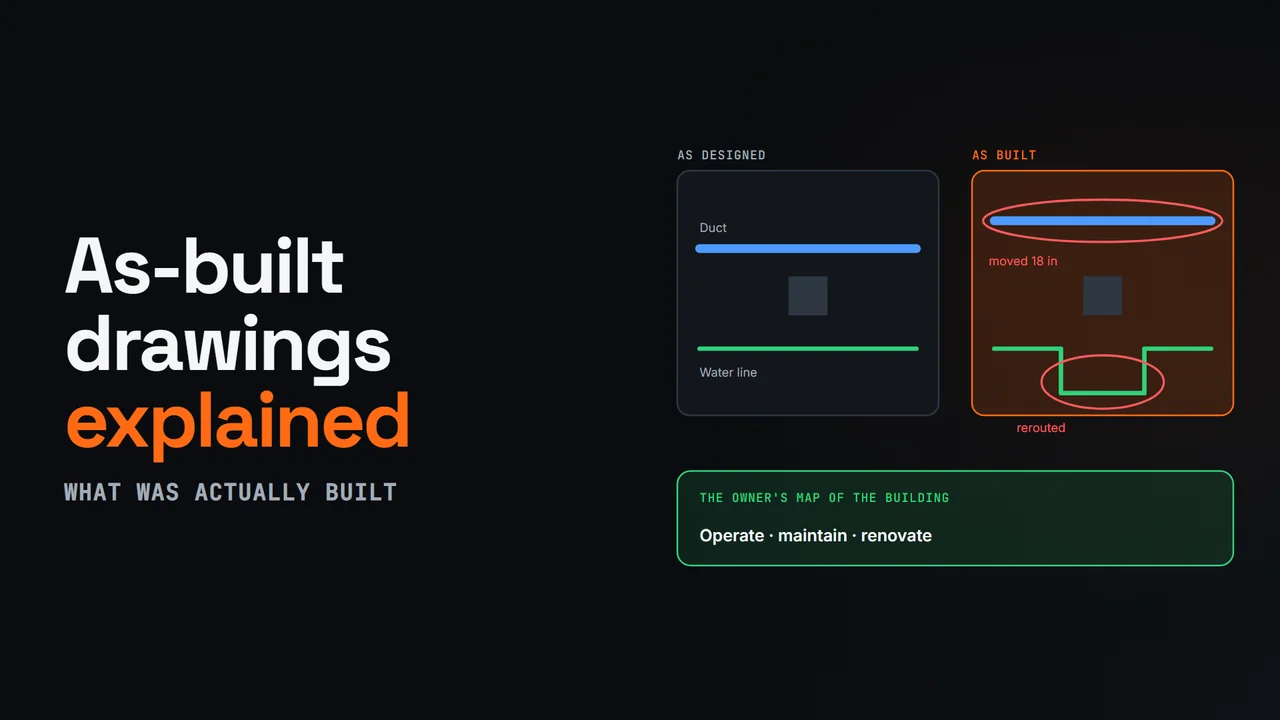
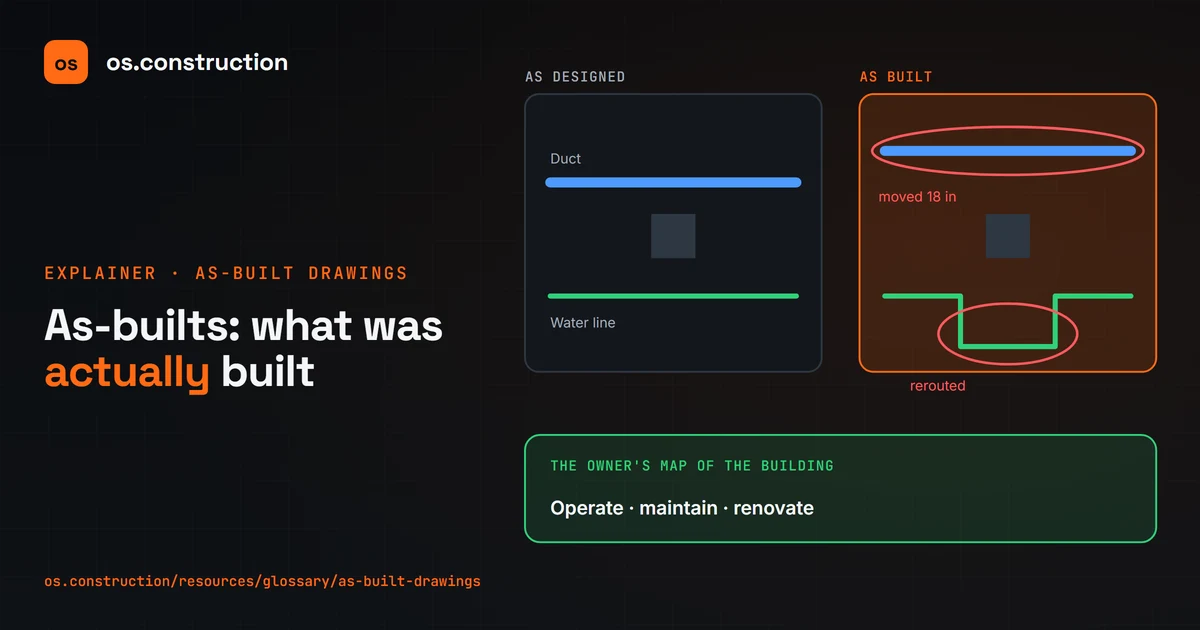
As-built drawings, often just called as-builts, show a building as it was actually constructed, not as it was designed. Every moved duct, rerouted pipe and field change ends up on them, and the owner relies on them for decades to operate, maintain and renovate the facility.
The terms get used loosely. Commonly, the trades mark up a field set in red as work happens: those are the redlines. The general contractor compiles them into the as-built set. Record drawings are often the clean set the architect or engineer prepares from those markups at closeout. Your specifications, usually Division 01, decide what is actually owed.
Changes reach the drawings from many places. An RFI answer adds a fire damper. An architect's supplemental instruction revises a detail. A change order adds scope. And sometimes the crew simply relocates a duct to clear a beam. Each one should be drawn on the sheet the week it happens, tagged with its reference number.
Underground and in-wall work is the hardest part, because it gets covered fast. Before a trench is backfilled or a wall is closed, record the location, the depth and the material, measured from fixed points such as the building grid or survey coordinates, and take photos. Offsets taken from a fence or a curb can drift when those move.
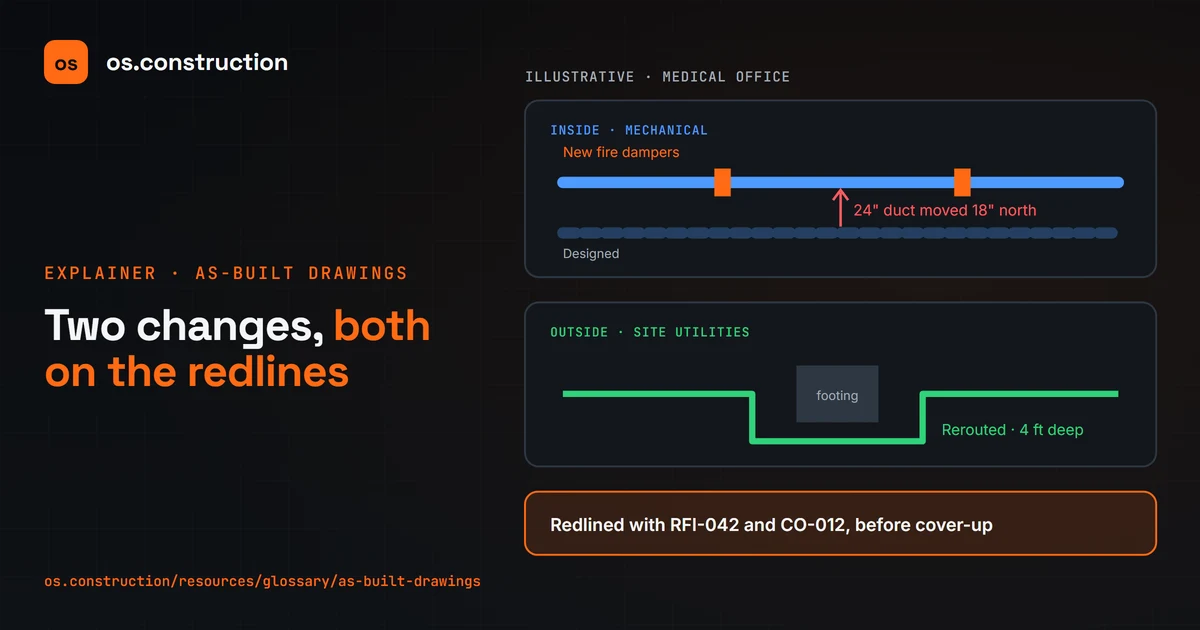
Here's an illustrative example. On a medical office job, the sheet metal crew moves a twenty-four inch duct eighteen inches north to make room for new fire dampers. Outside, the site contractor reroutes a water line around an unmapped footing, four feet deep. Both changes go on the redlines, tagged with the RFI and change order numbers, before anything is covered.
Utility as-builts are often wrong, for predictable reasons. They were drawn from memory after backfill. They show plan location but no depth. Abandoned lines were left off, so dead lines look live. And later repairs never made it onto the drawings. As-builts also never replace a locate: in the U.S., call eight-one-one before you dig.
As-builts are a common closeout deliverable, and many specifications list them among the items required before final payment or retainage release. Some owners make current redlines a condition of each monthly pay application. Keeping them current every month is far cheaper than reconstructing a year of changes at the end.
In os.construction, the Drawings tool keeps the current sheet set and every revision behind it, with markups on personal or published layers, and RFIs linked to the exact revision they concern. That keeps the changes that belong on the as-builts traceable from the project record.
Your next step
See it on one project record.
Create an account and open the sample project to see contracts, costs, changes and billing on the same record.
Try it in the app