Field change to pay app: one change, start to finish
A buried footing becomes change event 7, an $18,400 PCO, an executed change order and line 2 of the July pay app, on real app screens.
Chapters
- 0:00 The $18,400 surprise
- 0:34 Four records, one change
- 1:22 Step 1: Log the change event
- 2:31 Steps 2–3: Create and price the PCO
- 3:21 Step 4: Approve, then execute
- 4:16 Step 5: Close the event, post the budget
- 4:38 Step 6: Bill it on the next pay app
- 5:53 Check the G702 math
- 6:37 Who this helps
- 7:10 Mistakes to avoid
- 7:55 Recap checklist + try it yourself
Video transcript
An excavator bucket hits concrete that isn't on any drawing. An old footing, right where the elevator pit goes. Removing it will cost money. In this video, we'll follow that one surprise all the way onto a pay application, and check every number on the way.
One worked example in os.construction: a $16,000 cost, priced to the owner at $18,400, approved, executed, and showing up on the July pay app. It's all sample data, in the app's Sandbox Test Project.
First, the map. Four records carry a change from the field to getting paid. The change event says something happened. The potential change order, or PCO, prices it against a contract. Approving and executing that PCO changes the contract. And the pay application bills against the new contract sum.
Each record links to the one before it, so nothing gets retyped. When the owner asks where a number came from, you can walk backward from the pay app to the footing in the ground.
Why four records instead of one email? Because each stage answers a different question. Did something happen? What will it cost? Did the owner agree? Has it been billed? Mix those together, and changes get lost, or billed before anyone signs.
Step one: log the change event. A change event records a possible change early, before anyone has priced or approved it. The superintendent who finds the footing doesn't need the price. They need it on record the same day.
In the app, open Change Events and select Create. We give it a title that says what happened: Buried concrete footing at elevator pit. We set Scope to Out of Scope, because we believe the owner pays for this, and describe what the crew found.
Then a line item. Cost code 02-000, existing conditions. Forty cubic yards at $400 a yard. Leave the ROM amount blank, and the app multiplies quantity by unit cost. We also enter a Budget Change of $16,000. That's the amount that will post to the budget later.
Select Create Change Event. The detail page shows the cost ROM, $16,000, and a pipeline across the top: change event, RFQs, PCOs, change orders, and budget change. Right now, only the first stage is filled in.
Step two: create the PCO. A potential change order prices the change against a specific contract. On the change event, scroll to Potential Change Orders, pick the contract, here the owner's prime contract, and select Create PCO from Change Event.
The new PCO links back to change event 7, and its line item is copied over: forty cubic yards at $400, $16,000. No retyping.
Step three: price it for the owner. Our cost is $16,000. We bill the owner $460 a yard, so we change the unit cost to 460 and the amount to $18,400, then save the line. Grand total: $18,400. The $2,400 difference is our margin on this change.
Step four: get it approved, then executed. In os.construction, these are two separate actions, and the difference matters. Approved means the owner agreed. Executed means the contract change is final, and that's what the pay app counts.
Select Submit for Review, and the PCO is pending. When the owner signs, select Approve. Now look at the last stage. Executed: No. Contract not yet updated. Select Execute, and it reads Yes, contract updated.
Open Prime Contracts. The original contract is $2,400,000. Approved change orders were $25,870 before ours. Add $18,400, and they're now $44,270. The revised contract is $2,444,270.
Step five: close the change event. Closing is what posts its Budget Change. Back on change event 7, select Close. The budget stage now reads $16,000, posted on close. The cost ROM alone never moves the budget. Only the Budget Change amount does, and only when the event is closed.
Step six: the next pay application. A pay app bills the owner for work done this period, line by line, against the schedule of values. Retainage holds back a percentage, here ten percent, until the work is finished.
Open Payment Applications and select Create. Pick the owner contract and the period, July first to July thirty-first. The schedule of values lines come from the prime contract, and earlier applications fill in what's already been billed.
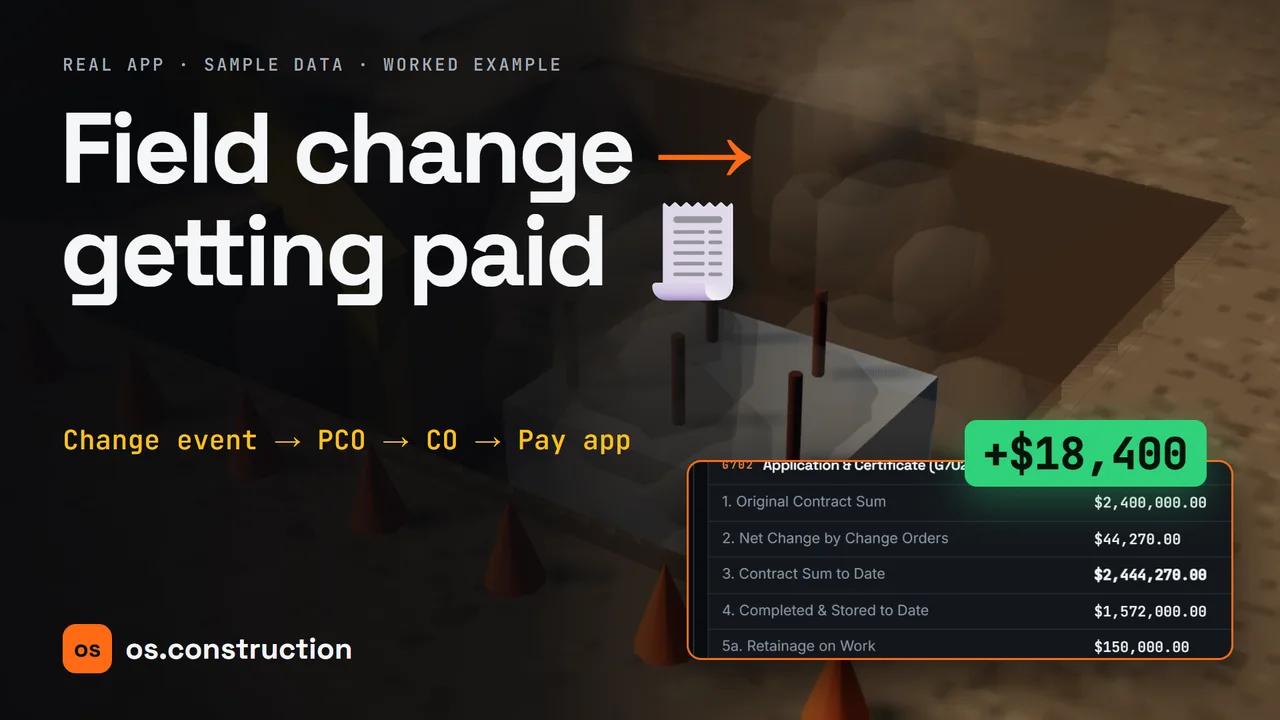
Look at the G702 summary. Line one, the original contract sum, is $2,400,000, the total of those schedule of values lines. Line two, net change by change orders, is $44,270: the executed changes, including our $18,400. Line three, contract sum to date, is $2,444,270.
Now bill this period. On the HVAC line, we enter $60,000 of work this period and select Save This Period. Ten percent retainage on that is $6,000. So the current payment due is $54,000.
Check it the long way on the G702. Completed and stored to date, $1,572,000, less retainage of $157,200, is $1,414,800. Subtract previous certificates of $1,360,800, and you get the same $54,000.
One honest note. In the app today, the continuation sheet lines come from the prime contract's schedule of values, and the executed change appears on the G702 as net change by change orders. If your owner wants change work as its own continuation line, agree on that format before you bill.
Who does this help? Picture two moments. They're illustrative, not measured. A superintendent finds the footing at seven in the morning. Before the hole is backfilled, a change event exists, with a description and a rough cost, so nobody has to remember it at month end.
And a project manager building the July pay app. Instead of searching email for which changes were signed, they open the pay app, and line two already carries the executed changes, traceable back to change event 7.
Now, mistakes to avoid. One: waiting to log the change until it's priced. Log the event first. A rough number is fine.
Two: assuming the cost ROM changes the budget. It doesn't. Enter a Budget Change amount, and close the event.
Three: treating approved as billable. The pay app's net change counts executed change orders. A PCO that's approved but never executed won't be there.
Four: also typing the change into the original schedule of values. Line one is built from those lines, and line two adds executed changes, so the same $18,400 would count twice.
Here's the checklist. Log the change event the day you find it. Create the PCO from the event, and price it. Approve, then execute. Close the event to post the budget change. Then check lines two and three on the next pay app.
To try it yourself, the os.construction docs walk through change events and PCOs, and pay apps, schedule of values, and retainage. The links are in the description. Thanks for watching.
Your next step
Try it on the sample project.
Create an account, open the sample project and run this workflow yourself with sample data.
Try it in the app- Next · CRMTrack a pursuit in the construction CRMVideo coming soon. Read: Construction CRM
- DocsChange events and potential change ordersHow a possible change is captured as a change event, priced as a potential change order, submitted and approved, and how exposure is tracked before anything is signed.
- Video libraryMore in Cost & accountingEvery walkthrough, grouped by workflow.