os.construction on your phone, in the field
There's nothing to install. Open app.os.construction in your phone's browser and the same records the office uses fit the screen: a bottom dock for your tools, a launcher for everything else, and a back button that behaves like you'd expect.
Dock at the bottom, everything else in Apps
On a phone, the dock moves to the bottom: Desktop plus your first pinned tools, four in all, and an Apps button that opens the full-screen launcher with search. Every window has a back button at the top. This drawing is a diagram of that layout, not a screenshot.
- Bottom dock: Desktop and pinned tools, four in all, plus Apps.
- Apps opens a full-screen launcher grouped by area, with search as you type.
- Each window has a back button and the record's breadcrumb at the top.
The same tools as the office
Not a cut-down field app: the field tools are the office's tools, on the same records and with the same permissions.
| Tool | What it holds | Where it goes next |
|---|---|---|
| Daily Log | Weather, manpower, notes, deliveries, delays | Day completed, PDF or CSV |
| Photos | Albums with description, location, GPS and tags | Linked from RFIs and other records |
| Observations | Safety and quality issues, with drawings | Convert to RFI or punch item |
| RFIs | Question, location, cost code, impacts | Assignees, then change events |
| Punch List | Issue, location, responsible trade | Worked and closed |
| Inspections | Checklists with signatures | Observations on failed items |
| T&M Tickets | Labor, equipment and material | Backup for pricing a change |
Uploading a photo opens the camera or photo library through the browser's file picker.
A super's ten minutes, on a phone
Riverside, level 3 corridor, sample data. The super opens the ceiling and finds no fire dampers where the drawings show them.
- Photos and an observation. Photos go into an album; the condition goes in as an observation with the drawing linked.
- Escalate it. On the observation, Convert to RFI creates an RFI linked back to it.
- The office has it now. The PM sees the RFI as soon as it's saved, sets assignees and records the likely cost and schedule impact.
- The day is on record. Before leaving, the super adds a note to the daily log and completes the day.
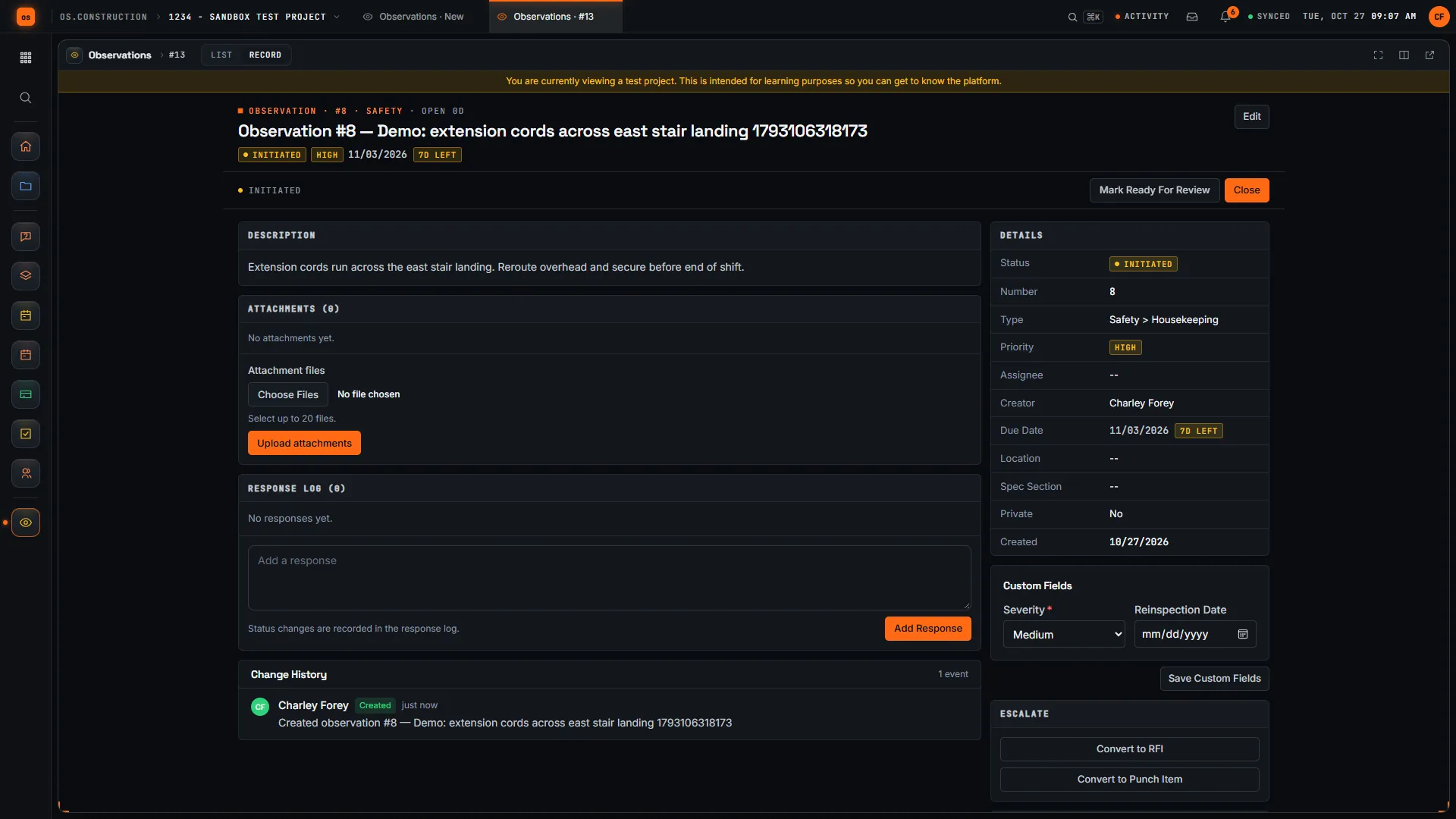
Watch the walkthrough · 2:18
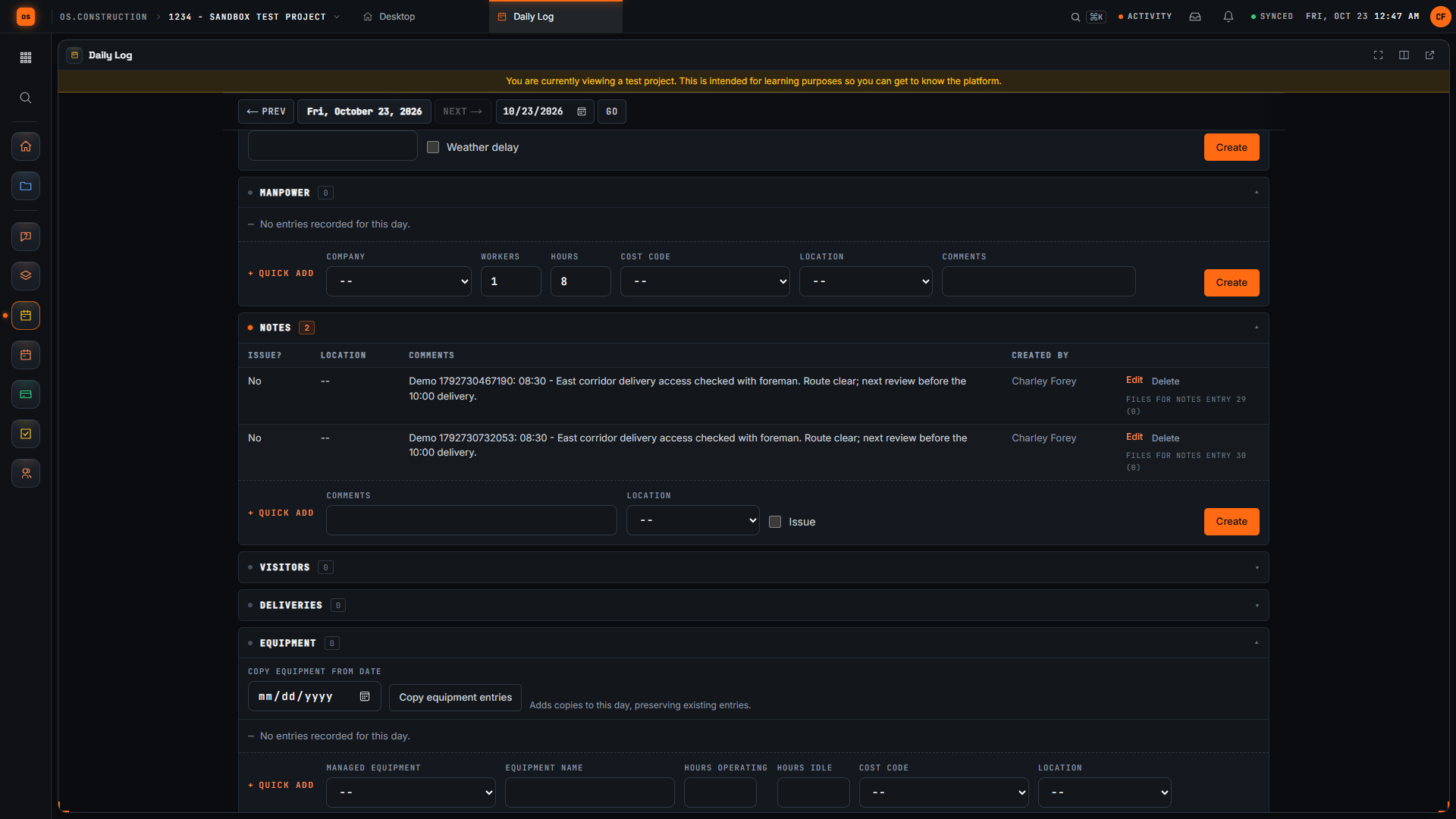
Add a note to the daily log
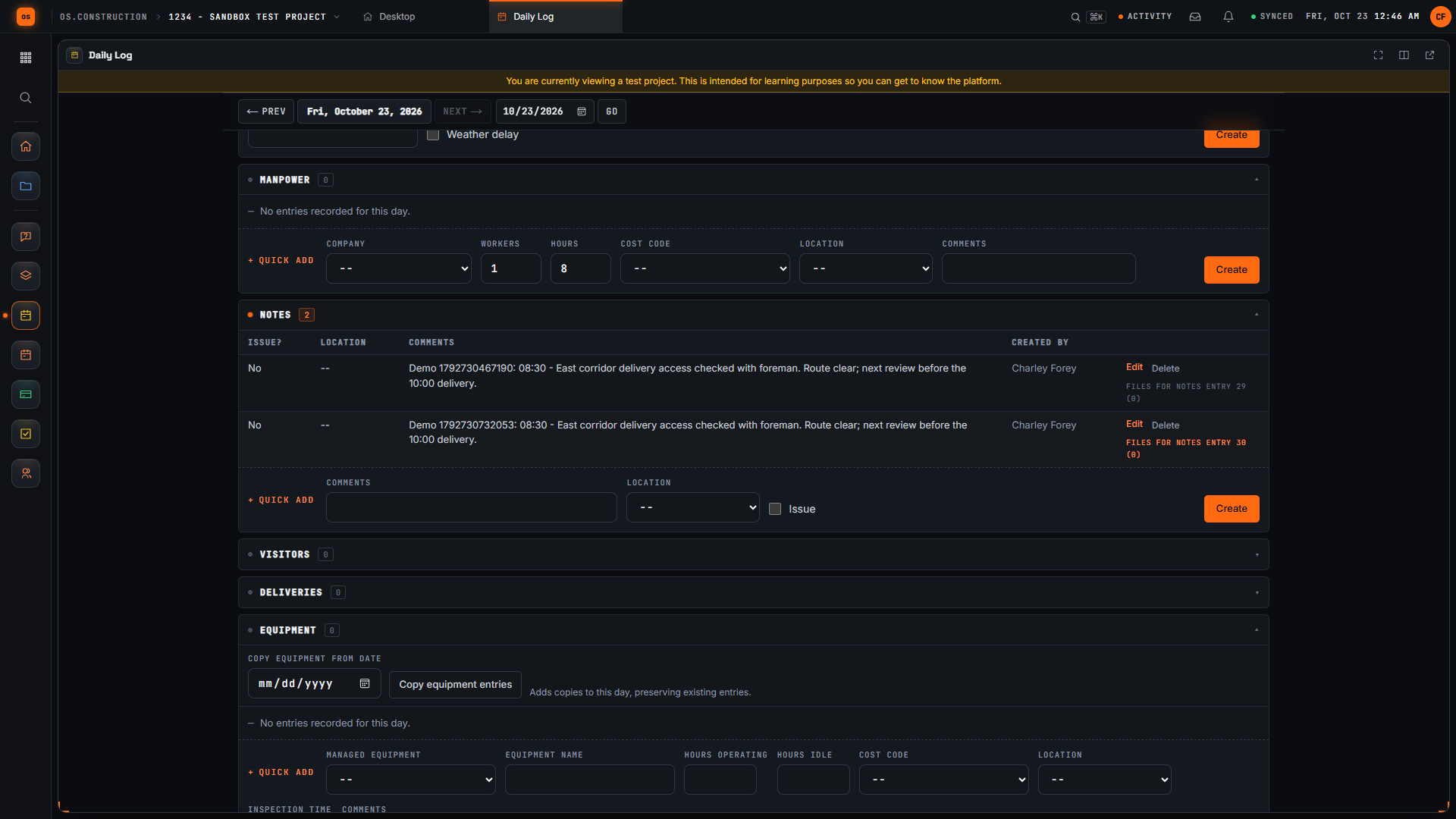
- 0:00Confirm the project and day
- 0:19Find the Notes section
- 0:52Write the field observation
- 1:14Save and inspect the entry
- 1:32Move to the previous day
- 1:48Return to the day
- 2:04Read the saved observation again
Read the transcript
Start with the project and date. We are in the local sample project's Daily Log, which opens on today. A useful field note tells the next reader what happened, where, and what needs attention next.
Scroll to Notes. This section has its own entry form. Keep an observation specific enough that another team member can understand the location, the time, and the next check without asking you to reconstruct the day.
Our invented example records an access check at the east corridor, the time, and a follow-up before the delivery. The unique demo reference distinguishes this sample note from other recordings. Replace the example with facts you actually observed on your project.
Select Create in the Notes form. Wait for the new row to appear, then read the saved comment. Checking the row confirms the submitted text reached the day's log instead of remaining only in the form.
Use Previous Day to leave this day's view. Each day has its own log. The Today link lets us return to the day where we created the note and check that the saved entry is still there.
Select Today to return to the day where we created the note. Check the displayed date, then return to Notes to find the saved observation.
Here is the same note in the Notes table after returning to the day. Read the time, location, observation, and next check. We have saved a specific field note and confirmed that another reader can find its context again.
Video page with chaptersStep-by-step guideMore in Field: daily logs & tasks
What's not there yet
Field tools need a connection today: offline capture is planned. Native iOS and Android apps are planned. Until then, use a current mobile browser; the same records are on the desktop.
Keep exploring
Related across os.construction
- DocsProjects and the record modelHow a job is structured in os.construction, what a record is, which record types the app has, and how links between RFIs, change events, change orders and pay apps keep the story connected.
- DocsField tools on phonesDaily logs, photos, observations, RFIs and punch items entered from a phone browser land directly in the job record, so the office sees what the field sees. Native apps are Planned.
- Blogos.construction is open for trialsThe app is live at app.os.construction. Start a 14-day free trial: project management and project financials today, with separate company accounting workflows and planned AI agents. Here's exactly what's live and what isn't.
- GlossaryChange EventAny occurrence on a project that might change cost, scope or schedule, logged before anyone knows whether it will become a change order.
- GlossaryDaily LogThe superintendent's dated record of each day on site: weather, manpower, work performed, deliveries, inspections, visitors, delays and issues.
- BlogField to ledger: why daily logs are financial documentsThe daily log is usually treated as a field formality. It's actually the first record of almost every number accounting cares about: labor, equipment, deliveries, delays and changes. Here's what to capture, and how it flows to cost, billing and claims.
Sample project included
Try this workflow on the sample project
Every trial workspace includes a sample project with sample data, so you can follow these steps in the app before touching a live job.
Want this on live job data?
Field tools run in your phone's browser today. Native iOS and Android apps and offline capture are planned; field tools need a connection.
14-day free trial. Pricing for paid plans isn't set yet. Talk to us. Already have an account? Sign in →
All figures are illustrative sample data, not a real project. Contract terms and state law decide how retainage, stored materials and change orders work on your job. Check both.