Submittals without the chase
Most submittal pain is the chase: who has it, when it's due, and which revision is current. Follow one glazing submittal from spec section to distribution, and watch the ball in court move without a single status email.
One submittal through review and resubmittal
- Step 1 · Submittals · sample data
Start from the spec section
On Riverside Medical Center, the storefront glazing product data is created against spec section 08 80 00 Glazing, with a type, a responsible contractor and a submittal manager. Create from Spec Sections can generate a draft for every section you pick at once.
- Step 2 · Workflow
Put the people in order
The submittal gets an ordered workflow: the glazing sub as submitter, then the PM and the architect as approvers, each with a due date. Use a saved workflow template or set the steps by hand. The first step is sent and holds the ball in court; later steps wait as Pending.
- Step 3 · Sub submits
The ball moves on its own
The sub responds with the product data attached. When everyone in the active step has responded, the next step is sent and the ball moves to the PM. Nobody has to email "it's with you now".
- Step 4 · GC review
Approved as Noted
The PM checks it against the contract documents and responds Approved as Noted with a comment. The ball moves to the architect. The workflow table shows each step's status, due date, returned date and response, so anyone can see where it stands.
- Step 5 · Architect review
Revise and Resubmit
The architect wants a different frame finish and responds Revise and Resubmit. Rev 0 comes back with that status, and the ball is back with the glazing sub. Other responses: Approved, Rejected, Forwarded for Review (to someone else, with a due date) and For Record Only.
- Step 6 · Revisions
Create Rev 1, keep Rev 0
Create Revision makes Rev 1 with its own workflow. The Revisions card lists every revision with its status and marks which one is current, so the field never builds from the superseded one.
- Step 7 · Approved
Rev 1 goes through
The sub resubmits, the PM and architect approve, and the submittal is Approved. Its delivery fields (lead time, required on-site date, confirmed and actual delivery) sit on the same record, so release for fabrication isn't tracked somewhere else.
- Step 8 · Close & Distribute
Record who got it
Close & Distribute sets the closed status, picks recipients and attachments, adds a message and records the distribution. It's a record of who received it; the app doesn't confirm external email delivery.
One Revise and Resubmit, fifteen days
Long-lead material can't be released for fabrication until the submittal is approved. With a 14-day first review, a 5-day turnaround and a 10-day second review, one resubmittal pushes delivery past the required on-site date. Illustrative sample data, not from a real project.
The submittal record
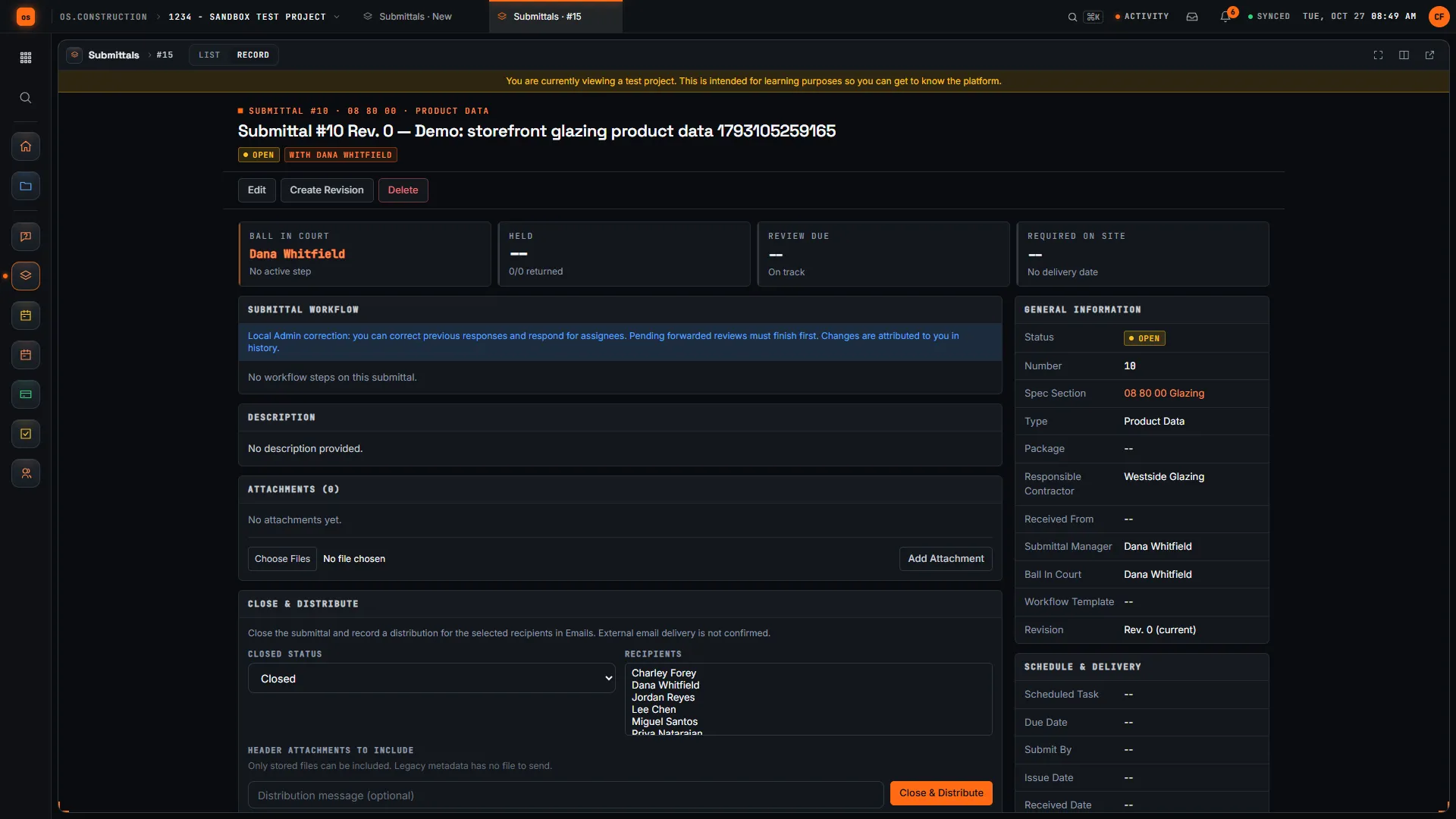
The record puts the chase on one screen: Ball in Court, Held, Review Due and Required on Site tiles across the top; the workflow, attachments and Close & Distribute below; spec section, responsible contractor, revision and schedule and delivery fields at the side. Create Revision is one click away.
Where else it shows up
RFIs can link to the submittal from their Related Items, a meeting topic can link to it, and it can be tied to a scheduled task in the Schedule tool and to sheets in Drawings. Analyze on the submittal list opens the submittals pack in Analytics (preview).
The whole review, as a table
| Step | Status | Revision | Ball in court |
|---|---|---|---|
| 1. Create from spec | Draft | Rev 0 | Nobody yet |
| 2. Build the workflow | Open | Rev 0 | Glazing sub |
| 3. Sub submits | Open | Rev 0 | PM |
| 4. GC review | Open | Rev 0 | Architect |
| 5. Architect review | Revise and Resubmit | Rev 0 | Glazing sub |
| 6. Create revision | Open | Rev 1 (current) | Glazing sub |
| 7. Rev 1 approved | Approved | Rev 1 (current) | Nobody |
| 8. Close & distribute | Approved · distributed | Rev 1 (current) | Nobody |
Keep going
Keep exploring
Related across os.construction
- DocsSubmittalsBuild the submittal log, group submittals into packages, generate them from spec sections, and route each one through ordered approvers with ball in court.
- GlossarySubmittalShop drawings, product data, samples or other documents a contractor sends to the design team for review before buying or installing materials.
- GlossaryBall in CourtWho has to act next on an RFI, submittal, punch item or other open record, so the item never waits without an owner.
- ExplainerA day as a project managerOne PM's day on a sample project: the desktop, an RFI answer, submittals, the daily log, an OAC meeting, tasks and a change event, all on one record.
- PlatformSubmittal management (use case)How os.construction handles submittal management on one record.
- DocsRFIsCreate, route, answer and close RFIs in the app. Ball in court, distribution, official responses, related items, private RFIs and PDF export.
Sample project included
Try this workflow on the sample project
Every trial workspace includes a sample project with sample data, so you can follow these steps in the app before touching a live job.
Want this on live job data?
Submittals, workflows, revisions and packages are live in os.construction. Closing and distributing records who got it; it doesn't confirm email delivery.
14-day free trial. Pricing for paid plans isn't set yet. Talk to us. Already have an account? Sign in →
All figures are illustrative sample data, not a real project. Contract terms and state law decide how retainage, stored materials and change orders work on your job. Check both.